
Help Centre › Clients & patients
Pet tags
Mark a patient Bites, Nervous or Medical alert, so everyone sees it before handling the animal.
A pet tag is a short coloured label on a patient, such as Bites, Nervous or Medical alert. Your practice decides what the tags are.
A patient's tags show:
- in the patient box on the consult screen, and on the other screens that show it (hospital and boarding stays, sales, vaccinations, the patient's history). When the box is open they are at the top of it; when it is folded they are on its header line, so you always see them;
- on the patient's card in the consult queue, and on the hospital and boarding lists;
- on the patient's appointments in the booking list (day and week, and the walk-ins beside them), and under the patient when you make a booking, so reception sees them before the animal arrives.
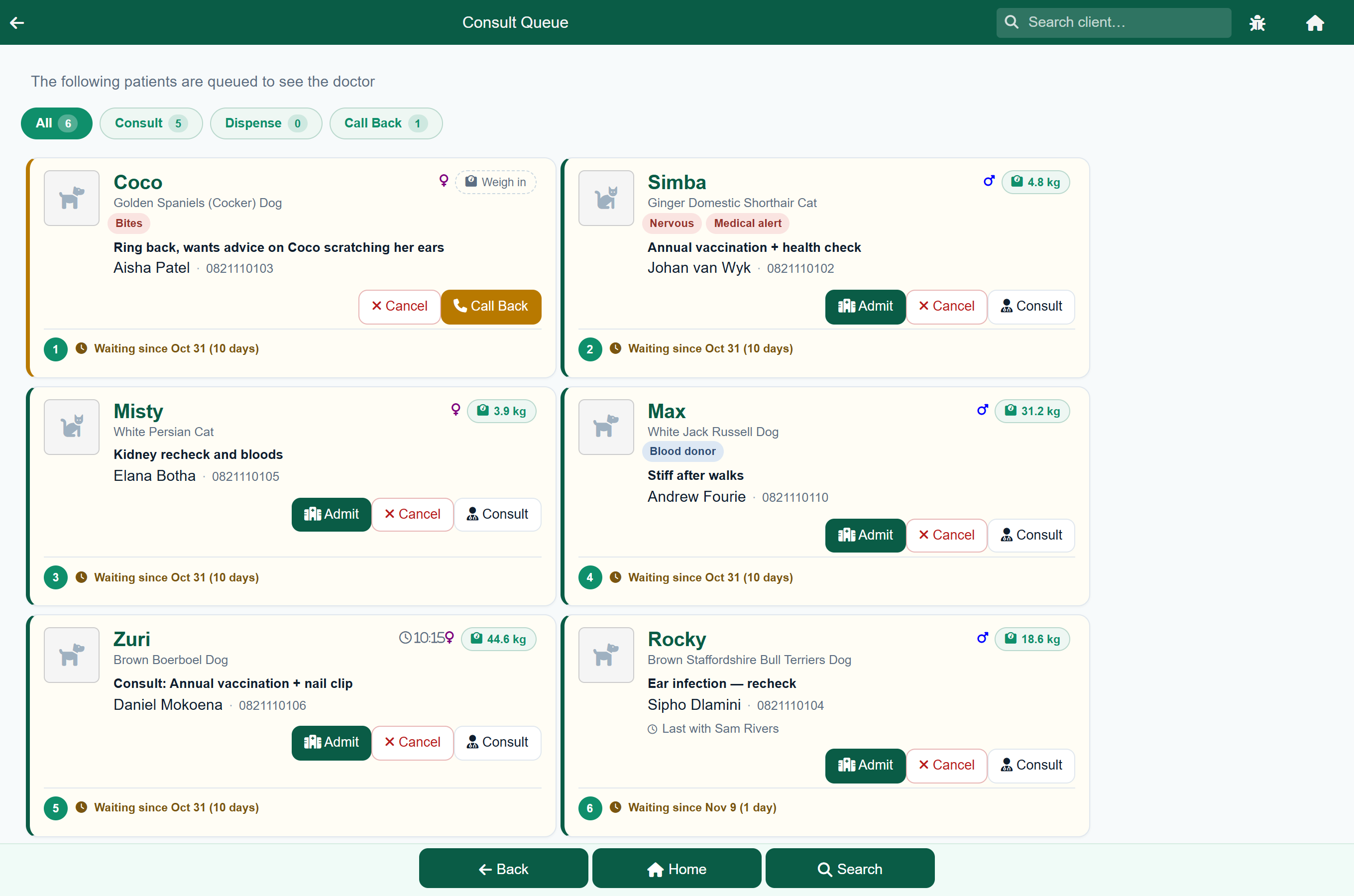
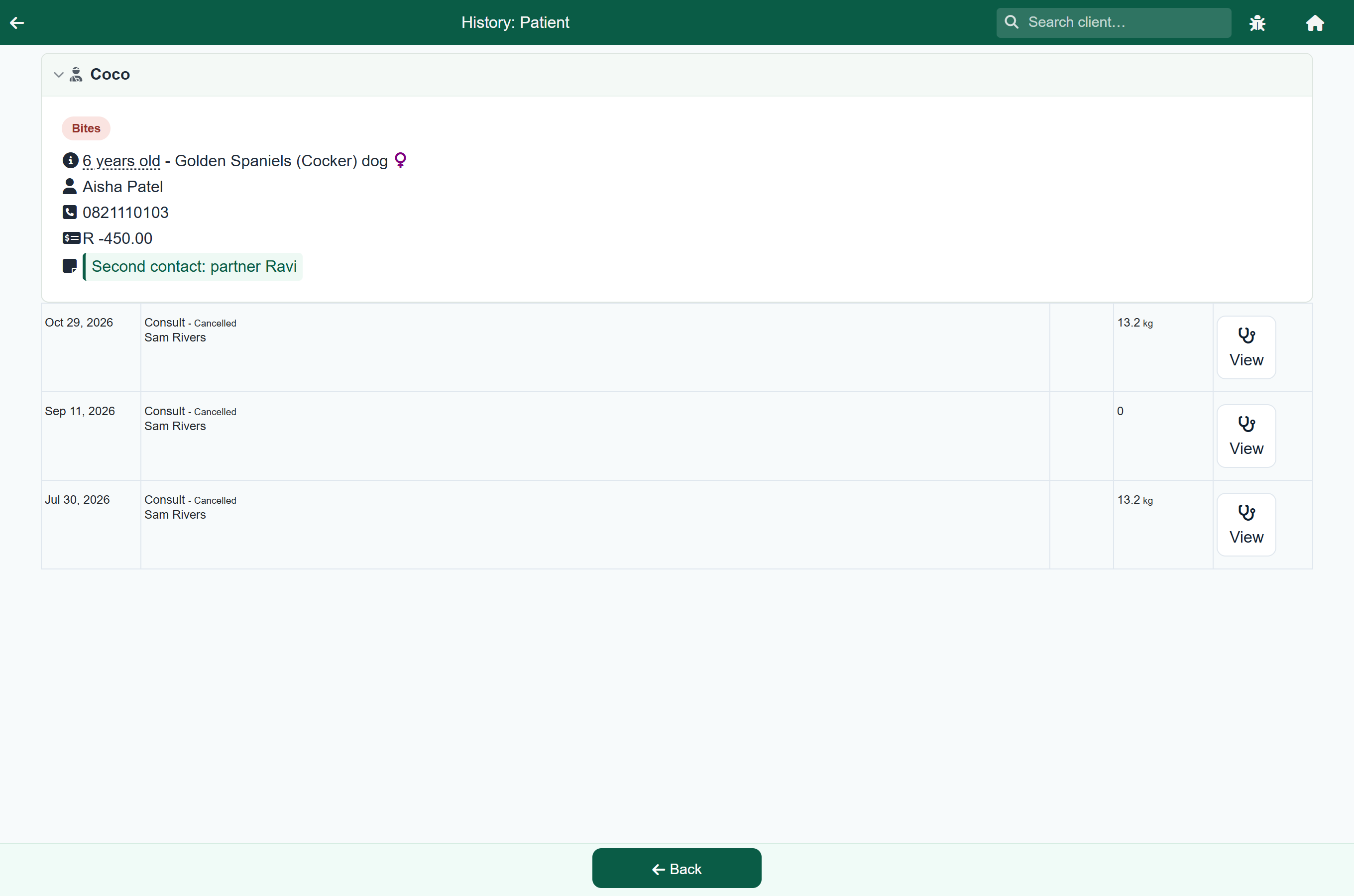
Use a tag to catch the eye and the patient's Comment on Patient for the detail, for example the tag Medical alert and the comment “Depressed on Rimadyl”.
Setting up your pet tags#
Home›Settings›Pet Tags
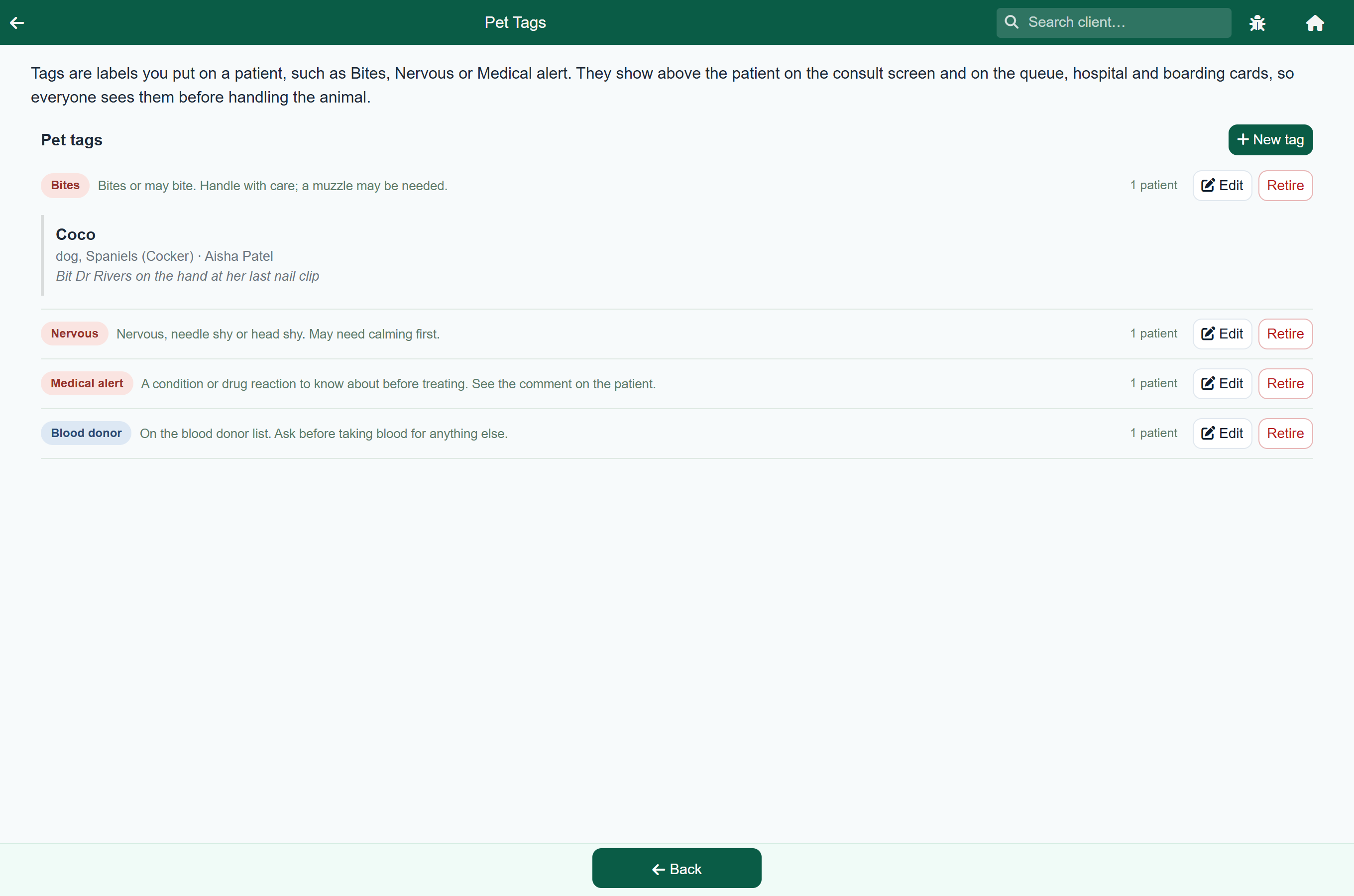
A practice with no pet tags yet is offered three to start with: Bites, Nervous and Medical alert, all in red. Press Add these three to create them.
To add your own:
- Press New tag.
- Type a short Name, such as “Blood donor”.
- Optionally, fill in What it means so staff know when to use the tag.
- Pick one of the six colours.
- Press Save.
Putting a tag on a patient#
Client›Account Details
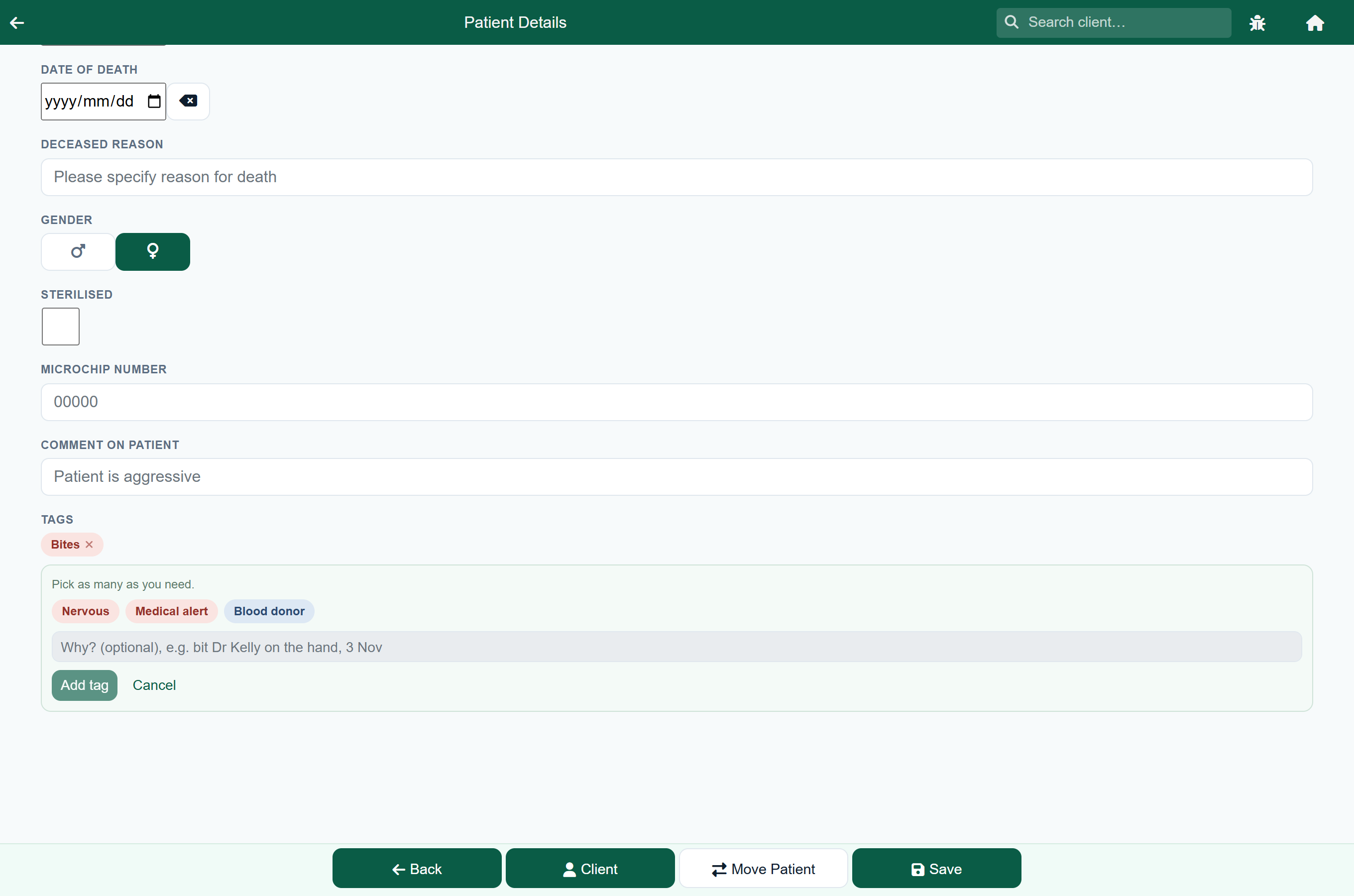
- Press Edit on the patient. On the consult screen and the other patient screens, the pencil on the patient box opens the same form.
- Under Tags, press Add tag.
- Pick one or more tags.
- Optionally, type the reason in the Why? box, for example “Bit Dr Kelly on the hand, 3 Nov”.
- Press Add tag.
The tag is saved straight away; you do not need to press Save on the form. Press the × on a tag to take it off.
Seeing every patient with a tag#
Home›Settings›Pet Tags
Each tag shows how many patients carry it. Press the number, for example 45 patients, to list them with their owner and the reason, if one was given. Patients that have died are listed last, greyed out.
Retiring a tag you no longer use#
Press Retire on the tag, then Retire it to confirm, or Keep it to cancel.
Retiring takes the tag off every patient carrying it, and out of the list you pick from.