
Help Centre › Client portal
The client portal
What your clients see when they sign in: their animals, their appointments, their account and their visit history.
The client portal is a website for your clients at client.fastvet.net. Each client sees only their own records. This page describes what they see, so you can talk them through it.
Turning it on#
Three switches control the portal, in the Client Portal & Shop card under Features & Modules:
| Switch | Effect |
|---|---|
| Client portal | Whether clients can sign in. |
| Online booking | Whether signed-in clients can book and move their own appointments. |
| Repeat medication requests | Whether signed-in clients can ask for a refill online. |
How a client gets access#
The portal finds a client by the email address on their client record.
- Make sure the client's email address is correct on their record.
- The client goes to client.fastvet.net and creates a login with that address.
- FastVet links the login to their client record and opens a short setup.
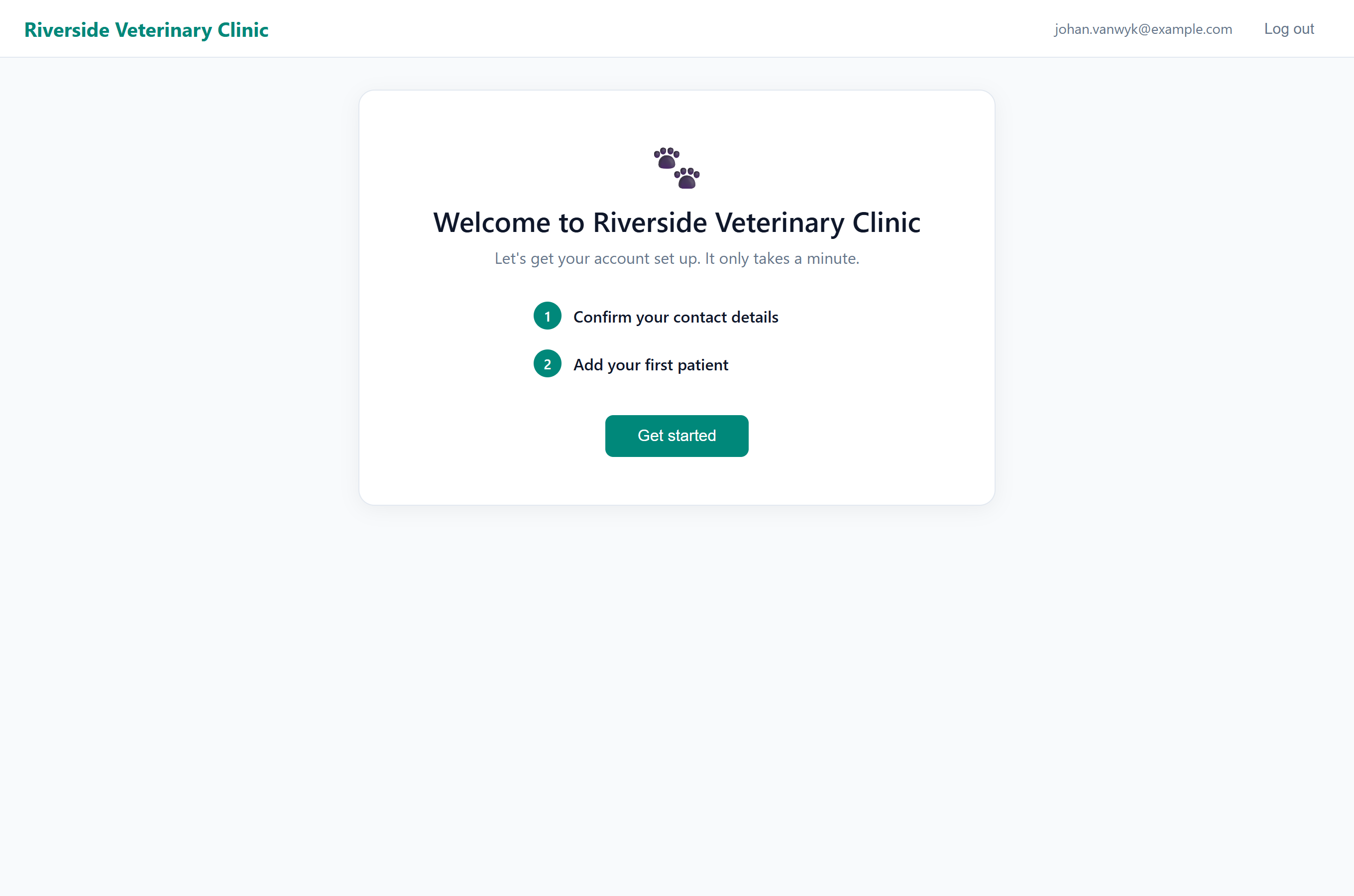
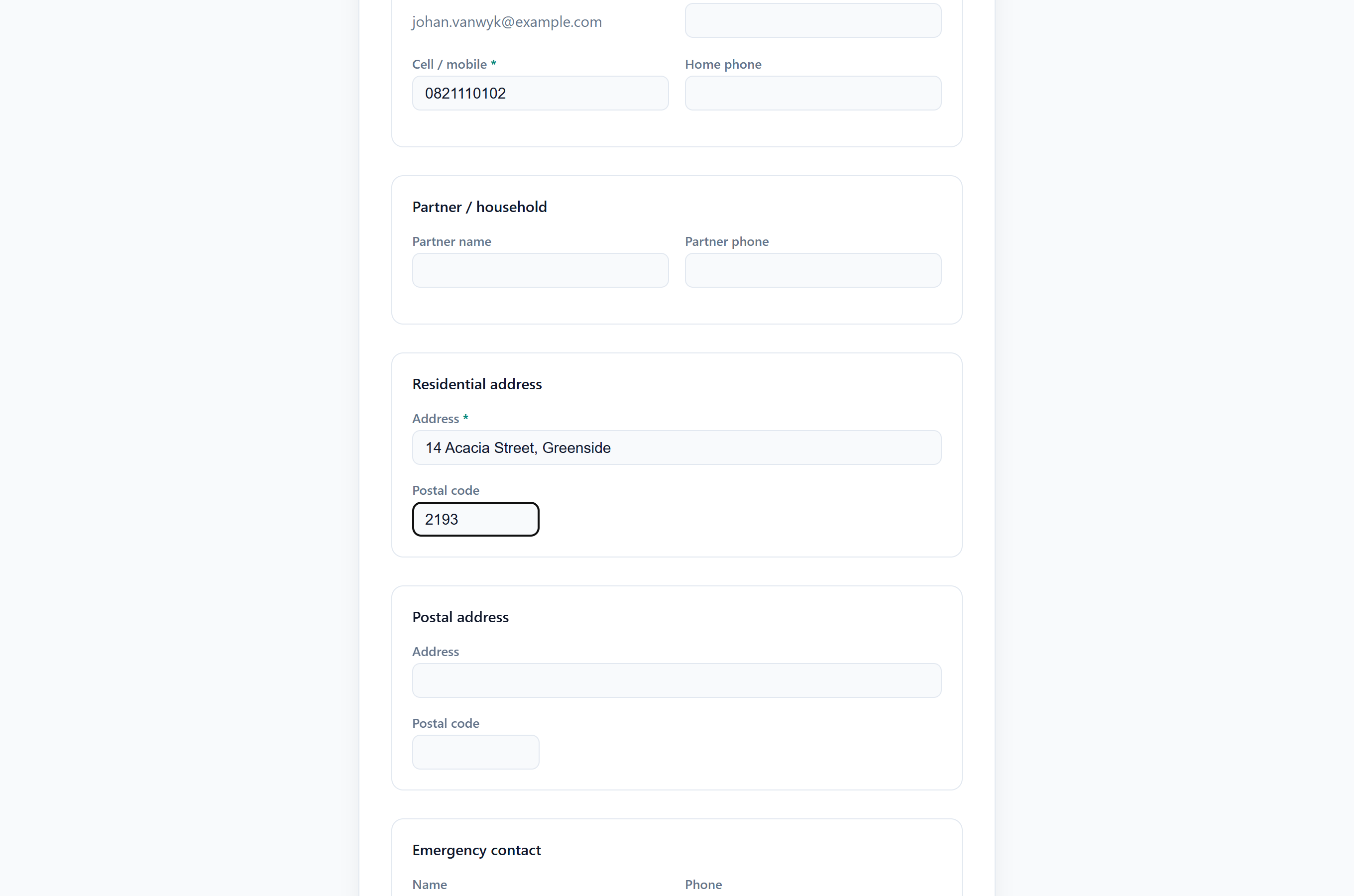
What the setup asks for depends on what you already hold. A client who is new to the practice gets two steps: Your details confirms their contact details, where first name, last name, cell number and residential address are required, and Add your patient asks for an animal, which they can pass with Skip for now.
A client who is already on your books is not asked for a first patient, because they have patients already. They confirm their details and finish on their patient list, where they can check the patients you hold for them. This is the usual case when you invite an existing client.
The setup comes back each time they sign in until all the required details are filled in and at least one patient is on their record. A client who says the portal “keeps asking me to get started” has a required detail missing, or no patient on file.
Give each client an email address only they use. If two client records share one address, the portal cannot tell which person is signing in. For a couple who share an inbox, keep one client record with both animals on it. If the same address is already on two records, merge them before either person registers.
Health reminders#
At the top of the dashboard, the client sees what is coming up or already late across all their animals: Simba's Rabies was due on 24 May 2026. Each line offers Book, which opens the booking screen with that patient already chosen.
It is the same calculation the vet sees on the consultation screen, so the owner and the practice cannot come to disagree about whether a booster is due. What differs is the wording: a vet reads Rabies 6 weeks overdue with the animal in front of them, and an owner reads the date, because the date is what they can ring about.
- Something already late is set in bold; something merely coming up is not.
- How far ahead it looks is your own notice period. Shorten that and the panel goes quiet sooner, for the same reason the reminders do.
- Nothing due means no panel at all, rather than a panel saying nothing is due.
- A patient that has died is never listed.
The dashboard#
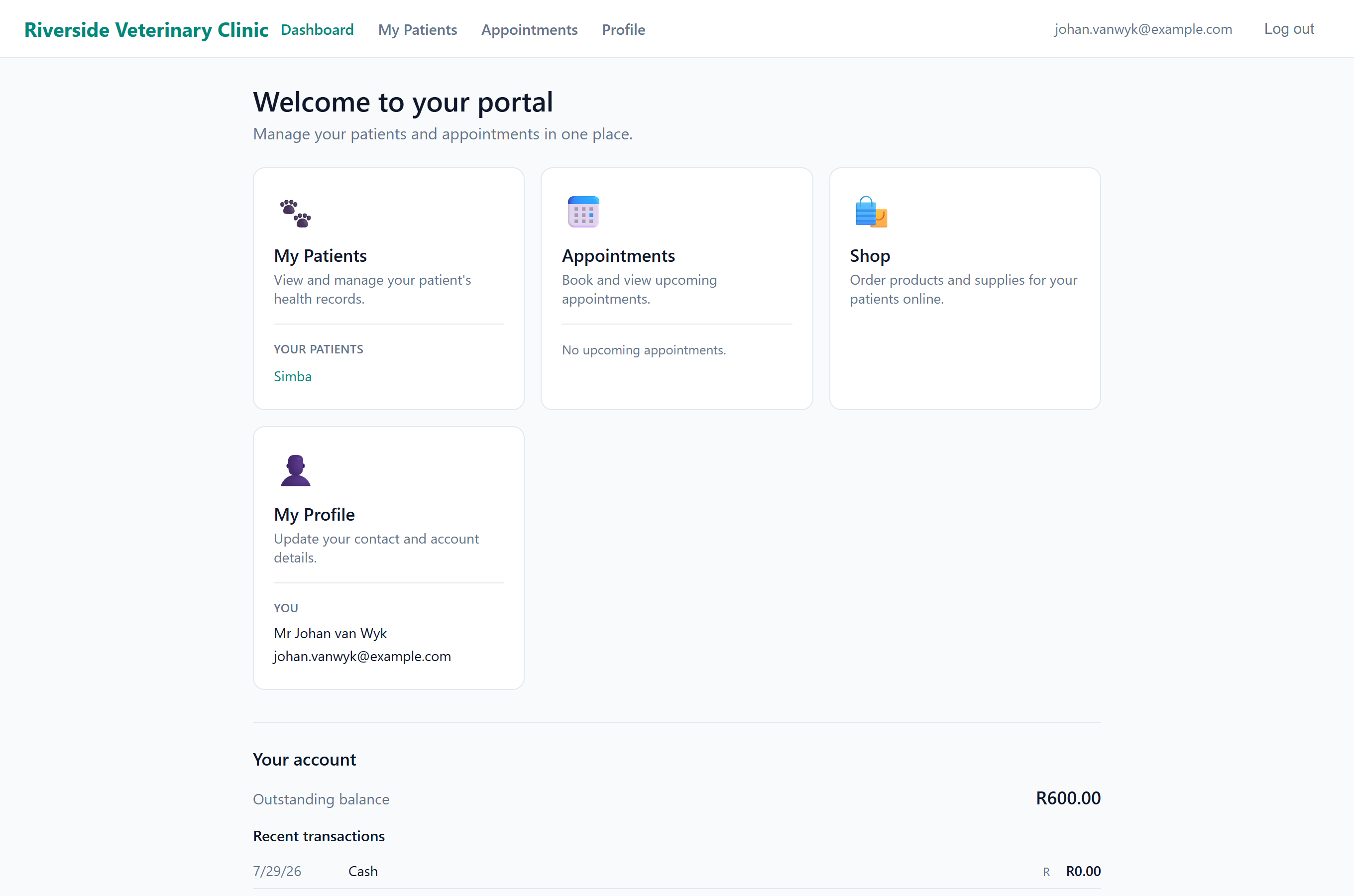
The first screen after signing in greets the client by name and shows their own animals, each with its species and breed. Tapping one opens that patient. A dashed Add a patient tile sits at the end of the row.
Under the animals are the two things a client usually signs in to check:
- Next visit: the date and time of their soonest appointment, which patient it is for and what it is for, with a View or reschedule link. If nothing is booked it offers Book an appointment instead, or tells them to phone you when online booking is off.
- Outstanding balance: what they owe and when they last paid. If you take payments online, a Pay balance online button appears, but only when money is actually owing. A settled account reads Account settled, and money you are holding for them reads In credit.
Below that are panels for Medications, Previous visits and Recent transactions, then links to the Shop (if you run the online shop), Estimates and My Profile.
The menu across the top of every screen carries Dashboard, My Patients, Medications, Estimates, Appointments, Shop if you run the online shop, and Profile. On a phone or a tablet the same links sit behind the menu button at the top right.
The Medications panel shows one line for each patient on medication, the next repeat due, and a Request a refill link when a refill can be requested. The full list is on the Medications page.
Previous visits lists consultations and grooms, newest first, and Recent transactions lists the account. Both show the most recent six with a Show all button underneath, so a client of ten years does not land on ten years of history.
Their animals#
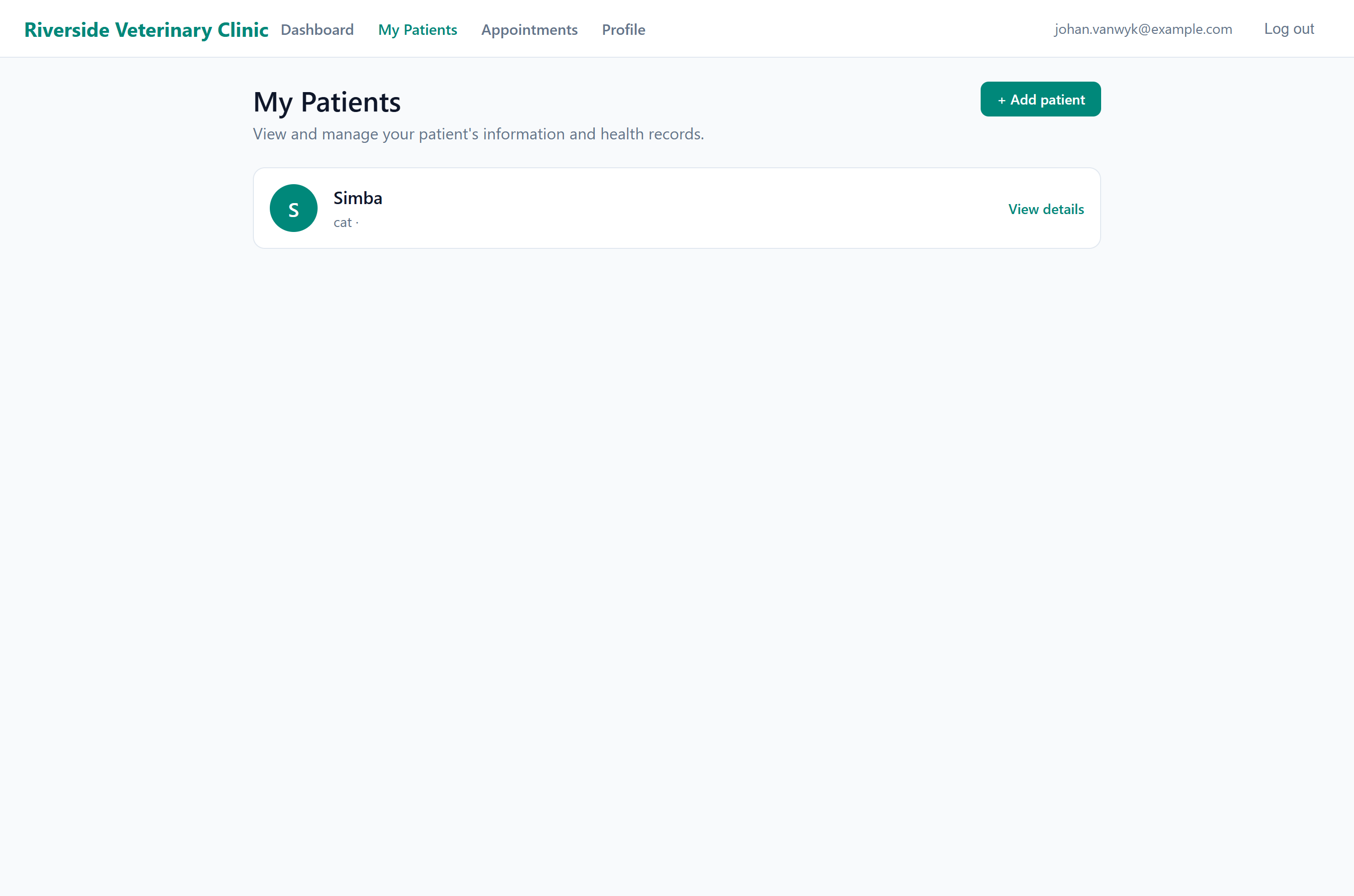
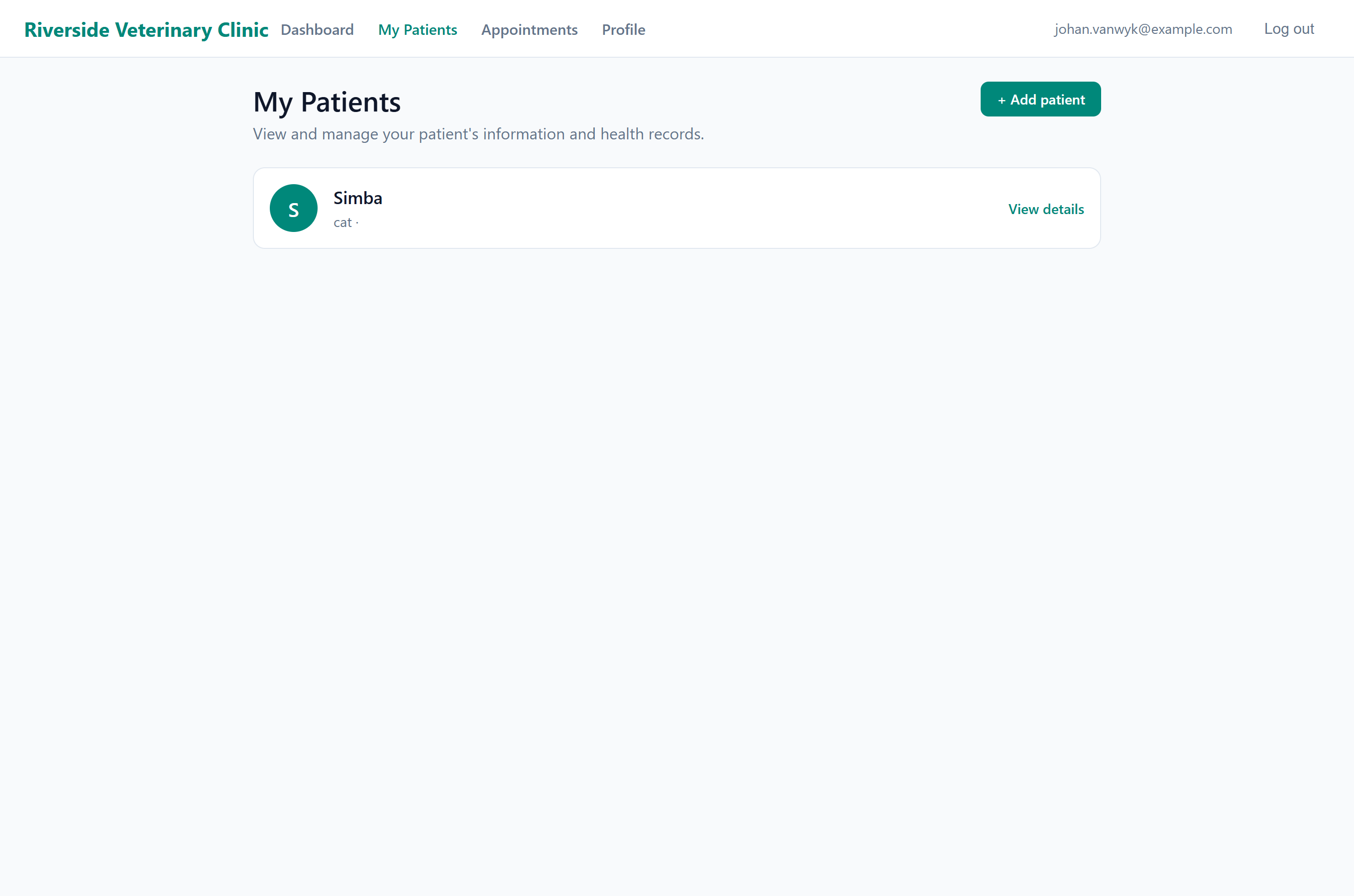
Under My Patients, clients can view and correct their animals' name, species, breed, colour, sex and date of birth. Their changes go straight onto the patient record.
If a colour is not on your list, the client can choose Other… and type their own.
Clients can add an animal at any time with + Add patient, using the same six fields.
The patient's photo is shown wherever the animal is listed, and the client can put one up themselves from the patient's own page: Add a photo, or Change photo when there is already one. It is the same photo you see on the patient record, so a photo the client adds is on the record for you too, and one you took is on their portal. An animal with no photo shows the first letter of its name instead.
Vaccinations appear under the patient's details: what it has been given, when, and when the next dose is due. It is the owner's own copy of the record card, so the question "is he up to date?" does not have to be a phone call. Read-only - a client cannot add or change a dose - and only for a practice using vaccination records. A patient with nothing recorded shows no block at all rather than an empty table.
Booking an appointment#
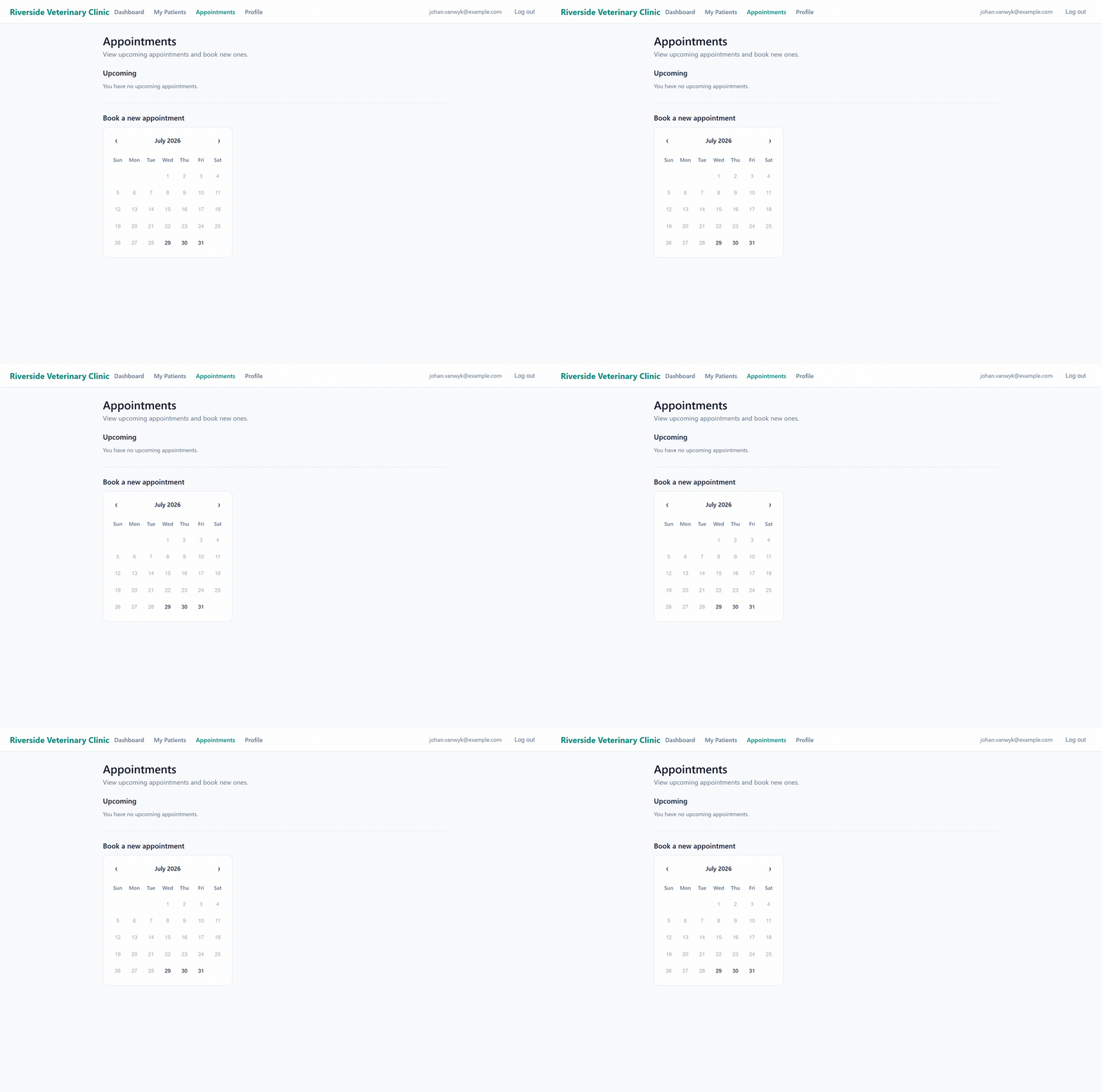
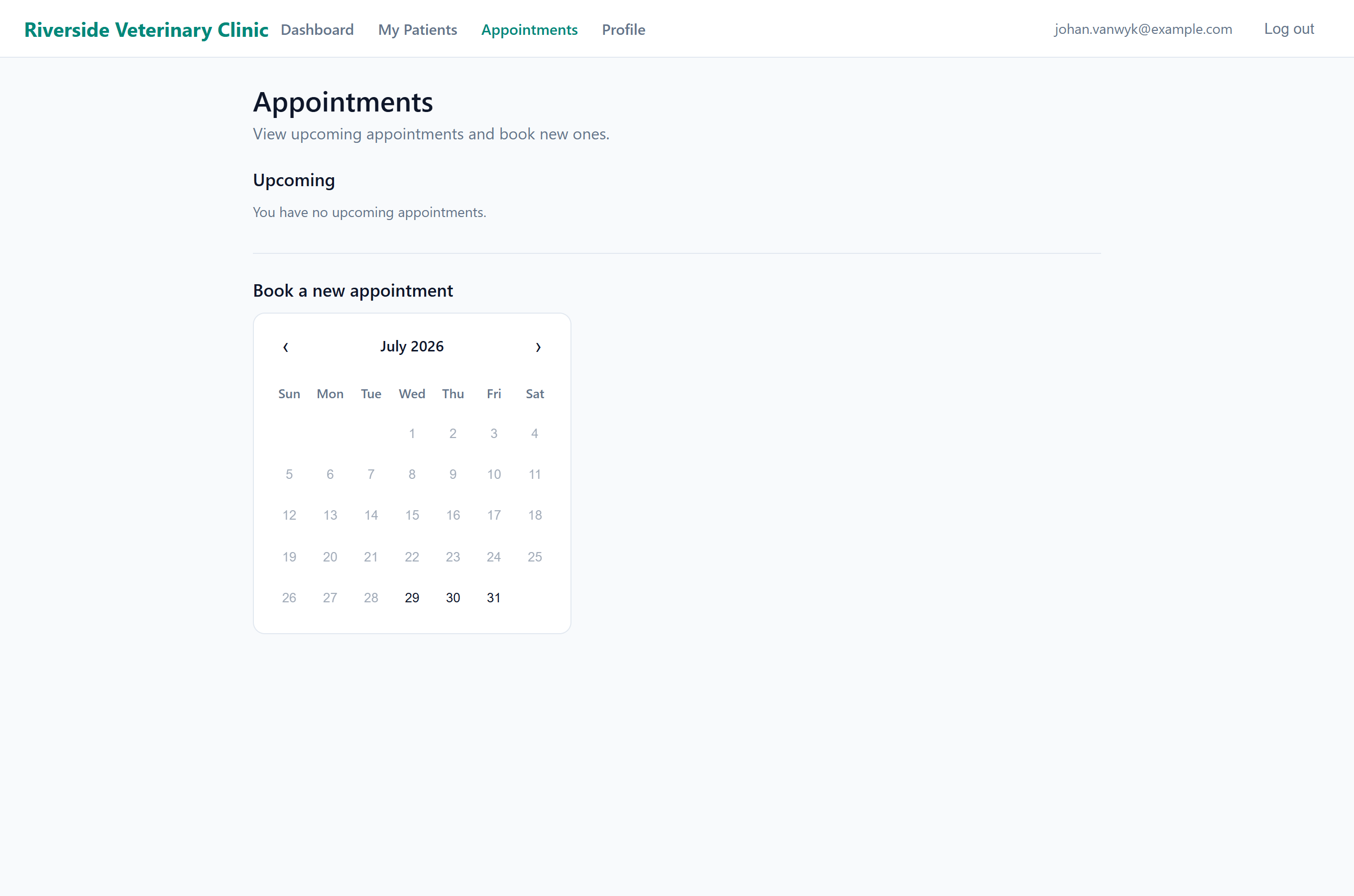
On the Appointments page, under Book a new appointment:
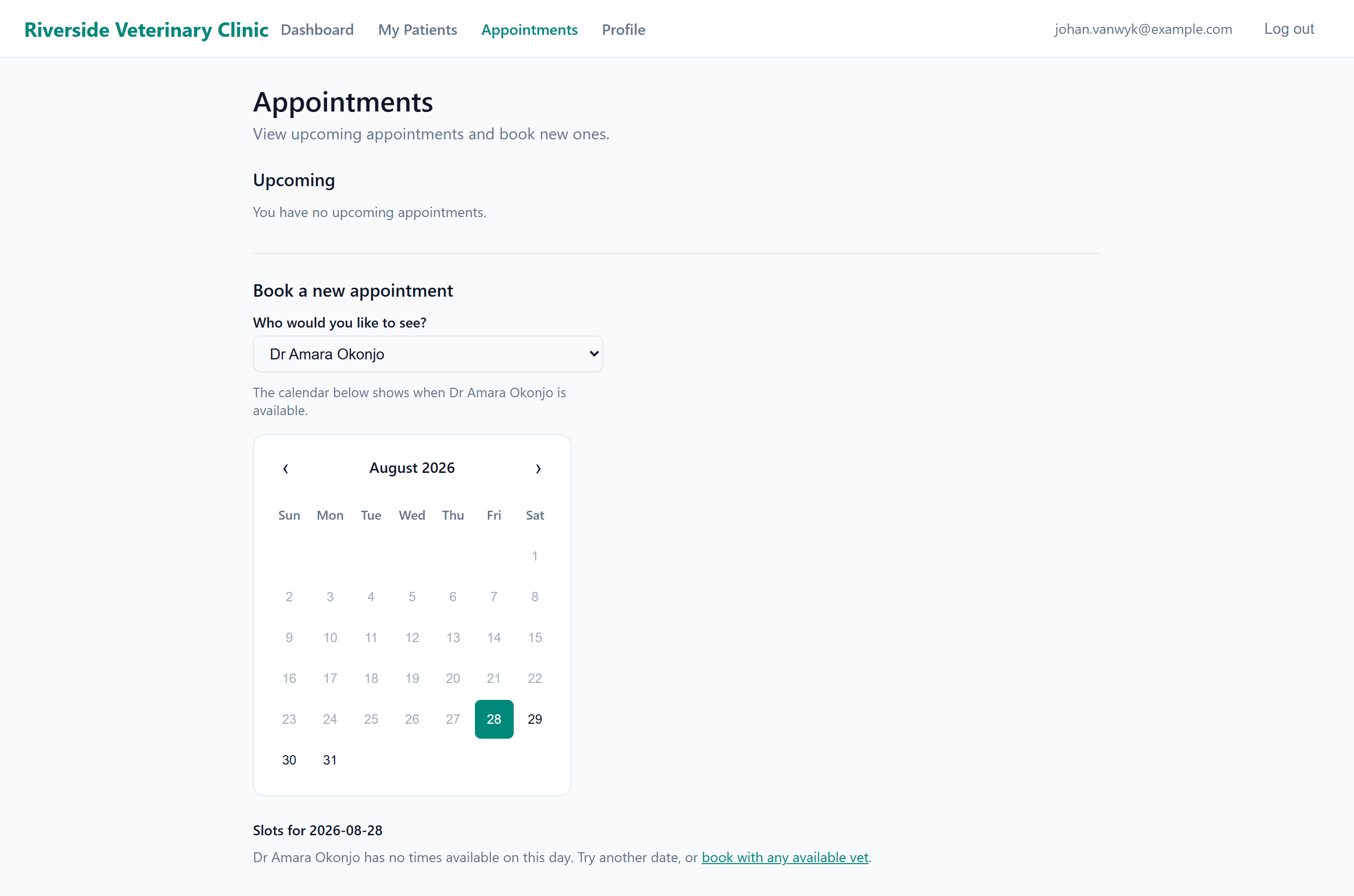
- Under Who would you like to see? the client chooses a vet, or Any available vet.
- They pick a day on the calendar, then a time marked Available.
- They choose the Patient and a Reason.
- They press Book appointment. It appears on your booking list.
Clients see only free times, on days that have appointment slots. A full slot is marked Full and cannot be chosen.
If you use per-vet availability, the calendar shows only the times the chosen vet works. On a day they do not work, the client is told to try another date or to book with any available vet. Unlike reception, a client cannot book a vet outside their hours.
With per-vet availability on, Any available vet is limited to the vets who are free at that time. When all of them are booked, the client sees “All of our vets are booked at that time” and must choose another time.
Clients can move their own appointments#
With Online booking on, a client who opens an upcoming appointment can change its date, time, patient, vet and reason, and save it. You are not notified.
| A client can | A client cannot |
|---|---|
| Move the appointment to another free time | Cancel it; they must phone you |
| Change the patient, reason or vet | Book a full slot, or a day with no appointment slots |
| Move it to a time the vet does not work, if you use per-vet availability | |
| Change anything while Online booking is off | |
| Change an appointment that has been cancelled, or whose day has passed |
To keep the diary under reception's control, turn Online booking off and leave the portal on. Clients still see their appointments.
Account and history#
- Their balance and recent transactions, on the dashboard.
- Their visit history, with the items and cost of each visit.
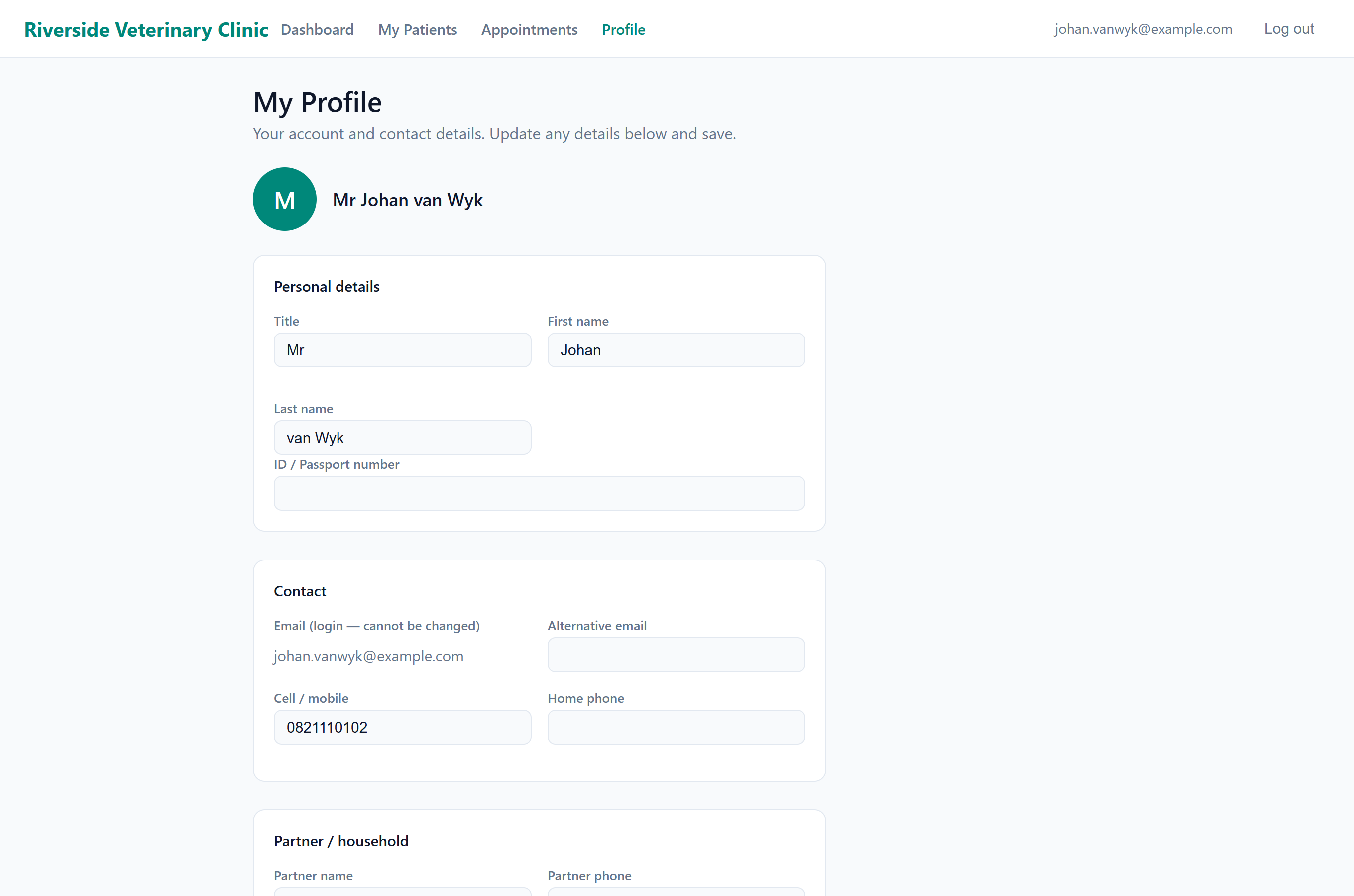
- Their own contact details, under Profile, which they can correct and save.
A visit shows the date, patient, visit type and weight, then the same lines as the invoice, with the subtotal, VAT and total. A protocol reads there as it reads on paper: one charge, with the parts you chose to show listed under it as included, so the figure the client sees is the figure they were charged. Under the heading “Notes for you” it shows the consultation's Client Notes.
Get my invoice on a visit opens the invoice itself, the same document and the same PDF you would get from Share invoice. If you have already shared that invoice it is the link you sent, not a second one, so there are never two copies of one charge in circulation. It appears only on a visit that was charged: a consultation that was never finished, or one whose charge was reversed, has no invoice and offers no button.
Medications and refill requests#
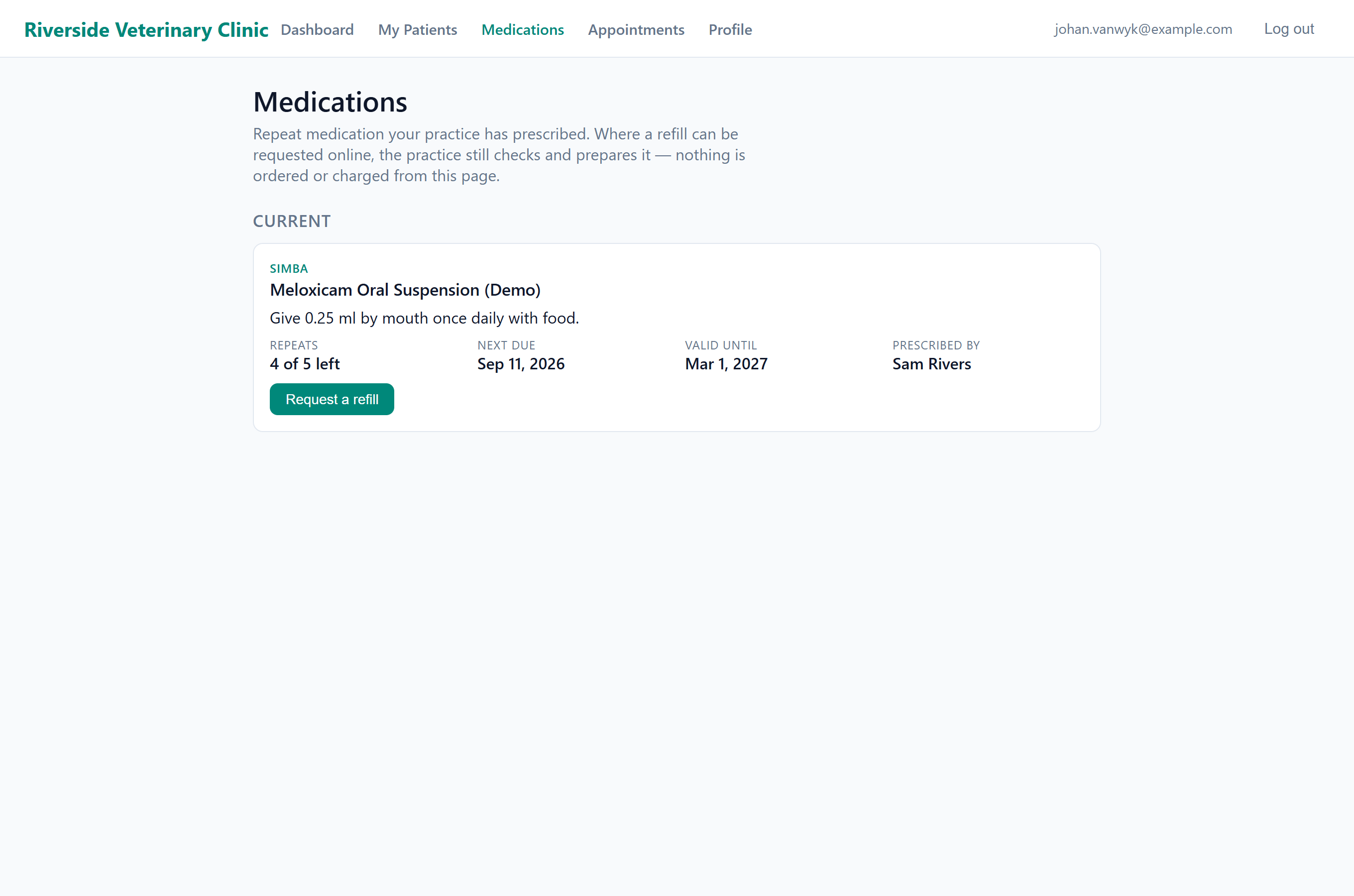
The Medications page lists the repeat prescriptions for the client's patients, under Current and Finished: the medicine, the directions, the repeats left, the next due date, the valid-until date and the prescribing vet. Medicine you did not write as a prescription does not appear.
If you ticked Owner may request a refill from the client portal on the prescription, the client sees Request a refill. They can add a note, then press Send request. The request goes to Refill requests in the staff app for you to approve or decline. See Prescriptions & repeats.
- While a request is waiting, the client sees “Refill requested, waiting for the practice” and can Withdraw it.
- After you approve it, they see that you are preparing it. They cannot ask again until you dispense it.
- If you decline it, they see your reason.
- Approving a request does not dispense or charge anything.
Clients do not see internal comments, the schedule, or notes a vet recorded when supplying a repeat.
The shop#
If you run the online shop, clients see a Shop link in the menu at the top of every screen, and again at the foot of the dashboard. The staff side is in The online shop.
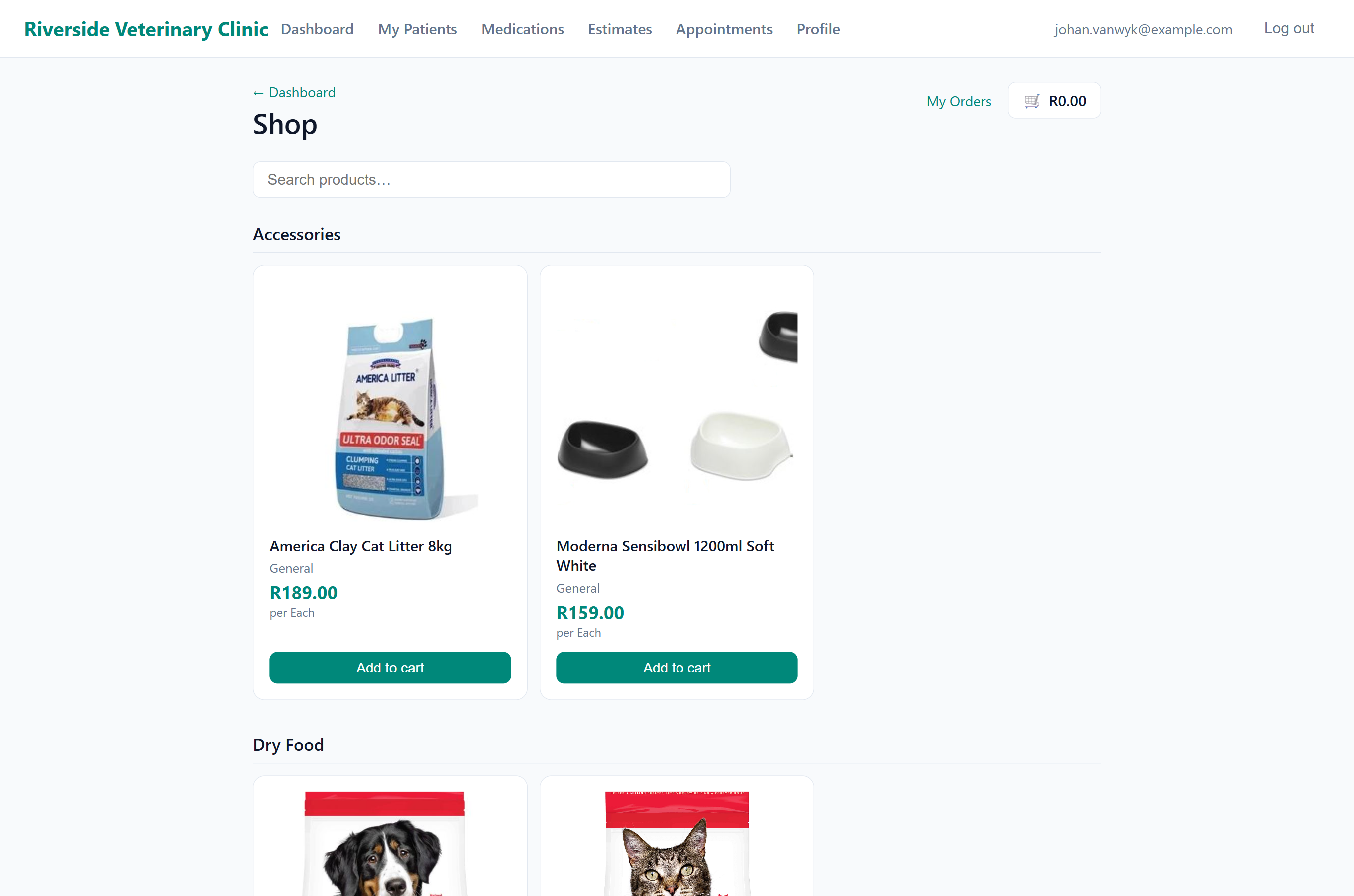
- They browse or search the shop and press Add to cart.
- In the cart they adjust quantities, then press Proceed to checkout.
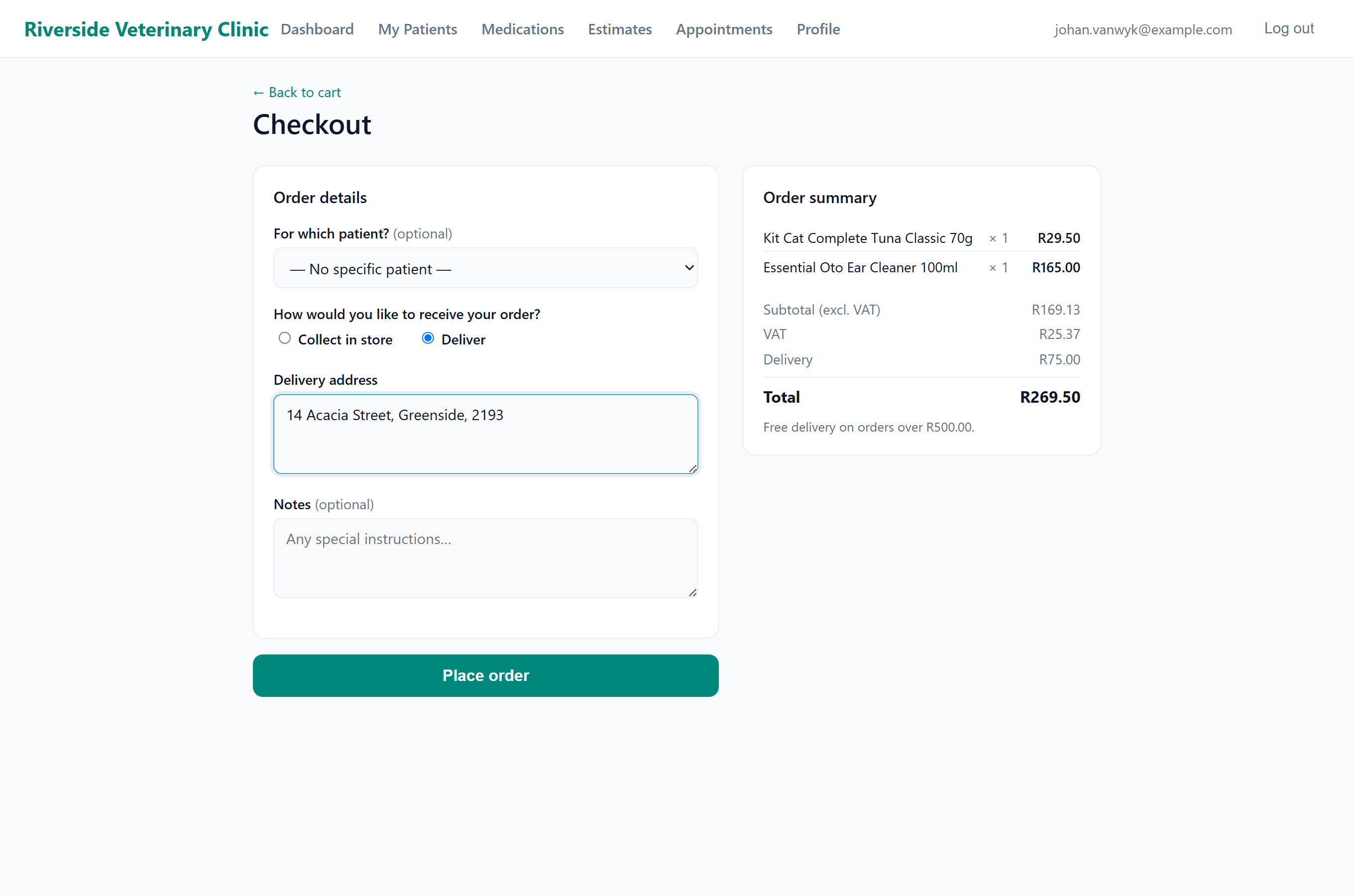
- At checkout they can choose a patient, choose Collect in store or Deliver (if you offer delivery), and add a note.
- They press Place order. If you take card payments online, they pay there and then.
- The order appears in Shop Dispatch.
Clients see their orders under My Orders:
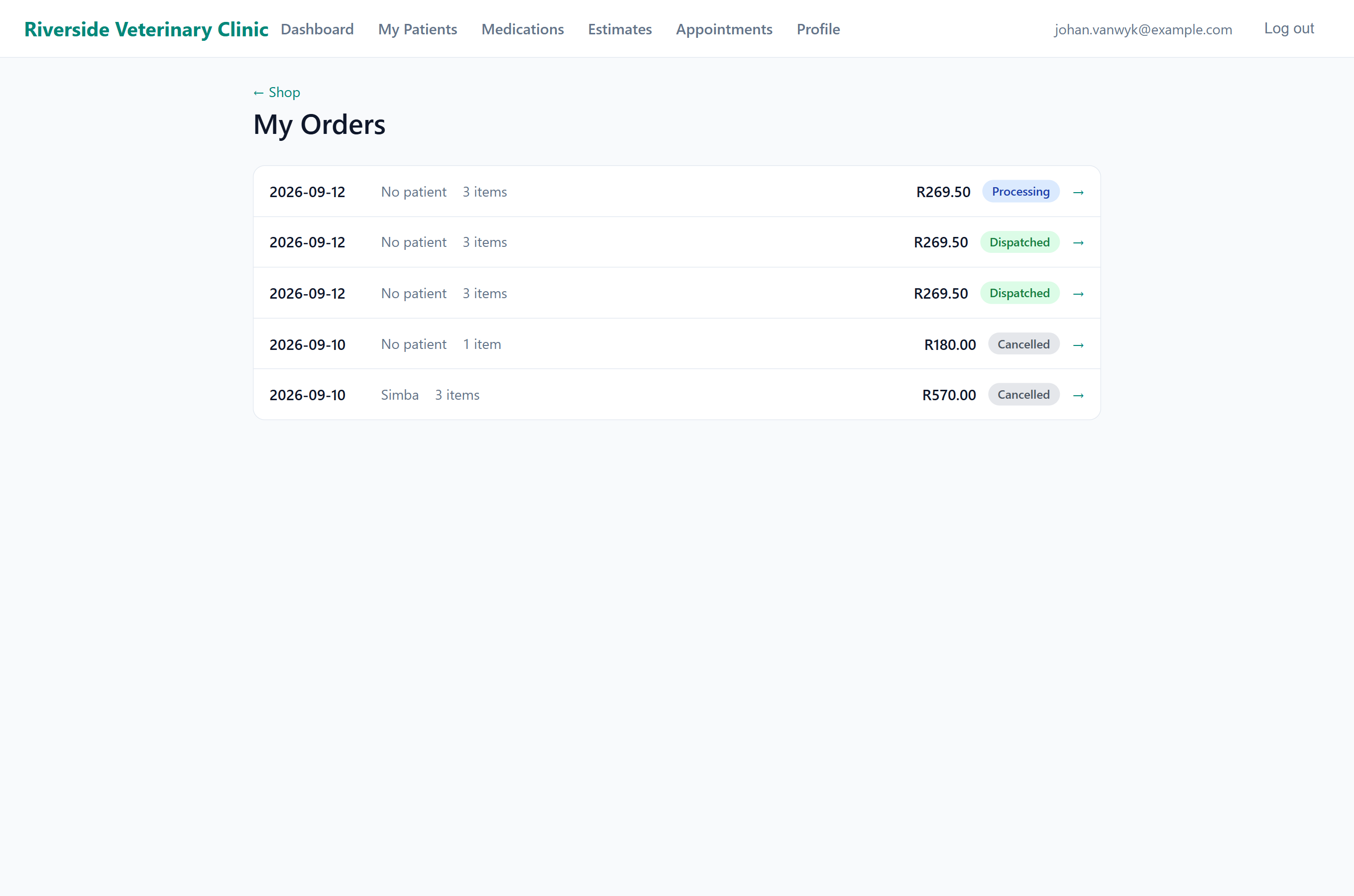
| Status | Means |
|---|---|
| Awaiting payment | The order is not paid. If you take card payments online, the client can press Pay now. If not, you take the payment. |
| Processing | Paid, and waiting for you in Shop Dispatch. |
| Ready for collection | You marked it dispatched and the client chose to collect. |
| Dispatched | You marked it dispatched and the client chose delivery. |
| Cancelled | The order was cancelled. |
An order awaiting payment is on the Unpaid Orders tab, not your dispatch list. If you take card payments online, ask the client to press Pay now in My Orders. Otherwise, take the payment with Accept Payment on that tab.
The shop, delivery, the delivery fee and free delivery are set under Features & Modules.
Common questions from clients#
When something is wrong, the portal shows a full-page message. Ask the client to read you the heading:
| They see | What it means | What to do |
|---|---|---|
| “Account Not Found” | They signed in, but no client record has that email address. The screen shows the address they used. | Correct the email on their client record, then ask them to sign in again. |
| “Portal Unavailable” | The Client portal switch is off. | Switch it on if that was a mistake. See Turning it on. |
| “Your session has expired” | They were signed out after a period of inactivity. | They press Log in again. |
| They say | Check |
|---|---|
| “It will not let me sign in.” | The email address on their client record matches the one they use. |
| “I cannot see my dog.” | The patient is on the right client record. It may be on a partner's record. |
| “There are no appointment times.” | Online booking is on, and your appointment slots cover that day. |
| “My balance looks wrong.” | Their account in FastVet. The portal shows the same figures. |
| “I cancelled my appointment.” | The booking list. Clients cannot cancel in the portal, so the appointment still stands. |
| “I ordered something and heard nothing.” | Shop Dispatch, and whether the order was paid. |