
Help Centre › Getting started
Getting started
Sign in, find your way around the home screen, and learn the handful of patterns that every other screen in FastVet reuses.
Almost every screen in FastVet has the same three parts: a header, a working area, and a footer of actions. Learn those, and the rest of the system follows.
Signing in#
FastVet runs in your web browser, so there is nothing to install. It works on a desktop, a laptop or a tablet.
- Go to app.fastvet.net.
- Enter the email address your practice registered for you, and your password.
- You land on the Home screen.
Signing in for the first time? When your practice administrator adds you, FastVet emails you an invitation. Tap Create my login in that email and choose a password, keeping the email address exactly as it is filled in. If you sign in with Google the first time, keep using Google; if you choose a password, keep using the password. No invitation? Ask your administrator to resend it from Settings → Users.
If you cannot get in#
If you see one of these screens instead of Home, your password worked. The screen tells you what else is wrong.
| You see | It means | What to do |
|---|---|---|
| “Your free trial has ended” | Your practice’s free trial has run out, so access is paused. Nothing has been deleted. | Contact FastVet at [email protected] to turn the trial into a subscription. |
| “This account is closed” | Your practice’s access to FastVet has been closed. The data is still there. | Contact FastVet at [email protected]. |
| “Not assigned to a practice” | Your login is not linked to a practice. Usually the email address you signed in with is not the one your practice added. | The screen shows the address you signed in with. Give it to an administrator, who checks it against your record under Settings → Users. Then sign in again with the matching address. |
| “Login Failed” | Sign-in did not complete. | Try again, and check you are using the address your practice registered. If it keeps happening, ask an administrator to check the address on your user record. |
The home screen#
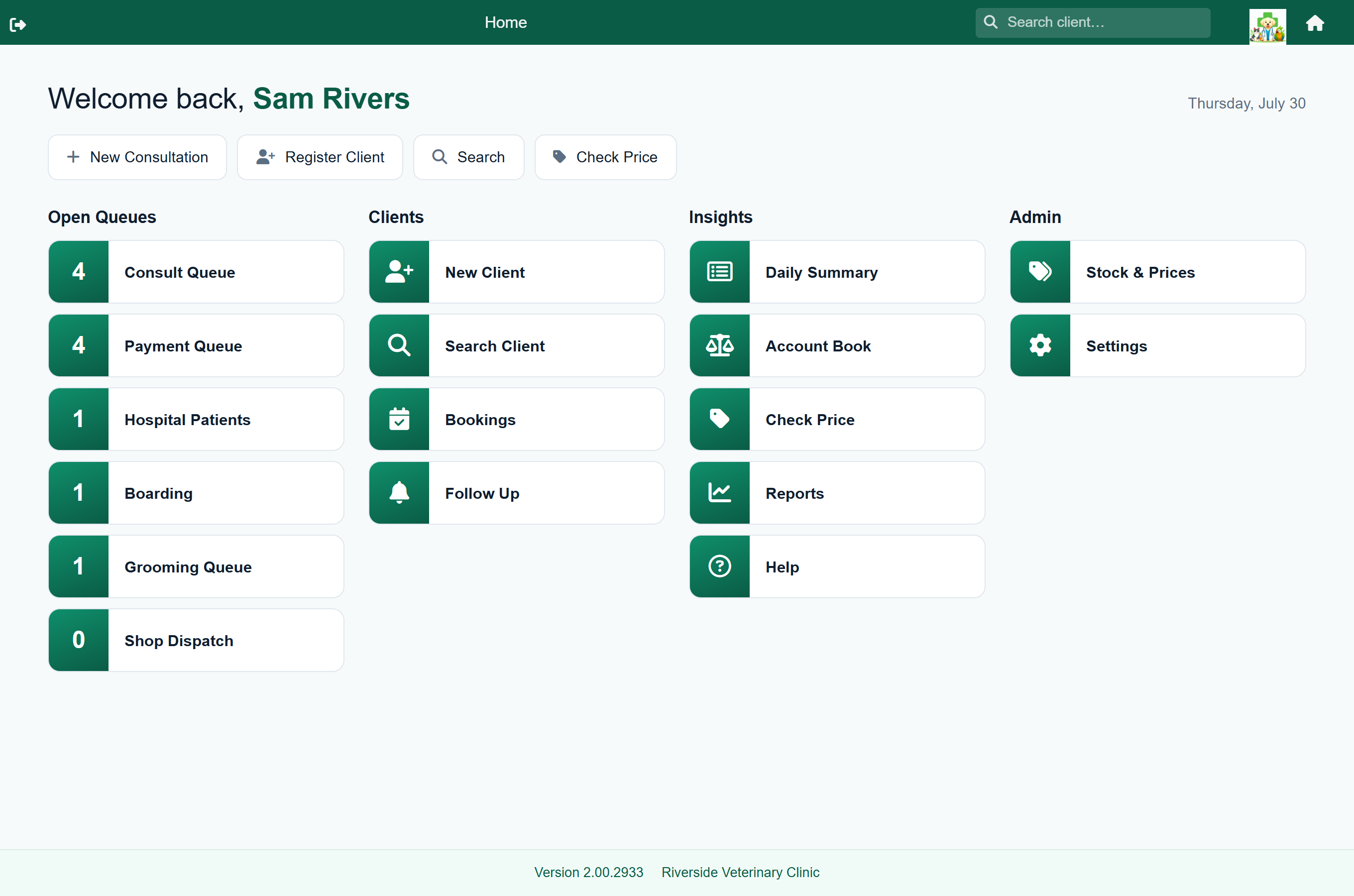
Home groups everything by what you are trying to do.
| Column | What it is for |
|---|---|
| Open Queues | Work waiting for attention: patients to be seen, accounts to be paid, in-patients, lab results, boarders, grooming, refill requests, quotes awaiting a reply and shop orders. The number on each tile is how many are open. Tiles for modules your practice does not use are not shown. |
| Clients | Registering and finding clients, the appointment book, and the follow-up list. |
| Insights | The daily summary, the account book, a quick price lookup and this help centre. Vets and administrators also see the full reports hub. |
| Admin | Stock, prices and practice settings. Shown to administrators only. |
The four buttons across the top, New Consultation, Register Client, Search and Check Price, are the actions you will use most.
How every screen is laid out#
- The header shows the screen name, a client search box, and a home button. The back arrow on the left returns you to the previous screen; on Home, a sign-out button takes its place. On a narrow screen the search box becomes a magnifying-glass icon.
- The working area in the middle is the screen itself: a list, a form, or a patient record.
- The footer holds the actions for the screen, such as Save, Done, Add, Cancel and Back. If you are looking for a button, look at the footer first.
Finding a client from anywhere#
Type a name, a cell number, an ID number, a client code, a patient's name or a microchip number into the header search box on any screen to find the client.
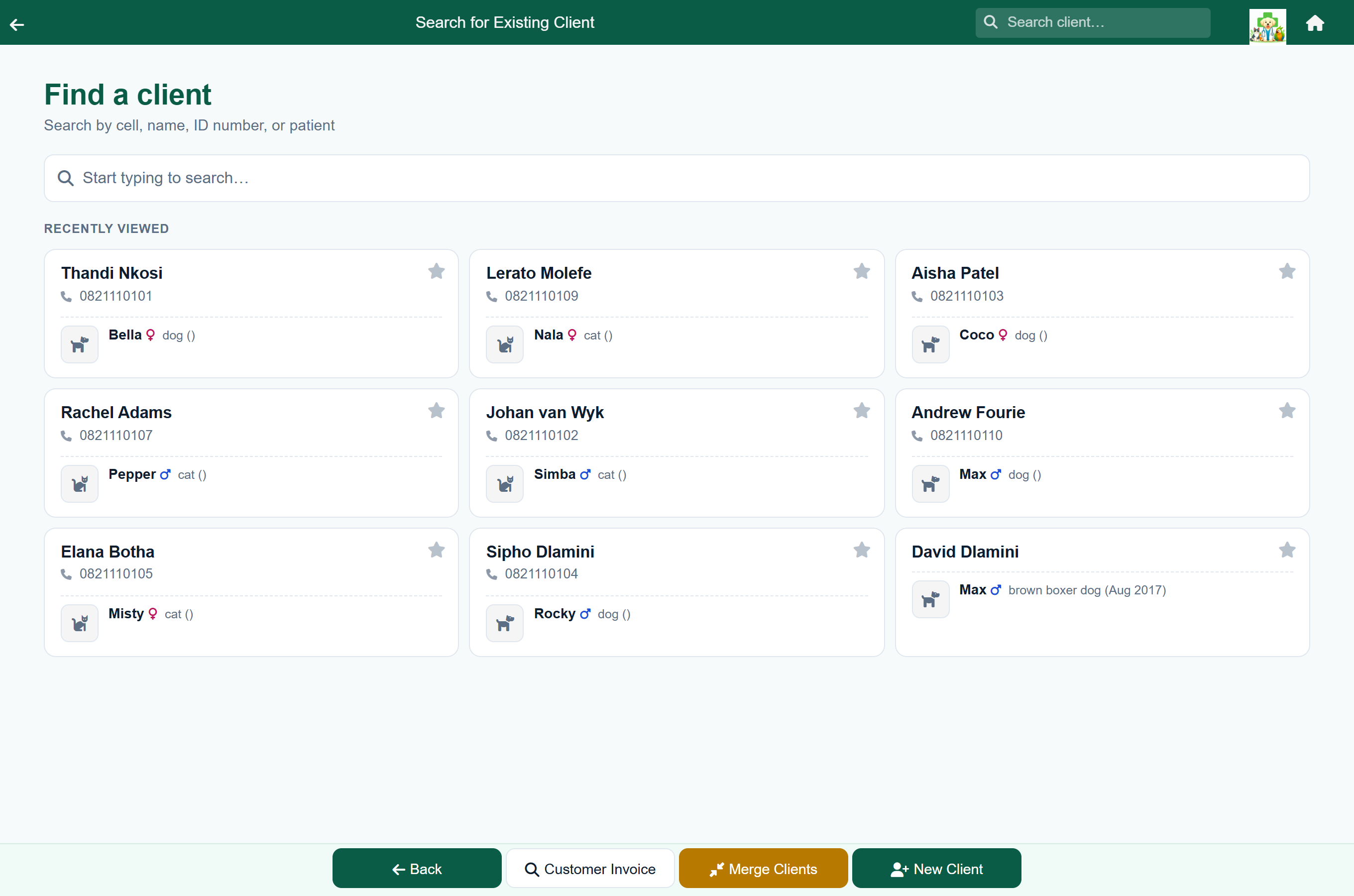
The search screen (Search Client on Home) also lists the clients you viewed recently and lets you pin the ones you use often. Until you have any, it offers Browse clients to list your clients.
Deleted clients and patients that have died are left out of the results. If any were left out, the number is shown beside Include deleted clients and deceased patients; tick that box to bring them back, for example to read the records of a patient that has died, or to undelete a client removed by mistake. The box clears itself the next time you open the screen.
Your first invoice#
FastVet has no Create Invoice button. An invoice is raised automatically when you finish a piece of work: a consultation, a counter sale, a hospital or boarding discharge, or a groom.
A counter sale is the quickest way to see it happen, because no patient record is needed:
- Find the client with the header search box and open them.
- Press Sale, then Add, and search for the product or service.
- Set the quantity, check the price, and press Add.
- Press Done to finish the sale. The invoice now exists.
The charge is on the client's account. Open it with Statement on the client record, press the … button on the entry, and print or email the invoice. Your practice can also have invoices emailed automatically when work is finished (see Email & notifications).
The full walkthrough is in Counter sales.
Coming from an accounting package?#
If you have used Pastel, Sage or Xero, the same bookkeeping ideas exist in FastVet. The difference is that they are created by recording the veterinary work, not captured as documents.
| In your accounting package | In FastVet |
|---|---|
| Tax invoice | Raised automatically when work is finished: a consultation, sale, stay or groom. See Invoices. |
| Customer account / ledger | The client's account: every charge, payment and credit in one list. Open it with Statement on the client record. See Reading a client's account. |
| Receipt | A payment, taken with Pay on the client's account. See Taking a payment. |
| Credit note | Raised against part of a finished invoice when items come back, numbered CN-, and printed on your invoice letterhead. The invoice itself keeps its number and its figures. See Returns and credit notes. To undo a whole charge instead, reverse it; nothing is deleted there either. |
| Statement | Print statement or Email statement on the client's account, or sent automatically. See Statements. |
| Inventory items | The price list holds everything you charge for, services and products alike. Stock is the physical goods behind the products. |
| Sundry charge / journal debit | A manual debit on the client's account. See Adding a charge by hand. |
| Aged analysis | The account book ages every balance across current, 30, 60 and 90 days, and 30/60/90-day badges show on the client wherever you take money. |
Who can see what#
What you see depends on the roles your administrator gave you, so a colleague may have a tile or button that you do not.
| Role | Typically given to | Unlocks |
|---|---|---|
| Doctor | Veterinarians | Consultations, hospital and boarding admissions, lab results, clinical records, reversing charges |
| Receptionist | Front-desk and nursing staff | Clients, patients, bookings, queues, sales and payments, reversing a sale |
| Groomer | Grooming staff | The grooming queue and grooming records, plus bookings and the shop |
| Boarding Hand | Kennel and cattery staff | Boarding price items. Give it alongside Doctor or Receptionist, not on its own |
| Admin | Practice managers | Prices, stock, users, practice settings and the full report set |
The two looks#
FastVet has two visual themes: Mint, shown throughout this guide, and Classic. An administrator chooses one for the whole practice.
Home›Settings›Practice Settings›Branding & Theme
Screens work the same in both. In Classic, buttons are in the same places but look squarer and more colourful.
You can also pick a look for yourself, which changes nothing for anyone else. At the bottom of the home screen, to the right of your practice name, is Switch to the new Mint theme (or Switch back to the Classic theme if you are already on Mint). Press it and the page reloads in the other look.
If something goes wrong#
If your practice has problem reporting switched on, a Report a problem button (a bug icon) appears in the header. It records what you were doing on screen and sends it to FastVet support.
- Press Report a problem as soon as you notice something wrong. The last couple of minutes are already captured, so you do not need to repeat the fault first.
- Carry on and show the problem happening. Recording runs for up to five minutes.
- Press the red bug button again, type a line about what went wrong (optional), and press Send. Keep recording gives you longer; Discard throws the recording away.
When the report has been dealt with, FastVet emails the address you sign in with to say what was wrong and what was done.