
Help Centre › Clinical care
Prescriptions & repeats
Authorise a course of medication once, then supply repeats against it, with the repeats left, the expiry and the prescriber kept with the patient.
A prescription records what a patient is on, how many repeats are left, who authorised them and when the next one is due. You write it once, on the consultation line that dispenses the first supply, and every repeat afterwards is supplied against it.
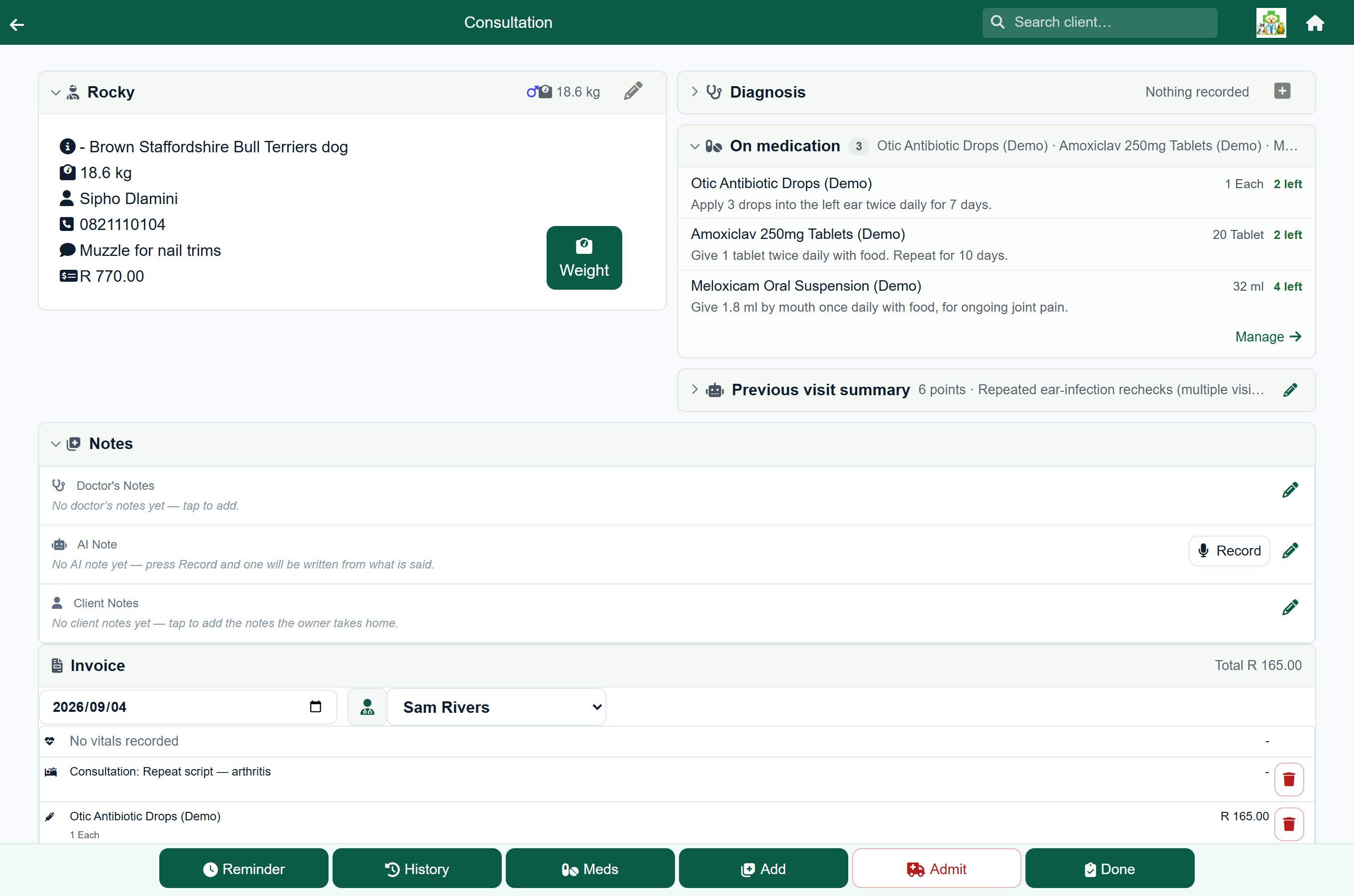
| Where | What it does |
|---|---|
| The consultation | Shows what the patient is already on, before you prescribe. |
| A consultation line | Turns a medication line into a prescription with repeats and an expiry. |
| The patient's Medications screen | Lists the patient's prescriptions, and lets you edit, stop or refill them. |
| Hand over medication | The counter screen: tick what the client is collecting, press once, and it is dispensed and charged. |
| The Repeats due report | Who is due, who is late, and whose prescription has lapsed. |
| Refill requests | Owners ask from the client portal; you approve or decline. |
What the patient is already on#
If the patient has current prescriptions, the consultation shows an On medication panel near the top. It lists each drug, the amount per supply, its directions and how many repeats are left. A patient on nothing has no panel.
- Manage opens the patient's Medications screen.
- A warning triangle marks a prescription that needs attention: expired, out of repeats, or written by another vet. The Medications screen says what the problem is.
- If there are more than four, the first four are shown with a link to the rest, and the panel starts folded unless one needs attention.
Write the prescription#
Consultation›Add›a medication›Write a prescription with repeats
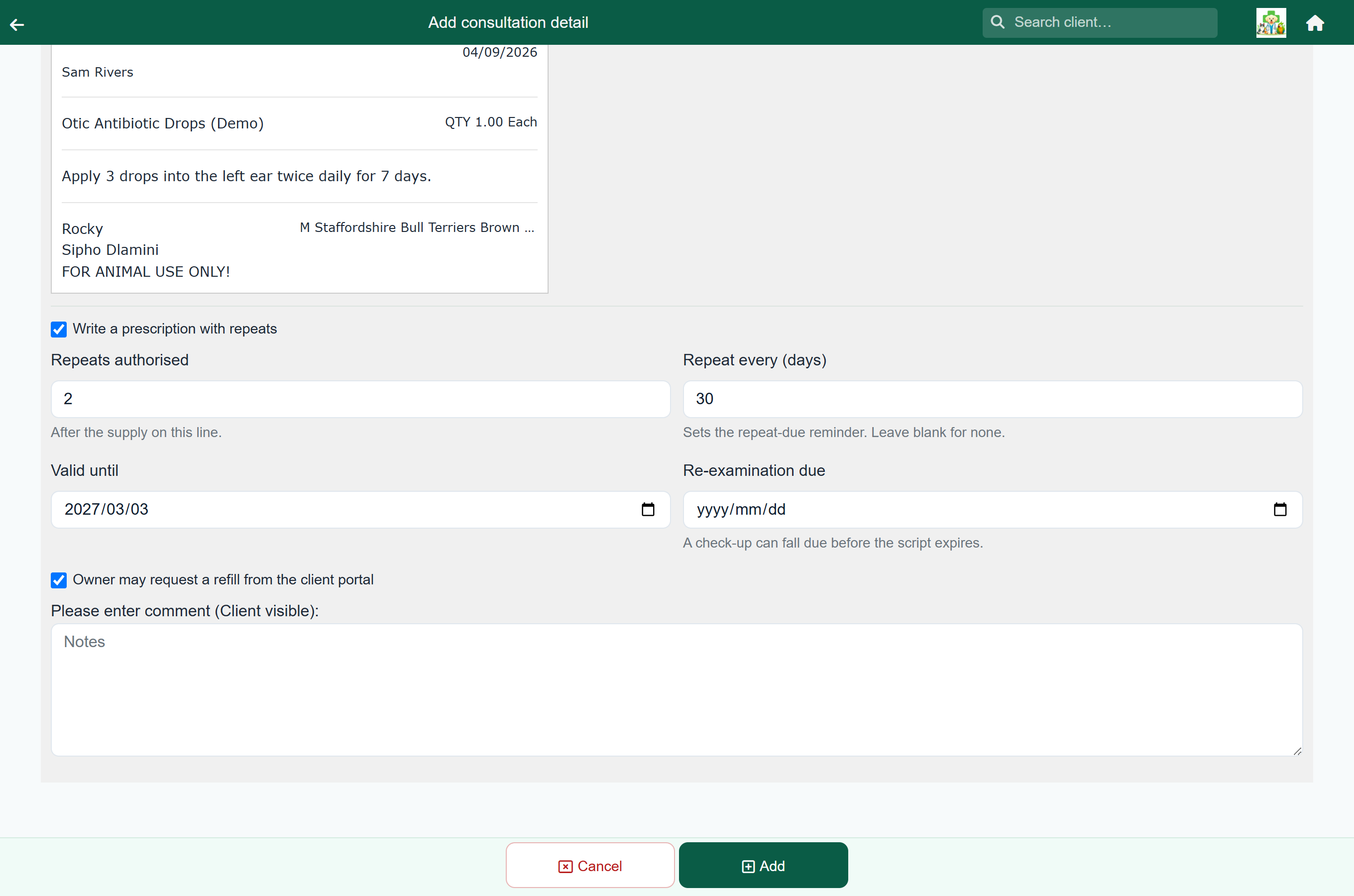
Add the medication to the consultation as usual: pick it, set the quantity and write the directions. Then tick Write a prescription with repeats, below the Instructions box and the label preview.
| Field | What it means |
|---|---|
| Repeats authorised | How many further supplies the client may have after this one. “3” means four supplies in total. |
| Repeat every (days) | How far apart the repeats should be. This sets the repeat reminder; leave it blank for none. |
| Valid until | After this date the prescription can no longer be used without a reason, however many repeats are left. |
| Re-examination due | When the patient should be seen again, if that is before the expiry date. Left blank when it is not. |
| Owner may request a refill from the client portal | Lets the owner request this medication from the client portal. |
The repeats and dates are suggested from the drug's schedule. You can change any of them.
What the patient is on#
Client account›the patient›Medications
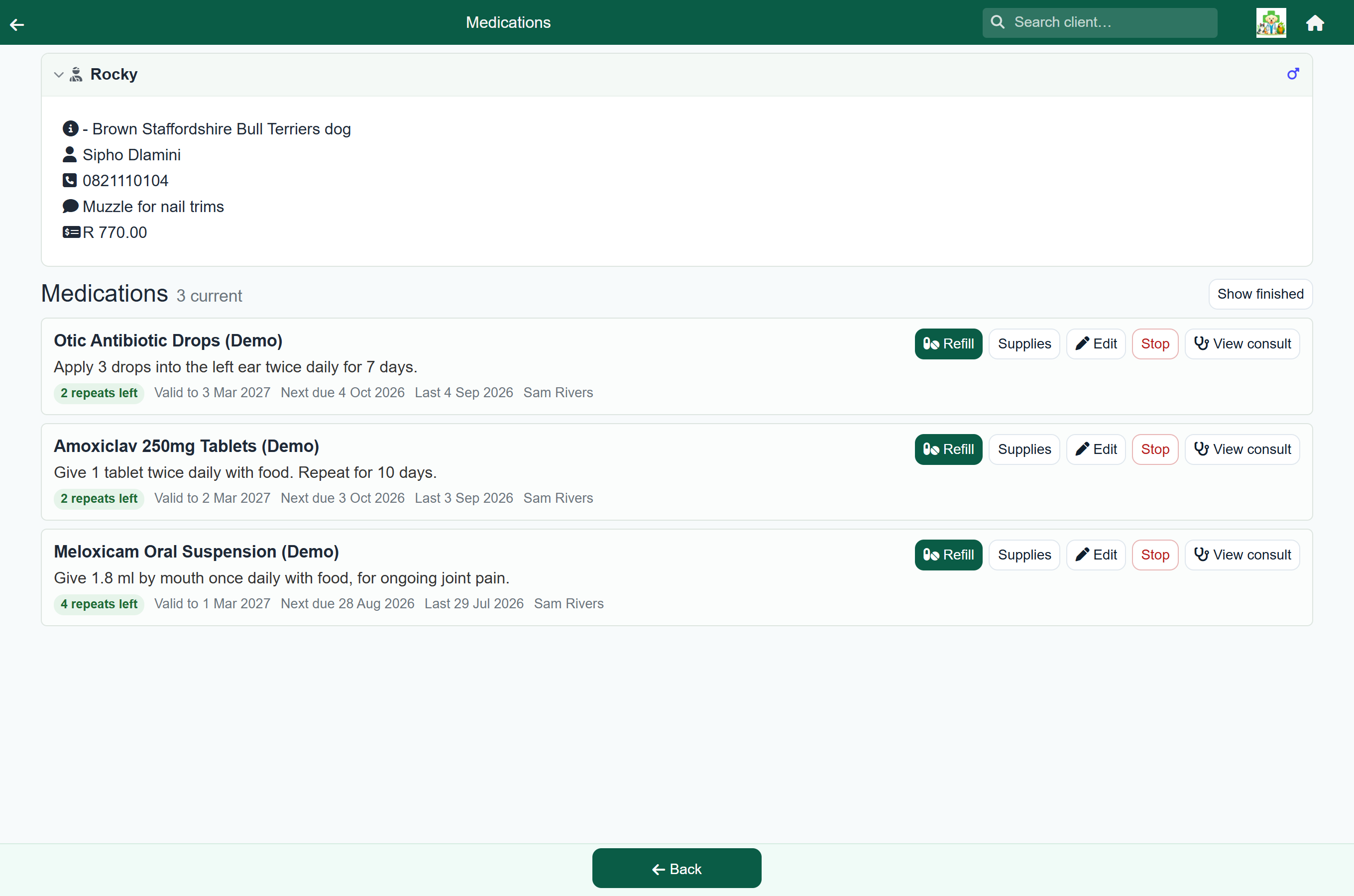
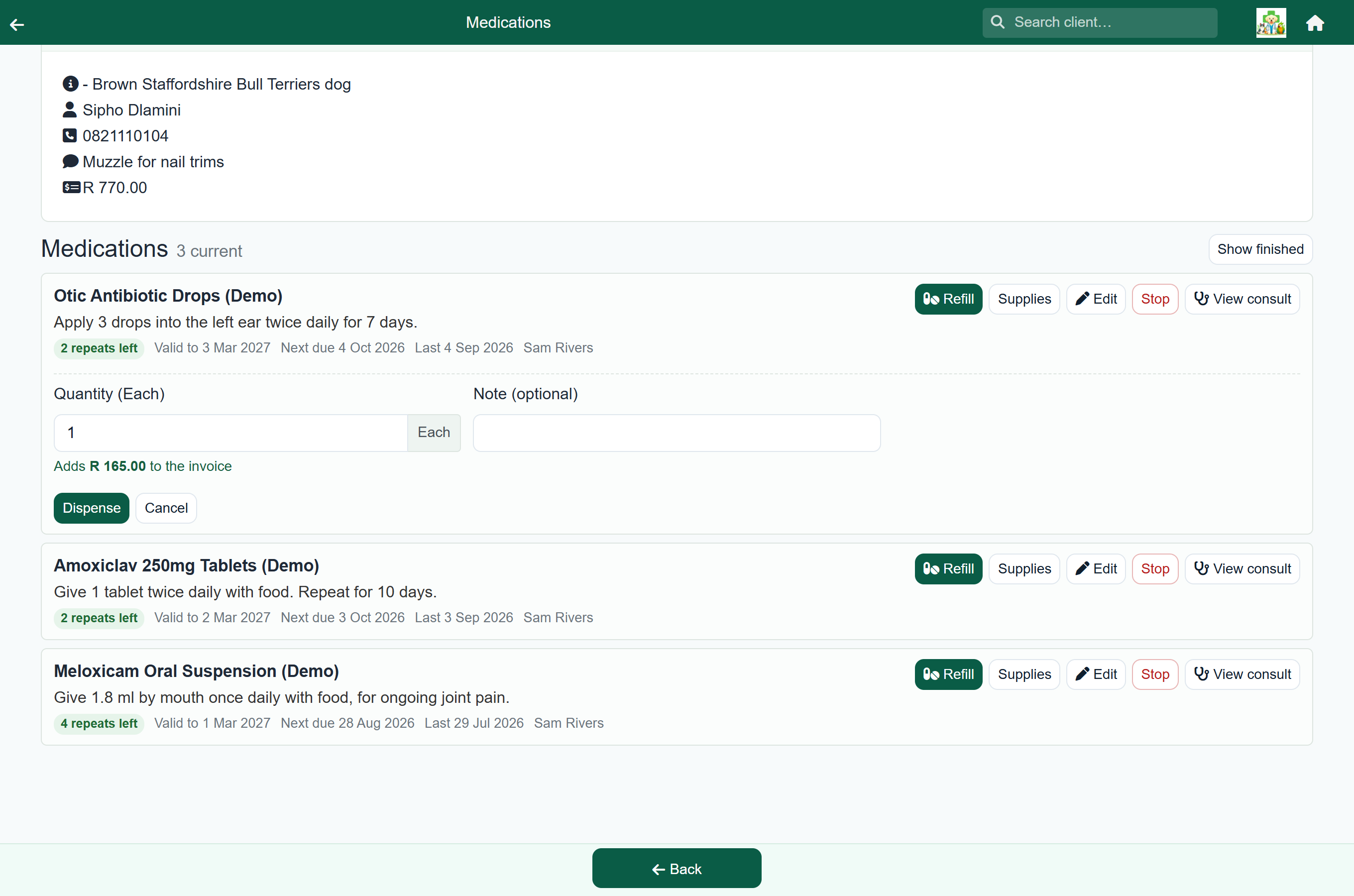
Every current prescription for the patient: the drug, the directions, the repeats left, when the next one is due and when it expires. Open it from the patient on the client's account, or with Meds in a consultation's footer.
Show finished also lists prescriptions that have expired or been stopped. A prescription that has used all its repeats stays on the main list until it expires.
- Refill adds the next supply to the consultation you have open. If there is no consultation open, it is greyed out and a banner offers Hand over medication instead. It is also greyed out on a stopped prescription.
- Supplies: every supply made against the prescription, with who dispensed it and when. A supply on a reversed consultation is marked Reversed and does not count against the repeats.
- Edit changes the repeats, the interval, the dates, the quantity per supply, the directions, and whether the owner can request online. To give one more repeat, edit the prescription rather than writing a second one.
- Stop ends the prescription. Nobody can supply against it afterwards; a new prescription is needed. Stopping also cancels any repeat reminder not yet sent. Use it when the patient comes off the drug.
- View consult opens the consultation the prescription was written on.
Under the medications, the same screen shows the patient's vaccinations: where it stands on each protection, which protections it has never had, and every dose with its batch and next due date. What the patient is on and what it is covered against are usually asked in the same breath, and the owner is on the phone for both. Nothing there is edited here: Open the record goes to the vaccination record, where doses are added and corrected. It is the same panel as on the clinical history.
Hand over medication#
Home›Refill requests›To collect›Hand over
Use this screen when a client comes to the desk to collect medicine. You tick what they are taking, check the amounts, and press one button. FastVet creates the invoice, takes the stock off and charges the client in one step.
- Open Refill requests from Home, choose To collect, and press Hand over on the client's request.
- Anything the owner asked for is already ticked. Tick anything else they are collecting, and untick anything that is not ready.
- Check the quantity on each ticked row. It starts at the usual amount for the prescription, with the price shown underneath.
- If a row is flagged, type a reason for supplying anyway.
- Press Hand over & charge at the foot of the list, or Hand over in the footer.
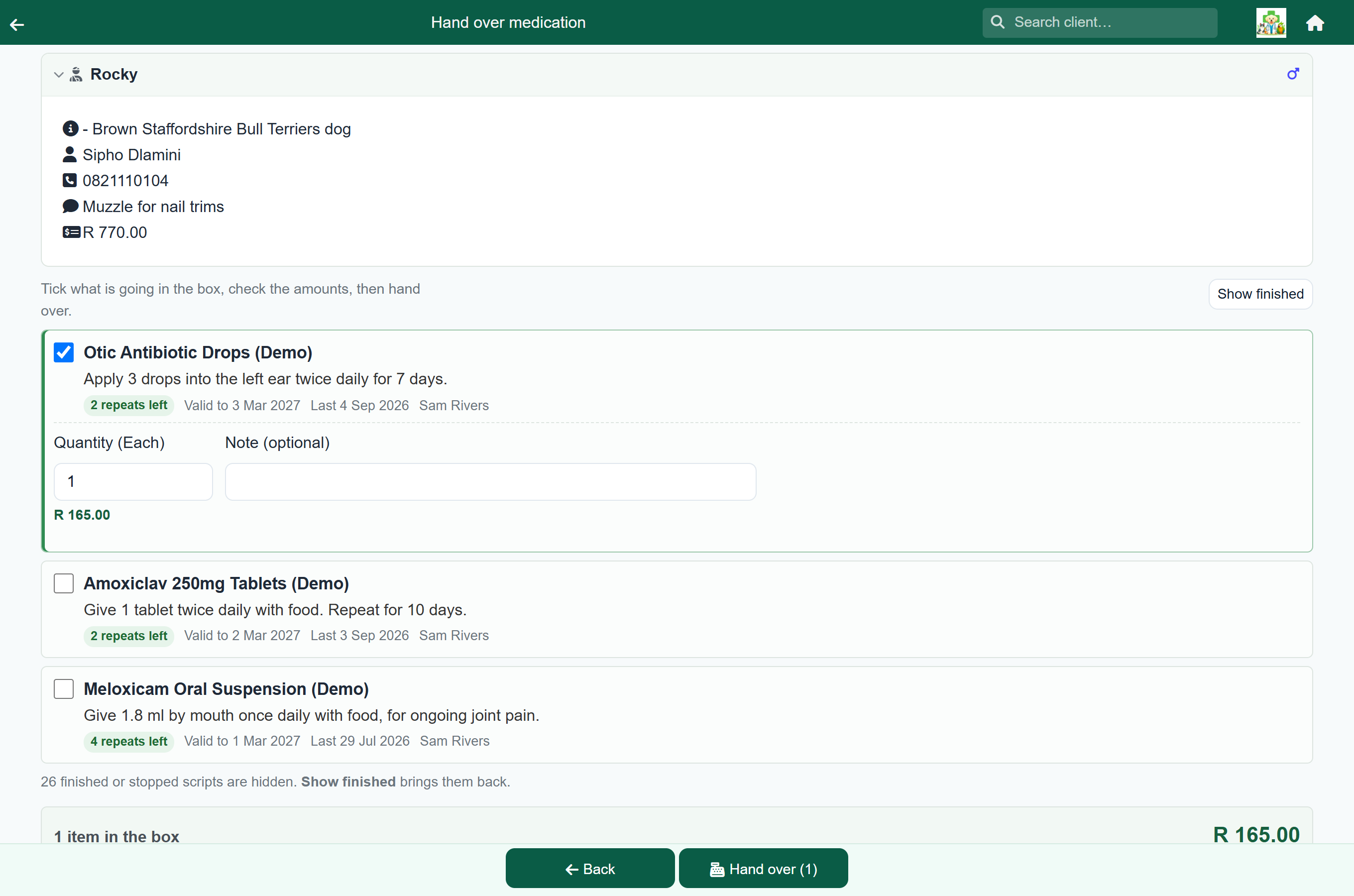
This creates one invoice for everything you ticked, puts the client on the payment queue as Medicine refill dispensed, and opens the share screen so you can send the invoice by WhatsApp or email. On the client's account it appears as Dispense.
If a prescription has expired, has no repeats left, was written by another vet, or the patient is due a re-examination, the row says so. You can still supply it, but you must type a reason on that row. The reason is saved and shown under Supplies.
- A stopped prescription is shown greyed out and cannot be supplied. Write a new prescription instead.
- The quantity must be more than zero. FastVet warns you if it is more than ten times the usual amount.
- An item that is no longer on your price list cannot be ticked. Add it to a consultation by hand instead.
- A prescription an owner has requested is always listed, even if it has since been stopped or expired, so you can see why it cannot be supplied.
Dispensing a repeat inside a consultation#
If the patient is in for a consultation, you can add the repeat to that visit instead. Press Meds in the footer, then Refill on the prescription. The repeat goes onto the consultation's invoice, so the client gets one invoice for the visit and the medicine. Check the quantity and press Dispense.
Repeat reminders#
If a prescription has a repeat interval, each supply schedules a reminder for the next one. It is sent like any other reminder, by email, text or both, according to your practice settings.
Repeats also appear on the follow-up list, marked with a pill icon and showing what is left on the prescription.
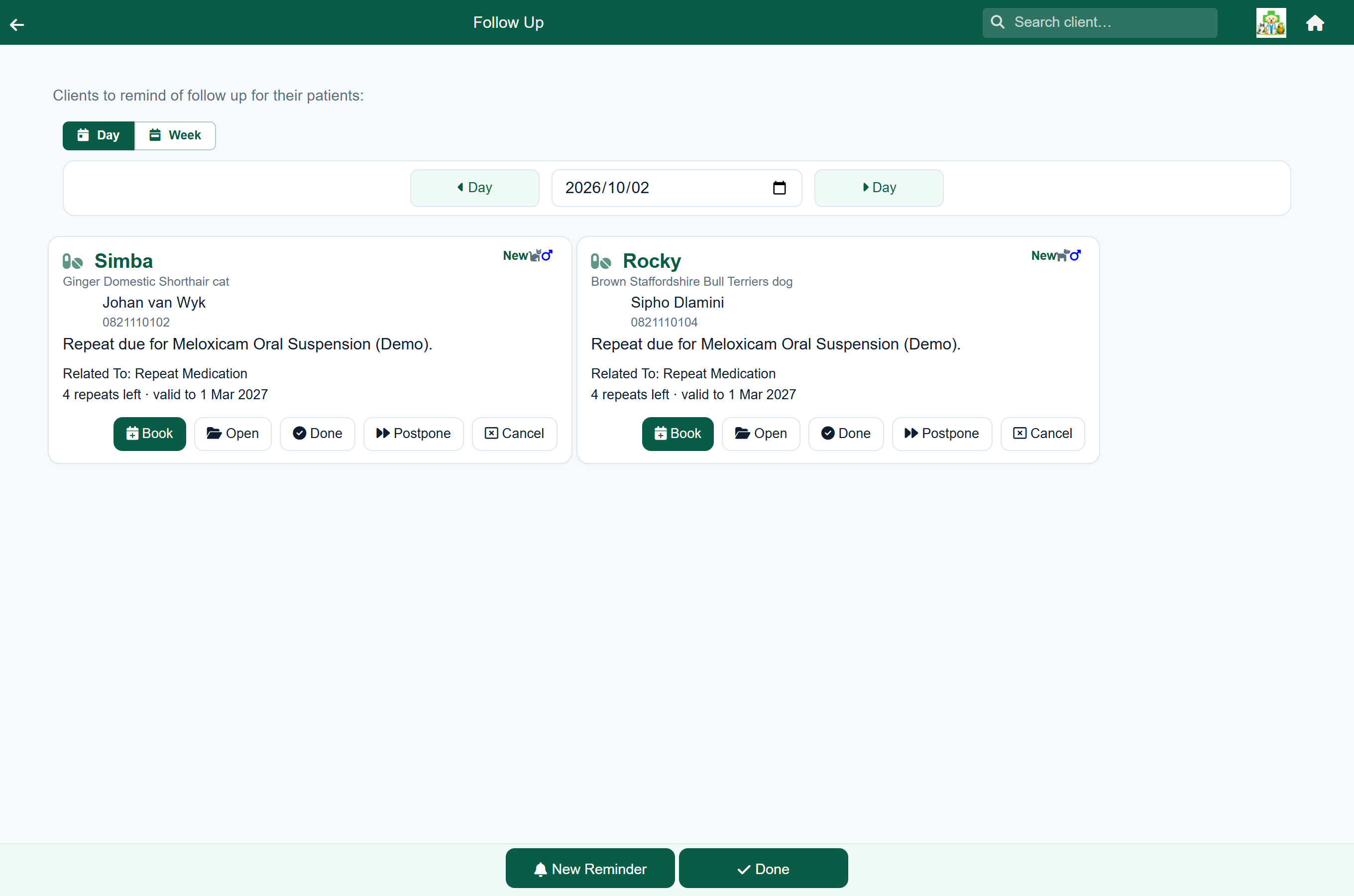
- There is only ever one reminder waiting per prescription; each new supply replaces it.
- Stopping a prescription cancels its waiting reminder.
- Editing a prescription so that no repeats are left, or so that it expires before the reminder date, cancels the reminder. A reminder date changed by hand is kept if the prescription still allows the repeat.
- A prescription with no repeat interval has no reminder.
The Repeats due report#
Home›Reports›Repeats due
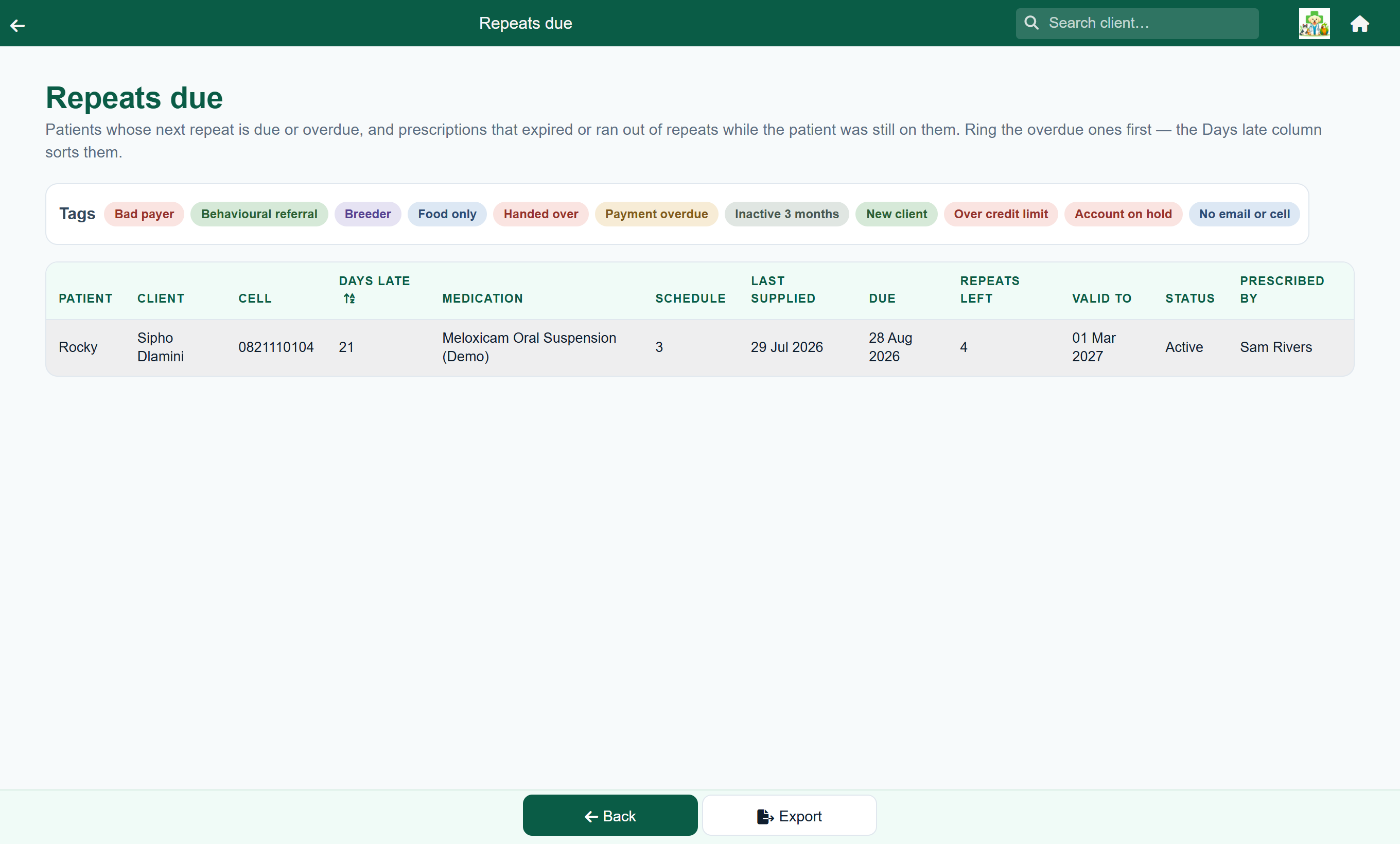
The top of the report lists patients whose next repeat is overdue, most overdue first, then those due in the next fortnight, with the owner's cell number beside each.
Below it, Lapsed prescriptions lists prescriptions with repeats that expired or ran out in the last six months: a patient who may have stopped their medication, or a prescription that needs rewriting after a check-up. Single-supply prescriptions are not included.
The report shows the current position, so there is no date picker. You can filter it by client tag. Export in the footer exports both parts.
Refill requests from the client portal#
Home›Refill requests
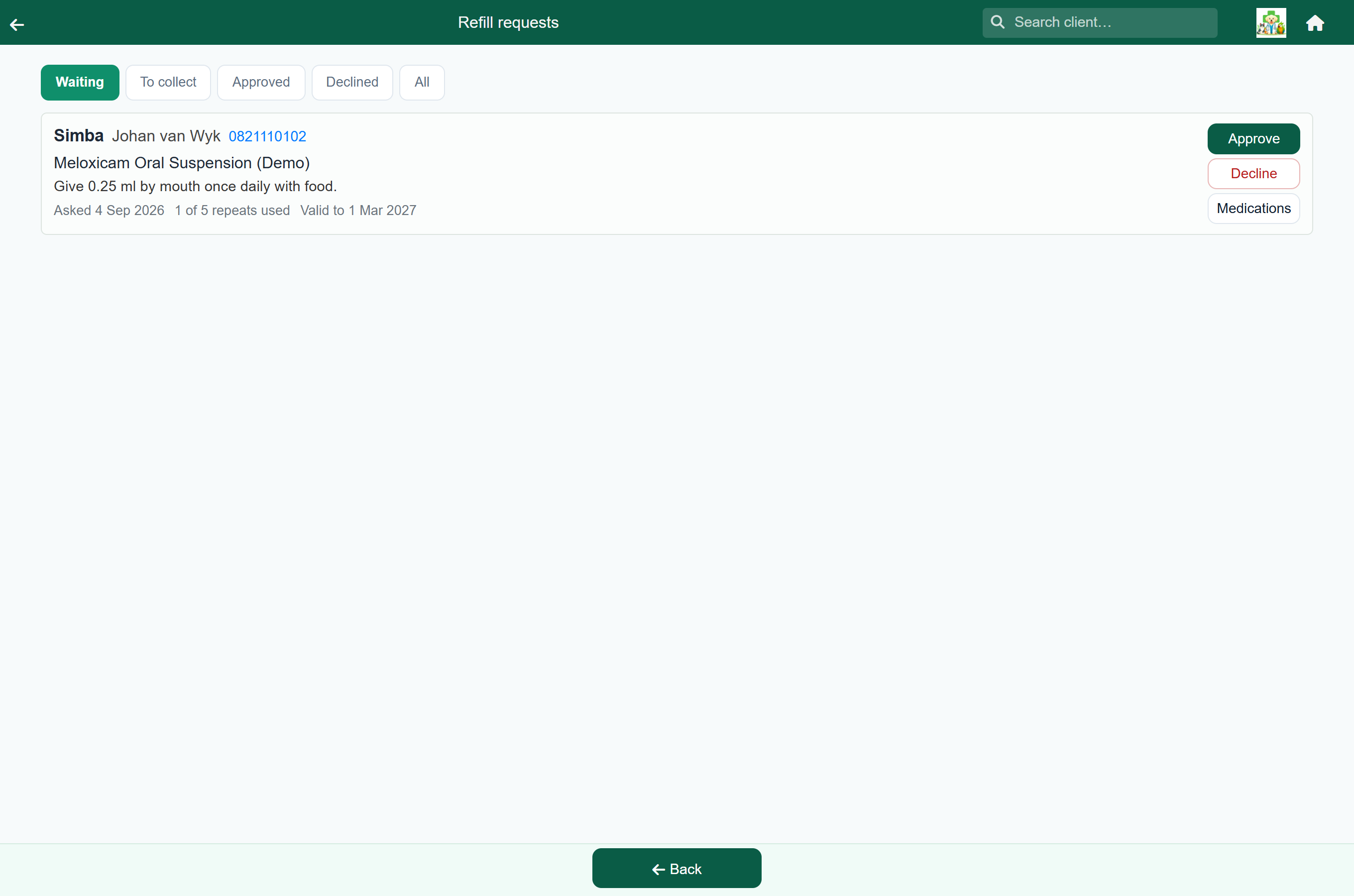
If a prescription allows it, the medication shows a request button in the client portal. The owner presses it, can add a note, and the request appears in your list.
| You press | What happens |
|---|---|
| Approve | The request moves to To collect and the owner sees it was approved. Nothing is dispensed or charged yet. |
| Decline | You must give a reason, and the owner sees it in the portal. |
Waiting lists requests nobody has answered. To collect lists approved requests that have not been handed over yet. A request leaves To collect when the medication is dispensed. Approved, Declined and All show requests already answered.
- Hand over on a request opens the counter screen, where the medication is supplied and charged. Medications opens the patient's prescriptions.
- An owner can have only one open request per medication, so they cannot ask twice for the same refill.
Requests are off by default for drugs on the controlled-drug register (Schedule 5 and above). You can allow them for an individual prescription by ticking the box when you write it.
Good to know#
- Prescriptions are for Treatment lines only. A drug set up as a Material cannot carry a prescription; change its type in the catalogue first.
- Until the consultation is finished, the prescription follows the line. Change the drug, directions or quantity on the line and the prescription updates. Once the consultation is finished, it no longer changes with the line.
- Stopping is not the same as expiring. An expired prescription can still be supplied with a reason; a stopped one cannot. The Medications screen and the Repeats due report show which is which.
- Removing a refill gives the repeat back. Delete the line before the consultation is finished and the supply is removed. If you reverse a finished consultation, the supply is marked Reversed under Supplies and does not count against the repeats.