
Help Centre › Money
Accounts & payments
Take payments, read a client's account, issue statements, and correct charges that were wrong.
Every client has one running account. Consultations, hospital stays, boarding, grooming and sales all post charges to it; payments and credits reduce it. The balance is the sum of everything on it.
Taking a payment#
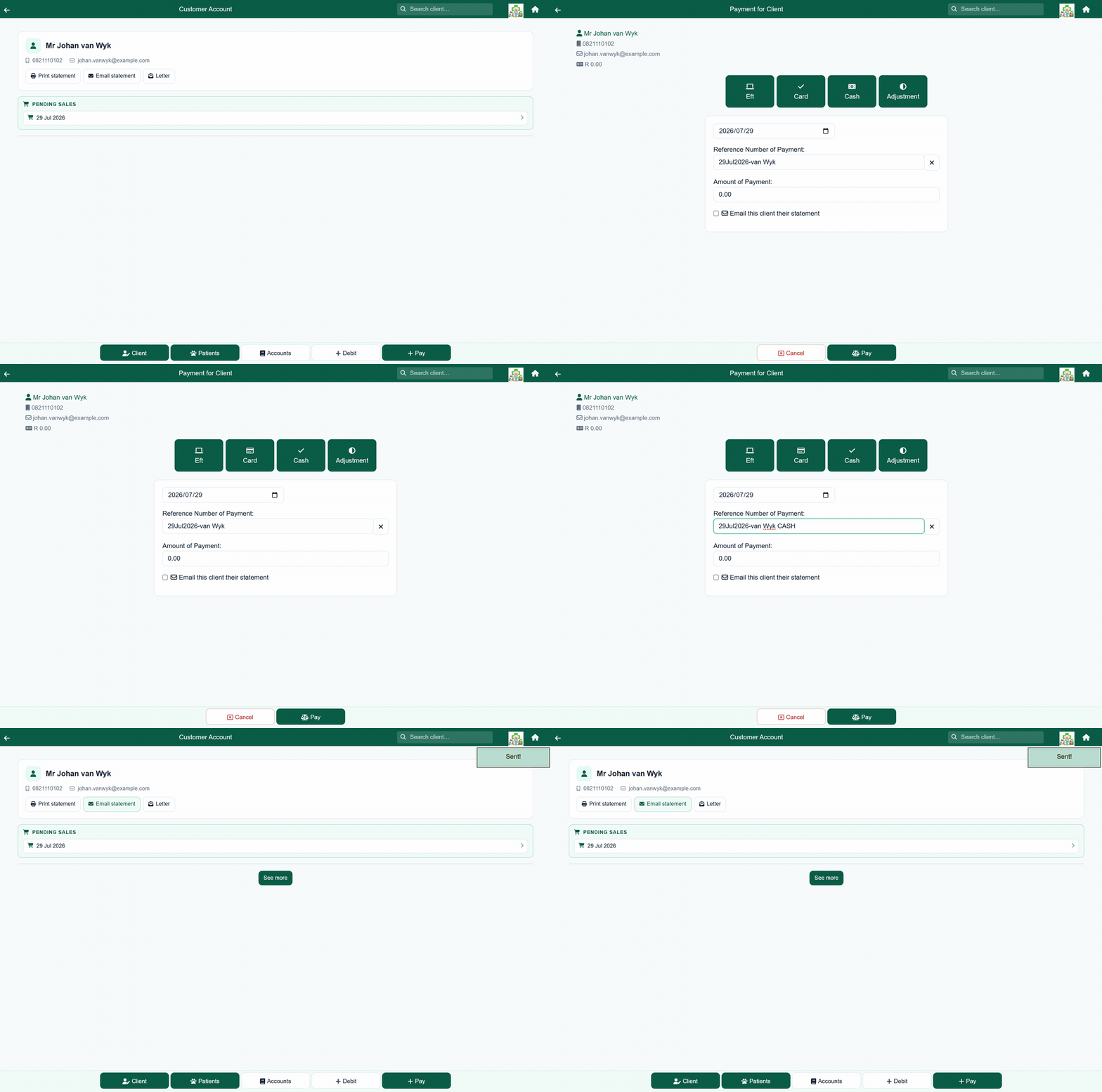
- Search for the client, open their record, and press Pay.
- Choose how they paid. You start with Eft, Card, Cash and Adjustment, and you can add your own under Payment methods.
- Check the date. It defaults to today.
- Check the reference number and the amount. Both are filled in for you (the amount with the full balance) and both are required. A client who is already in credit is the exception: the amount is left blank, because they owe nothing.
- Press Pay.
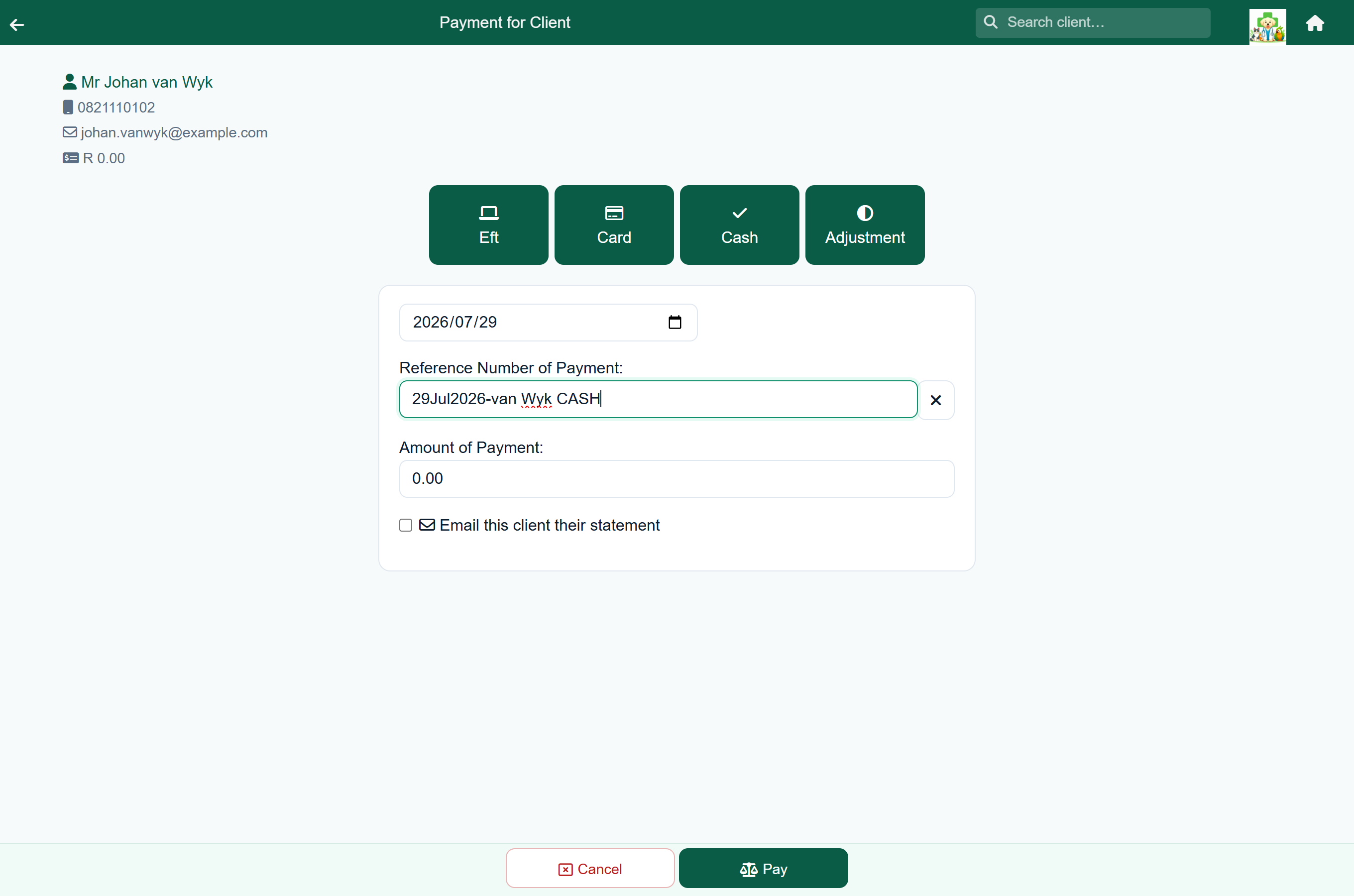
The payment appears on the account straight away and the balance drops, and every invoice it covers leaves the payment queue. Both Cancel and a saved payment return you to the screen you started from.
Reading a client's account#
Home›Search Client›the client›Statement
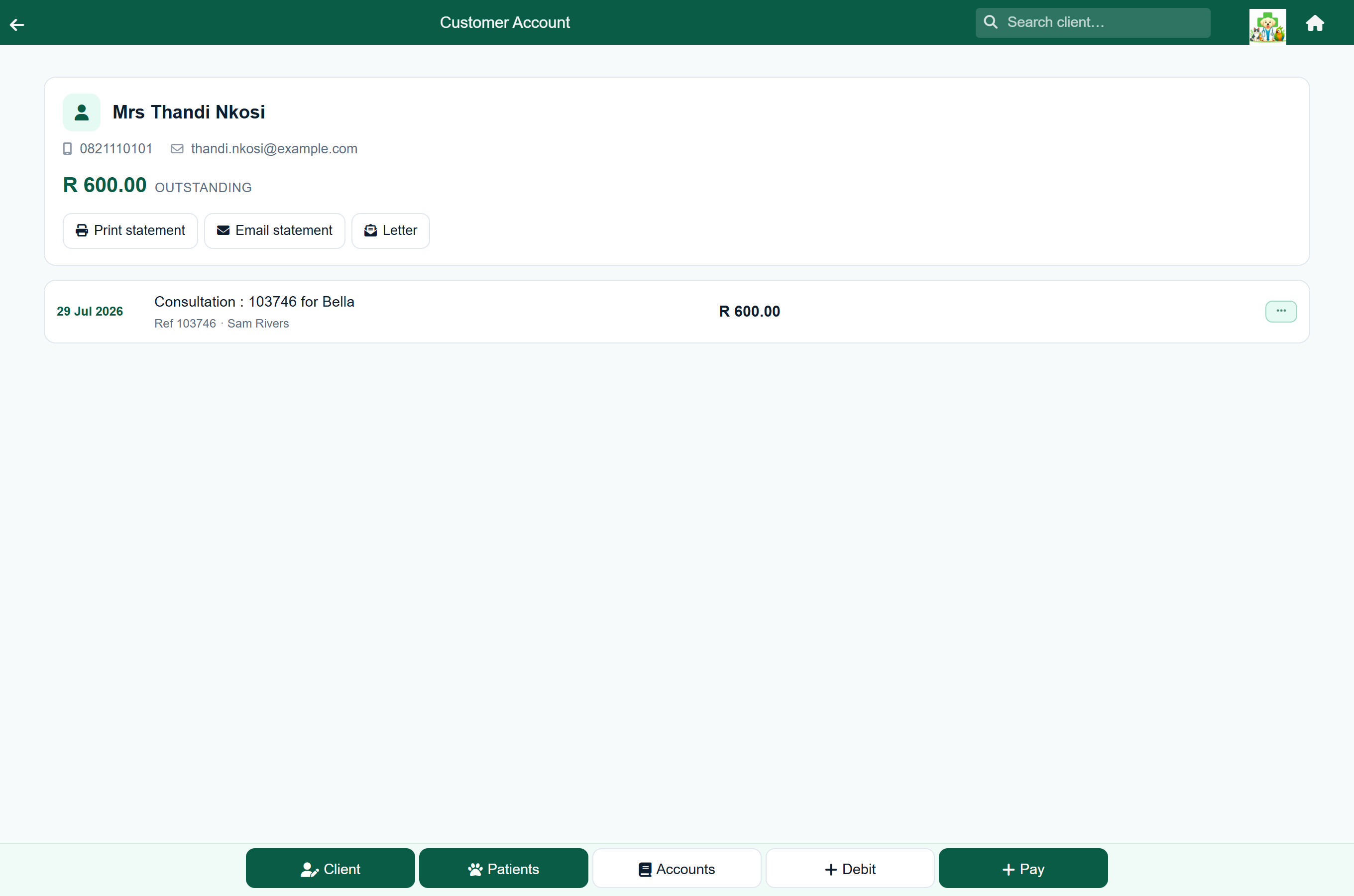
The Statement button on the client record opens the account (Pay beside it skips it, and goes straight to taking a payment). It lists every entry with its date, description, reference and amount. Positive amounts are charges; negative amounts are payments and credits. A settled account shows Paid up.
| Type | Means |
|---|---|
| Consultation | A finished consultation or dispense. |
| Sale | A counter or shop sale. |
| Hospital / Boarding | A discharged stay. |
| Grooming | A finished groom. |
| Receipt | Money received from the client. |
| Manual debit | A charge added by hand. |
| Interest | A monthly finance charge on an overdue balance; see Interest on overdue accounts. |
| Reversal credit | The credit written when a charge is reversed. |
Tap the … button on an entry to show its actions: view the record, print or email the invoice or the itemised detail, share it, or reverse it. On a payment it lets you change how it was paid.
To send a statement, use the print and email buttons at the top of the account. A long account loads in pages; See more at the bottom fetches the next batch.
The 30, 60 and 90 day badges#
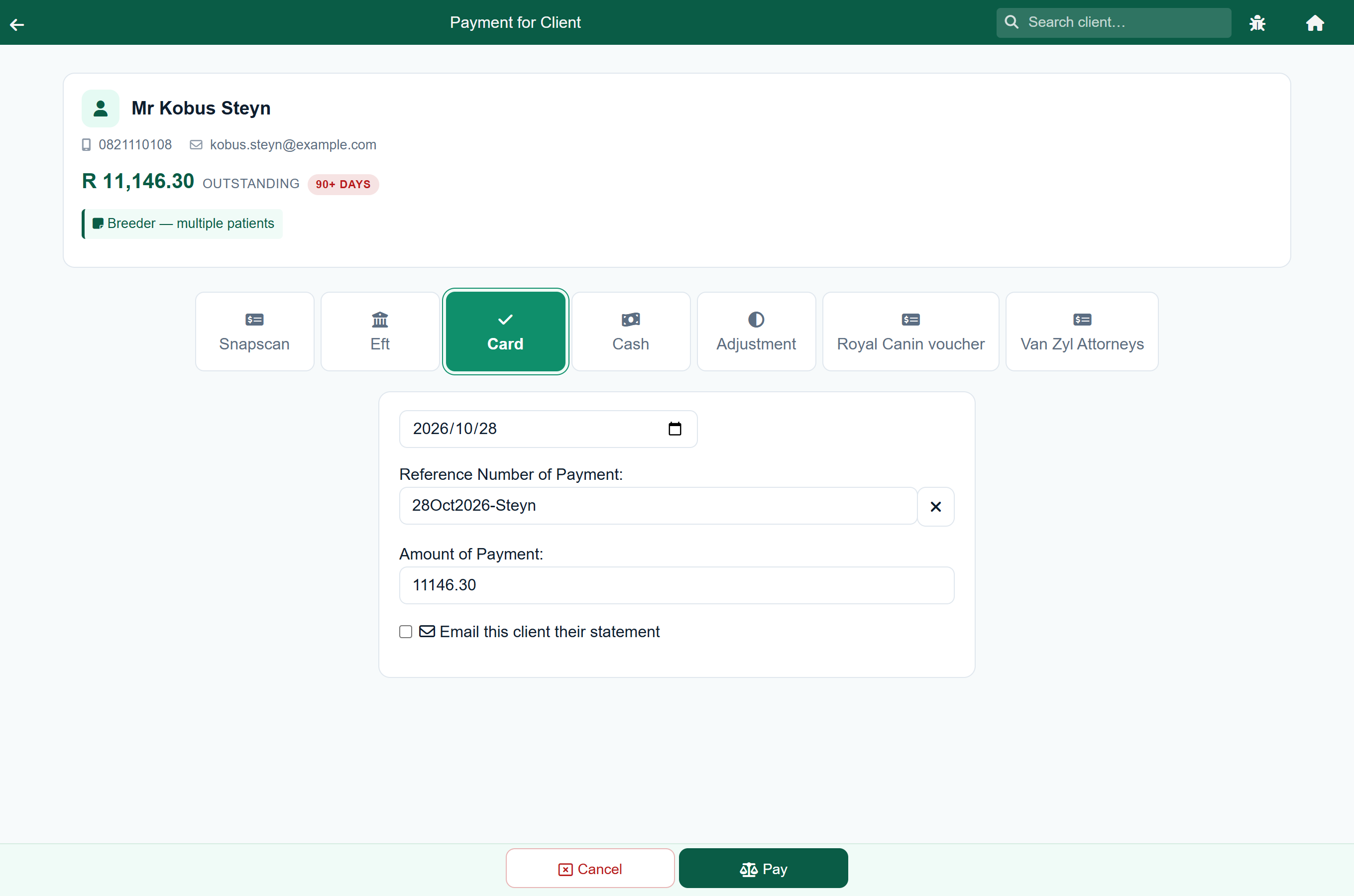
Next to an outstanding balance you may see a coloured badge. It shows how old the debt is, not how much it is.
| Badge | Means |
|---|---|
| none | The balance is current, or under 30 days old. |
| 30 days (grey) | Money has been outstanding for around a month. |
| 60 days (amber) | Around two months. Worth mentioning while the client is in front of you. |
| 90+ days (red) | Around three months or more. |
The badge appears on the client record, the account, the Pay and Debit screens, the Send Invoice screen, and the patient panel on a consultation, so the vet sees it before starting work.
Adding a charge by hand#
Debit adds a charge that did not come from a visit or a sale: a missed-appointment fee, a cremation charge passed on, an agreed contribution.
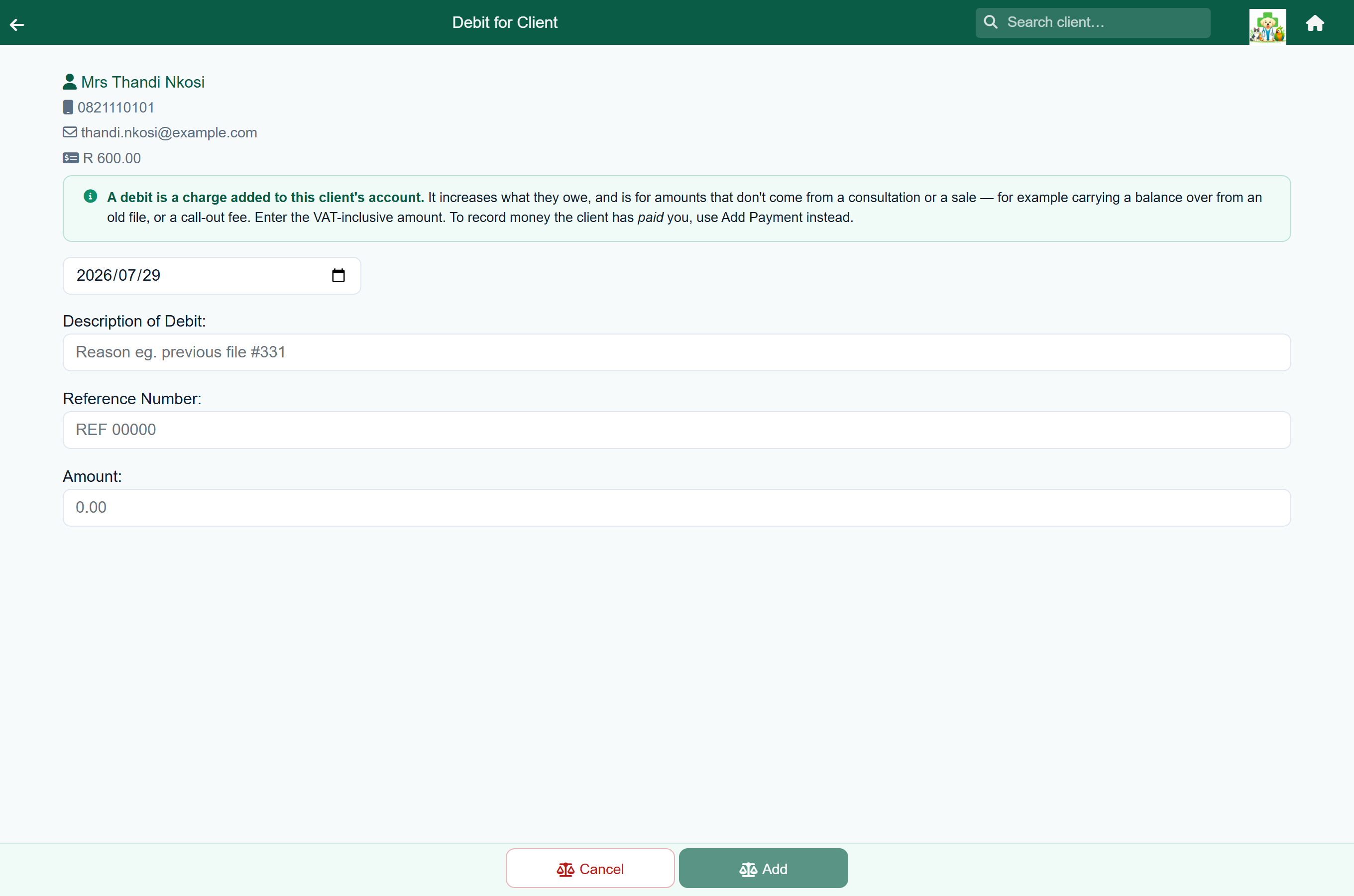
- Open the client's account and press Debit in the footer.
- Check the date, then enter a clear description (the client will see it), a reference number and the amount.
- Press Add.
Reversing a charge#
Charges are never deleted. Reversing marks the original entry Transaction reversed and writes a matching credit, so the account shows both the charge and the correction.
- Open the client's account and find the charge.
- Press the … button on it.
- Press Reverse, or Readmit on a hospital or boarding charge.
Reversing a consultation, dispense, sale or groom puts the stock it used back on the shelf. Readmit reopens the hospital or boarding stay so you can correct it and discharge it again.
Changing how a payment was made#
Pressed Cash when the client paid by card? You do not need to reverse anything. Change the payment to the method the client really used, and the cash-up, the daily summary, Payments received and the accounting export all count it under the right one.
- Open the client's account and find the payment.
- Press the … button on it.
- Press Change to Card, or whichever method the client actually used. There is one button for each of your other payment methods.
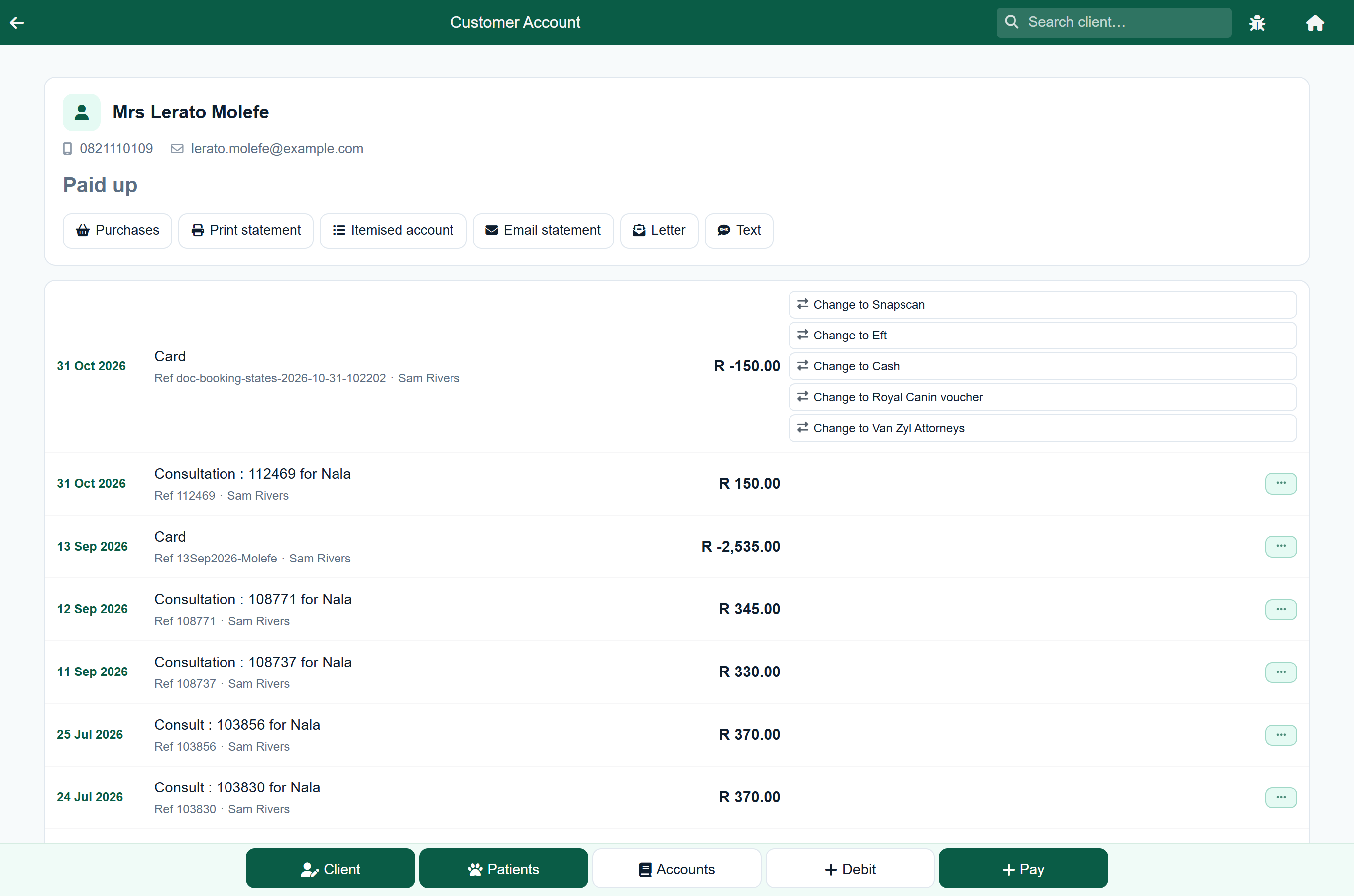
The change is made as soon as you press the button. Only the method changes: the amount, the date, the reference and who took the payment all stay as they were, so the client’s balance does not move. If you pick the wrong one, press the button for the right one.
A payment taken on a cash sale changes on the sale as well, so its Payment panel and invoice show the new method. It can only move to a method your till offers.
- An Adjustment. It is a write-off, not money taken, so it cannot become cash or card, and a payment cannot become an adjustment either.
- A payment the client made online through the client portal. That money is with the payment provider.
- A payment recorded under a name that is not one of your payment methods, such as one brought across from your old system.
Payment terms, credit limits and holds#
Set your practice’s payment terms under Settings → Billing & Payments. To give one client different terms, edit their record and use the Account section.
| Setting | What it does |
|---|---|
| Payment Terms | How many days a client has to pay. It prints on the statement, and overdue emails wait for it. What the days count from depends on how your practice bills. Blank on a client means “use the practice’s terms”; blank on the practice means 30 days. |
| Credit Limit | What you are willing to carry for this client. Once the balance passes it, the client record shows Over credit limit. It does not block anything. |
| Account on hold | Puts a red Account on hold banner in front of staff wherever they work on that client, so nobody charges them unawares: on the client’s record, and on the patient panel at the top of a consultation, a stay, a groom, dispensing and a sale. The client search shows a red ACCOUNT ON HOLD line on their card, and the client picker used for bookings, sales and purchase history flags the row On hold, so reception sees it before they open anybody. It also stops that client’s automatic statements and overdue emails, which is what you want once a debt has gone to a collector. It does not block treatment or charging, and you can still send a statement by hand. |
| Default Rate | A price group this client is always charged at: rescue, breeder, trade. New lines use it automatically, and staff can still change any line. Only shown if your practice has price groups. |
| Client Code | The code you know this client by, which also finds them in the client search. It is the debtor code in the accounting export, so use the codes your accountant uses. |
Statements#
A statement ends with the payment terms, the date the oldest unpaid charge falls due, and an ageing line (current, 30, 60, 90+ and total due). Under it is the payment reference to pay with, and the client’s client code, printed as Account code, if they have one. Where a piece of work carries the client’s order number, it prints beside that line under Your ref.
To send one, open the client's account and use the print or email button at the top. The email button only appears if the client has an email address on file. Your practice can also send statements automatically, and with every payment; see Email & notifications.
How your practice bills. Choose one of two models in the Statements card under Settings → Billing & Payments. It decides when money falls due and when a client is chased.
| How you bill | What it means |
|---|---|
| Each invoice on its own terms | The default. Each charge is due your payment terms after the day it was raised. No routine statement goes out; a client hears from you when they are late. |
| One statement a month | One statement goes out on the day you choose: the 1st to the 28th, or the last day of the month. Everything on it falls due your payment terms after the statement date, so every account client is due on the same day. |
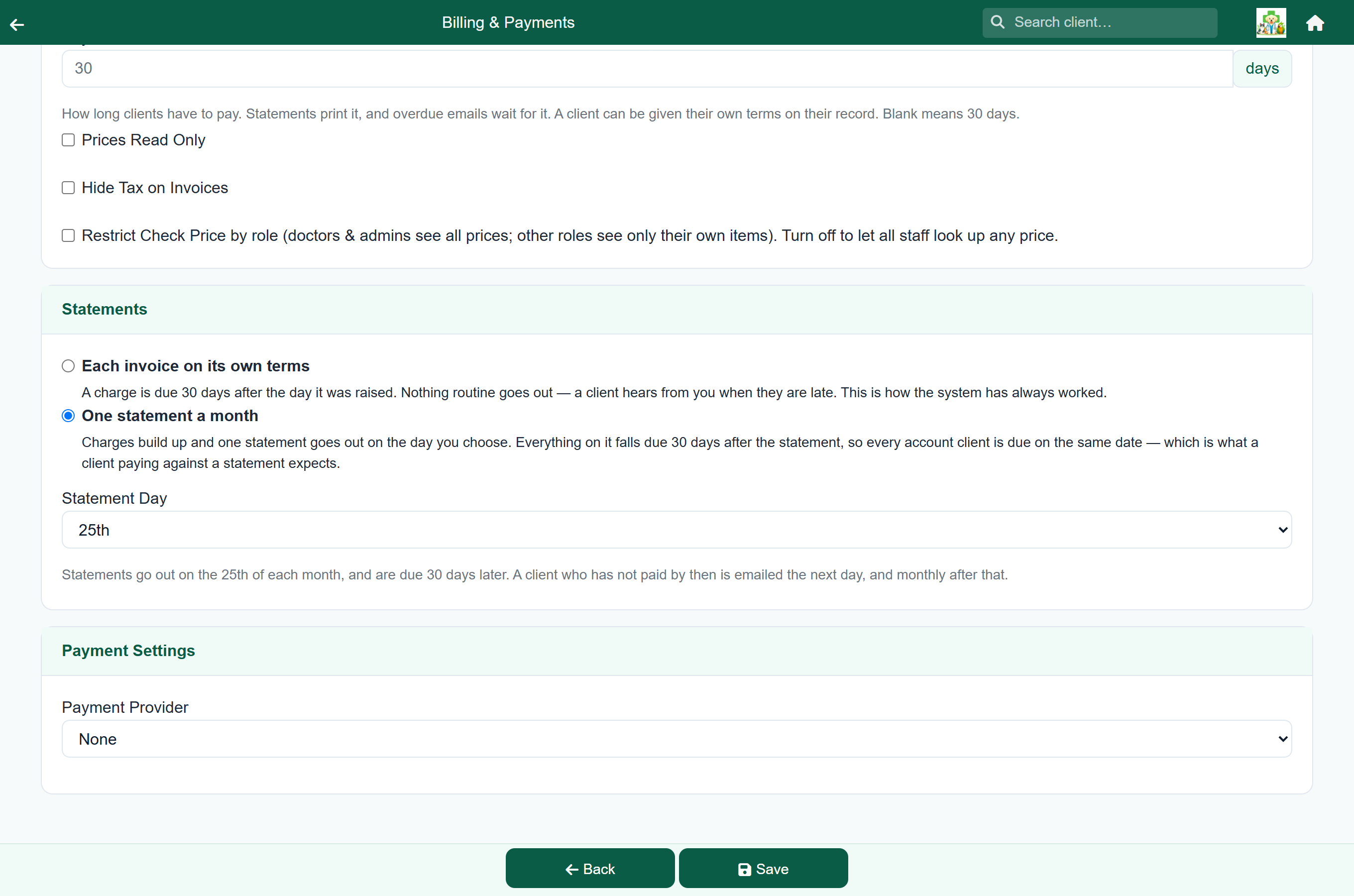
Payment terms still belong to the client under either model: a client on 60 days gets 60 days from the statement.
Under either model, a client who has not paid by the due date is emailed the next day and monthly after that, as long as Email overdue account statements is on under Settings → Email & notifications. If a statement day and a chase day fall together, the client gets only the overdue email.
A client with Account on hold ticked is left out of both: no statement and no overdue email, by email or text. Tick it once a debt is with a collector, so your practice is not chasing someone the collector is already chasing. You can still send that client a statement by hand.
The itemised account#
Home›Search Client›the client›Statement›Itemised account
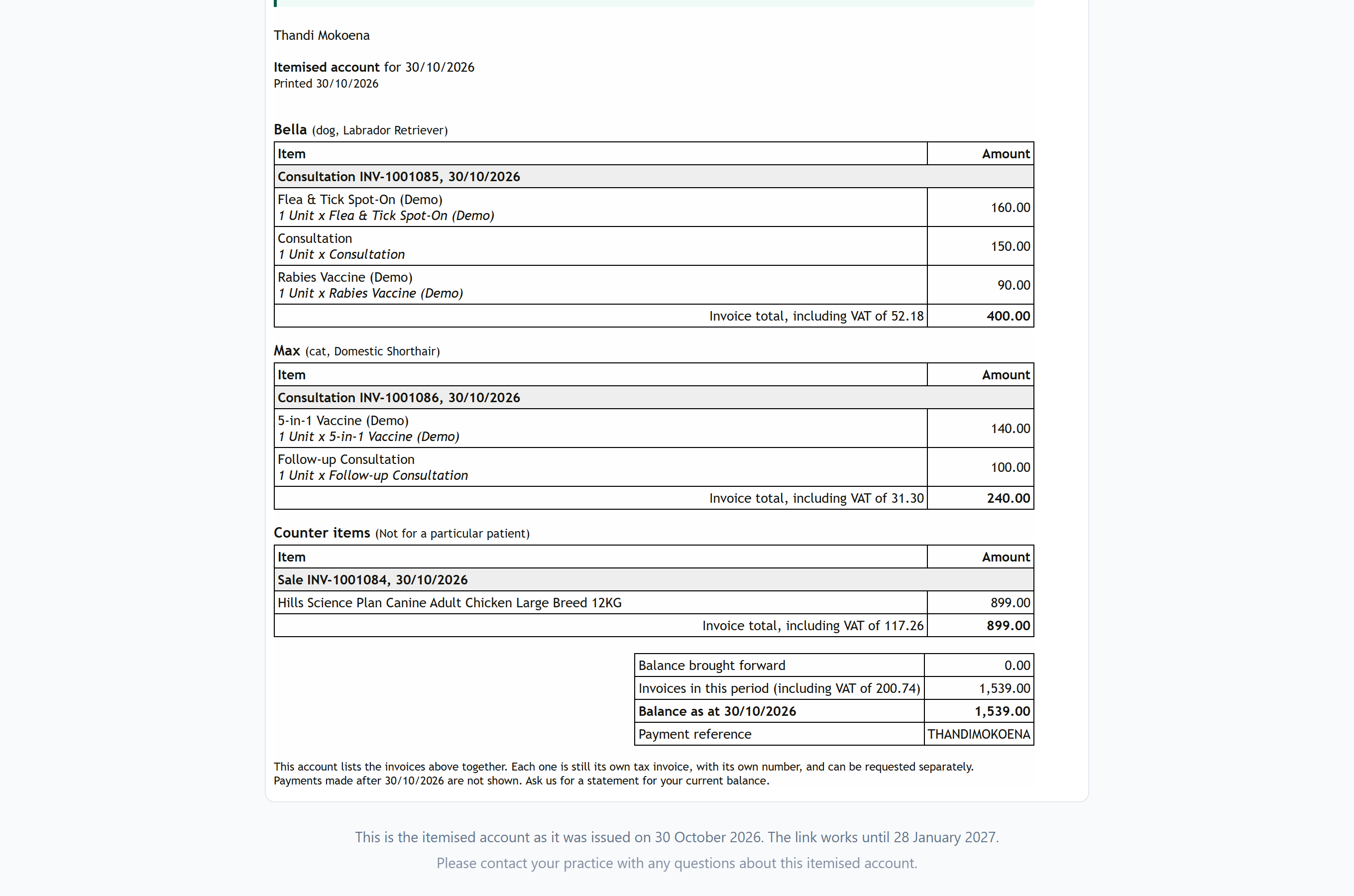
One visit often ends as several invoices: one for each pet, and one for anything bought at the counter before or after the vet. The itemised account puts all of them on one page, grouped by pet, with every line and its VAT, then the payments, and one balance at the bottom. Each invoice stays its own tax invoice with its own number; this is a way of showing them together.
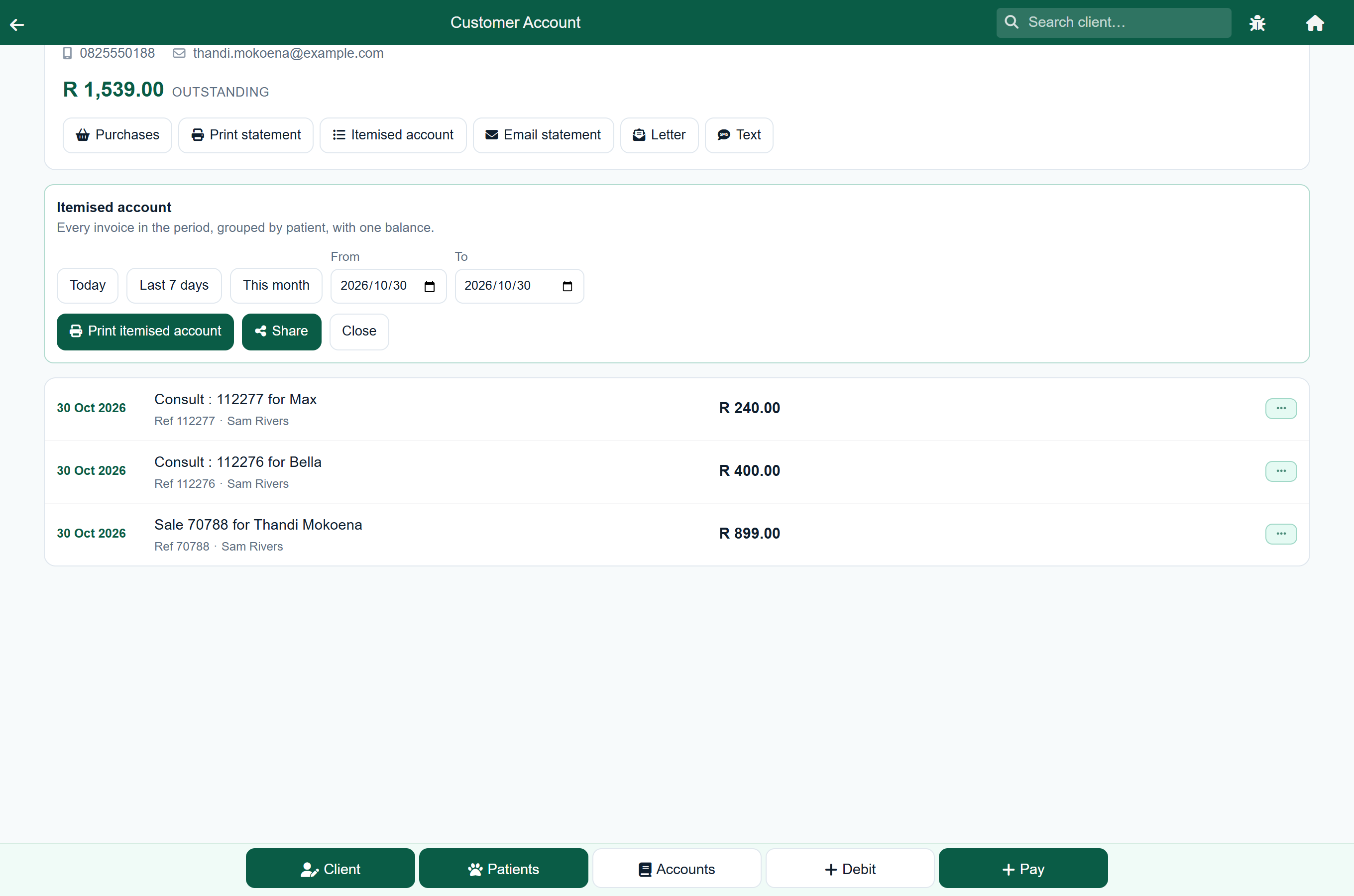
- Open the client's account and press Itemised account (Itemised in the classic theme).
- Choose the period: Today for the visit that has just happened, Last 7 days, This month, or any dates in the From and To boxes.
- Print itemised account to hand it over, or Share to send it by WhatsApp, text, email or link. Close puts the panel away.
When you share it, Also send each invoice (off unless you tick it) sends each invoice's own link under the itemised account's in WhatsApp and text messages and in a copied link, and attaches each invoice's PDF to the email. Print prints the itemised account only, which already lists every line. Pay, next to Done, goes to the payment. If an invoice in the period has not been sent to the client in any way, it asks first, as the payment queue does.
On the page: each pet's invoices with their lines, Counter items for sales that are not for a pet, then Payments and other account entries in the period. The summary gives the balance brought forward from before the period, the invoices in it (with their VAT), the payments, and the balance. A reversed invoice is left out of the invoices; the reversal and its credit are listed instead, and cancel each other out.
Invoices#
Finishing a consultation, sale or groom, or discharging a stay, raises an invoice. If automatic invoice emails are on, the client is emailed it straight away. You can also send it by WhatsApp or text, or send it again from the account at any time.
To leave tax off your invoices, tick Hide Tax on Invoices under Settings → Billing & Payments.