
Help Centre › Money
Commission
Decide what each vet earns on the work they do, by grouping your price list, grouping your vets, and filling in the table where the two meet.
Commission is set up once and then mostly left alone. You sort your price list into a handful of commission groups, sort your vets into vet groups, and fill in a small table saying what each combination earns. You assign categories, not individual items.
Starting from the standard setup#
Settings›Commission
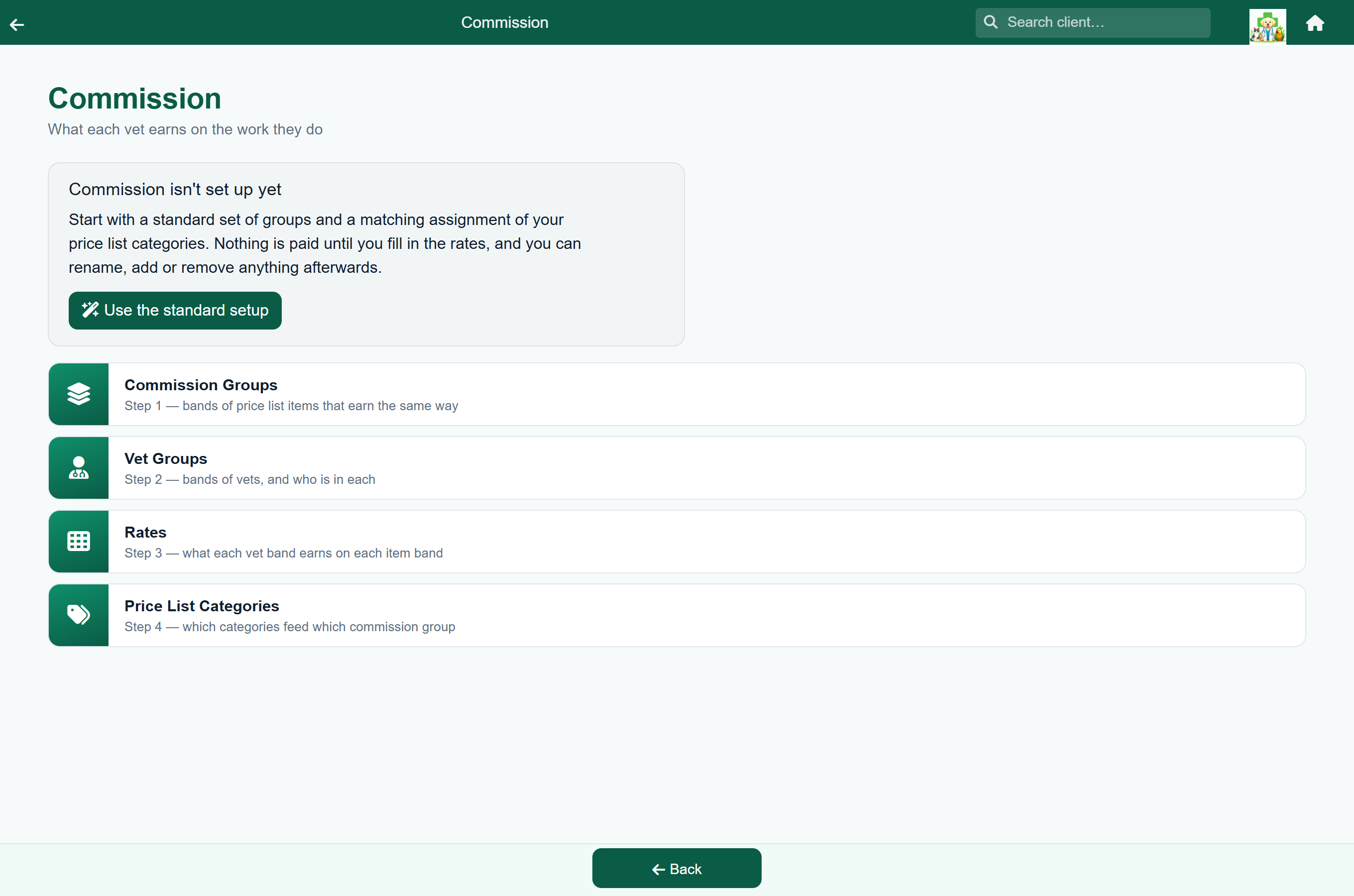
If commission has never been set up, press Use the standard setup. It creates six commission groups (Consultations & procedures, Surgery, Medication & consumables, Laboratory & imaging, Food & retail and No commission) plus one vet group, and points each of your price list categories at whichever group fits.
It does not fill in any rates; you set those yourself. Categories it does not recognise (ones you have renamed or added) are left for you to assign under Price List Categories.
What the menu tells you#
Once commission is set up, the Commission menu warns you about anything that will earn nothing:
- Price list items in no commission group. A handful is normal: cremation fees, deposits. Hundreds means a category has not been assigned.
- Vets in no vet group. That vet earns nothing.
- Combinations in the rate table with no rate. Work in those combinations earns nothing.
Step 1: commission groups#
Settings›Commission›Commission Groups
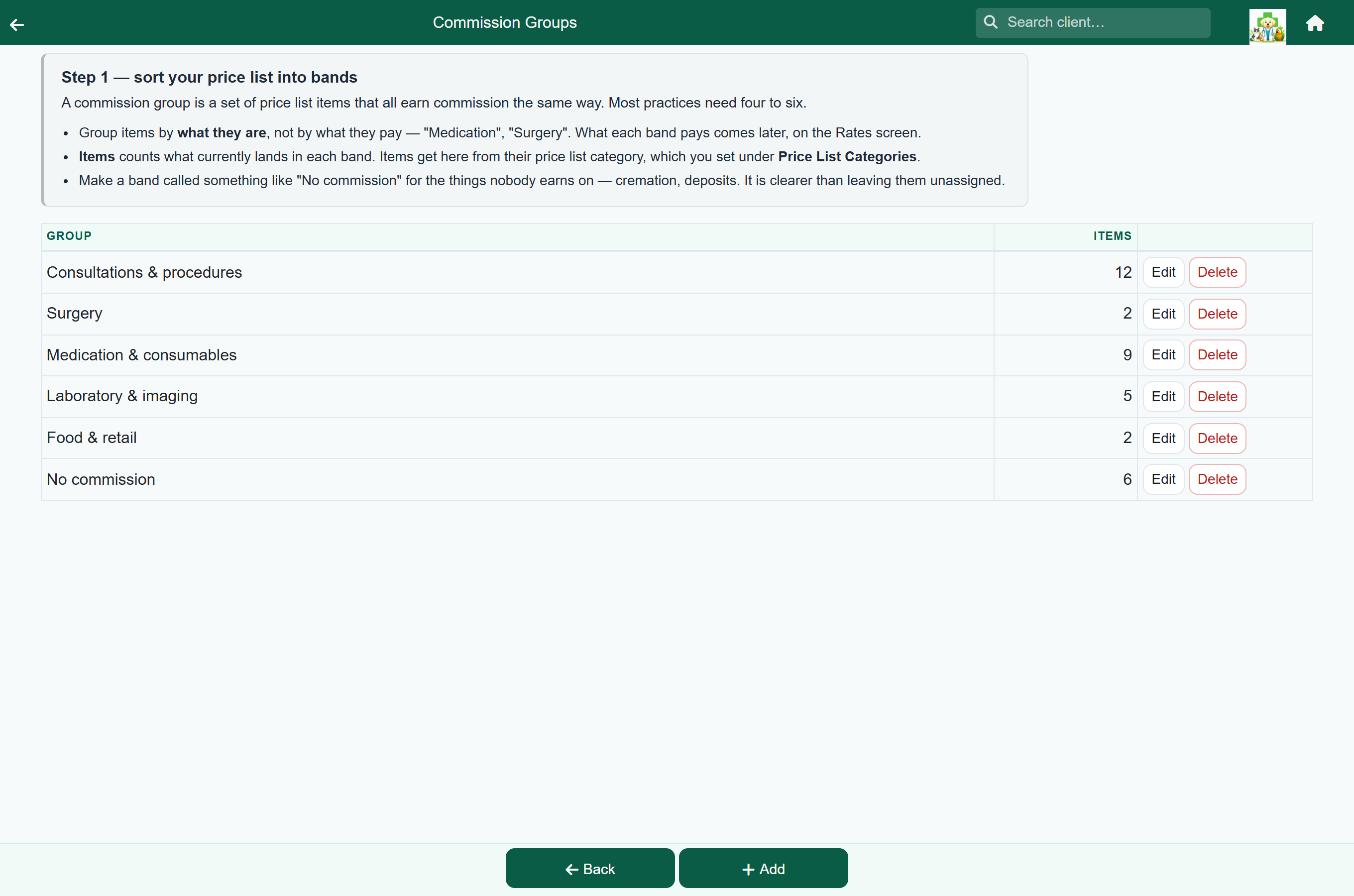
A commission group is a band of price list items that all earn commission the same way. The screen shows each group's name and how many price list items are in it; check that no band is empty, or holding far more than it should.
Name groups by what the items are (Medication, Surgery, Laboratory) rather than by what they pay, so a rate change never means renaming a group.
Deleting a group also removes its rates and category assignments. You cannot delete a group while individual price list items are set to it; the message tells you how many.
Step 2: vet groups#
Settings›Commission›Vet Groups
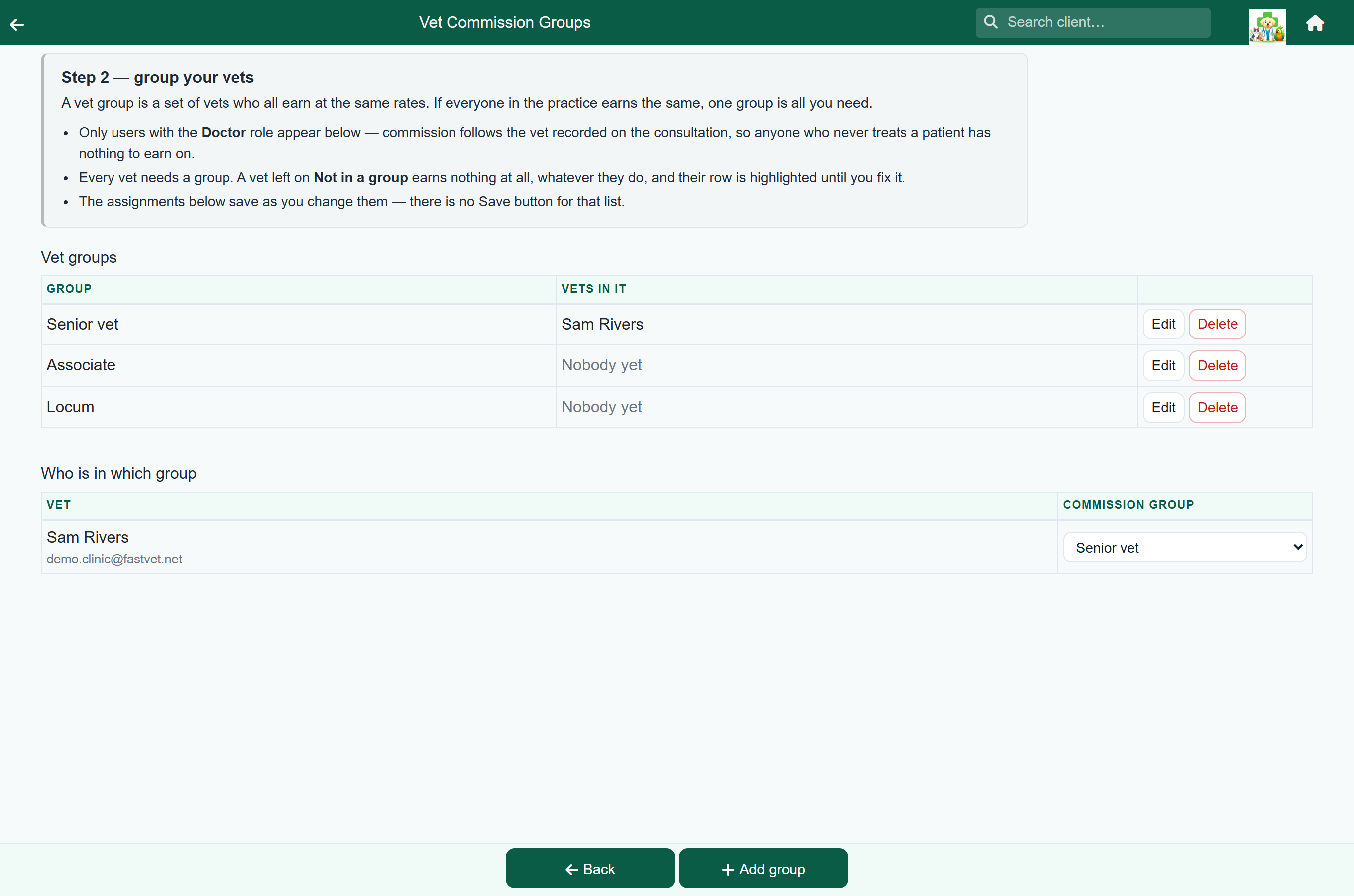
The same idea for people. If every vet earns the same, one group is all you need.
Under the groups, pick a group for each vet from the dropdown. Only users with the Doctor role are listed. Changes save as you make them.
Step 3: the rate table#
Settings›Commission›Rates
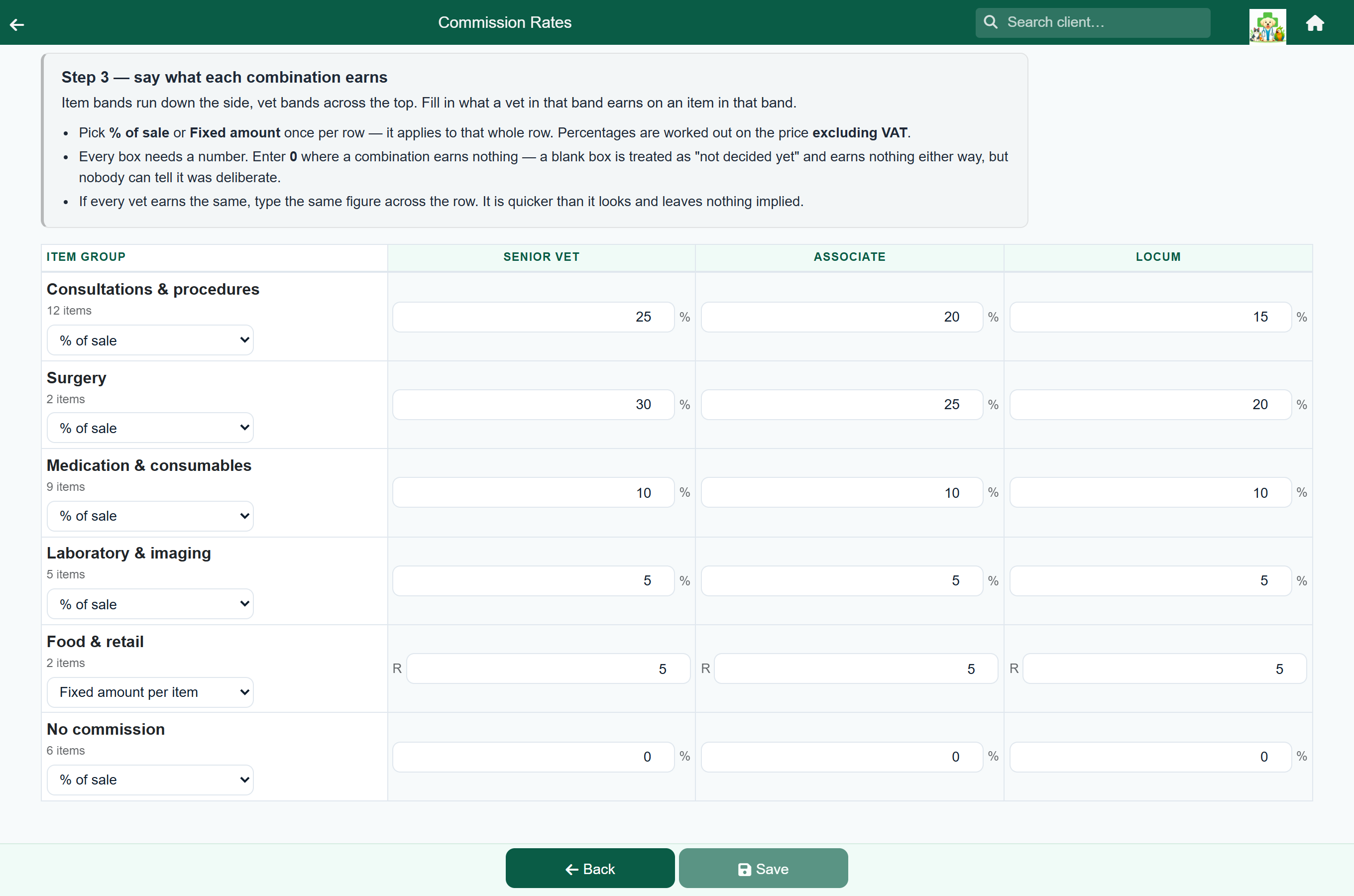
Commission groups run down the side and vet groups across the top. Each box is what a vet in that vet group earns on an item in that commission group.
Each row has its own unit, chosen in the row header: % of sale or Fixed amount per item. Every box in the row then takes a plain number.
Every box needs a number. Where a combination earns nothing, type 0. The screen will not save while any box is blank, and tells you how many are left.
Step 4: which items are in which group#
Settings›Commission›Price List Categories
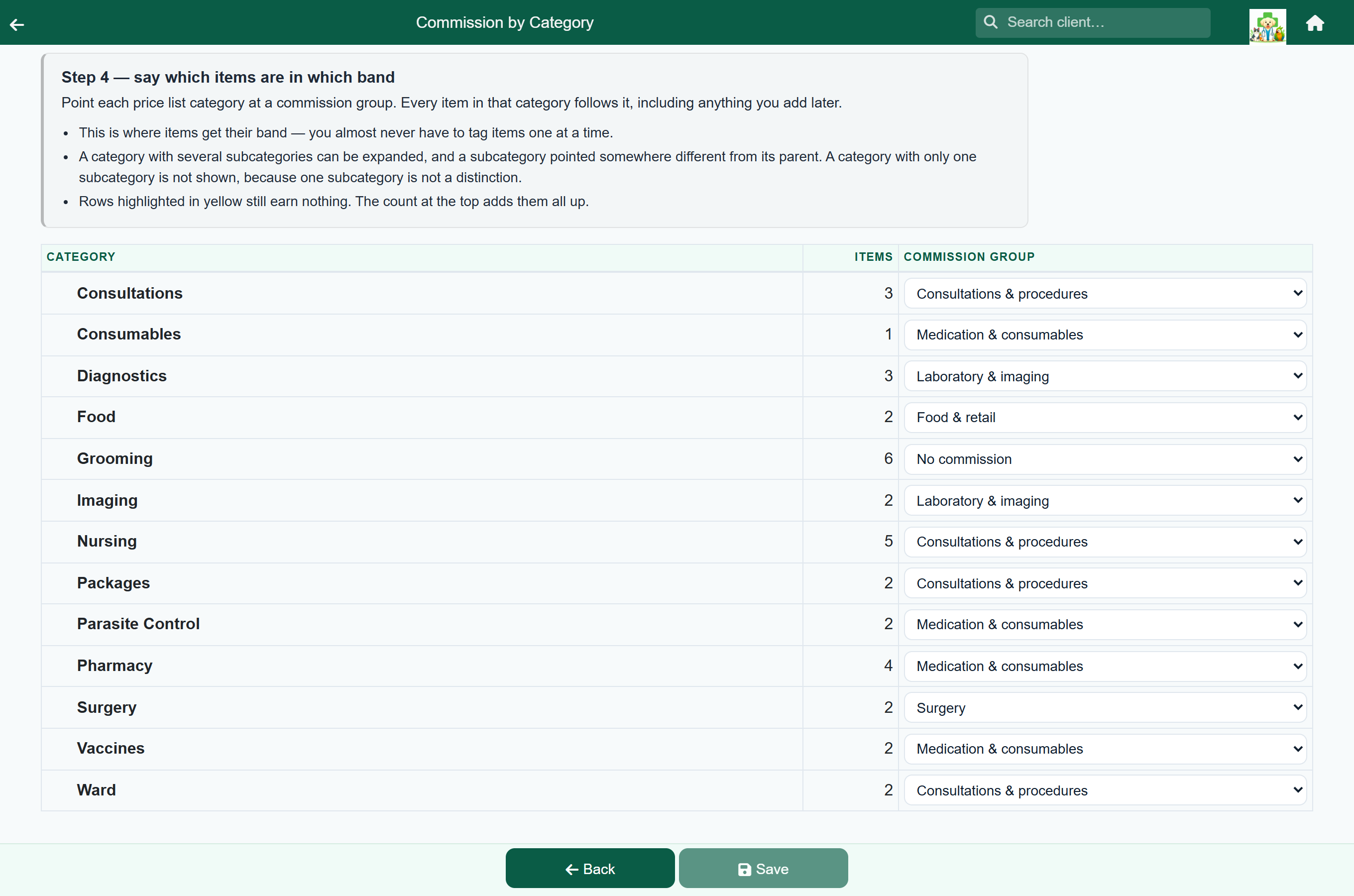
Point each price list category at a commission group. Every item in that category follows it, including items you add later.
A category with several subcategories can be expanded, and a subcategory pointed at a different group. A subcategory left on Same as category follows its parent. A category with only one subcategory is not expanded; its items follow the category.
Rows where items would still earn nothing are highlighted, and the count at the top adds them up. Press Save to keep your changes.
When one item is different#
Home›Stock & Prices›Update Prices›Edit
To put a single item in a different group from the rest of its category, open it in the price list editor and use the Commission card. The card appears once commission groups exist.
By default it reads Use the category setting, naming the group the item inherits, or No Commission if its category is not assigned. Choosing a group sets the item to that group permanently, even if you later move it to another category.
Protocols#
A protocol (a spay pack, a vaccination course) is billed as a single charge. The items inside it are recorded and taken out of stock but not charged separately.
Commission works the same way. Put the protocol itself in a commission group and it earns on the protocol charge. The items inside it never earn, so a protocol is never paid twice. There is nothing extra to configure.
If you rename a price list category#
Category assignments are matched on the category's name. If you rename a category, its items follow whatever their new category name is assigned to, which may be nothing.
The Price List Categories screen lists these under Rules that no longer match anything at the bottom. Point the renamed category at the right group and Remove the old rule.
Setting it up, in order#
- Open Settings › Commission and take the standard setup.
- Commission Groups: check the groups it made, and rename or add any you need.
- Vet Groups: rename the group it created if you like, add more if your vets earn differently, and put every vet in one.
- Rates: choose % or fixed amount for each row, then put a number in every box, using 0 for combinations that earn nothing.
- Price List Categories: assign anything the standard setup left blank.
- Back on the Commission menu, check that no warnings remain.
- Run Commission: work out what the current month would pay and read it through. It is the quickest check that the setup is right.
Running commission for a month#
Settings›Commission›Run Commission
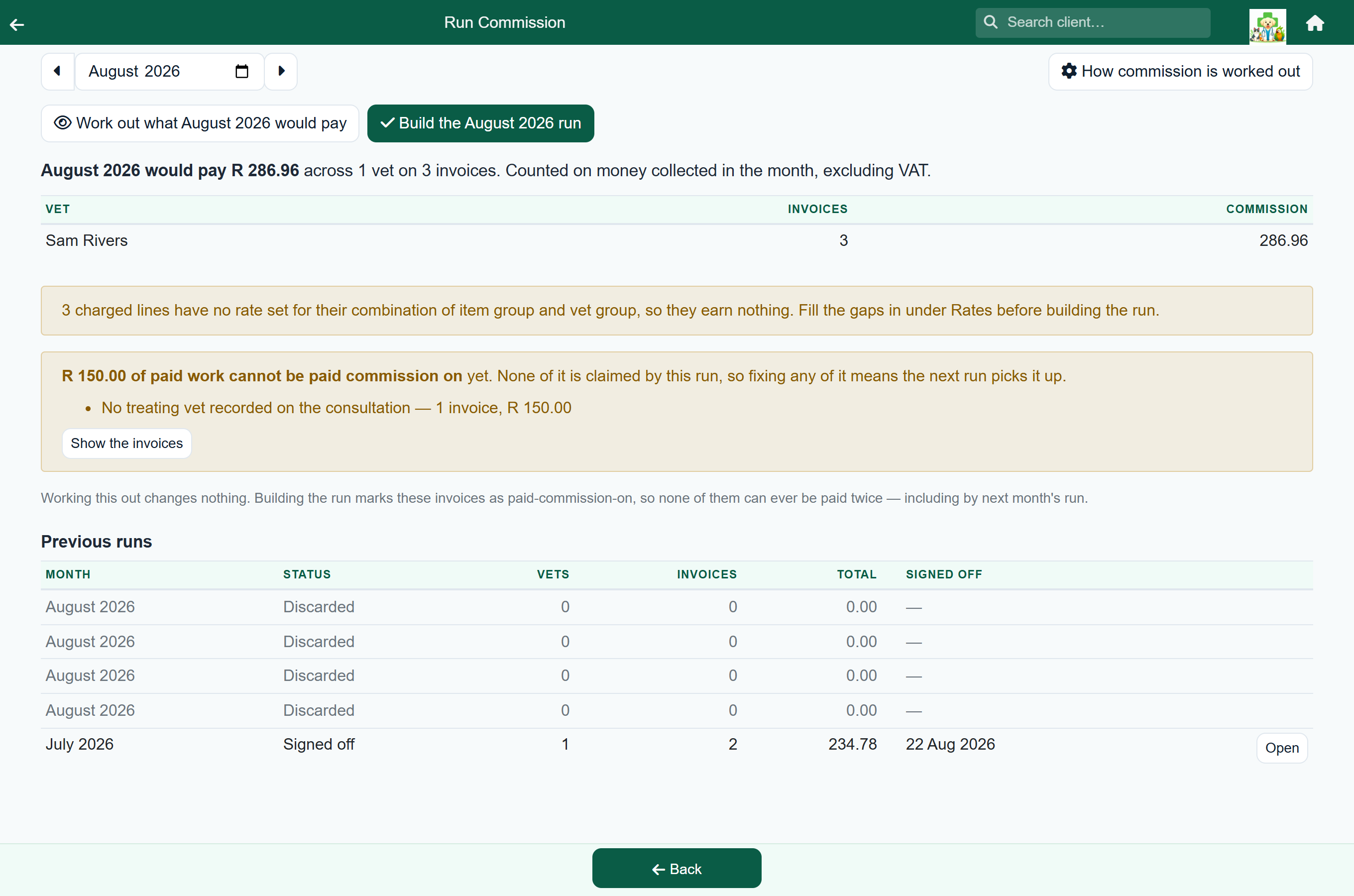
Pick the month, then:
- Work out what August would pay calculates everything and stores nothing. Press it as often as you like.
- Build the August run creates the run and marks every invoice it covers, so no later run can pay commission on them again.
What counts as this month#
Press How commission is worked out on the Run Commission screen to set these:
| Setting | What it means |
|---|---|
| Commission is earned when the invoice is paid in full | The usual choice. Work done in March that a client settles in June is June's commission. |
| Commission is earned when the work is invoiced, paid or not | Commission is due as soon as the work is billed. Use this if that is how you have always counted, or to reconcile against another system that counts that way. |
| Percentages apply to the amount excluding VAT (or including VAT) | Excluding VAT is the default. |
| Paying commission from | Nothing before this date is ever picked up. A run needs this date set. |
| Let each vet see their own commission | See below. |
Each run prints the settings it was built on at the top.
Reading a run#
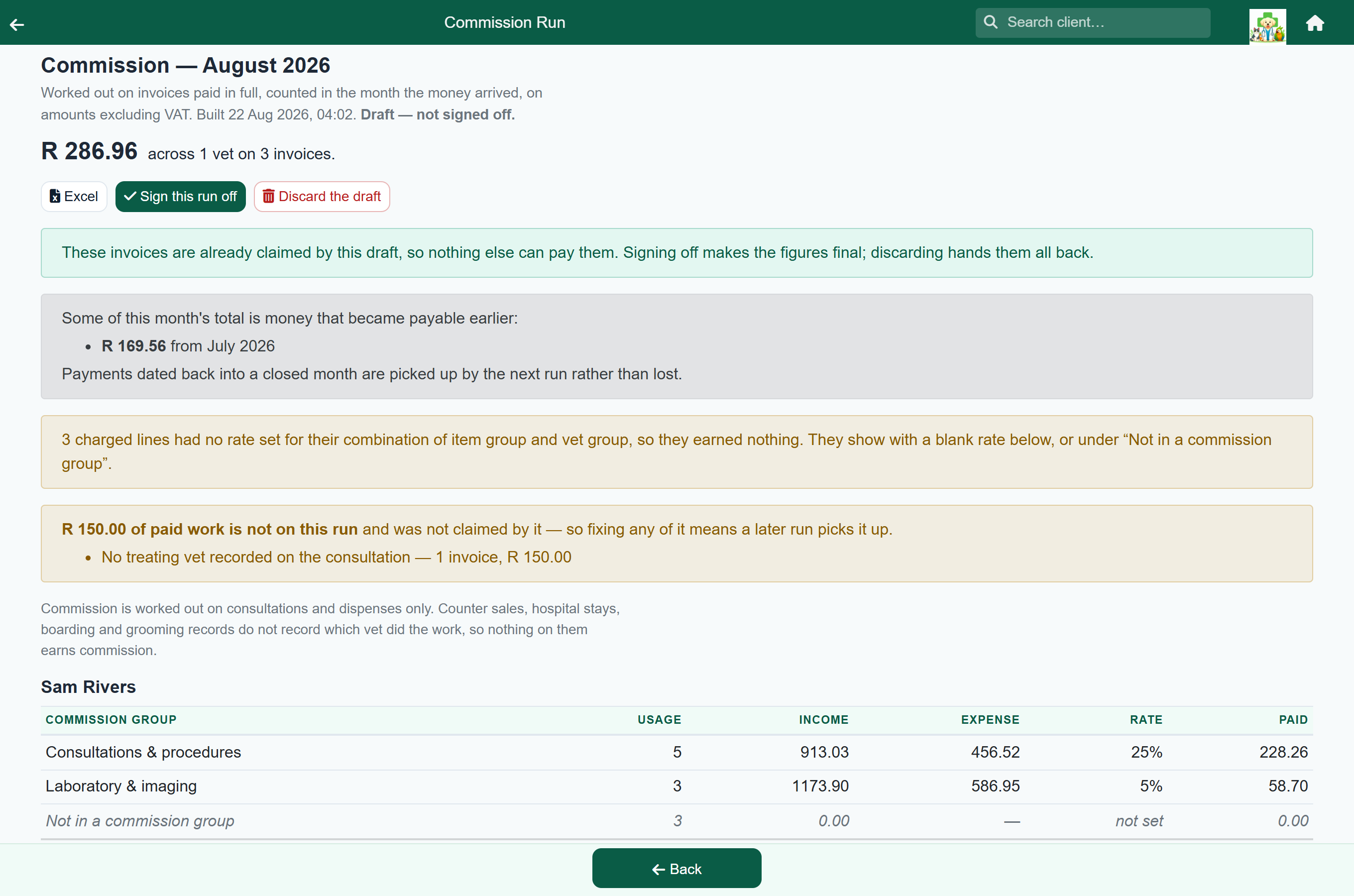
A run has one section per vet, with one row per commission group. Printing it gives you a page per vet, and Excel downloads it.
- Usage is how many were billed: twenty callouts, nine cremations.
- Income is what those came to, on the VAT basis the run was built on.
- Expense is what they cost the practice, where the price list records a cost. It is for information only.
- Rate is the rate applied, and Paid is the commission earned.
A row reading Not in a commission group, or a rate showing not set, is work that earned nothing because of a gap in the setup. Fix it under Price List Categories or Rates.
Draft, then signed off#
A new run is a draft. It already holds its invoices, so no other run can pay them, but you can still throw it away.
- Read the draft, and deal with anything it warns you about.
- If the setup needs fixing, press Discard the draft. Its invoices are released and you can build the month again.
- When you are happy, press Sign this run off. The figures become final.
Work that could not be paid on#
Commission is worked out on consultations, dispenses, hospital stays and boarding stays. Counter sales and grooming do not record a vet, so they never earn commission.
Each run also lists work it could not pay commission on, and why. None of it is claimed by the run, so once you fix it the next run picks it up.
- No treating vet recorded on the visit. Set the Treating vet on the consultation, hospital stay or boarding stay. The Record column tells you which to open.
- The vet is not in a commission group. Put them in a group under Vet Groups.
Press Show the invoices to list the individual invoices behind those figures.
When something is reversed after it was paid#
If an invoice earns commission and is later reversed, the next run adds a correction to that vet's section: a negative line for exactly what was paid, even if the rate has changed since.
If the work is later charged and paid again, a later run picks it up as normal.
Letting a vet see their own#
Tick Let each vet see their own commission under How commission is worked out to give each vet a read-only screen showing their own figures. They see signed-off runs only, and never a colleague's figures.