
Help Centre › Clinical care
Dispensing labels
The medication label for the box or bottle: printing one, what goes on it, choosing label stock, and setting the size and wording for your practice.
When you dispense medication, FastVet prints a label for the box or bottle with your practice details, the drug, the quantity, the directions and the patient.
The one setting to get right is the size of the label, which must match the labels you buy.
| Where | What it covers |
|---|---|
| On a dispensed line | The Print Label button, and a preview of what will print. |
| Printing one again | Recent Labels: finding a label and printing it a second time. |
| Writing one yourself | A label for something that was not dispensed on a visit. |
| What is on it | The details FastVet fills in. |
| Choosing label stock | Which labels to buy. |
| Setting the size and wording | Label size, margin, font size, the label’s text, and a test print. |
| When it does not fit | What the preview’s warnings mean. |
| Setting up the printer | The print settings to use. |
Printing a label#
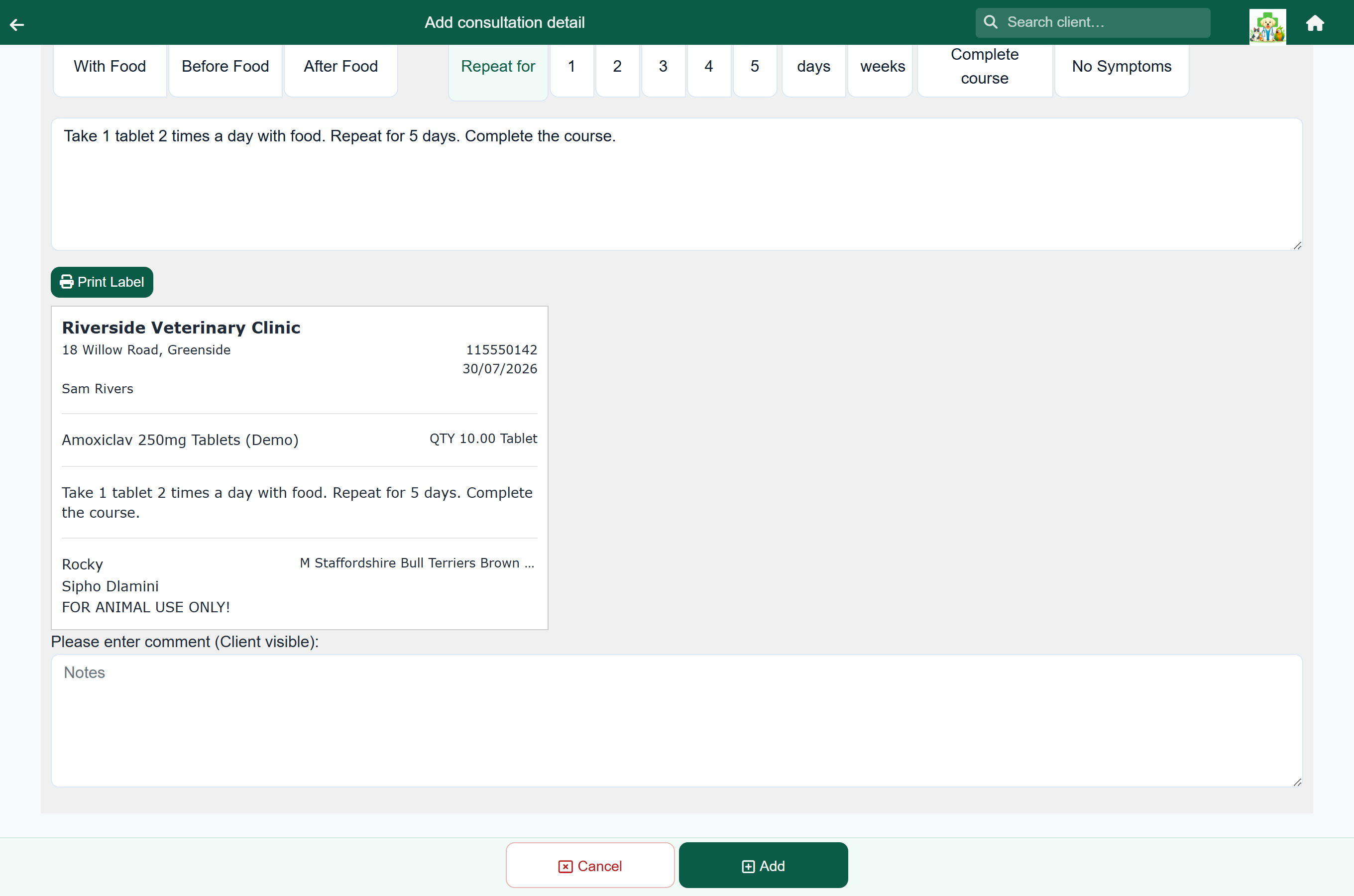
Labels are printed from a Treatment line on a consultation, or on a hospital or boarding day. Once the line has directions, the label appears beneath them.
- Charge the medication as usual, or tap the line to open it.
- Fill in Instructions, by hand, or with the Instruction Maker.
- A preview of the label appears, at the size it will print.
- Press Print Label and choose your label printer.
Printing a label again#
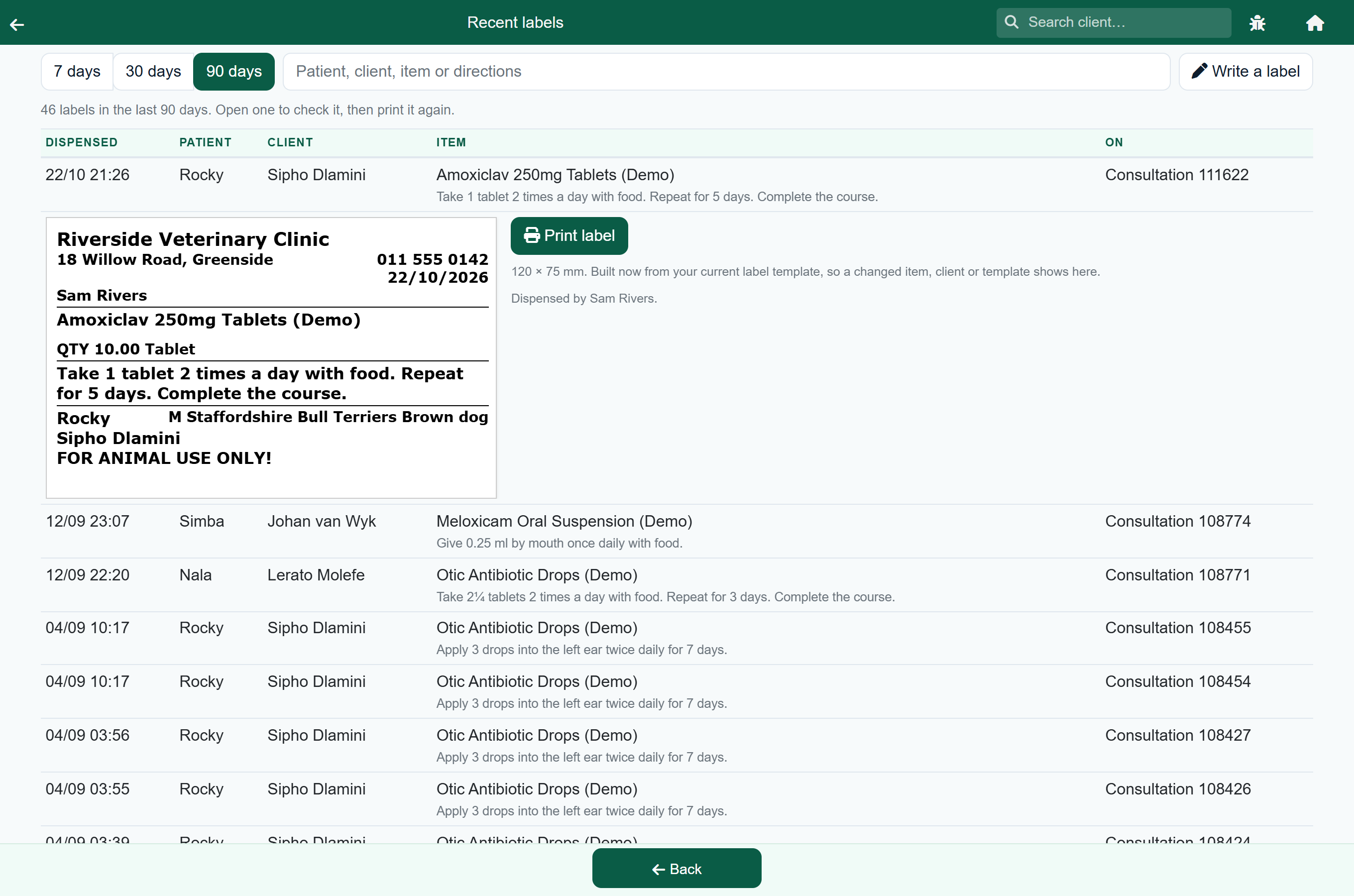
A label that came out wrong, ran out of roll, or went in the bin with the box can be printed again from Recent Labels on the Home screen. It lists everything dispensed with directions, newest first, so you do not have to find the visit it was on.
Home›Recent Labels
- Open Recent Labels on the Home screen.
- Pick the window: 7 days, 30 days or 90 days.
- Search by patient, client, item or wording if the list is long.
- Tap the line. The label opens underneath it, at the size it will print.
- Check it, then press Print label.
It covers all five places a line can be dispensed: consultations, hospital and boarding days, grooming, and sales. A sale line and a counter hand-over have no label button of their own, so this is the only place to print those.
Writing a label yourself#
Not everything that needs a label was dispensed on a visit. A decanted bottle, a dose sent home in a tub, a box that needs the practice name and a date on it: press Write a label on Recent Labels and type what it should say.
Home›Recent Labels›Write a label
- Press Write a label.
- Fill in the parts you want. The label updates as you type.
- Check it, then press Print label.
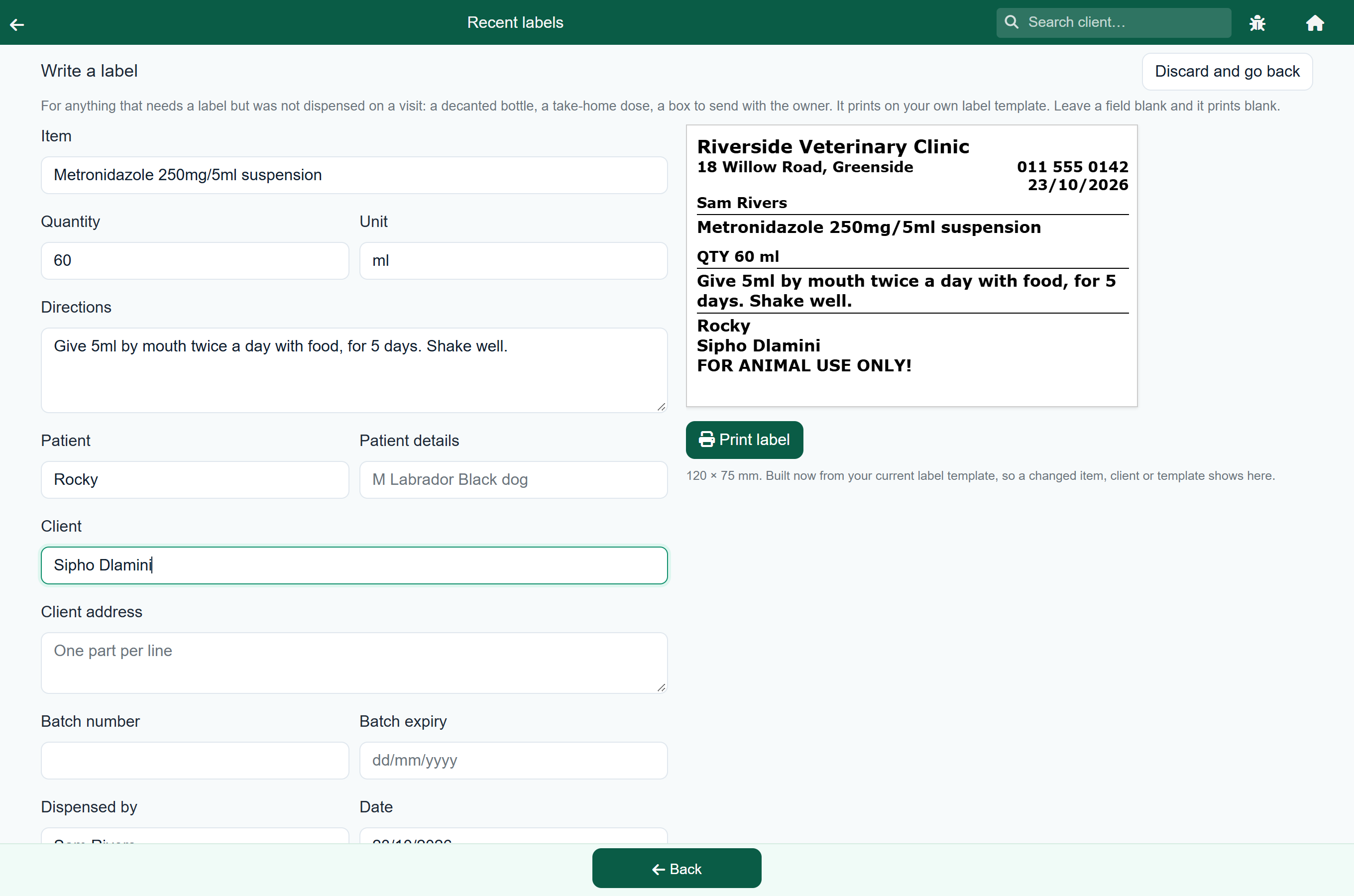
It prints on your own label template, the same one a dispensed line uses, so a hand-written label looks like every other label you hand out. The date and your name are filled in for you; everything else starts blank.
What is on the label#
FastVet fills in:
- Your practice name, address and telephone number, from Practice Details.
- Today’s date, and the name of whoever dispensed it.
- The item, and the quantity and unit dispensed.
- The directions from the line.
- The patient, its details, and the owner’s name.
- The line “FOR ANIMAL USE ONLY!”
Two more things can go on the label, and neither is there to begin with. Add the code in the label editor and it prints from then on:
| Add this code | and the label prints | Why it is not there already |
|---|---|---|
| #LOTNUMBER# #LOTEXPIRY# | The batch dispensed from and its expiry date, where a batch was chosen on the line. | Most lines have no batch, so on most labels it would print nothing. Put the two codes on a line of their own with no wording in front and a label with no batch loses nothing at all: the line collapses and takes up no room. |
| #OWNERADDRESS# | The owner’s postal address, or their street address where there is no postal one, and nothing where the client has neither. | An address takes two or three lines, and on small label stock that is often the difference between one label and two. |
You can change the wording and the size; see Setting the size and wording.
Choosing label stock#
If you are buying labels or a label printer, choose stock with room for a full set of directions. With a long practice name, a long drug name and long directions:
| Label stock | Size | Result |
|---|---|---|
| DYMO 99014 / 30256 shipping | 54 × 101 mm | Fits on one label at about 7pt. The one to buy for a DYMO LabelWriter. |
| DYMO 99012 large address | 36 × 89 mm | Long directions run onto a second label. |
| DYMO 99010 address | 28 × 89 mm | Most directions run onto a second label. |
| Standard sheet label on an office printer | 120 × 75 mm | Plenty of room. |
Setting the size and wording#
Home›Settings›Manage Templates›Dispensing Label
The label is one of your practice's templates.
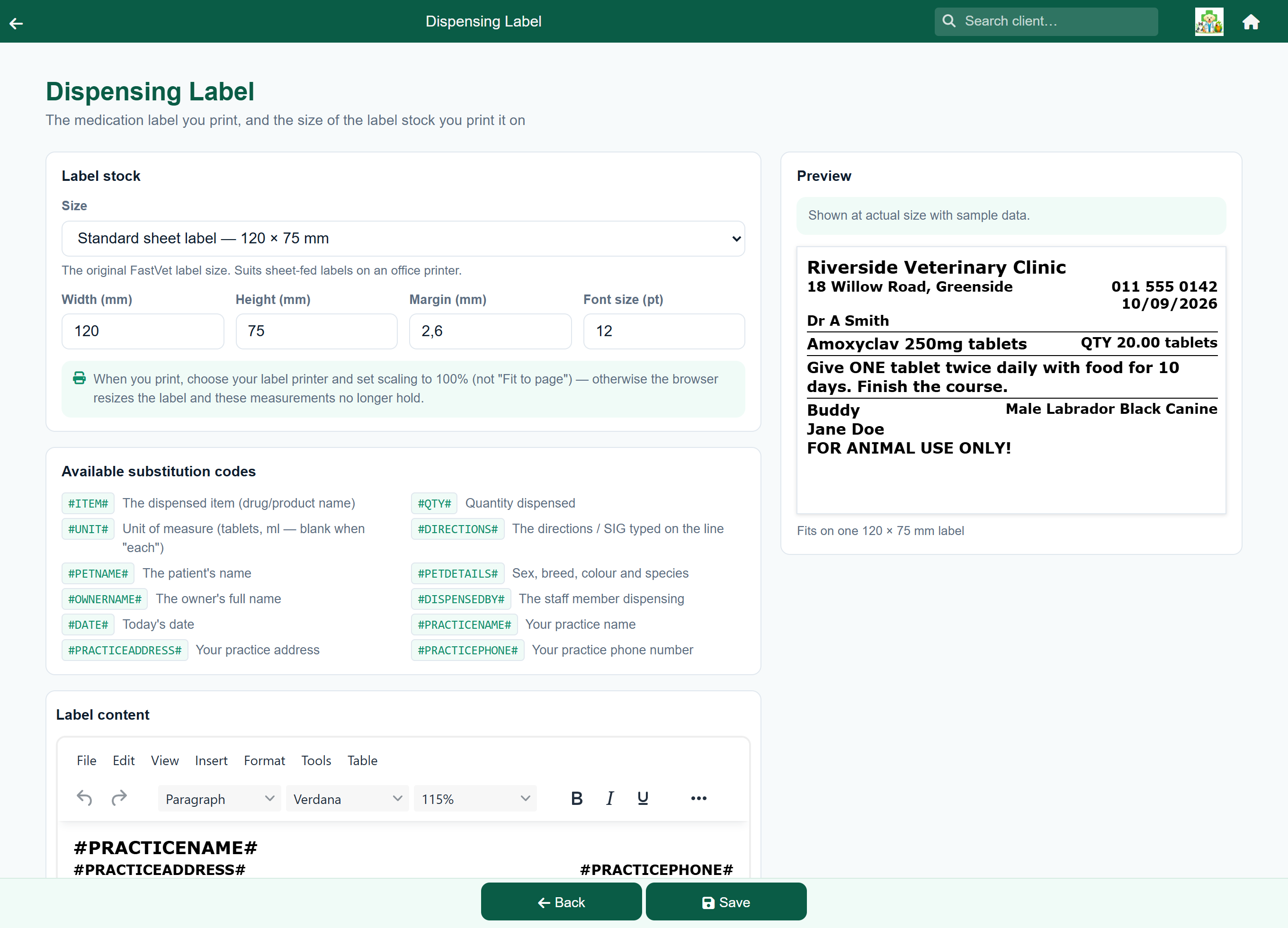
- Choose your label stock from the Size list. DYMO sizes are named by the part number on the box.
- Not listed? Type the Width and Height in millimetres. The list changes to Custom size….
- Adjust the Margin and Font size until the preview looks right.
- Edit the wording under Label content. The substitution codes, such as #DIRECTIONS#, are listed above it.
- Press Print test to print the label as it stands, so you can check it on the labels you actually use.
- Press Save.
The preview shows the label at its actual size, with sample details.
Print test, at the bottom of the screen, prints that same sample label on your printer. It prints what is on the screen now, so you can try a size, look at the paper and change it again before you save. Nothing is saved until you press Save, and no patient details are used.
When it does not fit#
The preview tells you if the label does not fit:
| The preview says | What it means | What to do |
|---|---|---|
| Too wide for this label by n mm | Text runs past the right edge, and anything past the edge is not printed. | Reduce the font size, or choose wider stock. Fix this before printing. |
| This runs onto 2 labels | The text is longer than one label, and the rest prints on the next one. Nothing is cut off. A long template can say 3 labels, or more. | Fine if two labels are acceptable. Otherwise shorten the wording or reduce the font. |
| Fits on one … label | The label fits. | Nothing. |
| #SOMETHING# is not a token the label fills in | What you typed is not one of the tokens on the left of the screen, so it is printed on the label exactly as you typed it. Usually a spelling slip: #OWNERADRESS# for #OWNERADDRESS#. | Correct the spelling. Case does not matter: #ownername# and #OwnerName# work just as well as #OWNERNAME#. |
A label that runs on simply continues onto the next one. FastVet prints your template and nothing else, so the second label carries whatever falls there and no more. If you want the patient or the owner to appear on every label in a run, put them near the end of your template.
Before you cut anything a client needs to read, look at the empty space. Pressing Enter for a blank line, and the tables the editor inserts, both carry their own height, and that is usually where a label’s last few millimetres have gone. Deleting a blank line between two rows can be worth more than a whole font size, and it costs you nothing on the label.
Setting up the printer#
Install the label printer’s driver on the computer as you would any printer.
- Press Print Label on a dispensed line, or Print test in the label editor.
- Choose your label printer in the print window.
- Set Scale to 100%, not “Fit to page”.
- Check the paper size matches the labels loaded.
- Print. Your browser usually remembers these settings; check the first couple of labels.
If something looks wrong#
| What you see | What to do |
|---|---|
| The label prints tiny, in a corner | Set Scale to 100% in the print window, not “Fit to page”. Use Print test in the label editor to try again without dispensing anything. |
| The right-hand side is missing | The text is wider than the label. Open the label editor; the preview shows Too wide and by how much. Reduce the font or use wider stock. |
| It takes two labels every time | Common on address-size labels. See Choosing label stock, or reduce the font. |
| No Print Label button | Add directions to the line. |
| The batch and expiry are missing | The batch is not on the label until you add it. Put #LOTNUMBER# and #LOTEXPIRY# into your template in the label editor; see What is on the label. Where the codes are already in the template and still nothing prints, no batch was chosen on the line, or the item has none on the shelf: batches come from the lot number and expiry entered when the stock was added or received. |
| You want the label to say “Lot:” and “Exp:” | Add the words in front of #LOTNUMBER# and #LOTEXPIRY# in the label editor. Be aware they then print on every label, including the ones with no batch, where they will have nothing after them and will take up a line. |
| “Your browser blocked the print window” | Allow pop-ups for FastVet, then print again. |
| The practice name or address is wrong | Correct it in Practice Details. |
| Cannot print from a phone or tablet | Print from the computer the label printer is connected to. |