
Help Centre › Stock & pricing
Protocols
Bundle the items that always go together (a spay, a dental, a vaccination) into one line the vet charges in a single tap: how to build one, how it is priced, what the client sees on the invoice, eleven worked examples of the shapes practices actually use, and what protocols do to stock, the clinical record and your reports.
A protocol is a set of price-list items grouped under one heading. The vet picks the protocol once and everything in it is added to the visit together, with the quantities you set as defaults and one price for the lot.
Protocols make sure nothing is forgotten (the fluids, the anaesthetic and the take-home medication come along with the procedure) and that a standard job is charged the same whoever charges it.
What the client is charged#
A protocol is billed as one line, at a single figure called the Protocol Charge. The items inside it are recorded against the visit (so stock comes off the shelf and the clinical record is complete) but they are not billed separately, unless you mark one of them On top of package.
The Protocol Charge is either the protocol's own fixed price or the sum of the items used, which is set on the price list rather than chosen per visit. Either way it is one line, and the vet can still override the figure on the day for a discount or a staff rate.
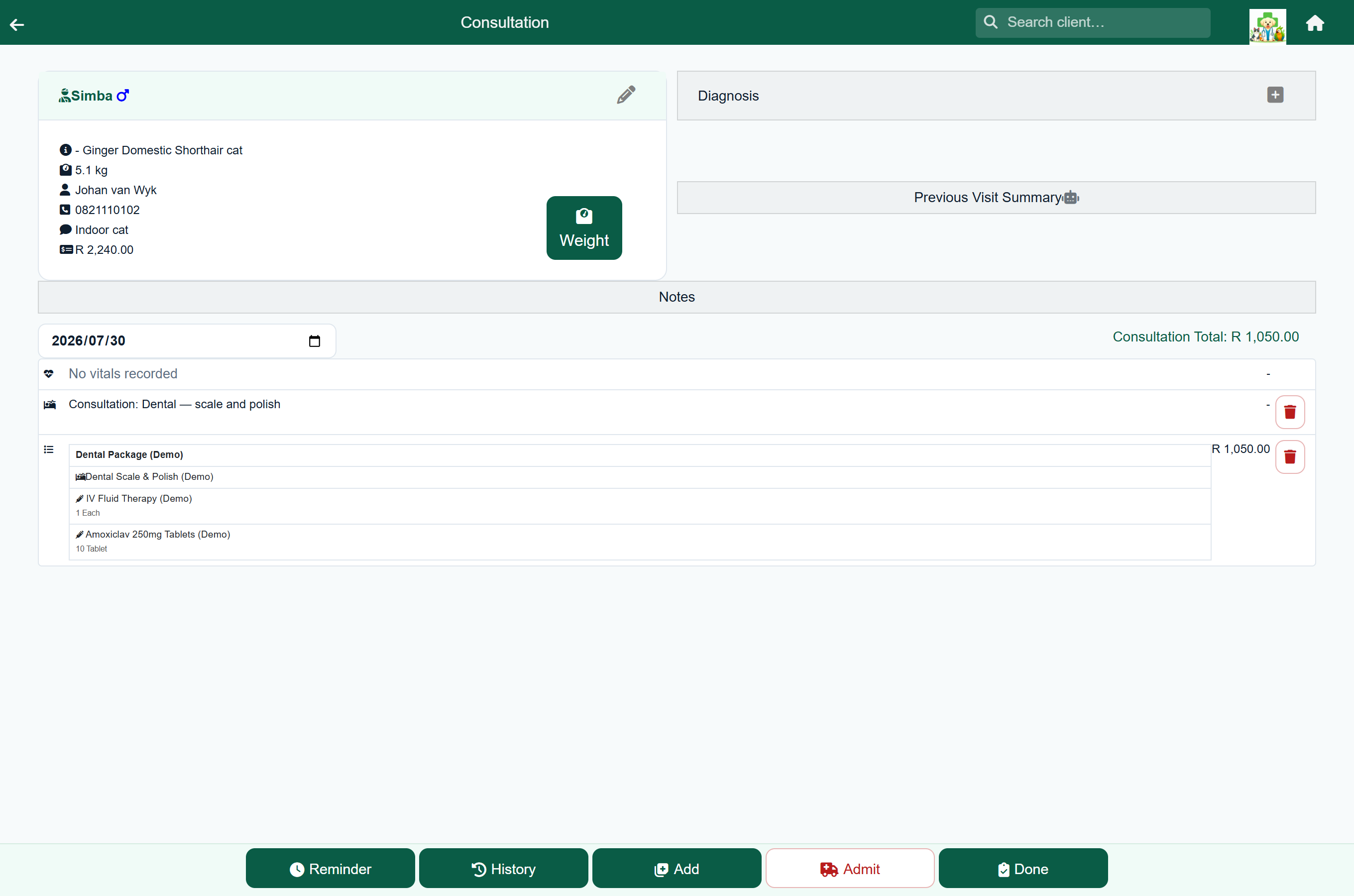
In that example the dental package is R1,050. Beneath it are a scale and polish, a bag of fluids and ten antibiotic tablets (R1,195 at their own prices) and the Consultation Total is R1,050.
Where protocols can be used#
A protocol can be charged anywhere an item can, and it behaves the same way in each place: one line, one charge, the items recorded underneath it.
| Screen | How it is added | Worth knowing |
|---|---|---|
| Consultation | Add, then Add Protocol | The usual place a protocol is charged. |
| Hospital day and boarding day | The same, on the day you are editing | The protocol belongs to that day, so a daily bundle is charged once per day. |
| Groom | The same, on the groom | See Grooming. |
| Quote | Add Protocol on the quote | The quote shows the same parts the invoice would, grouped the same way, but marked included rather than priced, because the estimate's total sits on the protocol line. A part charged on top of the package appears as its own line, as it will on the bill. |
Which of those screens a protocol appears on is set on the price item itself, under This price will be visible to. A protocol that is only ever done in theatre does not need to clutter the boarding screen.
Seeing every protocol at once#
Home›Stock & Prices›Update Protocols
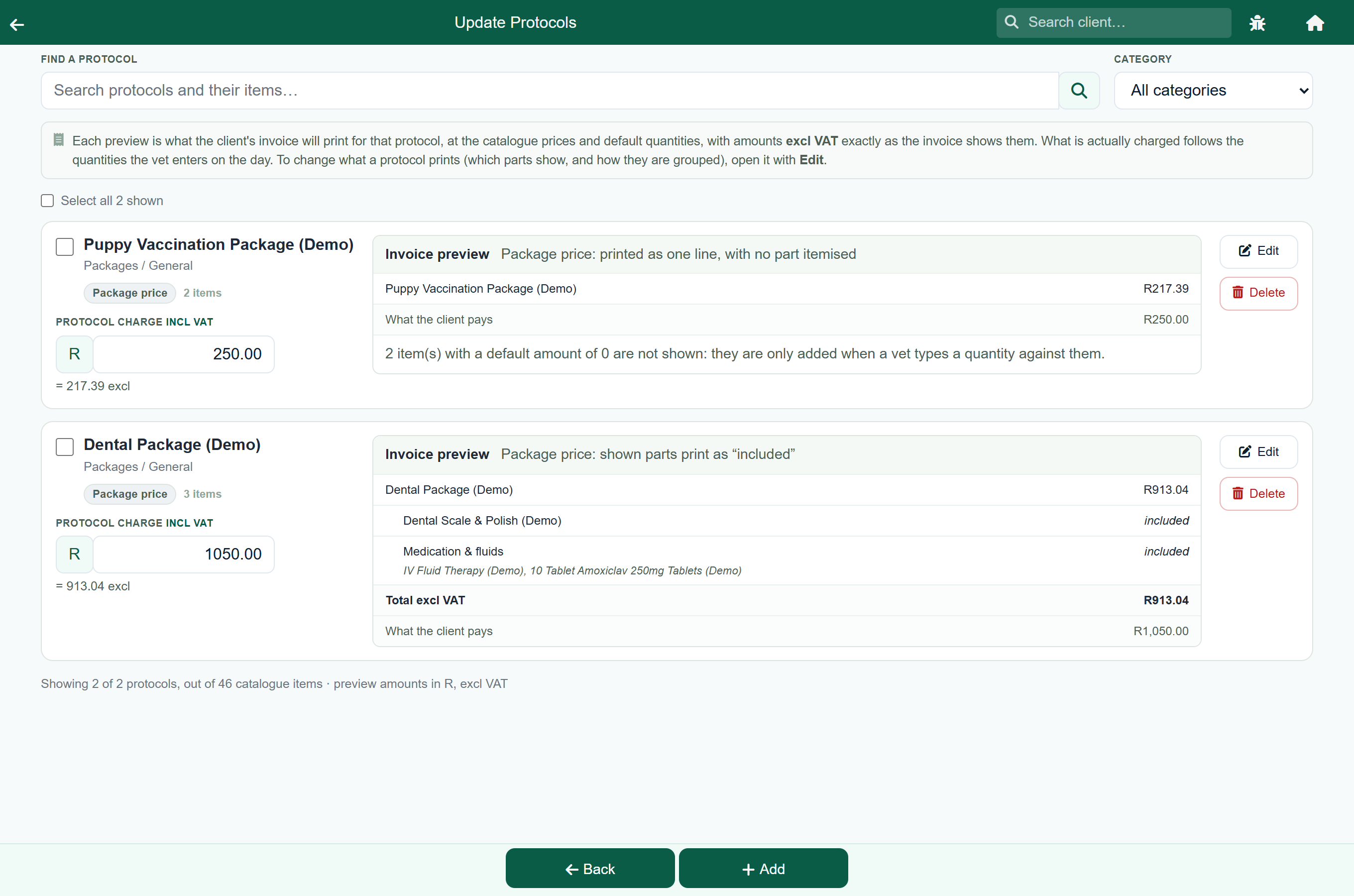
Update Protocols lists the practice's protocols on their own, and shows the invoice each one will print beside it. It is the screen to open when the question is “which of these is the one I mean?”, or when a round of price rises has to go through the bundles.
It is a separate screen from Update Prices because a protocol has no cost, no markup, no stock and no supplier, so the columns and filters that matter on the catalogue are blank on a protocol, and the thing that does matter here has no meaning on any other row.
| On this screen you can | How |
|---|---|
| Retype a Protocol Charge | Type over the figure. The preview beside it follows as you type, so you can see what the client will read before you save. |
| Put several bundles up together | Tick them, then Raise charge by a percentage. |
| Settle on a house ending | Tick them, then Round charge down to: .?0 or .00. It only ever rounds down, so tidying an ending cannot raise a price. |
| Move them to another category | Tick them, pick a Category and press Apply. |
| Find the protocol holding a particular drug | Search for the item's name; the search reads the parts as well as the protocol's own name. |
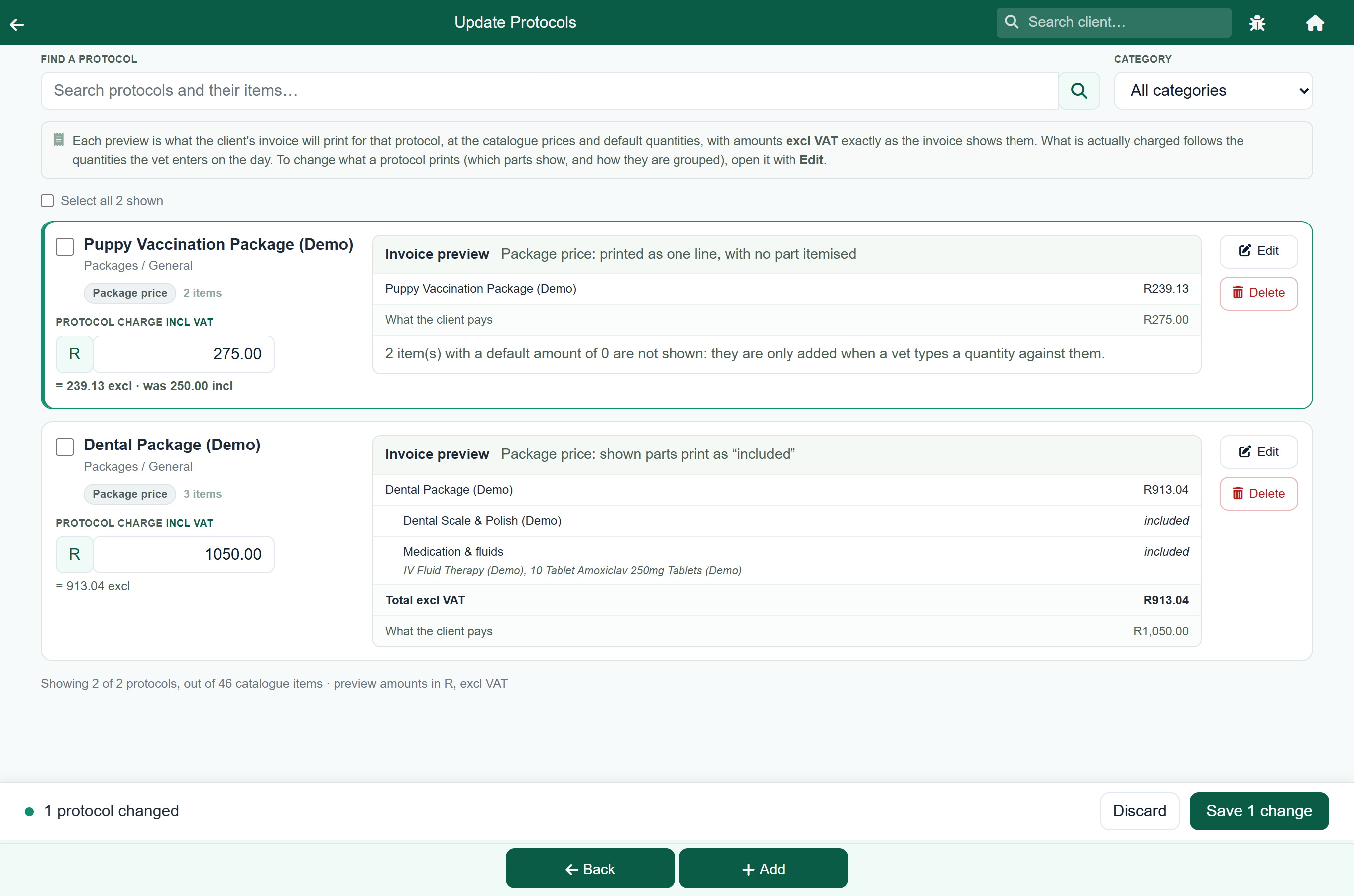
Nothing is written until you press Save. Changed rows are outlined, each shows what its charge was, and Discard puts them all back.
Building a protocol#
Home›Stock & Prices›Update Protocols
- Press Add to start a new protocol (it opens the price editor already set to Protocol) or Edit on one that is already there. (An existing ordinary item is converted from Update Prices instead.)
- Check that Type of Price reads Protocol; it is set for you when you arrive from Update Protocols. A Protocol Details section appears under it.
- Give it a description the vet will search for, such as “Dental Package”.
- Choose how it is charged: a package price, which you type there, or the sum of the items used.
- If you want to charge it at cost, or at a markup, for any price group, also fill in Cost. A group that discounts the package price does not need one.
- Press Add first price to protocol and pick an item. Add the rest one at a time with Add another item to protocol.
- Give each one a Default Amount: the quantity this job normally uses.
- Decide what each one shows on the client's invoice under On invoice, and whether it is covered by the package price or charged on top of it.
- Watch the invoice preview under the items: it prints the invoice this protocol will produce, and changes as you change the settings above it.
- Choose where it can be charged under This price will be visible to, and press Save.
How a protocol is charged#
A protocol is charged one of two ways, set under How this protocol is charged on the price item, where the package price is typed as well, so the choice and the figure sit together:
| Setting | What it charges | Follows the quantities? |
|---|---|---|
| Package price | The protocol's own price, whatever the items come to. This is the default. | No |
| Sum of the items | The items at their own prices × the quantities the vet enters. | Yes, as they are typed |
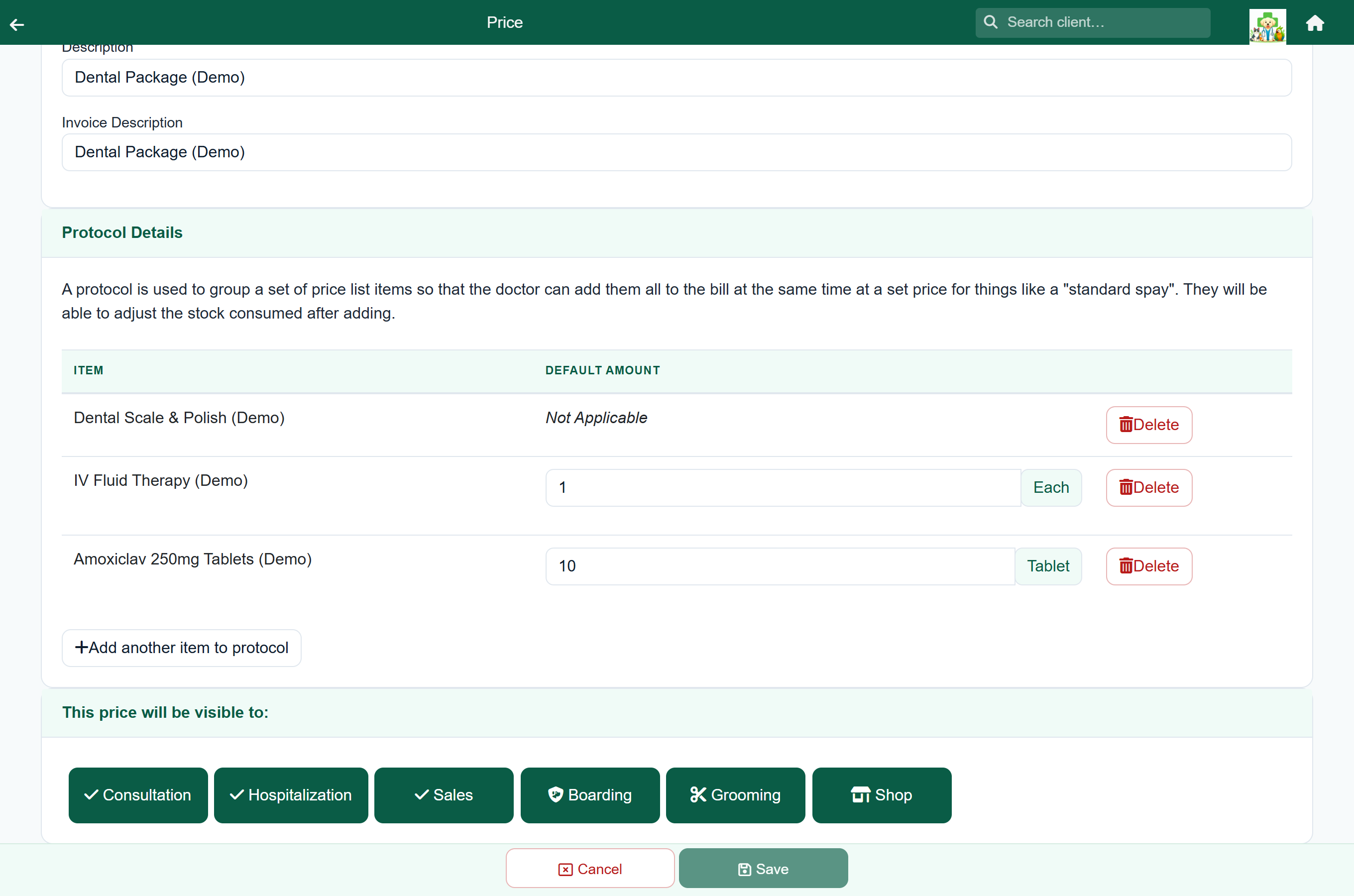
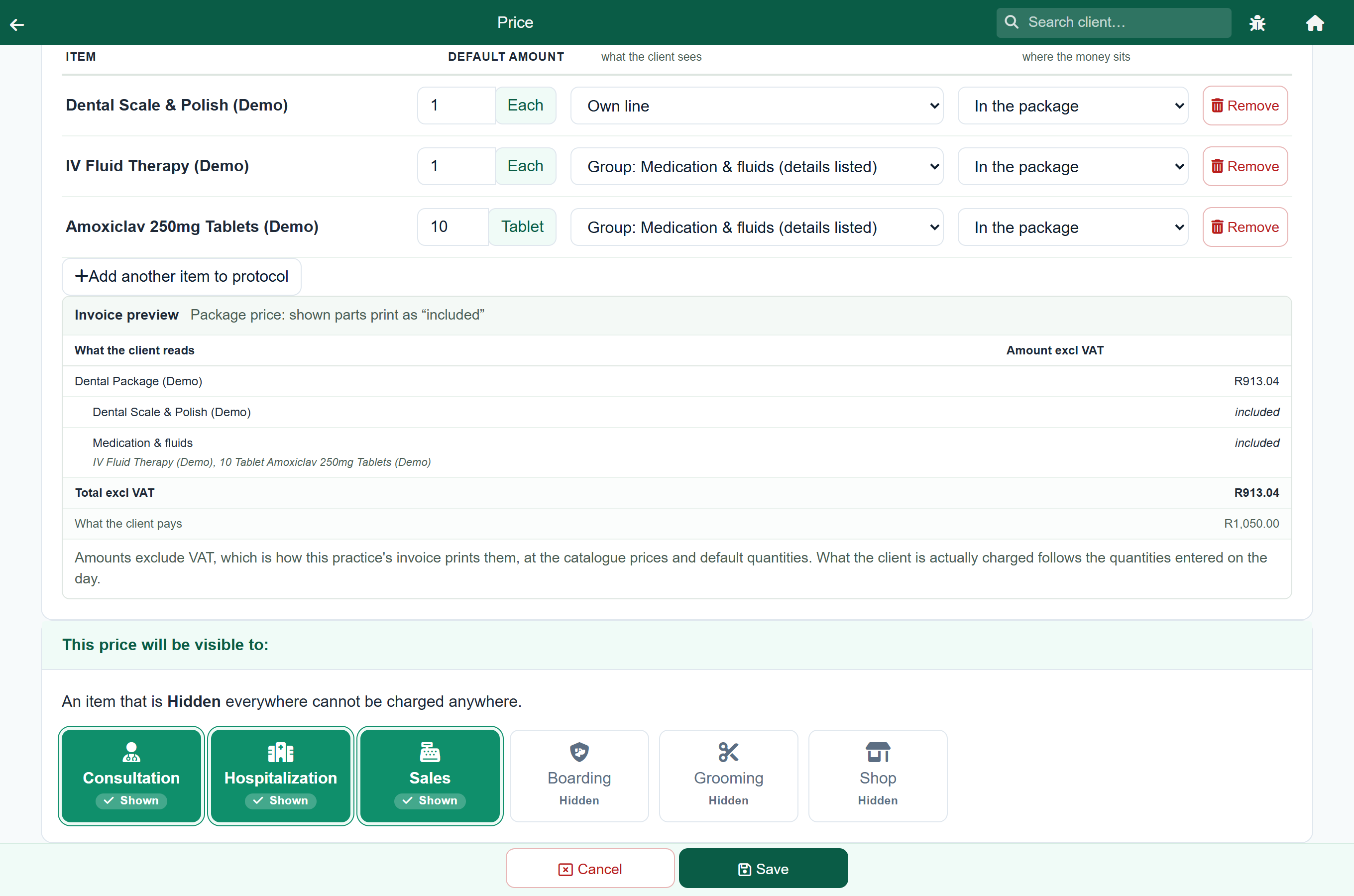
The example below is a dental package: a package price of R1,050 against items totalling R1,195. On Package price the client pays R1,050 however many tablets go home; on Sum of the items they pay R1,195, and R1,340 if the tablets go from 10 to 20.
This is also what decides whether the items can print prices on the invoice, which is why the two settings sit on the same screen; see Showing the parts on the invoice.
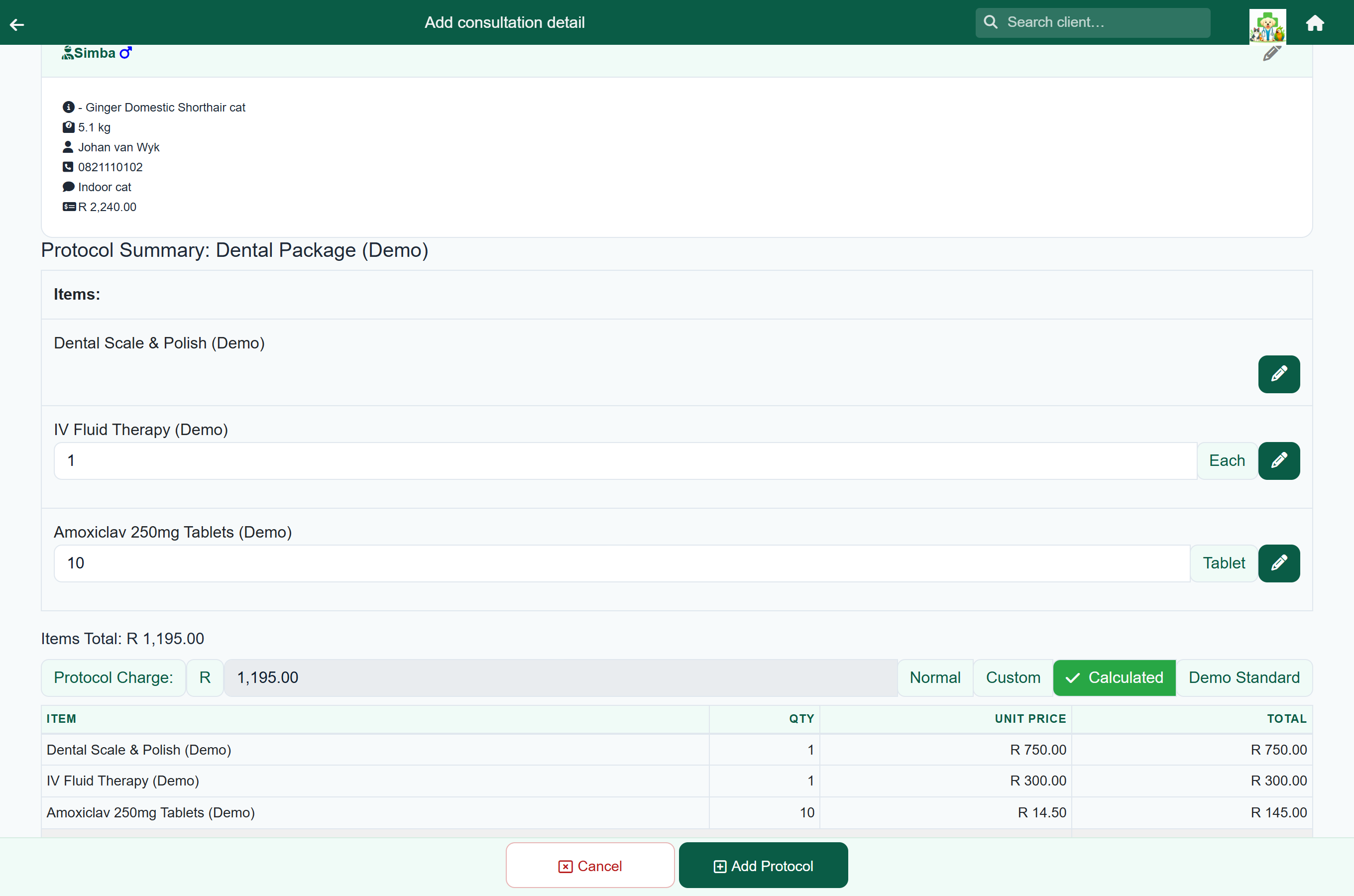
On the day, the buttons beside the Protocol Charge are the same on every protocol, and the line underneath them says what the charge is being worked out from:
| Button | What it charges | When |
|---|---|---|
| Normal | Whatever the price list says this protocol normally charges: its package price, or the sum of its items. | The default, and the way back after an override. |
| Custom | Whatever the vet types. | A discount, a goodwill adjustment, a price agreed with the client. |
| A price group | That group's rate for a Protocol: a percentage off the package price, the protocol at cost, or cost plus a markup. A group that leaves protocols on the normal price does not move the charge at all. | A staff rate or a rescue rate; see below. |
A discount rate comes off the package price, so it is exactly what the client was promised. A markup rate works from the protocol's Cost instead and ignores both the package price and the items, so a protocol with no cost price would be charged at 0.00. The line under the buttons says so plainly when that is about to happen, instead of leaving it to be noticed on the invoice.
Above the charge, Items Total shows the items at their own prices, for reference, and a protocol priced from its items shows its working, item by item, which is useful when a client asks what they are paying for. The bill still carries one line.
Showing the parts on the invoice#
By default a protocol prints as its one line and nothing else: the client sees “Dental Package” and a price. That suits a package, but not every job. A farm call where the vet drove 48 km, or a visit where three drugs were given, often reads better if the client can see what was in it.
Each item in a protocol therefore has two settings, on the Protocol Details table where you set its Default Amount.
| Setting | Choice | What the client sees |
|---|---|---|
| On invoice | Not shown | Nothing. The item is recorded against the visit but never printed. This is the default. |
| Own line | Its own line under the protocol, with its quantity: “12 km x Travel”. | |
| Own line (name only) | The same line without the quantity: “Travel”. The line is worth the same; only what is printed changes. | |
| Group: … | Folded into a line you name, such as “Medication”, together with the other items in that group. The choice says how that line prints: (details listed), (names listed), or the line on its own. | |
| Charged (package price only) | In the package | Nothing extra. The Protocol Charge covers it. |
| On top of package | It is charged in addition to the Protocol Charge, at its own price, on its own line, indented under the protocol with the other parts, so the client can see what it belongs to. |
Whether a shown item prints a price of its own follows how the protocol is charged, which is set a few lines further up the same screen. Priced from the items, each line carries its own price and they add up to the total. On a package price they cannot (the items do not add up to the package) so they print the word included instead, and the package price stays on the protocol line.
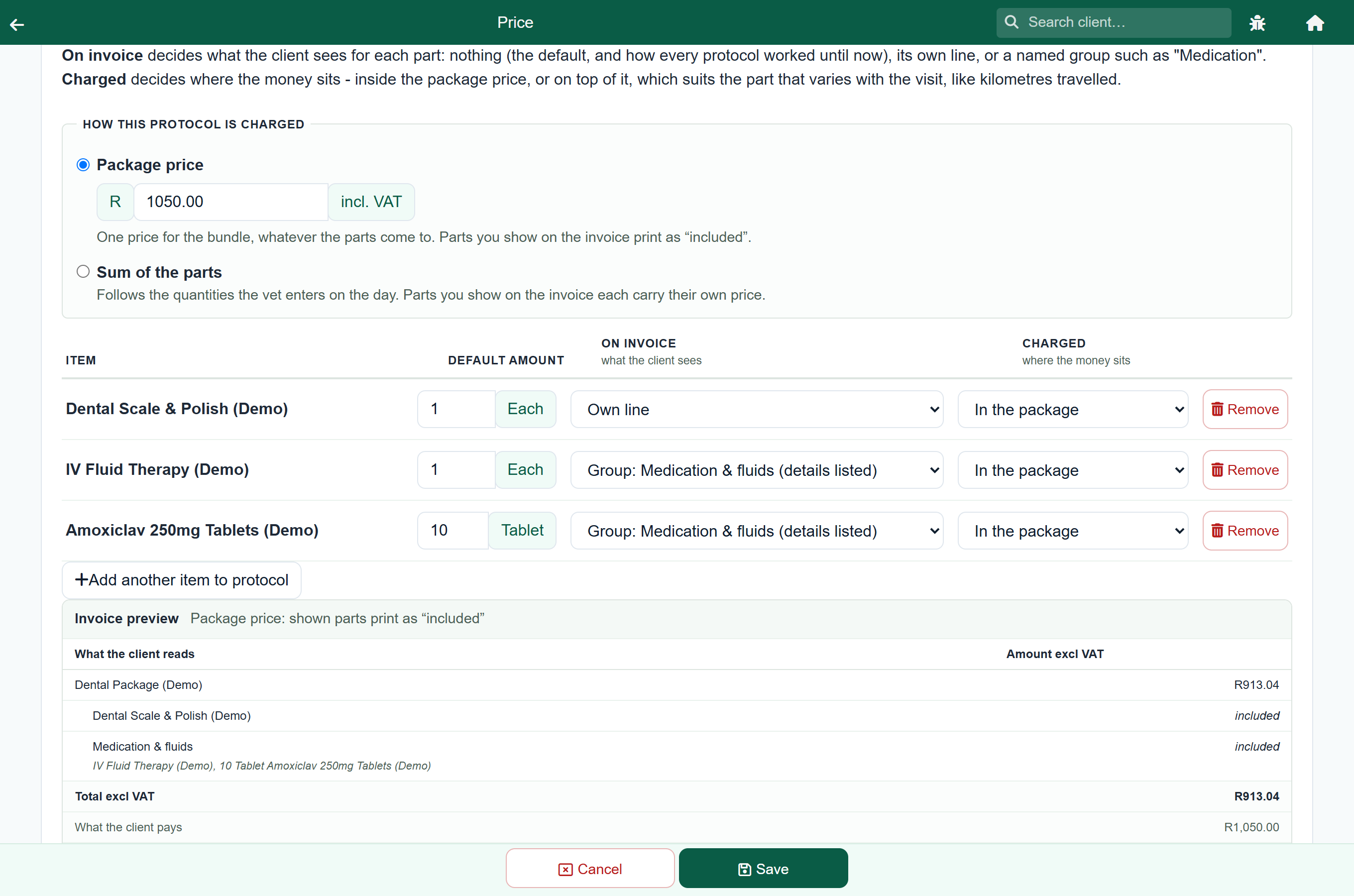
You do not have to picture it: the invoice preview sits directly under the items and prints the invoice as you set it up, changing as you change the settings above it.
Naming a group of items#
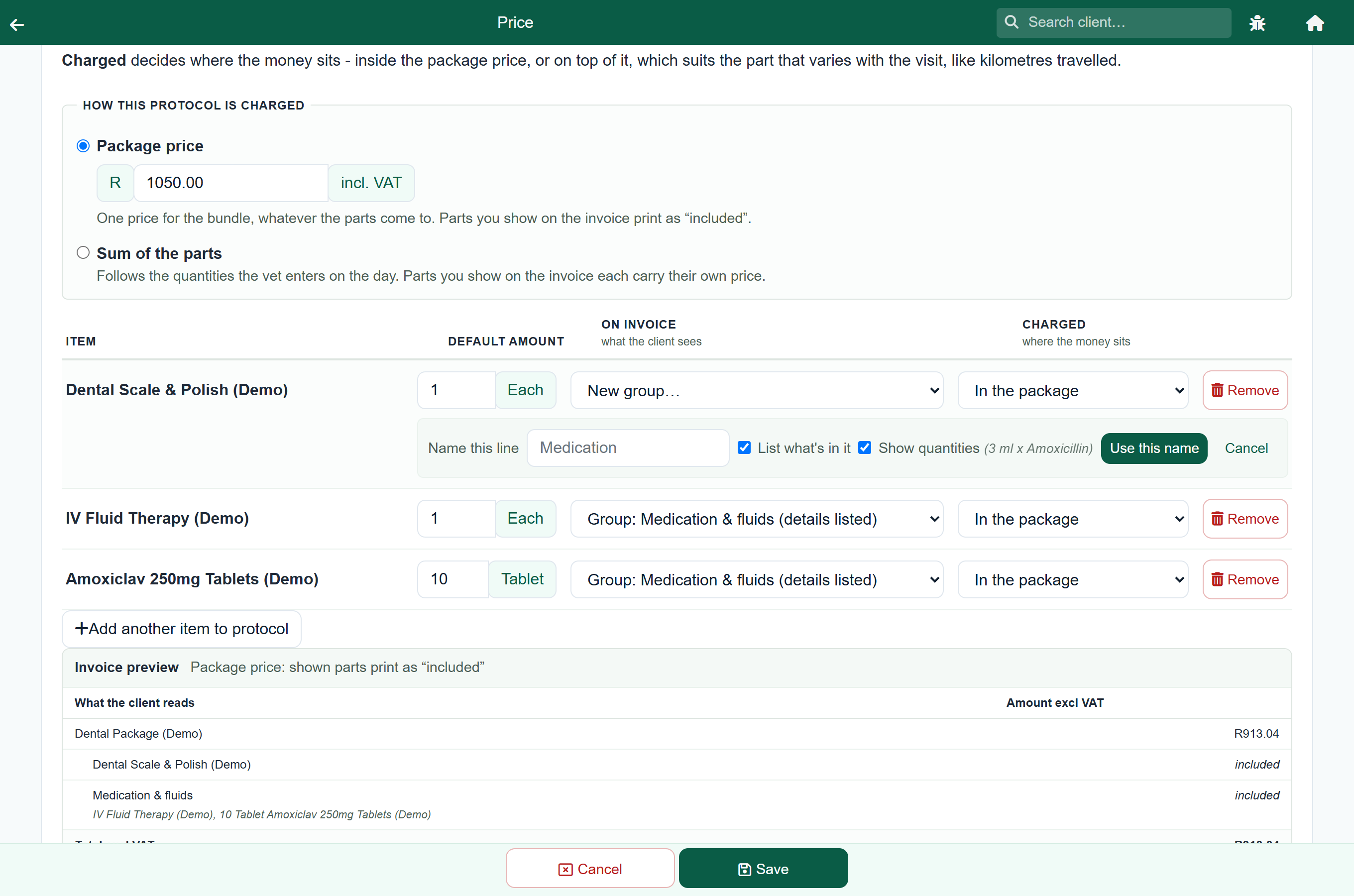
Choose New group… against an item and the line is named on that row. Type what the client should read (“Medication”, “Consumables”), decide whether it should List what's in it, and press Use this name.
- Ticked, the items appear in small print under the line, and a second box, Show quantities, decides how they read. Ticked, the client sees 3 ml x Amoxicillin, 2 ml x Meloxicam and the picker reads Group: Medication (details listed). Clear, they see Amoxicillin, Meloxicam and the picker reads Group: Medication (names listed).
- Clear, the client sees the line and its total only, and the picker reads Group: Medication.
The line is worth the same either way. Clearing Show quantities changes what is printed under it, not what is charged.
They are one decision about one line, so they are made in one place. To change any of them afterwards, choose Rename or change this group… against any item on that line: the name and the ticks apply to every item on it.
A group is simply the set of items that share its name, so there is nothing to tidy up: move the last item out of a group and the group goes with it.
Eleven ways to set one up#
The three settings (how the protocol is charged, what each part shows, and where its money sits) combine into a handful of shapes practices actually use. Each one below says when to reach for it, then puts what you set beside what the client reads, so the two can be read against each other.
Under a package price. One figure for the bundle, whatever the parts come to. Shown parts print the word included rather than a price, because their own prices would not add up to the package.
- Not shown is the default, so there is nothing to set.
- Show every part on the invoice does all of them in one press.
- On the first drug choose New group…, type Medication, leave List what's in it ticked. The rest then offer it by name.
- The only difference is clearing List what's in it when you name the group.
Priced from the items. No package price: the charge is the items, at the quantities the vet enters on the day. Shown parts each carry their own figure, and they add up to the total.
- Give each part the Default Amount a usual visit takes; the vet changes it on the day.
- Every Default Amount is 0. That is the whole trick.
With something charged on top. A part marked On top of package is billed in addition to the Protocol Charge, at its own price, and still prints indented under the protocol, so the client can see what the extra was for.
- Give travel a Default Amount of a typical distance; the vet types the real one.
Why a lab test has no quantity#
In Protocol Details most rows have a Default Amount box. A lab test reads Not Applicable instead. That follows the item's type:
| Item type | Quantity? | Inside a protocol |
|---|---|---|
| Materials, Treatment, Procedure | Yes | The quantity can be changed for each patient, including to zero. |
| Lab | No, Not Applicable | Always included when the protocol is charged. A result belongs to a single test. |
Charging a protocol#
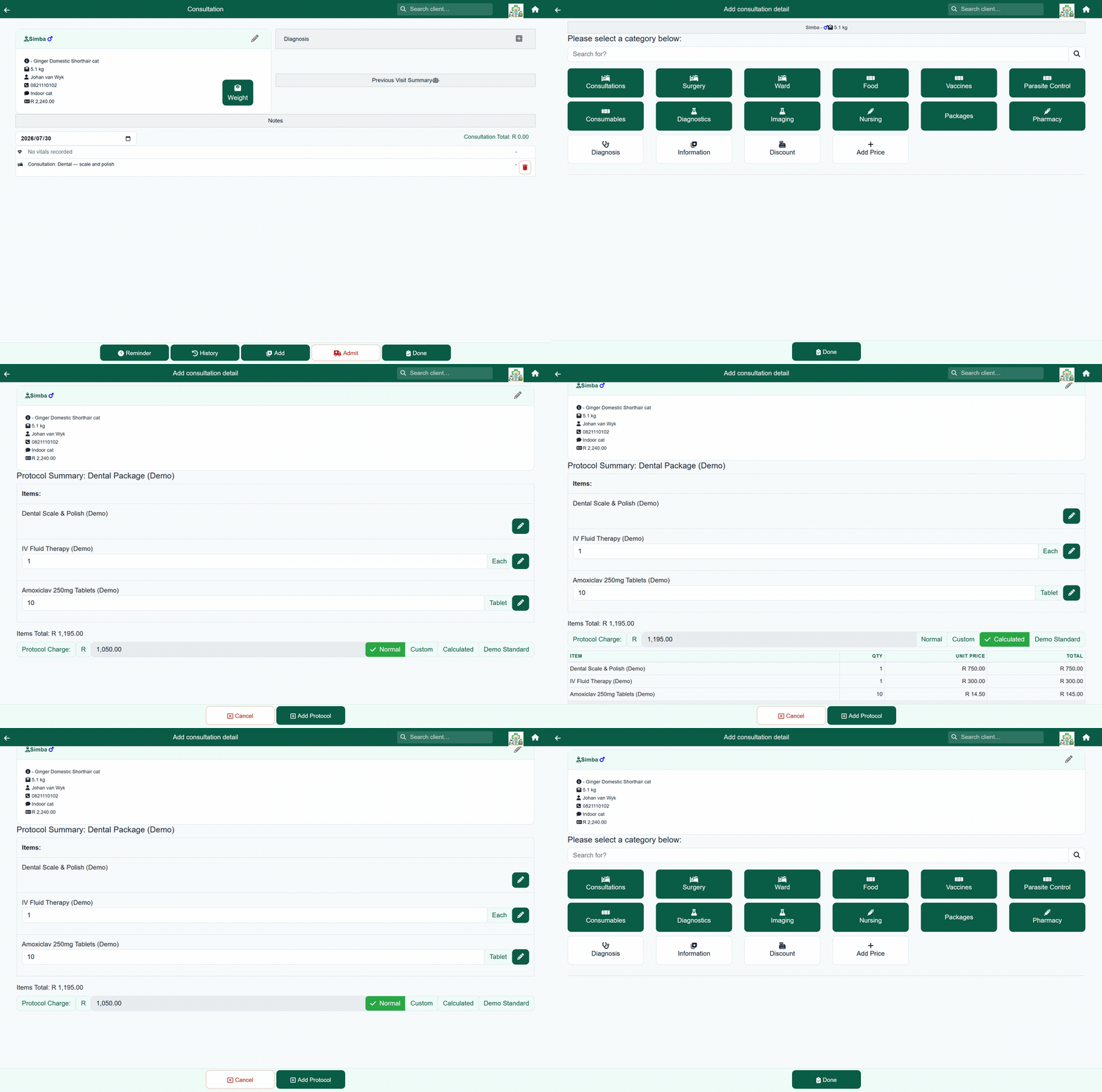
- On the consultation press Add and search for the protocol.
- A Protocol Summary panel opens.
- Change the quantities to what you used. Set anything you did not use to 0.
- Check the Protocol Charge, and change the mode if you need to.
- Press Add Protocol.
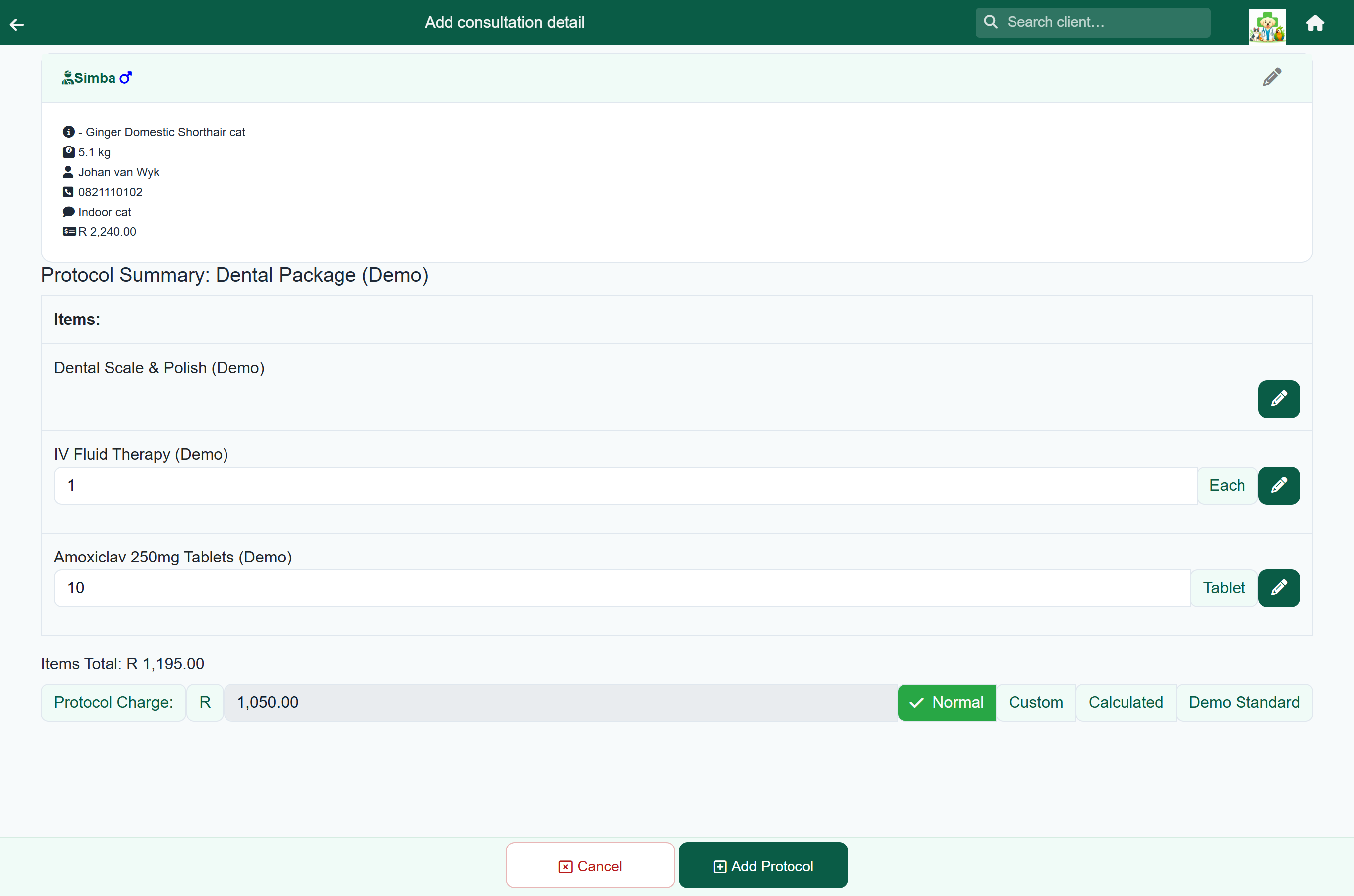
The pencil beside an item opens the full item editor for it, for example to set a dosage instruction and medicine label on take-home medication.
Cards or Grid. The two buttons at the top of the panel change how the items are laid out. Cards, the default, gives each item its own box. Grid puts every item on one row of a table, with the quantity and the unit price typed straight into the cells. Press Enter or the down arrow to go to the same cell on the next row, and Shift+Enter or the up arrow to go back up. The pencil at the end of a row opens the full item editor under that row.
Your browser remembers your choice. Every protocol you open on that computer or phone uses the same layout until you change it again. Other computers and phones keep their own choice.
If you type a new unit price in the grid, that item changes to a Custom price, as it does in the full item editor. Item prices change the bill only on a protocol priced from its items.
What a protocol does to stock and the record#
The single line on the bill is only the money. Everything in the protocol is still recorded in full:
- Stock comes off for each item that has stock behind it, at the quantity on screen, exactly as if the vet had added that item on its own.
- The clinical record shows the items, listed under the protocol, so the history reads as what was actually done.
- Dosage instructions and labels set through the pencil belong to the item, and print as usual.
- An item left at zero moves no stock and costs nothing.
This is the whole point of a protocol: the client reads one line, and the practice keeps the detail.
A vaccine in a protocol records a dose on the patient, the same as it would on its own. Tick Record the vaccination on the item, never on the protocol around it, and tap the line on the consultation afterwards to choose the lot if you want the batch on the record. See Vaccinations.
Protocols and price groups#
A price group holds a rate for each kind of item, and a protocol follows the one set against Protocol. It can be a percentage off the package price, the protocol at cost, or cost plus a markup.
A client on a standing rate gets it on the Protocol Charge automatically, the same as on any other line, and the line says so.
Each item also has its own price-group buttons, through the pencil. They charge that item at its own kind's rate, so they change what a protocol priced from its items charges, and make no difference to a package price.
| You want | Do this |
|---|---|
| A discounted package for a staff member or a rescue | Set a Discount % on Protocol in the group. It comes straight off the package price. |
| To bill exactly what was used, at group rates | Set the protocol to Sum of the items, with the group set on each item. |
| Your normal package price | Leave it on Package price, and leave Protocol on Normal price in the group. |
Changing or removing one afterwards#
| To | Do this |
|---|---|
| Change a quantity after adding | Open the protocol line on the consultation and edit the item. |
| Drop one item from the bundle | Delete that item's line. The protocol and its charge stay as they are. |
| Remove the whole thing | Delete the protocol line. This also deletes every item it added. |
Turning an existing item into a protocol#
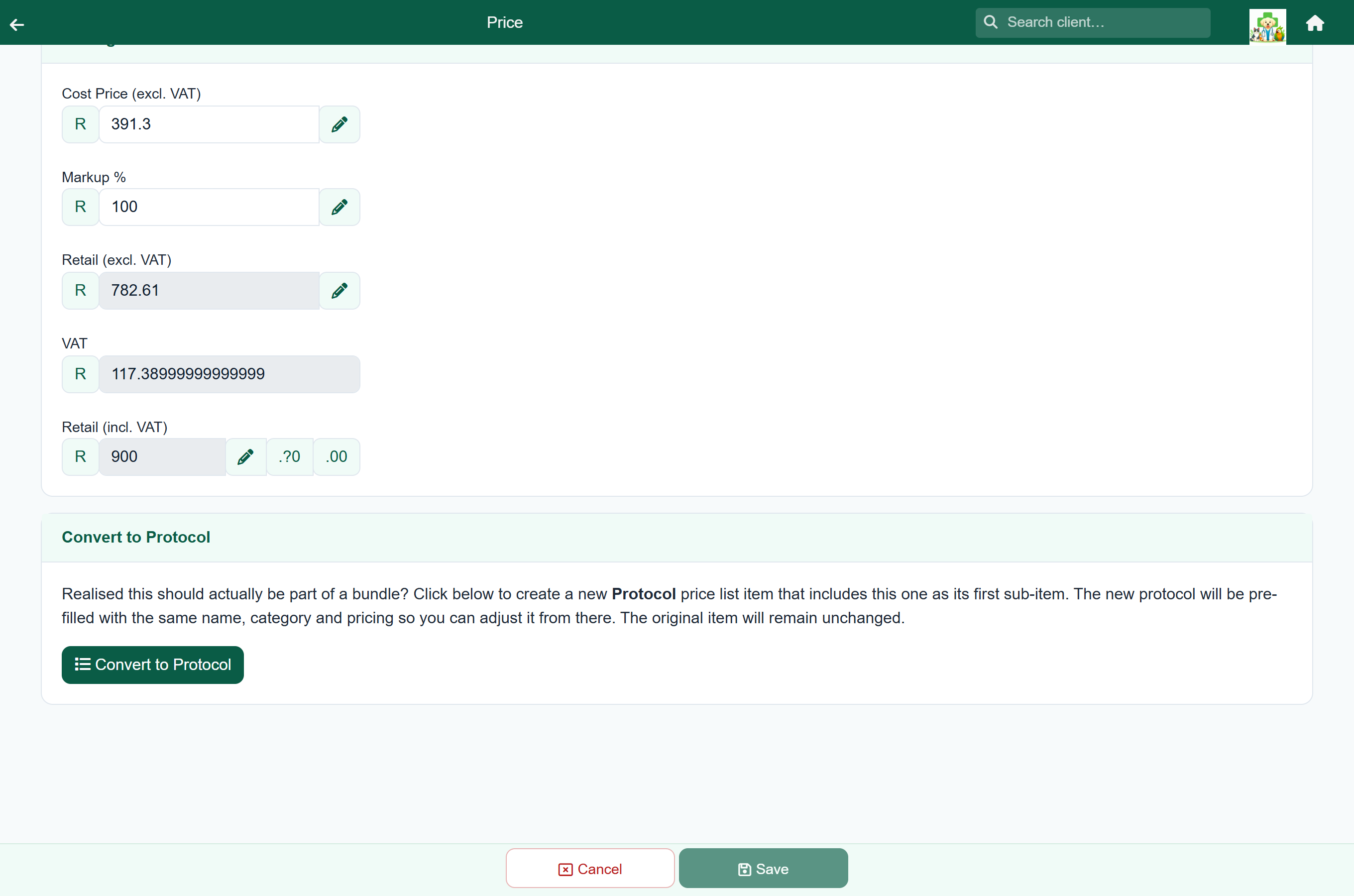
If an existing price item is always charged with the same other items, you can turn it into a protocol.
- Open the item under Update Prices.
- Under Type of Price (which shows what the item is now) press Change.
- Press Protocol, and confirm.
- A new protocol opens, with the same category, price and visibility, named with “(Protocol)” on the end, and the original item as its first item.
- Add the other items, adjust the name and price, and press Save.
How protocols show up in reports#
Money reports count the Protocol Charge (the one line the client was actually charged) and not the items inside it. Category and Activities both work this way, so a protocol lands in the category of the protocol item itself.
That matters when you decide what category to give a protocol. A “Dental Package” filed under Dentistry puts the whole charge in Dentistry; the anaesthetic inside it does not show up under Drugs, because it was never billed.
Changing, retiring or deleting a protocol#
Home›Stock & Prices›Update Protocols
| To | Do this | What happens |
|---|---|---|
| Change what is in a protocol | Open it and add or delete items, then Save | Visits already charged keep what they charged. The change applies from the next time it is used. |
| Stop staff using it | Clear the ticks under This price will be visible to | It stops appearing in the picker without disturbing any history. |
| Delete the protocol | Delete on the price item | The protocol goes, and so does its list of items. The items themselves are ordinary price entries and are left alone. |
| Delete an item that is inside a protocol | Remove it from the protocol first | FastVet refuses the delete and names the protocols using it, rather than letting a bundle quietly lose a part. |
When something looks wrong#
| What you see | Why | What to do |
|---|---|---|
| The Protocol Charge is R0.00 | A price group with a markup rate is selected and the protocol has no Cost. A markup works from cost, not from the package price. | Give the protocol a cost, or set that group's Protocol rate to a discount instead, or charge it on Normal or Custom. |
| The client was charged for an item twice | The item was added to the visit on its own as well as inside the protocol. | Delete the separate line. Items inside a protocol are already covered by the Protocol Charge. |
| Zeroing an item did not reduce the charge | The protocol charges a package price, whatever the quantities are. | Set it to Sum of the items on the price list if the bill should follow what was used. |
| An item does not appear on the invoice | Its On invoice setting is Not shown, which is the default. | Set it to Own line or put it in a group. |
| An item shows included instead of a price | The protocol charges a package price, so the parts cannot carry prices that add up to it. | Nothing is wrong. Set it to Sum of the items if you want each part priced. |
| A part is charged on top unexpectedly | It is set to On top of package in the price list. | Change it to In the package if the package price should cover it. |
What makes a protocol worth having#
- It matches a job people actually do. “Standard spay”, “dental”, “puppy first visit”, not “surgery”.
- The items are always used, or are Materials/Treatment items that can be zeroed.
- The name is what a vet would search for.
- The price is reviewed. Compare Items Total with the package price a couple of times a year.
- There are only a few. Six protocols people use beat thirty nobody can find.