
Help Centre › Setup & administration
Staff & roles
Add colleagues, give them the right access, and remove them cleanly when they leave.
Give every member of staff their own login, so every consultation, payment and stock adjustment shows who did it.
Your staff#
Home›Settings›Users
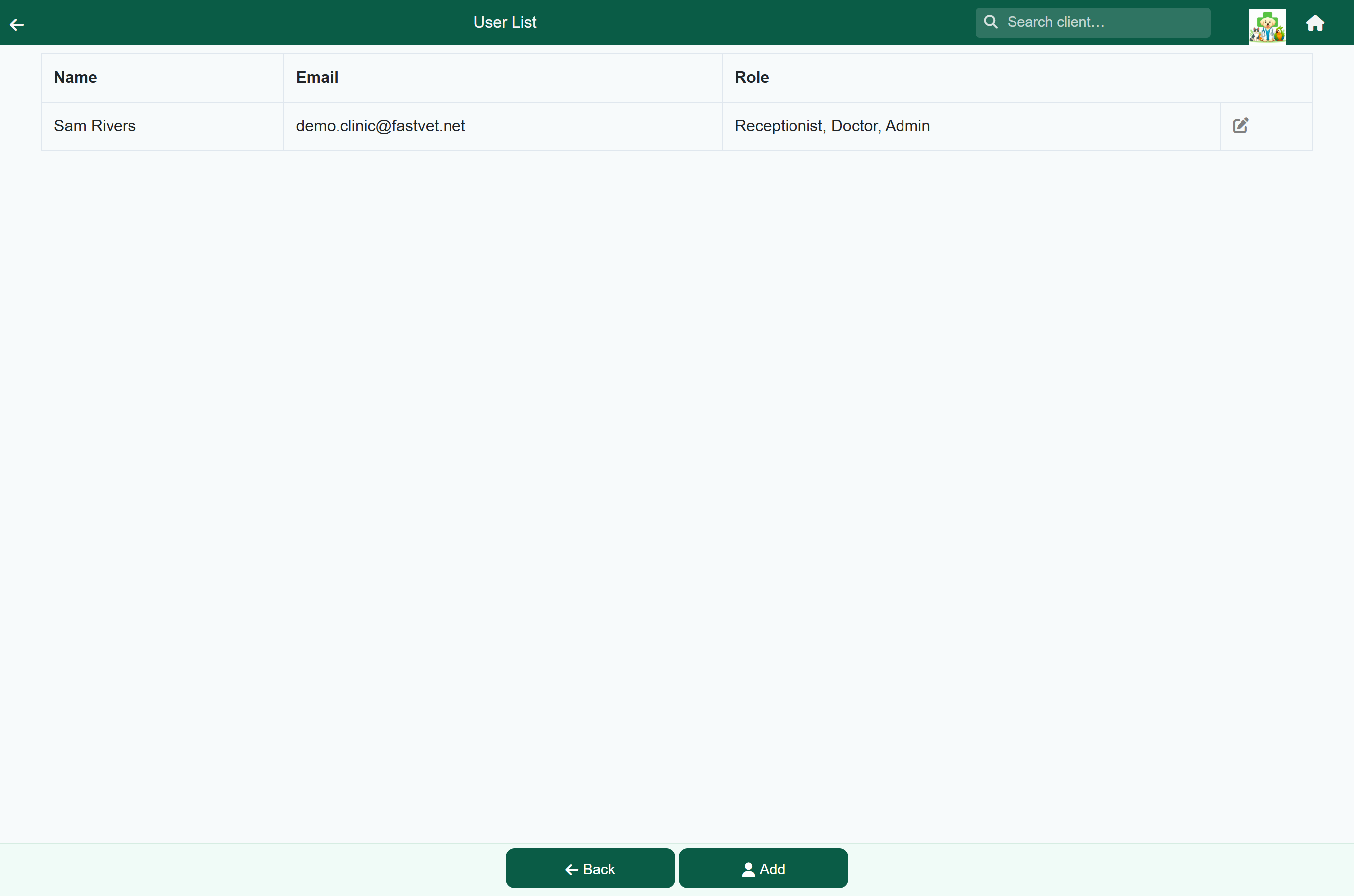
Invite pending marks a colleague who has been added but has not signed in yet. See The invitation email.
Last login is the day each colleague last used FastVet, in your own time zone. It is a quick way to spot a login nobody is using any more, so you can remove it.
- Never means they have not signed in at all. Their row also shows Invite pending.
- A dash means they have signed in before, but not since FastVet began recording this. Their row fills in the next time they use the app.
Adding a colleague#
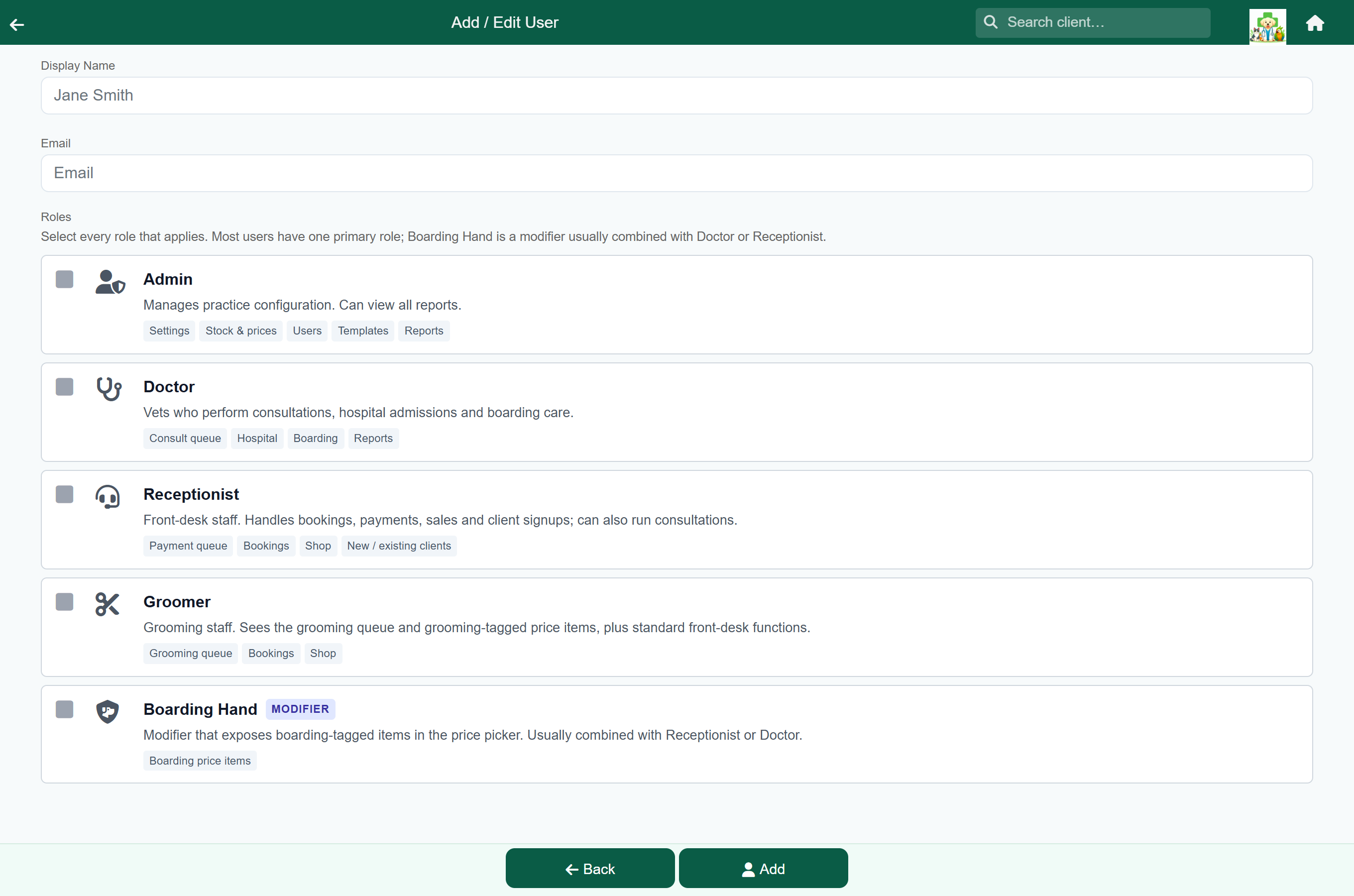
- Go to Settings → Users and tap Add in the footer. To change an existing colleague, tap the edit button at the end of their row.
- Enter their Display Name: the name colleagues will see throughout FastVet.
- Enter their Email. This is their login, so check the spelling.
- Tap the roles they need.
- Press Add (or Update for an existing colleague). FastVet emails a new colleague an invitation straight away.
The invitation email#
You do not set a password for a colleague. They choose their own from the invitation email. It comes from FastVet rather than your practice's address, so ask them to check their junk folder if it has not arrived.
- They open the email and tap Create my login.
- The sign-up screen opens with their email address filled in. They choose a password, or continue with Google, if that address is a Google account.
- They land on the Home screen, already part of your practice.
- They must sign up with exactly the address you entered. A login under any other address is not connected to your practice, and they see “Not assigned to a practice”.
- They should sign in the same way every time: with a password, or with Google, whichever they used first.
- Someone who already has a FastVet login chooses Log in on that screen instead of signing up.
If the invitation never arrived, open Users and tap Resend invite beside their name. It is only shown for colleagues marked Invite pending.
Choosing roles#
Each role is a card showing what it gives access to. Tap every one that applies.
| Role | Give it to | Unlocks |
|---|---|---|
| Admin | Practice managers | Settings, stock and prices, users, templates and all reports. |
| Doctor | Veterinarians | The consult queue, hospital, boarding and reports. |
| Receptionist | Front-desk and nursing staff | The payment queue, bookings, the shop, and new and existing clients. Can queue a patient and admit or discharge a stay, but running the consultation needs Doctor. |
| Groomer | Grooming staff | The grooming queue and grooming price items, plus bookings and the shop. |
| Boarding Hand | Kennel and cattery staff | Boarding price items in the price picker. Marked Modifier; combine it with Receptionist or Doctor. |
Roles add together. A vet who also manages the practice might have Doctor, Receptionist and Admin.
Display names#
The display name is shown wherever FastVet names a member of staff: queue cards, consultation records, audit trails and the welcome on the home screen. Use the name colleagues know them by.
When somebody leaves#
- Go to Settings → Users and tap the edit button at the end of their row.
- Press Delete and confirm.
- They cannot sign in. If they try, FastVet shows Your account has been suspended and signs them out.
- If they are still signed in somewhere, the same notice covers the screen as soon as they open a screen or save anything. They are signed out ten seconds later, or straight away with Log out now.
- Their past consultations, payments and notes keep their name.