
Help Centre › Clinical care
Clinical history
Everything recorded about a patient on one screen (visits, notes, lab results, medication, vitals, weight trends and attached files) searchable, filterable, and available from inside a consultation.
The clinical history shows every visit a patient has had, every note, every lab result, everything dispensed and every file attached, on one page in date order.
Opening it#
| From | How |
|---|---|
| A consultation | Press History in the footer. Press back to return to the consultation as you left it. |
| The client's account | Open the client and press History on the patient. |
What is on the screen#
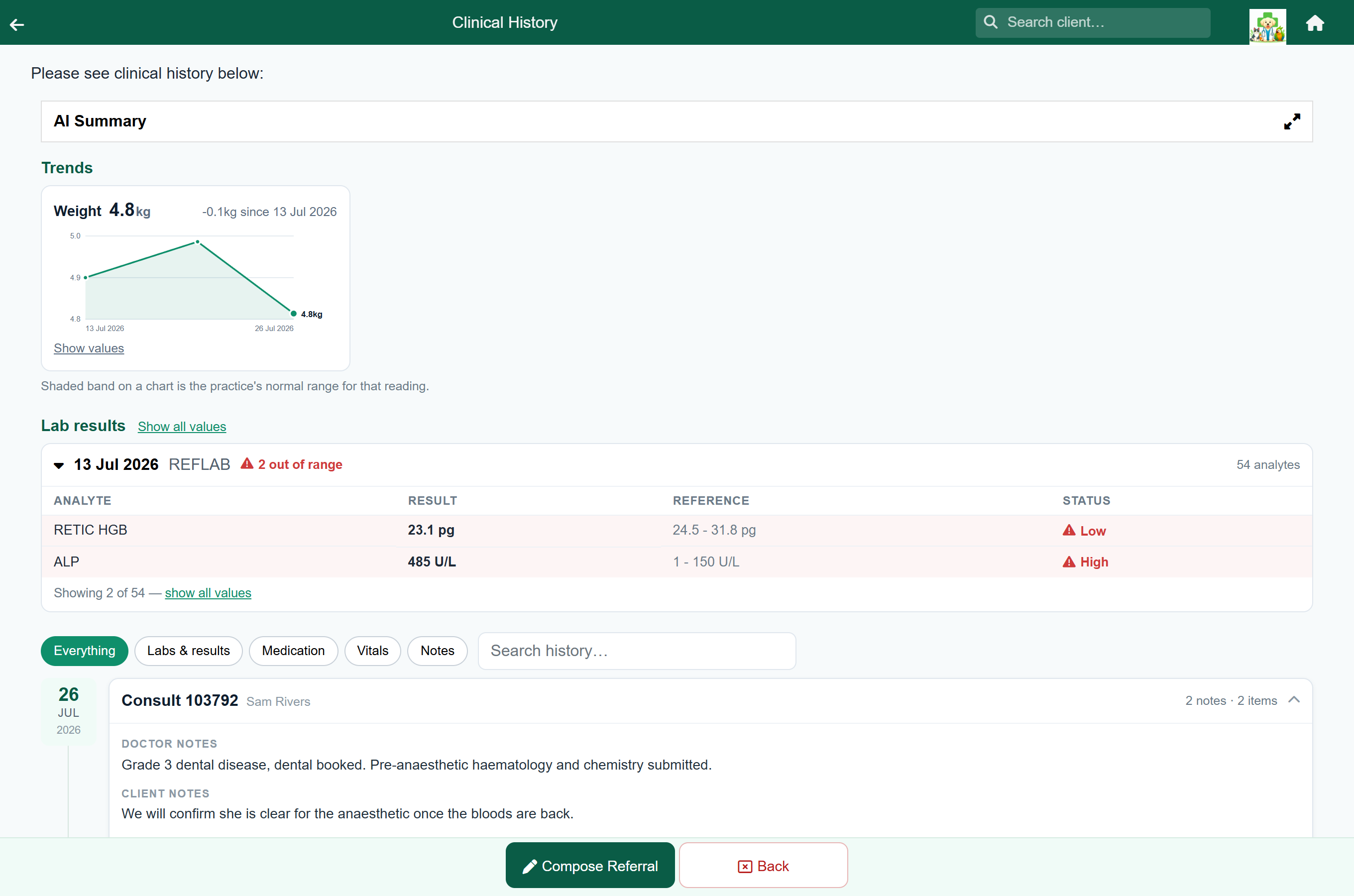
The patient panel sits at the top, folded to one line (name, photo, sex and weight) so you can always see whose history this is. Tap it for the full panel with the owner's details.
| Section | What it holds |
|---|---|
| AI Summary | A short written recap of the whole record, once the patient has one. Starts folded. |
| Trends | A chart for weight and for each vital that has been recorded more than once. |
| Lab results | Every lab result, newest first, with how many values are out of range. See Lab results. |
| Vaccinations | Where the patient stands on each protection, the ones it has never had included, and every dose behind it. See Vaccinations. |
| Timeline | One card per visit or event, newest first, with filters and a search box above it. |
The summary at the top#
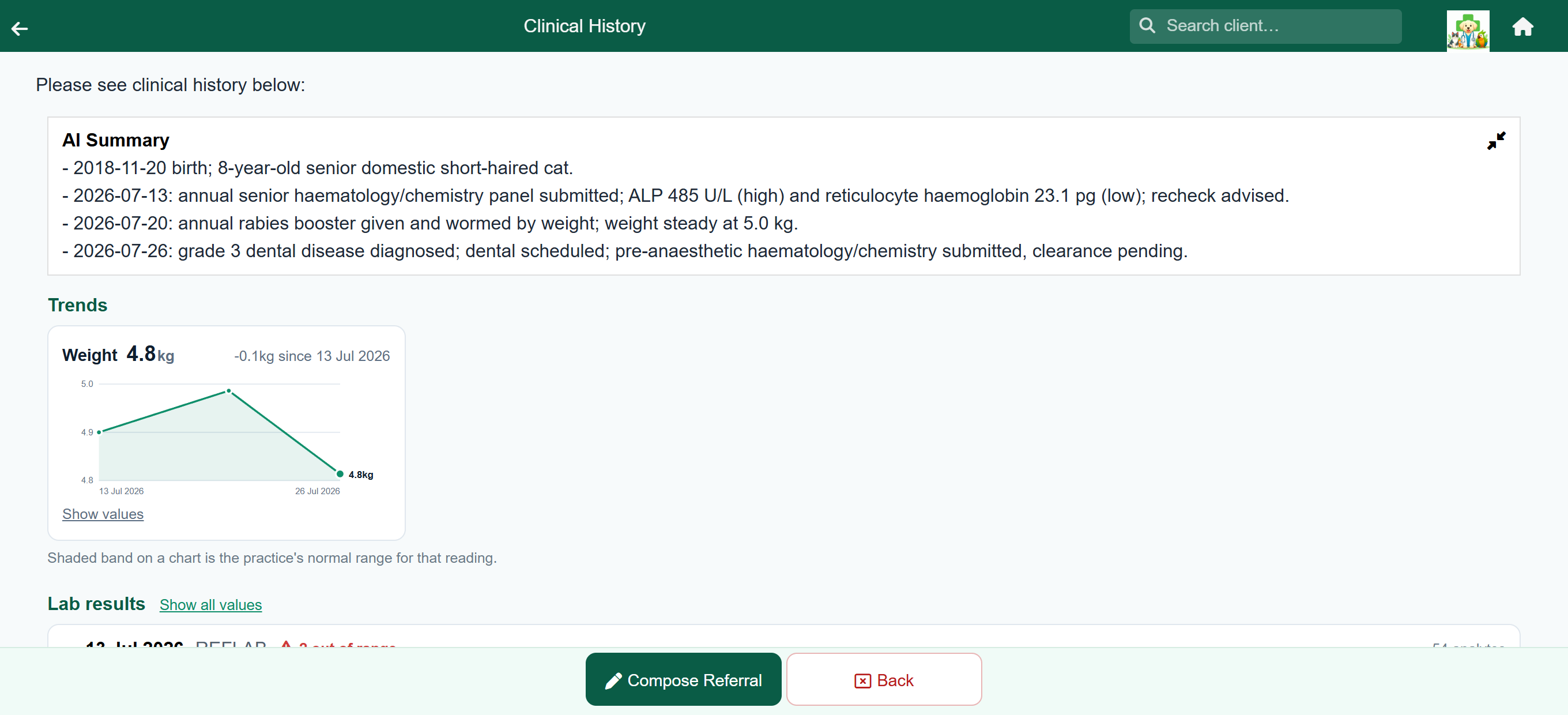
Where your practice has AI features switched on, FastVet keeps a written summary of the patient's record at the top of the page. Tap AI Summary to open it.
It is a quick way into an unfamiliar patient, but it is written from the notes, so it only knows what was written down. See Voice notes & AI summaries.
Weight and vital trends#
Each chart plots one measurement over time, with the latest reading and the change since the first one.
- A chart appears as soon as there is one reading. A single point is drawn on its own; the change line waits until there are two to compare.
- Where a vital has a normal range, set under Settings → Vitals, the chart shows it as a grey band.
- Show values under a chart lists the readings and their dates.
- Readings from a visit that was taken back off the queue are left out, the same as they are left out of the timeline, so a weight typed in by mistake does not stay on the chart.
Removing a weight that is wrong#
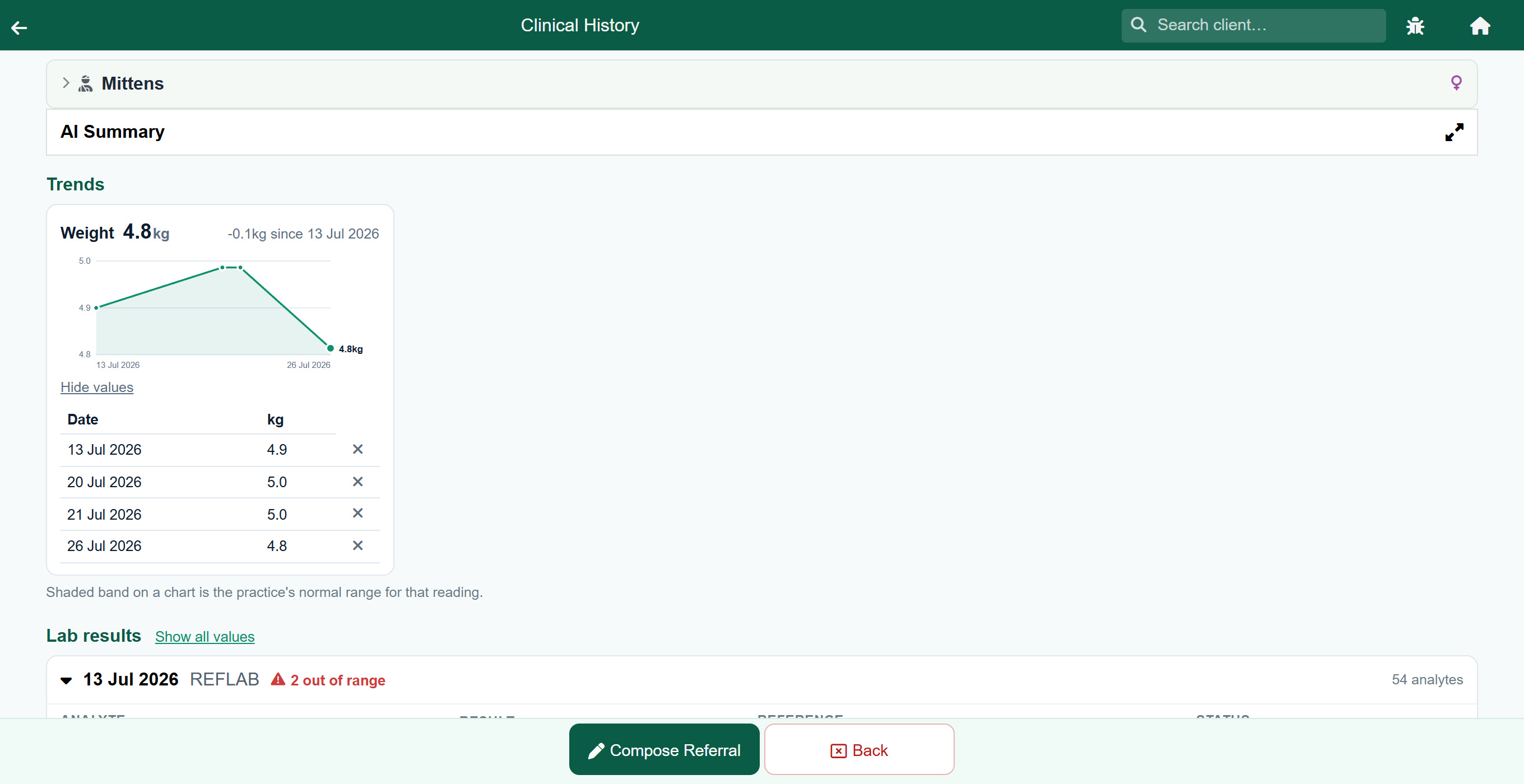
A weight typed with a slipped decimal point, or taken on the wrong animal, does not sit there quietly. It becomes the top of the growth curve, it is what the next visit is compared against, and it goes out on referral letters. A 3 kg puppy recorded at 58 kg looks like it lost 55 kg the following month.
- Open the patient's clinical history.
- Under the Weight chart, press Show values.
- Press the ✕ at the end of the wrong row.
- The confirmation names the figure and the date it was recorded. Check it is the one you mean, then press Remove weight.
The reading goes from the chart and from the Vitals line of the visit it was recorded on. Nothing else about the visit changes: the notes, the items charged and the invoice are all untouched, because a weight is a measurement and not a charge. A finished visit is no obstacle either, which is the point, since nobody notices a wrong weight until afterwards.
Lab results in context#
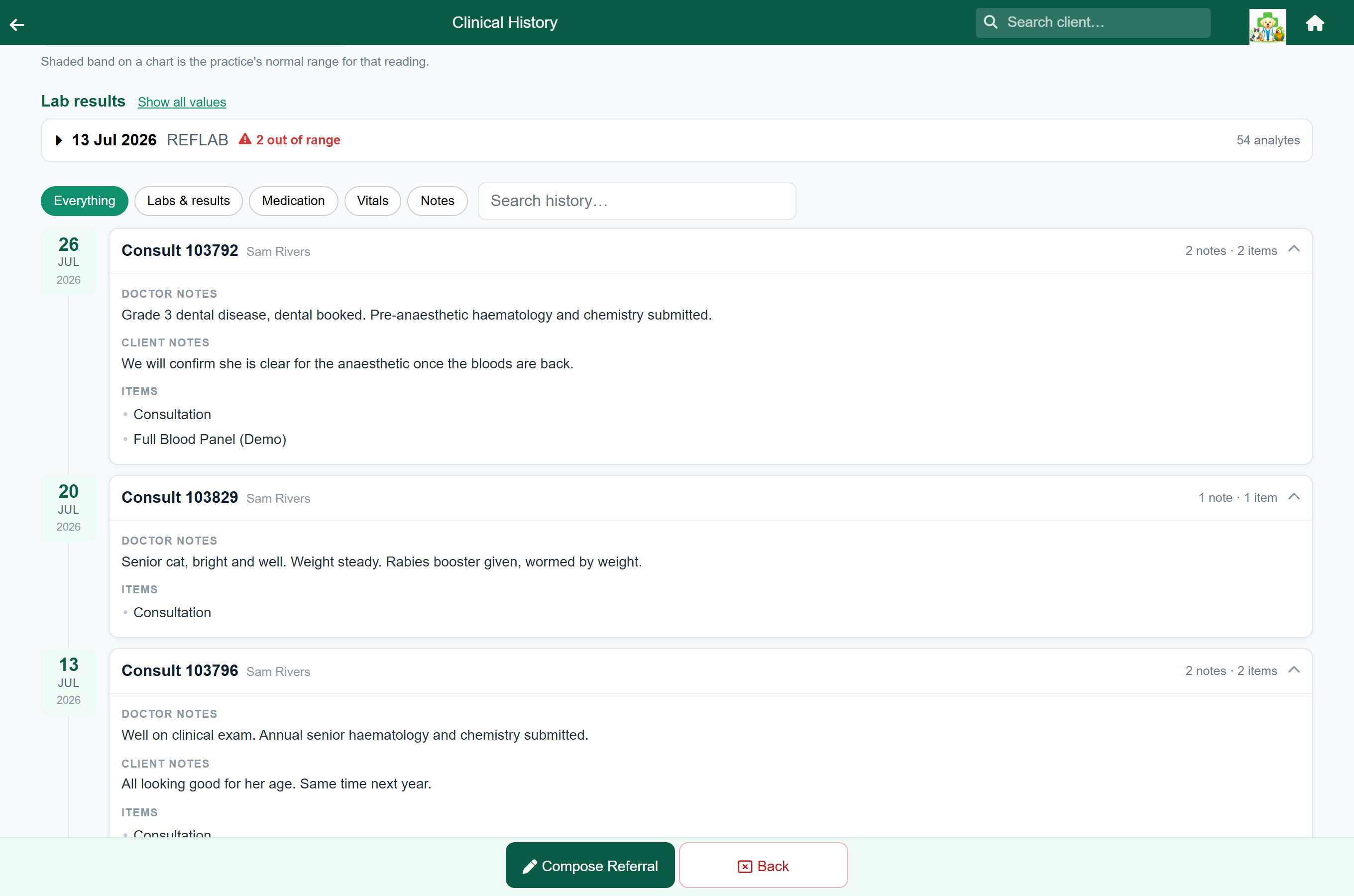
Each result shows its date, the test and one of four statuses. The newest result opens by itself; tap any other to open it.
| Says | Means |
|---|---|
| ⚠ 2 out of range | Two values are outside the reference range. |
| ✓ All within range | Every value is back and none is flagged. |
| ⏳ Awaiting results | The lab has the order but no values have come back yet. |
| ⏳ 3 of 45 back, none out of range | Some values are back and none is flagged so far. The rest are still to come. |
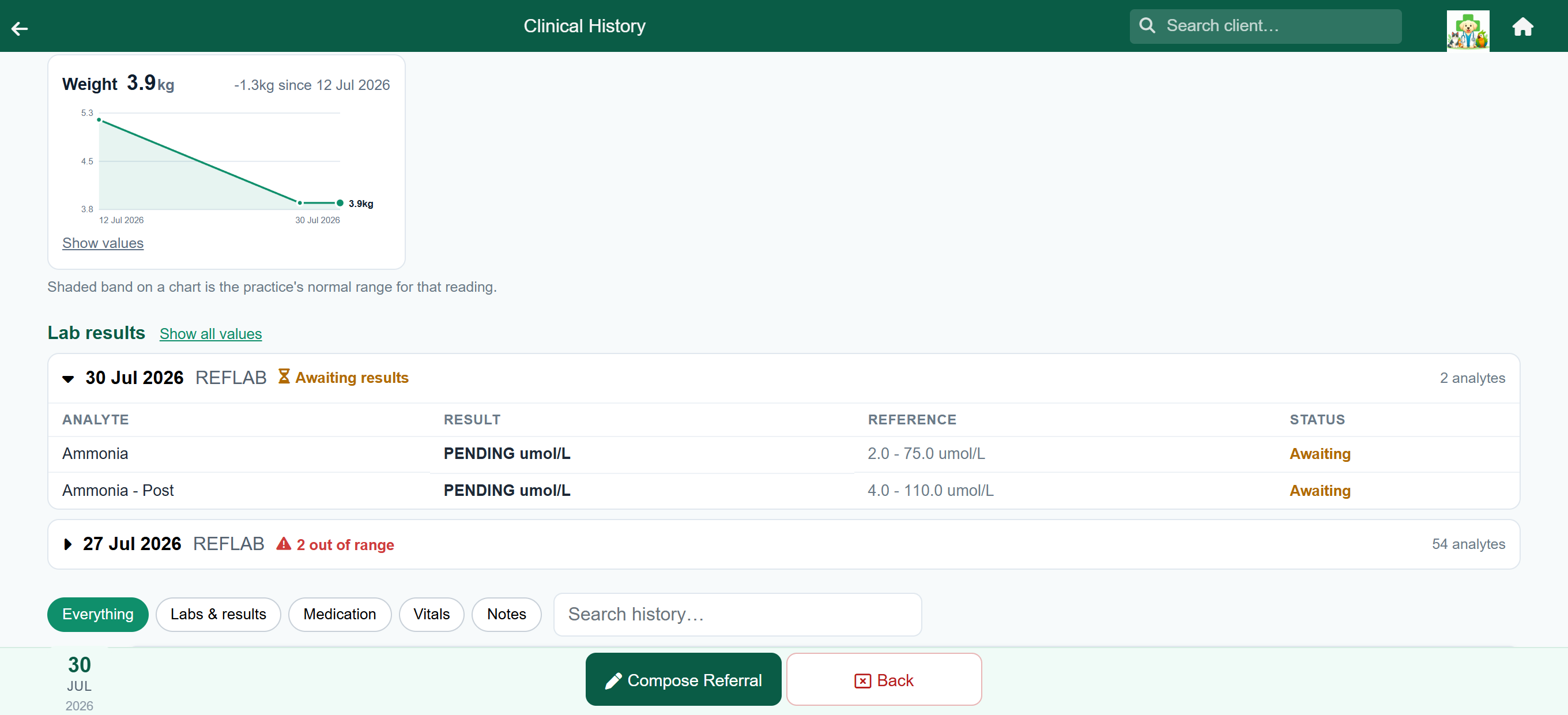
An opened result shows the flagged values only: the value, the reference range, and Low or High. Show all values at the top, or show all values under a result, shows the rest. Abnormal only goes back to the flagged values.
Where the lab gives a numeric reference range, a small bar above it shows where the value falls. The green band is the normal range. The tick is the value: green inside the range, red above it, blue below. It is the same bar as on the lab results screen.
Vaccinations#
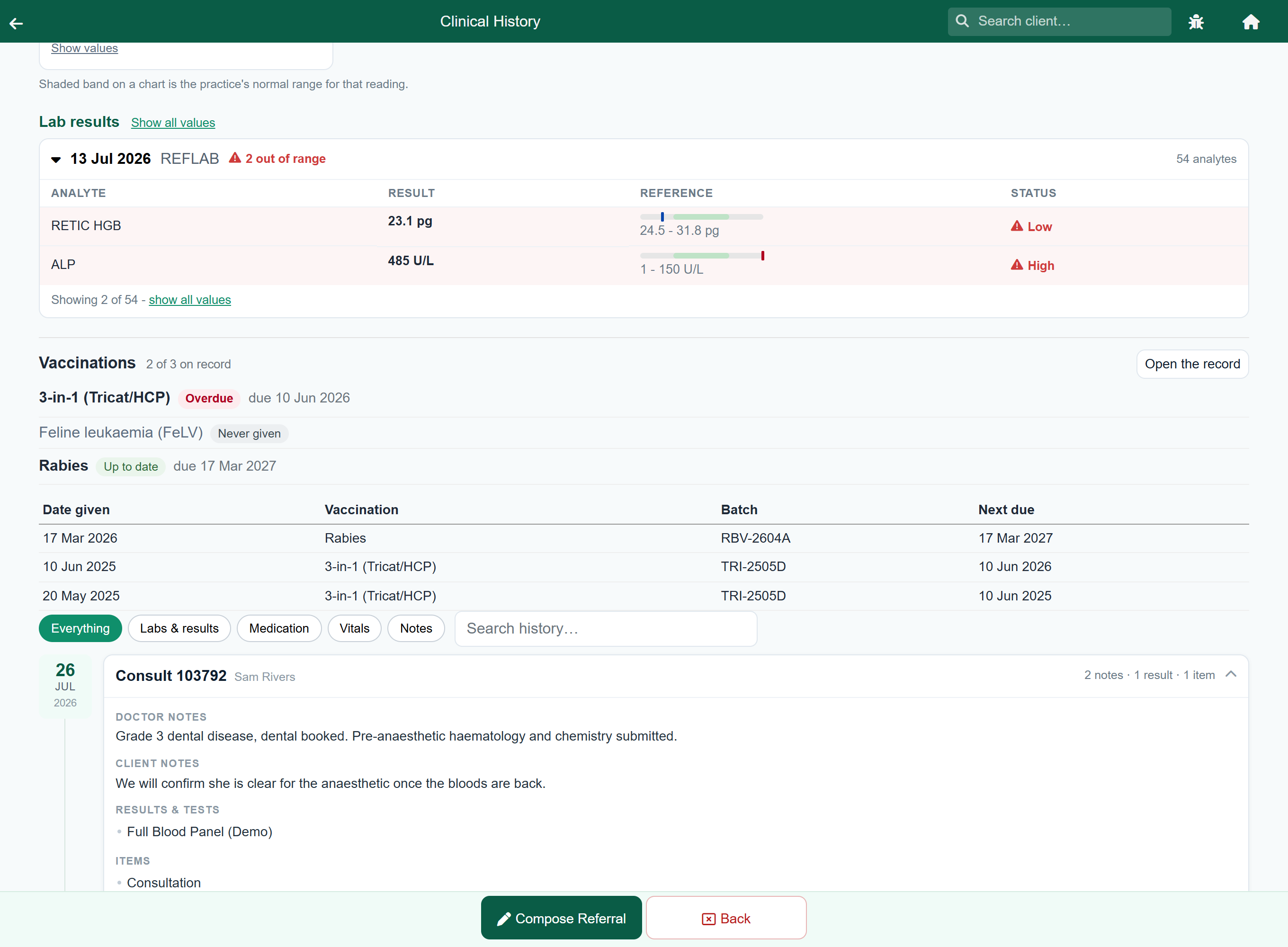
Above the timeline, where the patient stands on every protection your practice gives, and under it every dose it has had with the batch and the next due date.
What the patient has never had is named too. A list of doses given answers half the question, and the half it leaves out is usually the one you are reading the history for: a dog that has never had a rabies shot has nothing on its record to say so, and "nothing recorded" and "nothing given" look the same unless the protections you offer are listed beside the doses. Those lines read Never given.
Worst first, not alphabetical: what is overdue, then a core protection never given, then what is due, then any other gap, and last what is up to date. The order is what makes it readable with the animal in front of you.
- Only the protections that fit this patient are listed, so a dog is not asked about the cat vaccines. A vaccine with no species set fits every patient, which is the right answer for rabies.
- A withdrawn dose stays in the list, marked, but does not decide where the patient stands.
- Open the record goes to the vaccination record, where doses are added and corrected. Nothing on this screen is edited here.
The timeline#
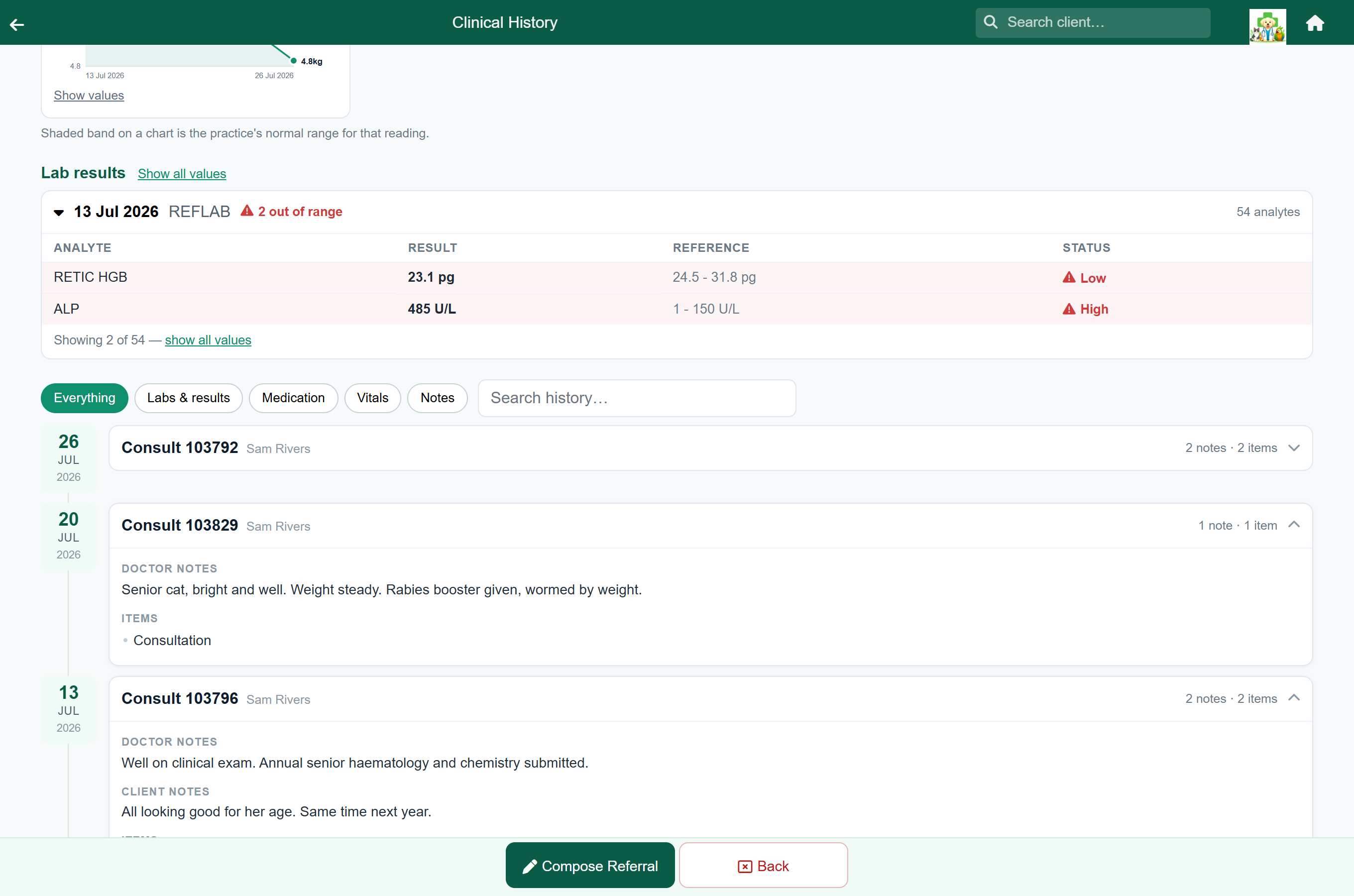
Below the filters is one card per visit or event, newest first. Each card shows the date, what it was (for example Consult 103792, Pet Data Upload or Vitals) who recorded it, and a count of what is inside, such as 2 notes · 2 items.
Cards start open. Tap a card's header to fold it.
Open Visit / Add Notes on a card opens the consultation it came from. That is the way back: reading an entry from three weeks ago and realising something still needs writing down no longer means leaving the patient, finding the visit list and picking the date out of it again. The button sits on the card's header, so it is there whether the card is open or folded, and on a finished visit the notes still open ready to be added to.
| Group | What it holds |
|---|---|
| Doctor notes / Client notes / AI note | The notes from the visit, each under its own label. Empty notes are left out. See Clinical notes. |
| Vitals | The readings and weight from that visit. |
| Results & tests | Lab and imaging lines, with their results. |
| Medication | What was dispensed, with the instruction underneath. |
| Items | Everything else charged: the consultation fee, procedures, consumables. |
| Files | Attached files as preview cards. Tap one to open it. X-rays open in the image viewer. |
Finished grooms appear on the timeline too, with what was done, the groomer's notes and any weight taken.
Filtering and searching#
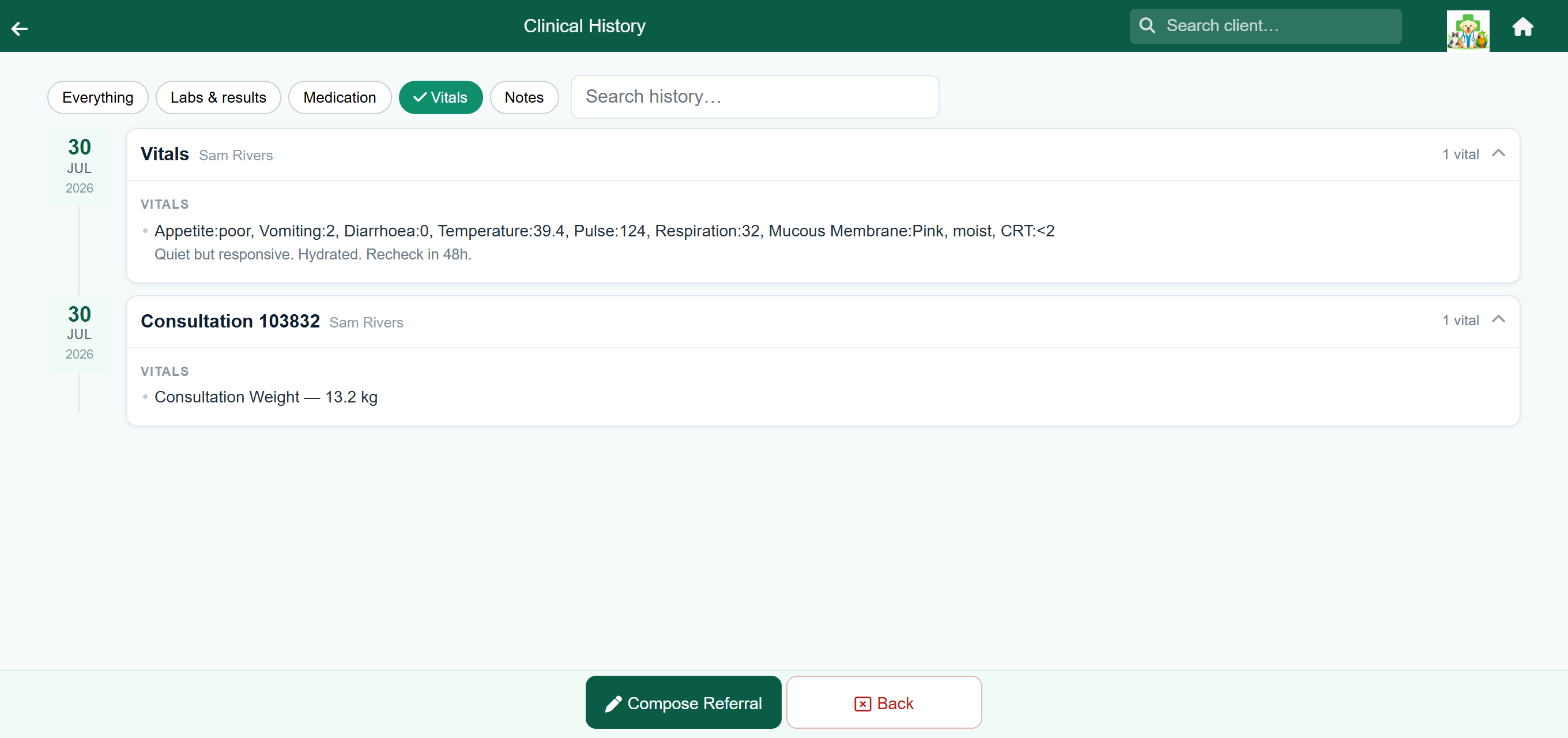
Above the timeline are five filter buttons and a search box. Everything is the default. The other four can be combined: turning on Vitals and Notes shows both.
| Filter | Shows |
|---|---|
| Labs & results | Lab and imaging lines, and anything with a result recorded. |
| Medication | Drugs, injectables, vaccinations, fluid therapy and sedation. |
| Vitals | Recorded vitals and weights. |
| Notes | The written notes. |
The search box narrows the list further. It searches descriptions, results, comments and file names, so “amox” finds every visit where it was dispensed.
Documents, photographs and scans#
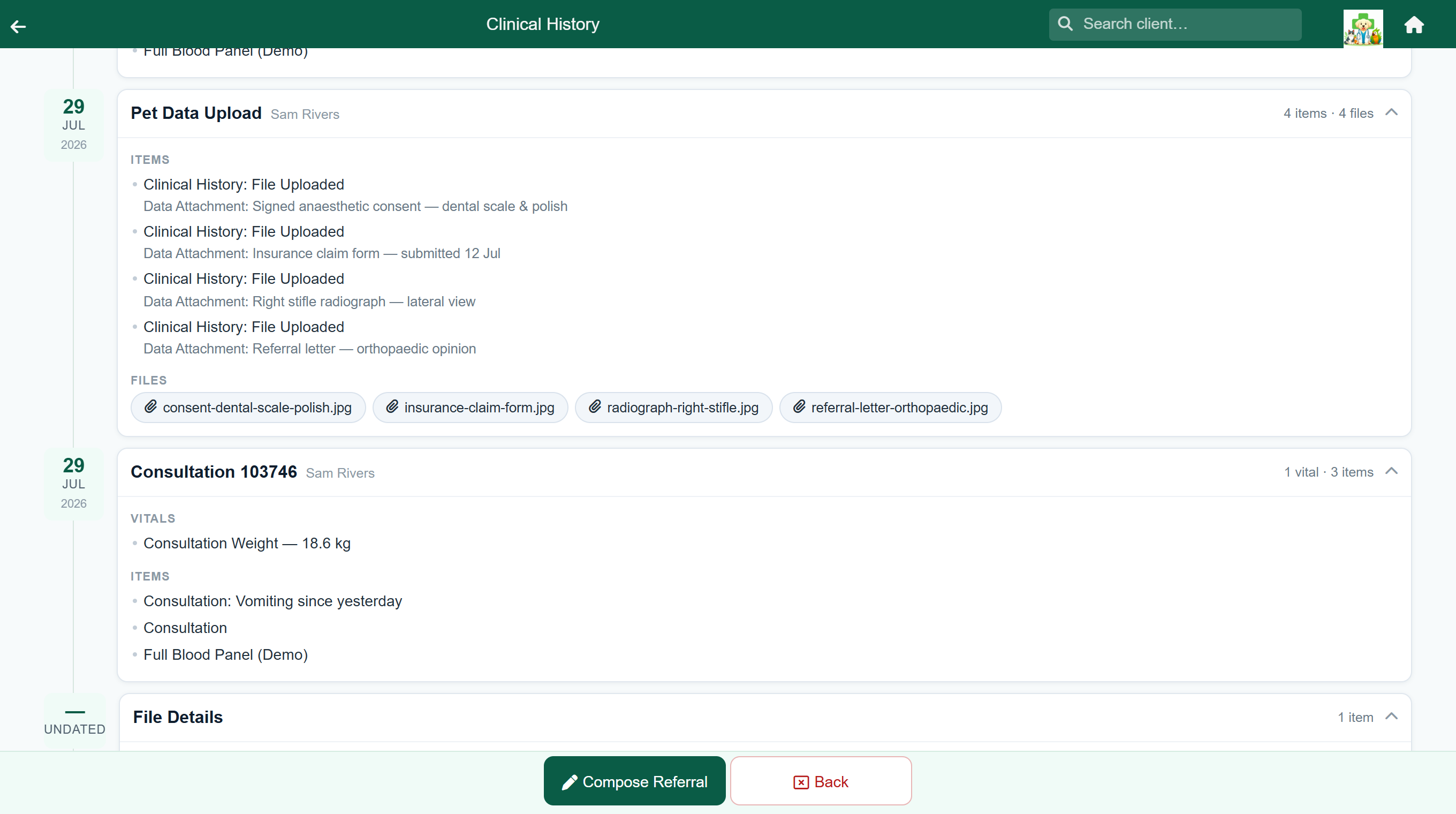
Anything uploaded for the patient (a consent form, a radiograph, a specialist's letter) appears on the timeline on the day it was added, with its description. Photographs show the picture and PDFs show their first page. Tap a card to open the file.
Files are uploaded from the patient record. See Documents and photographs.
Turning the history into a referral#
Compose Referral in the footer builds a referral letter from the records on this screen. It is greyed out for a patient with no history. See Consultations → Referral letters.
Who can see it#
The client does not see this screen. The only note a client sees from a visit is Client Notes, in the client portal.