
Help Centre › Money
The online shop
Orders your clients place online, and the two queues where you take payment on them, pick them, hand them over and mark them gone.
Clients order from the shop in the client portal. Each paid order goes on the client's account as a charge, as a counter sale does. Your side of it is a queue: take payment if the client has not paid online, then pick the order, hand it over or send it, and mark it dispatched.
Turning it on#
The shop is off until an administrator switches it on. There are two switches, both in the Client Portal & Shop card:
| Switch | What it does |
|---|---|
| Client portal | Lets clients register and log in. Without it there is nowhere for a shop to live. |
| Online shop | Shows the shop to clients, and puts Shop Dispatch on your home screen. Switching it on shows the delivery settings beneath it. |
Then choose, item by item, what clients can buy. On Update Prices, among the visibility buttons for an item, there is a Shop button. It appears only once the shop is switched on. An item is not in the shop until you turn Shop on for it.
Turning Shop on for an item also adds a Product Image box to its price record. That picture is what the client sees in the shop. Use JPG, PNG or GIF, about 400×400 px.
The dispatch queue#
Home›Shop Dispatch
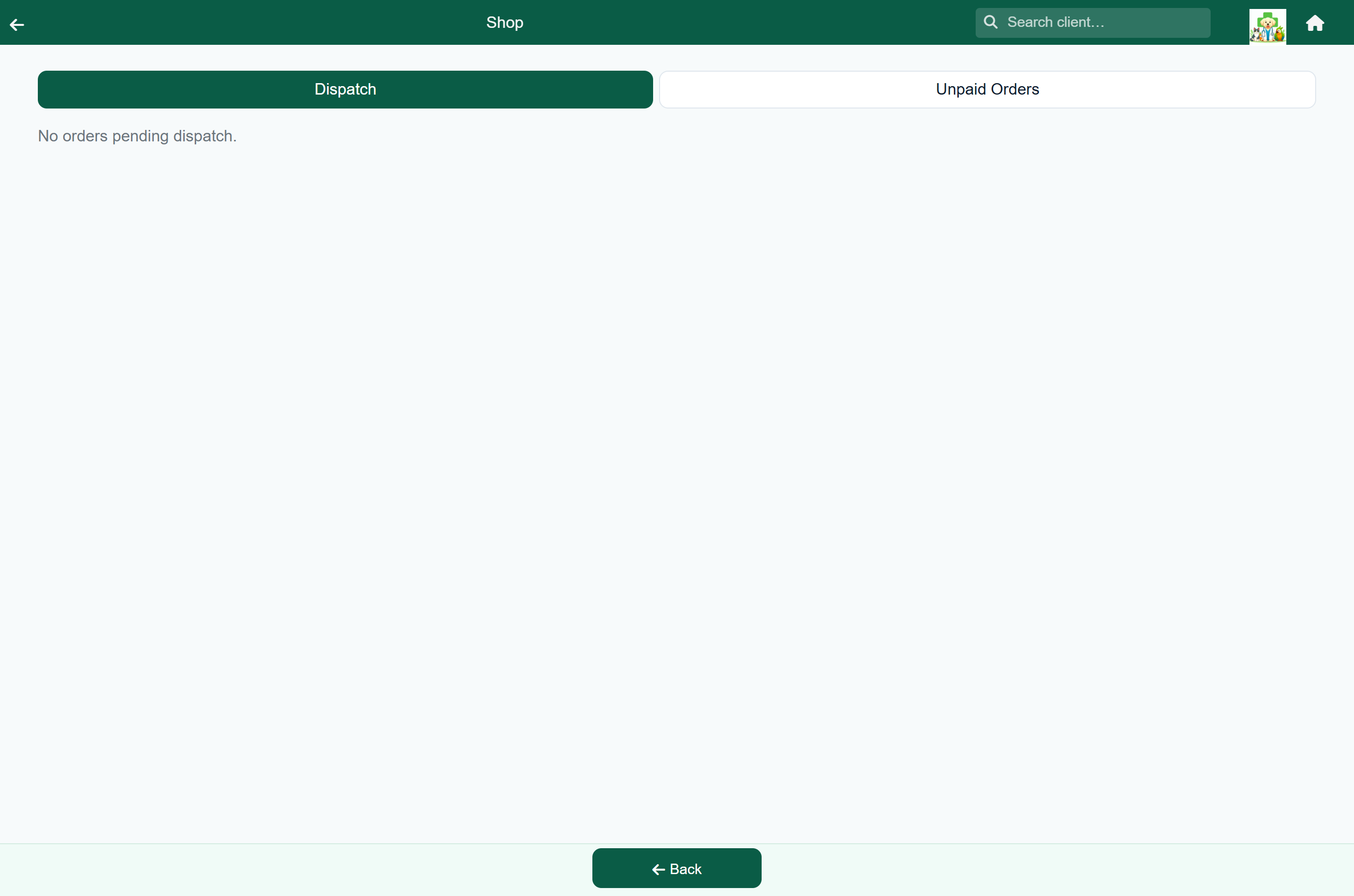
The screen has two tabs. The number on a tab is how many orders are in it.
| Tab | Holds | Yours to pick? |
|---|---|---|
| Dispatch | Orders that are paid for. | Yes. |
| Unpaid Orders | Orders placed but not paid for. | No. Take the payment first; see below. |
- Press Detail to see what was bought, the client's contact details, any note they left, and the delivery address. Slip prints the same as a picking slip.
- Pick the items.
- Hand them over, or send them out.
- Press Dispatch and confirm. The order leaves the queue, and the client gets an email.
Pressing Dispatch takes the items off stock. If an item has no stock record, or its count goes below zero, a message names the item, so you can adjust the stock by hand.
To stop a paid order that has not gone out, press Cancel. Choose how the client gets their money back, add a reason if you want to, and press Cancel Order:
| Refund method | What happens |
|---|---|
| Refund to card | The sale is reversed on the account. You then refund the card yourself in your PayFast dashboard; FastVet does not move the money. |
| Leave as account credit | The sale is reversed, and the amount stays on the client's account as credit. |
When a client says they ordered and you cannot find it#
Look in Unpaid Orders. Orders that are not paid for wait there.
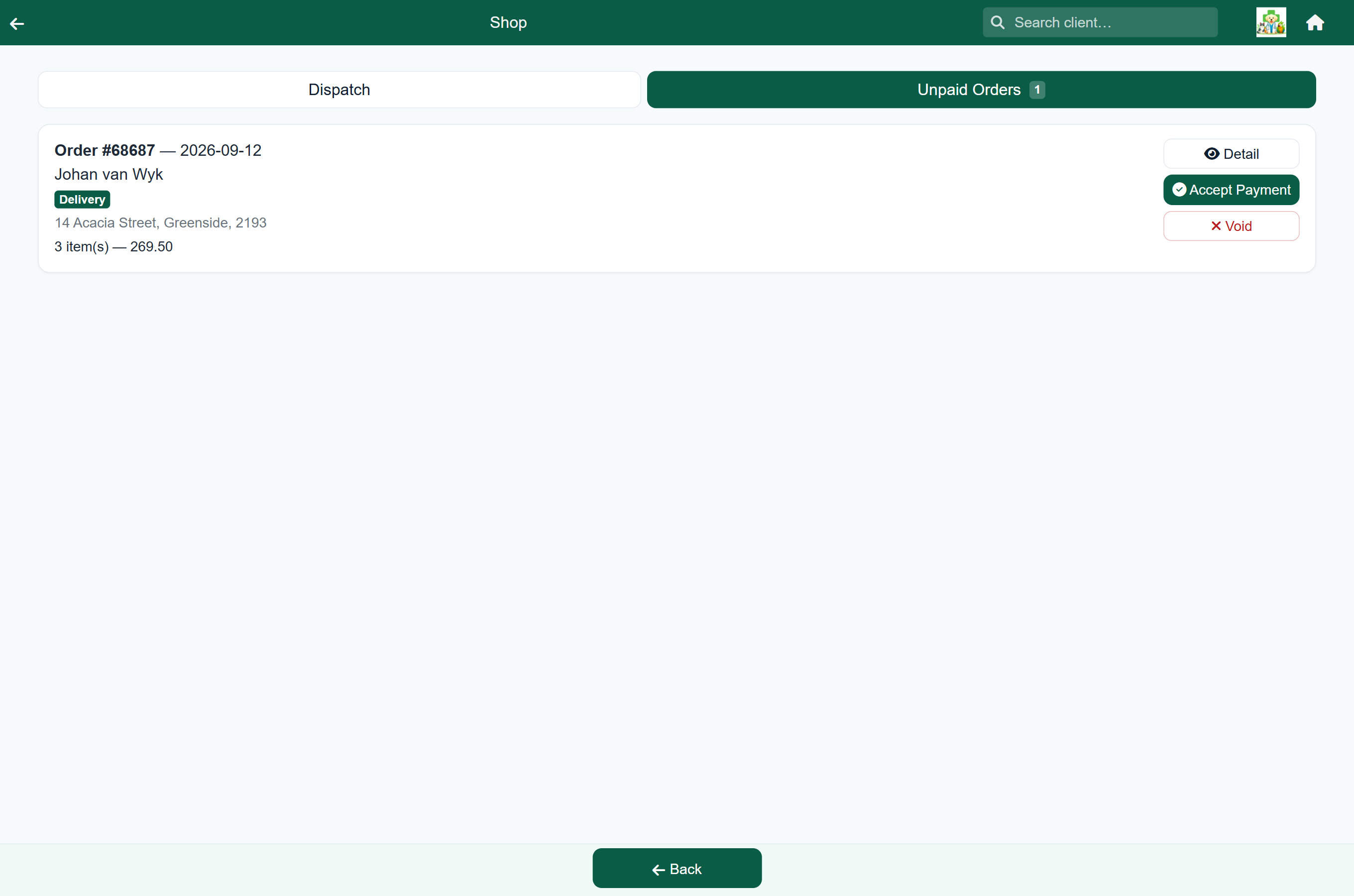
Do not pick an order on this tab. How many orders you see here depends on how your practice takes shop payments:
| Your practice | What lands in Unpaid Orders |
|---|---|
| Takes card payments online (PayFast) | Only orders the client did not finish paying for. The client sees Awaiting payment with a Pay now button in My Orders. Ask them to press it, or take the payment yourself. |
| Does not take payment online | Every order. The client has no Pay now button. They are told that you will contact them to arrange payment or, for a collection, that they can pay when they collect. You take the payment. |
| Button | Use it when |
|---|---|
| Accept Payment | The client pays you by EFT, card, cash or any other method on your payment methods list. Choose the method, the date and a reference, then press Confirm Payment. The amount is the order total. To put a different amount through, choose Adjustment and enter the amount and a reason. The sale and the payment go on the client's account, and the order moves to Dispatch. |
| Void | The order is not going ahead. It is deleted and cannot be undone. Nothing was charged and no stock was taken, so there is nothing else to reverse. |
What the client sees (the cart, the checkout and the order status) is described in The client portal.
Collection and delivery#
By default every order is collected from the practice. To offer delivery as well, an administrator turns it on under Features & Modules:
| Setting | What it does |
|---|---|
| Delivery | Adds a Collect in store / Deliver choice at checkout. With it off, every order is a collection. |
| Delivery fee | Charged on delivery orders, entered including VAT. It appears as a line on the order. |
| Free delivery from | Orders whose items come to this amount or more are delivered free. Leave it blank and delivery is always charged. |
When you press Dispatch, the client's email says their order is ready for collection, or that it is on its way, depending on which they chose.
What an order does to stock#
- Clients see an Out of stock badge on an item with none in stock.
- The shop does not accept an order for more than you have in stock. The client is told which item is short.
- Stock is taken off when you press Dispatch, not when the client orders. Each movement shows in the stock history.
- Items with no stock record, such as services, are not limited.
What the client is told, and when#
The shop sends these emails from your practice's own address:
| When | Who gets it | What |
|---|---|---|
| A client pays online, or places an order without paying | Your practice | A new-order email, with the items and whether it is paid. |
| The order is paid, online or with Accept Payment | The client | The invoice, only if Email invoices & receipts automatically is on in Practice Settings. |
| You press Dispatch | The client | Their order is ready for collection, or on its way, with the items. |
| You cancel a paid order | The client | The order is cancelled, and how they are refunded. |
Each email is listed on the email history report, with whether it was sent. Look there when a client says they were not told.