
Help Centre › Appointments & queues
Appointments & bookings
Work the appointment book: make, move and cancel bookings, and turn an arriving appointment into a waiting patient.
The appointment book is a grid of time slots. An administrator sets up the slots once, and reception fills them.
The day's bookings#
Home›Bookings
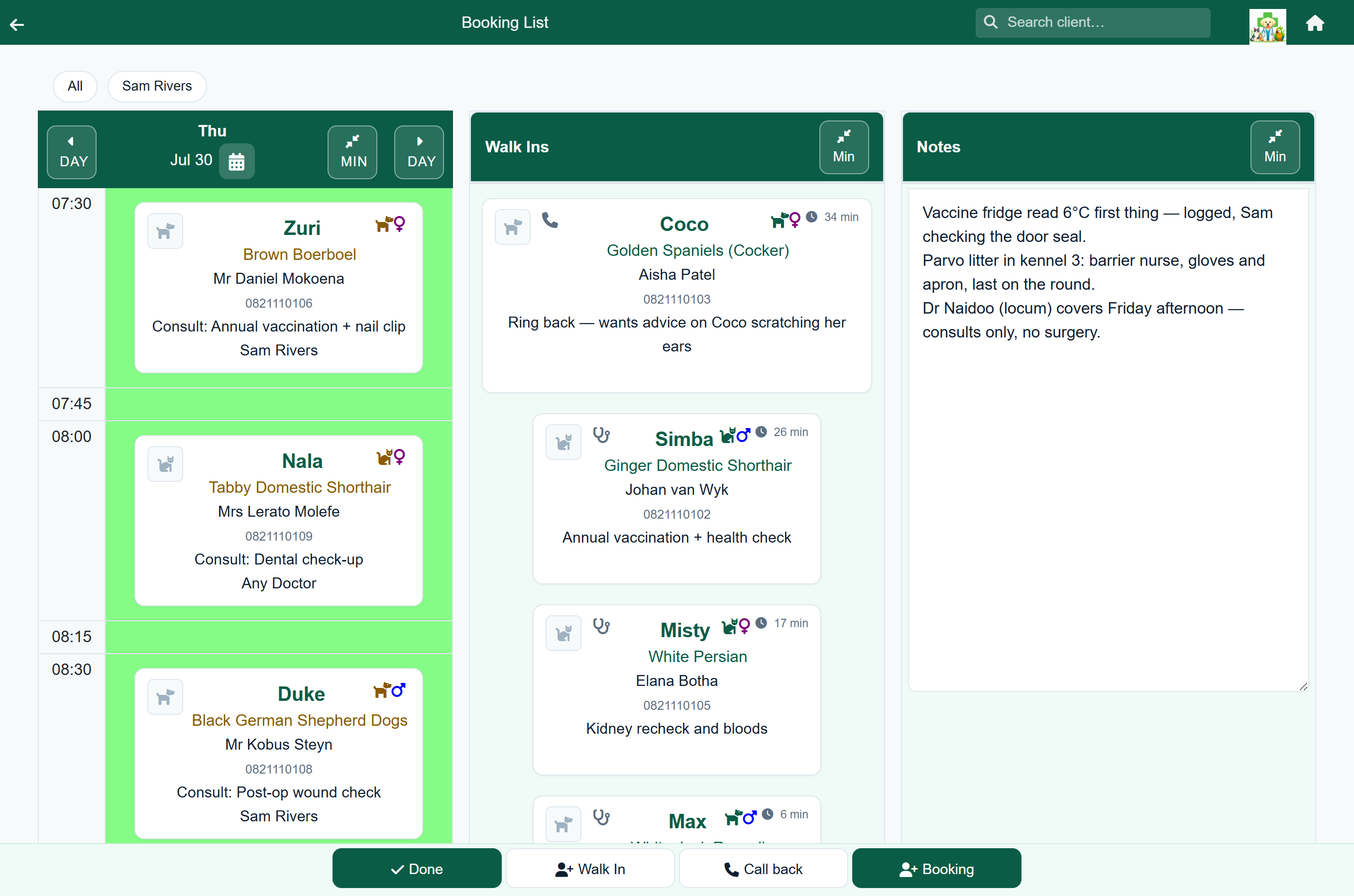
The booking list shows one day: who is coming, when, with which animal, why, and with which vet. Use the Day arrows to move between days, tap the date to jump to another, or press Week to see the whole week. The vet buttons along the top filter the list to one vet. On a phone those buttons become All and a vet picker beside it.
The day opens at the time you are in. A red line and the word NOW mark the slot the practice's clock is in, and the diary starts there rather than at the first appointment of the morning, so an afternoon opens on the afternoon. Move to another day and it starts at the top again, since there is no "now" on a day that is not today.
- A House Call, Procedure or Grooming booking is tagged as one, so you can pick the house calls out of a full day at a glance. A Consult carries no tag, since nearly every booking is one. On a phone the tag is the icon on its own, without the word, so the appointment still fits on one line: a van for a house call, a plaster for a procedure, and scissors for grooming. They are the same icons the week view uses.
- Each appointment carries a small status badge showing where that patient has got to in the day, so reception can see the state of the waiting room at a glance: Booked before they arrive; Late once a today appointment's time has gone by and nobody has weighed them in yet; Waiting once they are weighed in and on the consult queue; With vet once a vet opens the consultation; To pay when the visit is finished and the account is waiting; and Done once it is settled and they have left the queue. A cancelled appointment carries none, since it is already struck through. In the week view the badge is a small coloured dot, with the word on the card once you tap it open.
- Each appointment shows the patient, the vet and the reason. Tap it for the rest: the owner, their phone number, the animal's breed and colour, any weights taken, and the actions - Weigh In when the patient arrives, Postpone, Cancel, Client, and later Open Consult or Pay. Tap it again to close it.
- An appointment booked for longer than one slot shows an hourglass with the number of slots. It appears once, at the time it starts, and the slots it runs into count it as taken.
- A time you can still book keeps its own colour. A time that is full, or filling up, is shaded instead, so the busy part of a morning stands out. This works the same way on the day view and the week view.
- A time is shaded too when every vet working at that hour is already booked. So on a morning when only one vet is in, a time shades as soon as that vet is taken, even though the time itself has room for another patient.
- Bookings clients make through the client portal appear here with the others.
- Walk Ins lists every patient waiting on a queue without an appointment, longest wait first, and shows only when you are looking at today. These read the same way as the appointments beside them: the patient, the vet and the reason, with the owner, the phone number and the actions a tap away. How long the patient has waited stays on the card, and entries from an earlier day are highlighted.
- Notes is a shared notepad for the day. Everyone sees it, it saves as you type, and the box grows with what is in it.
- Each panel has a Min button to shrink it and give the others more room. The screen remembers which panels you left shut.
- The appointments scroll on their own. The vet buttons stay where they are, and so does the row carrying the date and the Day arrows, so switching vets or moving to another day while you are reading the afternoon no longer means scrolling back to the top and down again. On a computer Walk Ins and Notes stay put beside the diary; on a phone they are below it, and a scroll that runs off the end of the day carries on down to them.
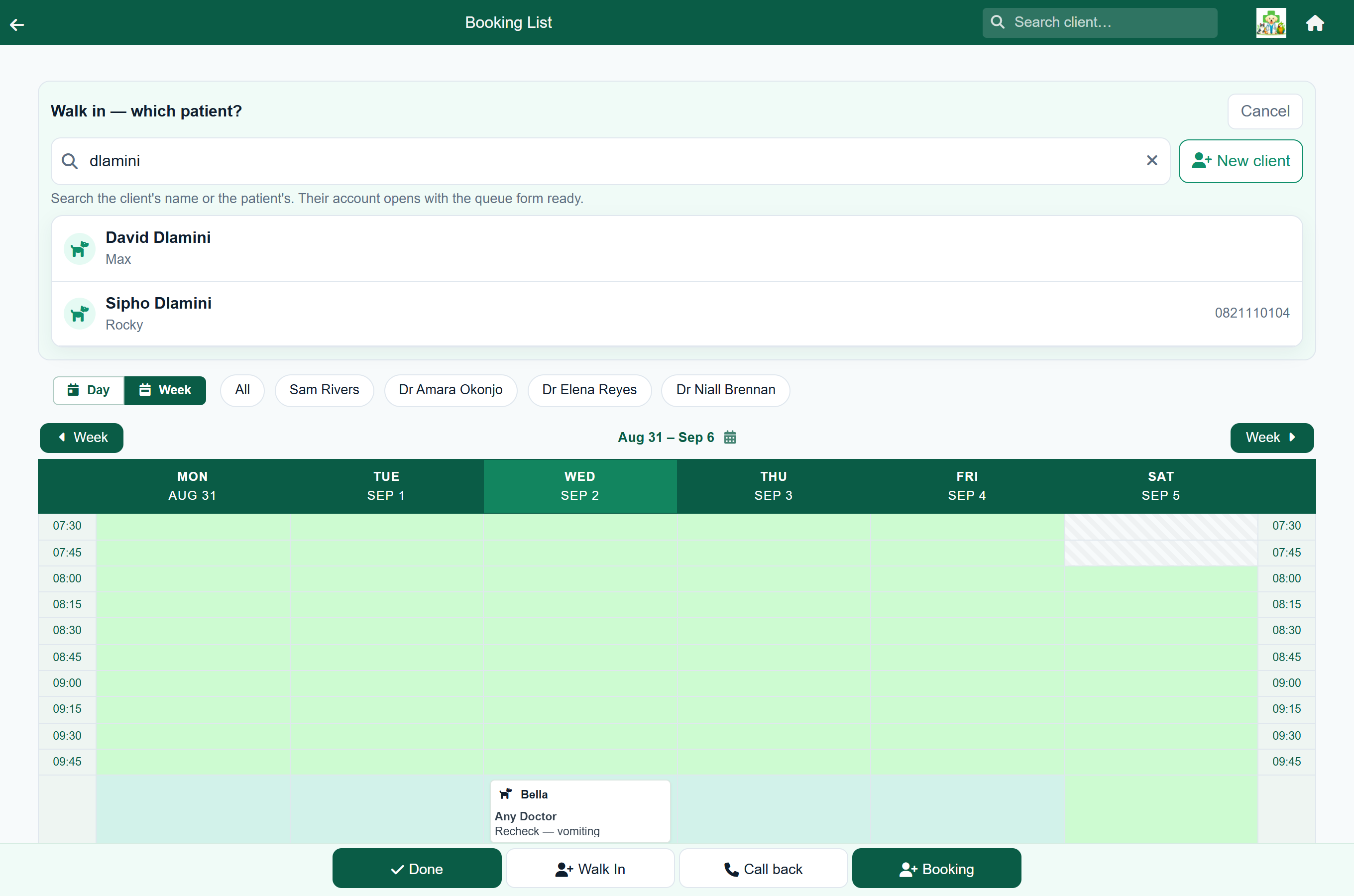
Walk In and Call back in the footer first ask which patient. Search by the client's name, phone number or the patient's name and tap them; their account opens with the queue form ready.
Your own view of the diary#
Home›Bookings›the gear
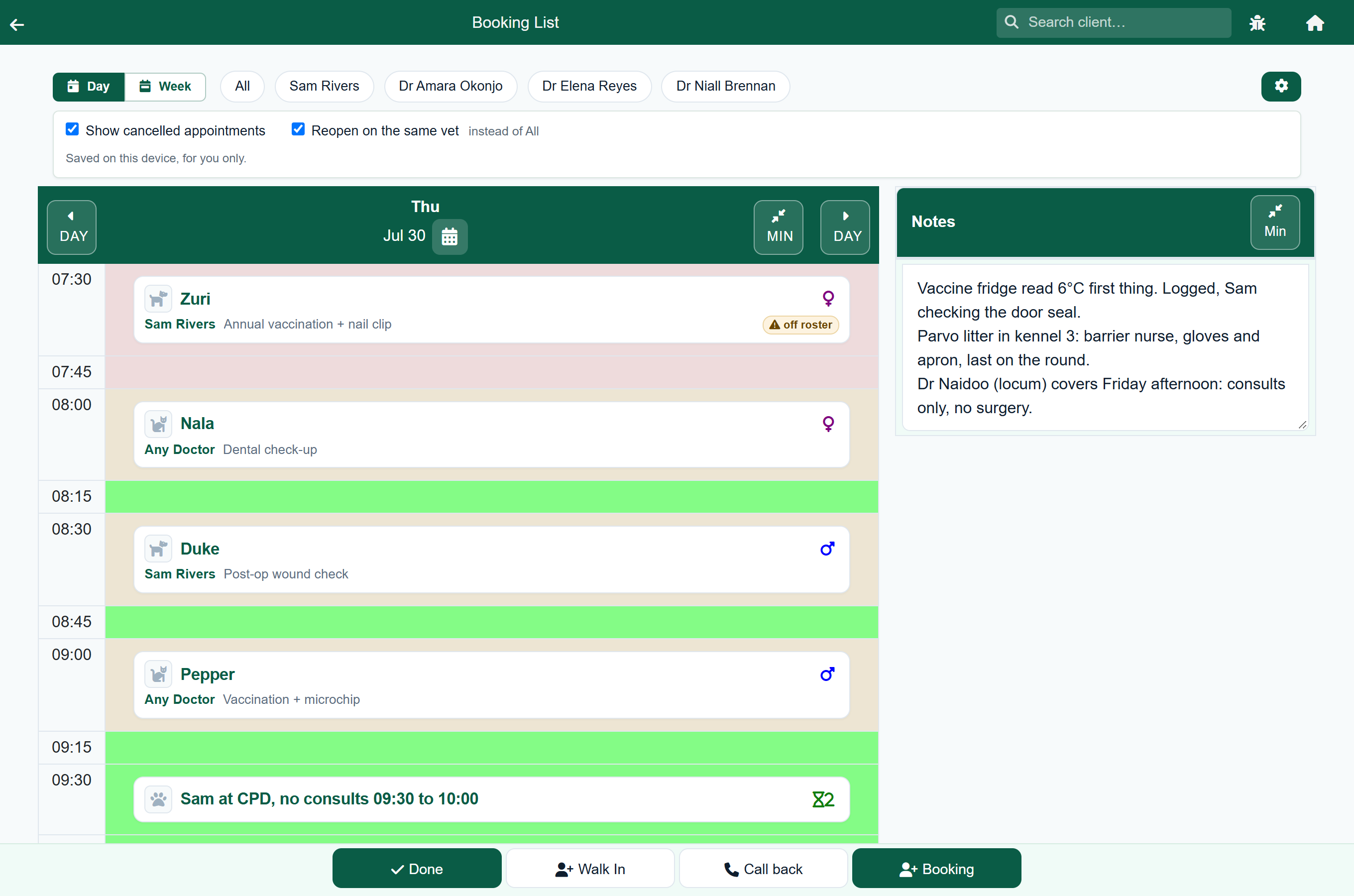
The gear at the right-hand end of the vet buttons holds two preferences for how the booking list reads. They are yours, not the practice's: each is saved in the browser you set it in, so changing one does not change what anyone else sees, and a vet and a receptionist at the same practice can each have the diary the way they want it.
- Show cancelled appointments. On to begin with, which is how the diary has always behaved. Turn it off and cancelled appointments are left off the screen instead of drawn struck through. The setting says how many it is hiding, so a day that looks emptier than you expected tells you why. Nothing is deleted, and anyone else opening the day still sees them.
- Reopen on the same vet. On to begin with. The diary comes back filtered to the vet you were last looking at, which saves a vet working from their own column picking their name every time. Press All and it remembers that instead, so you are never stuck on one vet. Until you have picked a vet at all it opens showing every one of them, and turning it off goes back to that.
The whole week at once#
Home›Bookings›Week
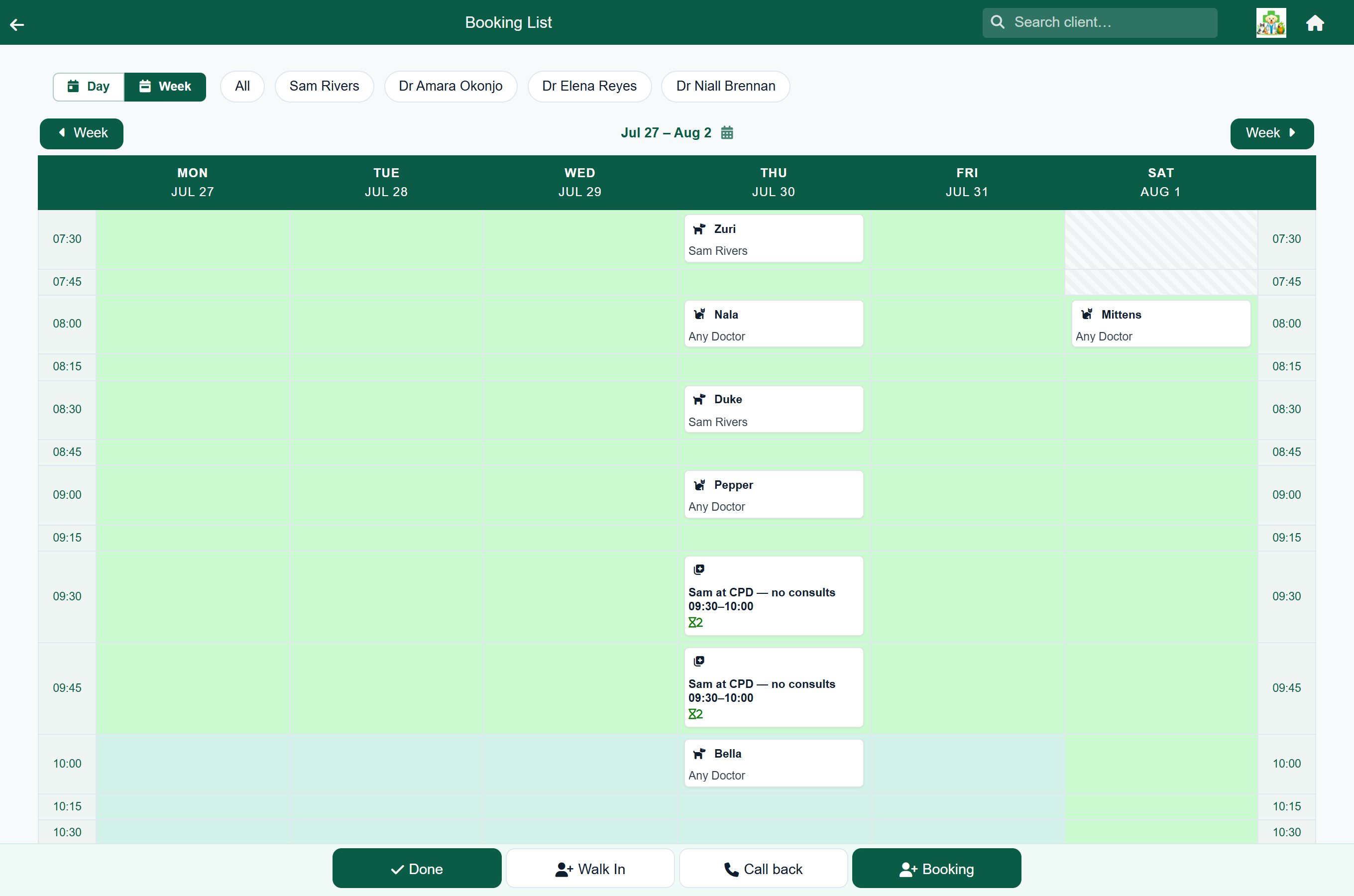
Week shows the appointment book with a column per day, so you can see where there is space. Days your practice is closed are left out.
- Each row is a clock time, so 09:00 lines up across every day. Where a day has no slot at that time, the cell is shaded.
- A card shows the patient, the vet and what the animal is coming in for. When you filter to one vet, the vet drops off the card, since their name would be on every one of them.
- A House Call, Procedure or Grooming booking carries a small icon here instead of the word, because the cell is narrow: a van for a house call, a plaster for a procedure, and scissors for grooming. On a computer you can also hold the pointer over one to see which it is.
- A booking that takes several slots shows an hourglass with the number of slots, and fills all of them.
- A note shows its text, for example a staff meeting. A note does not take up the slot unless it names a vet: “Dr Naidoo at the dentist” holds that vet for the time, and the slot stays open for other vets. For planned leave, use Vet Availability instead.
- Tap a booking, or a day's heading, to open that day. Actions on a booking are on the day view.
- Tap an empty part of a slot to start a booking in it.
- Use the Week buttons either side of the date range to move a week, or tap the date range to jump.
Making a booking#
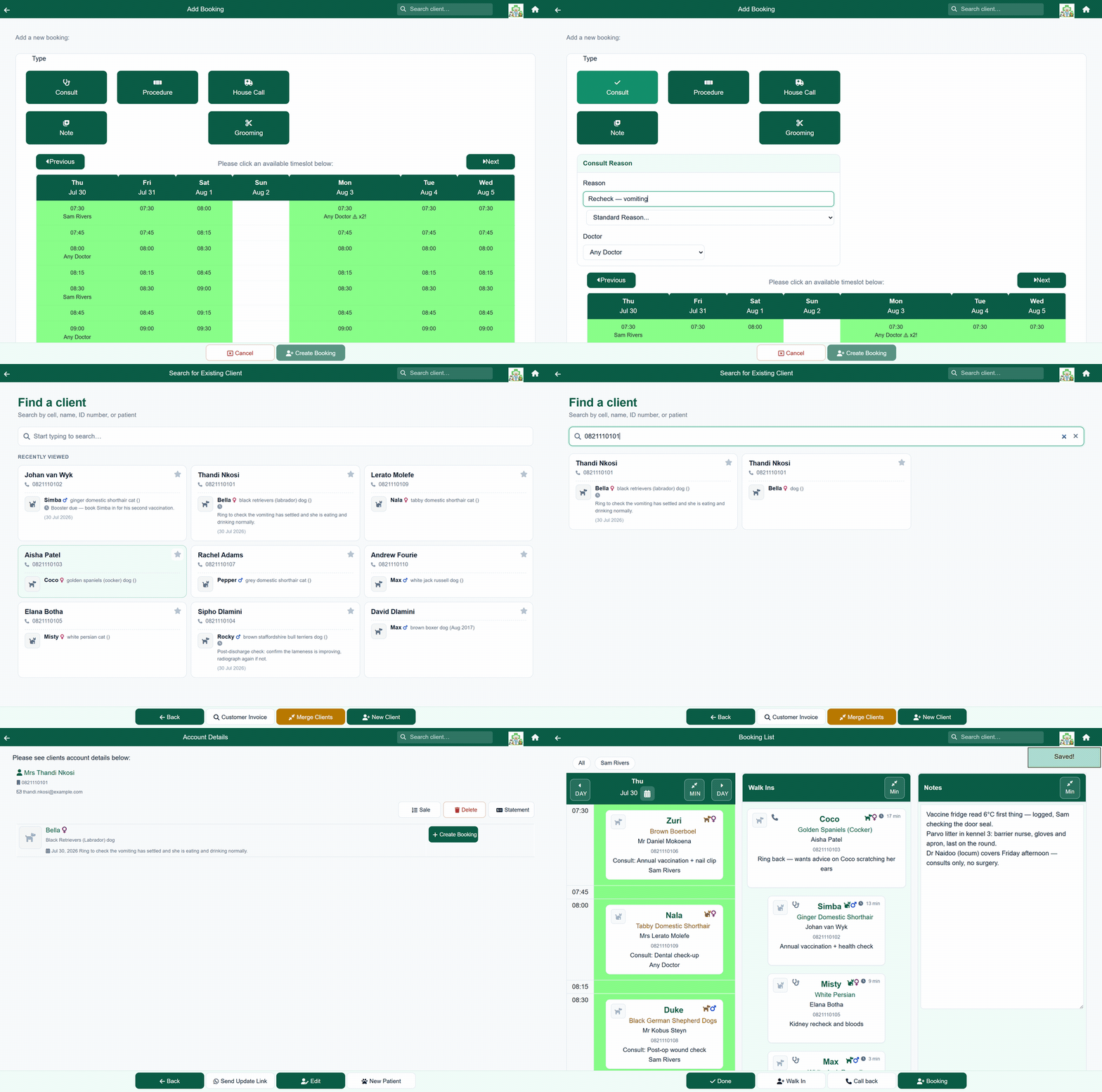
- From Home choose Bookings, then press Booking in the footer.
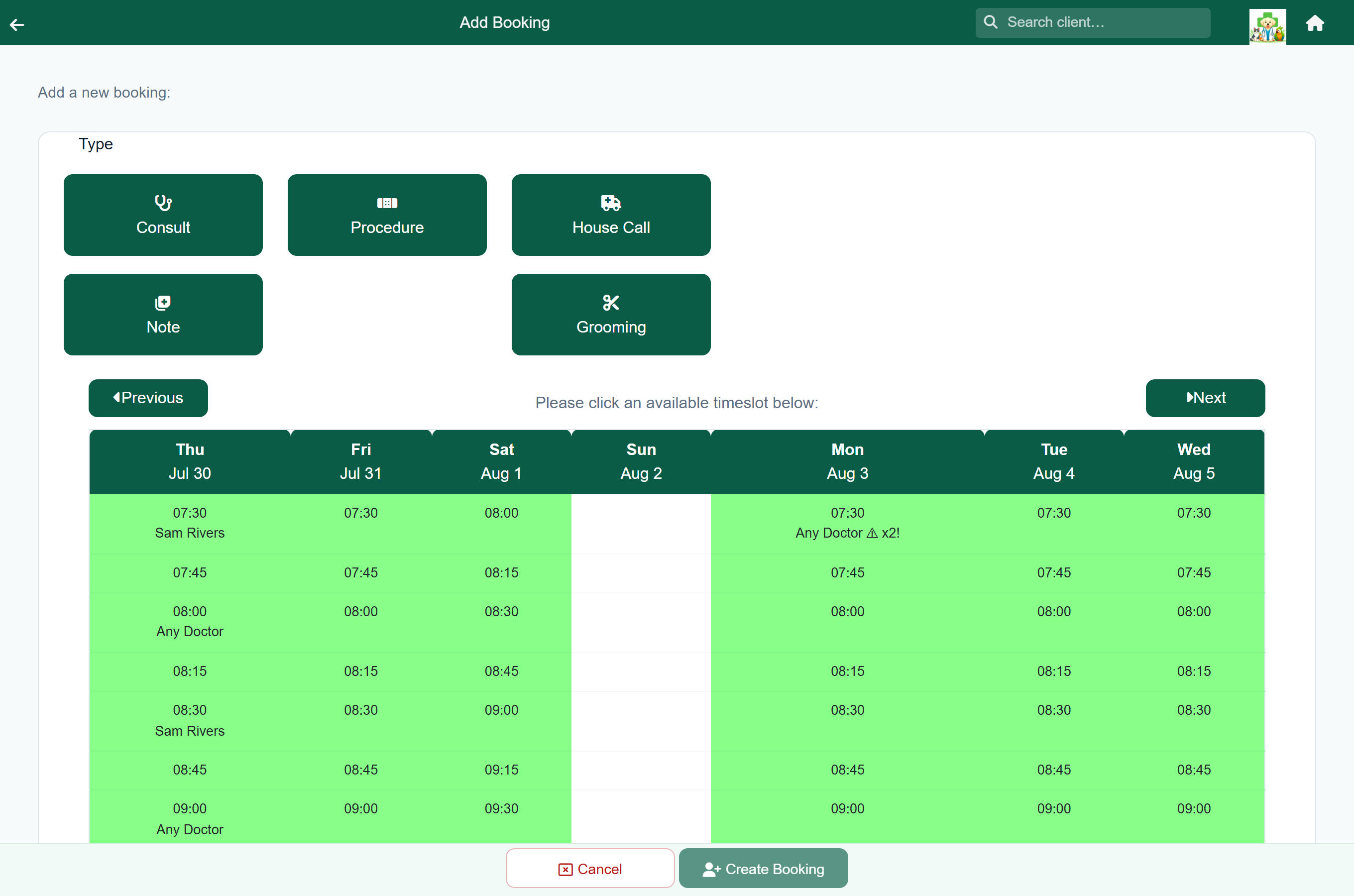
- Check the booking type. Consult is selected; change it to Procedure, House Call, Note or Grooming if needed. Consult, Procedure and House Call appear only if your practice uses consultations, and Grooming only if it uses grooming.
- Under Patient, search for the client or the patient and tap them. If the client has more than one patient, you are asked which. For a new client, New client opens the short signup form and makes the booking when you save. A Note has no patient; instead, Who is this about? lets you name a vet to hold for that time, or leave it on Nobody in particular.
- Type the reason, or choose one from Standard Reason..., and pick the vet or leave Any Doctor. A grooming booking asks for a grooming reason and notes, and offers Any Groomer.
- Use Previous and Next to find the week, then tap a free time slot.
- Press Create Booking.
A course of appointments#
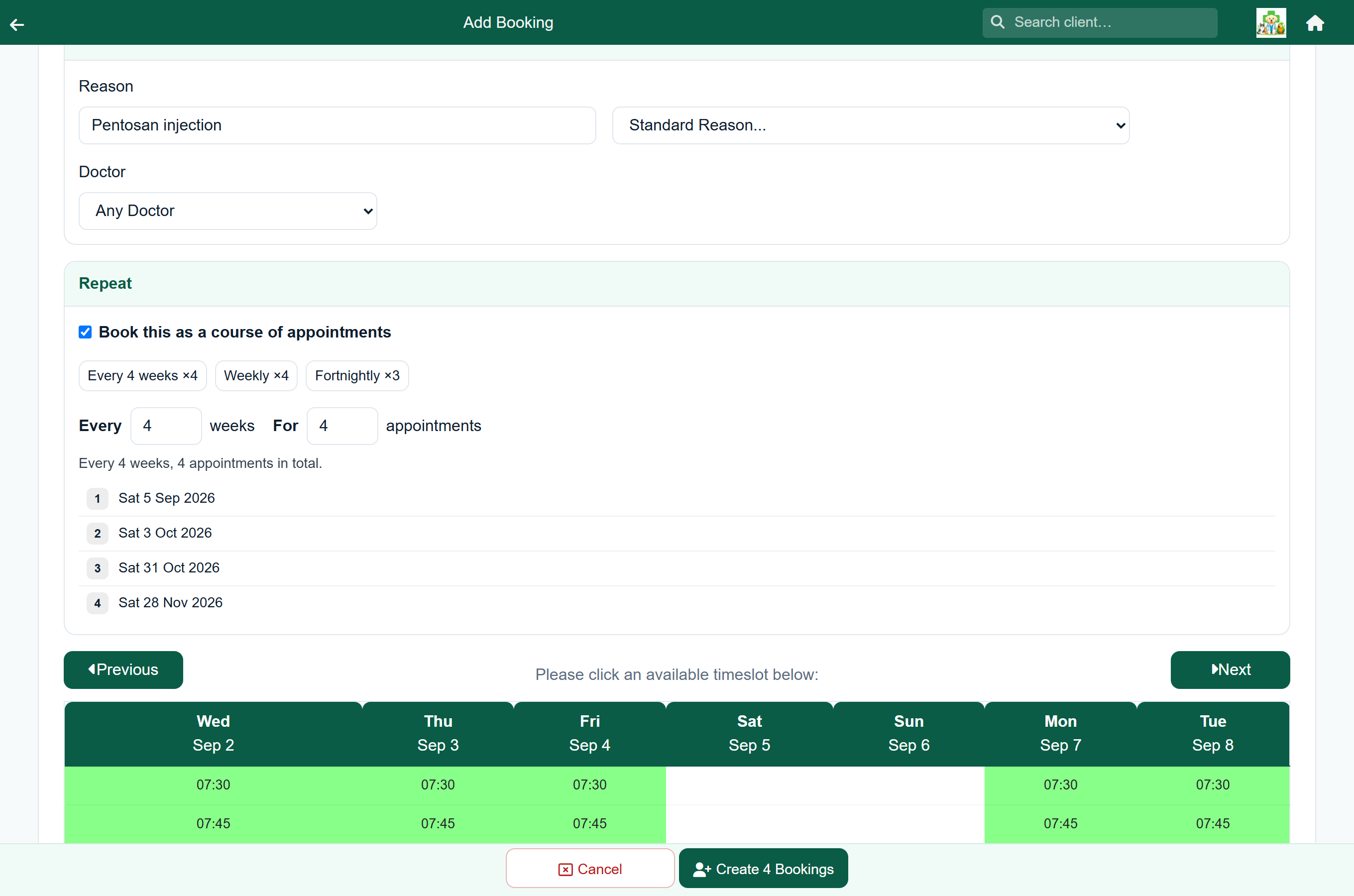
For a course of treatment, such as four injections four weeks apart or a puppy vaccination series, book all the appointments at once.
- Fill in the booking as usual: type, patient and reason.
- In the Repeat panel, tick Book this as a course of appointments.
- Choose a preset, such as Every 4 weeks ×4, or enter how many weeks apart (Every) and how many appointments (For).
- Tap the time slot for the first appointment. The dates of the whole course appear in the Repeat panel.
- Check the dates, then press the button, for example Create 4 Bookings.
Every appointment is on the same weekday and time as the first. A course can repeat every 1 to 12 weeks, for 2 to 26 appointments.
Once made, each appointment can be moved, cancelled or opened on its own without affecting the others. To stop a course, tap the appointment to stop at and press Cancel Rest: it and all later appointments in the course are cancelled.
When the client arrives#
When a booked patient arrives, put them on the queue so the vet can see they are waiting.
- On the booking list, tap the booking and press Weigh In. This opens the arrival form.
- Fill in what you have, and press Save.
| Field | What it is for |
|---|---|
| Weight (kg) | The weight taken on arrival. Decimals are fine, for example 12.4. |
| Approximate Weight (kg) | An estimate, for an animal you could not weigh properly. |
| Doctor | The vet they are seeing, or Any Doctor. |
| Reason | Why they are in. It shows on the queue card and the consultation. Type it or pick from your practice's consultation reasons. |
The patient now appears on the consult queue with their reason, and the booking gains an Open Consult button, which takes you to the same visit. A booking does not reach the consult queue on its own, and the two lists are deliberately separate: the booking list is the diary of who is expected, the consult queue is the waiting room of who has arrived. Weigh In is what moves a patient from the one to the other.
Moving or cancelling#
Tap the booking on the booking list. Press Postpone to choose a new time, then Update Booking. Press Cancel to cancel it; the slot is freed straight away.
Defining your appointment slots#
An administrator sets up the grid of times under Appointment Slots.
Home›Settings›Appointment Slots
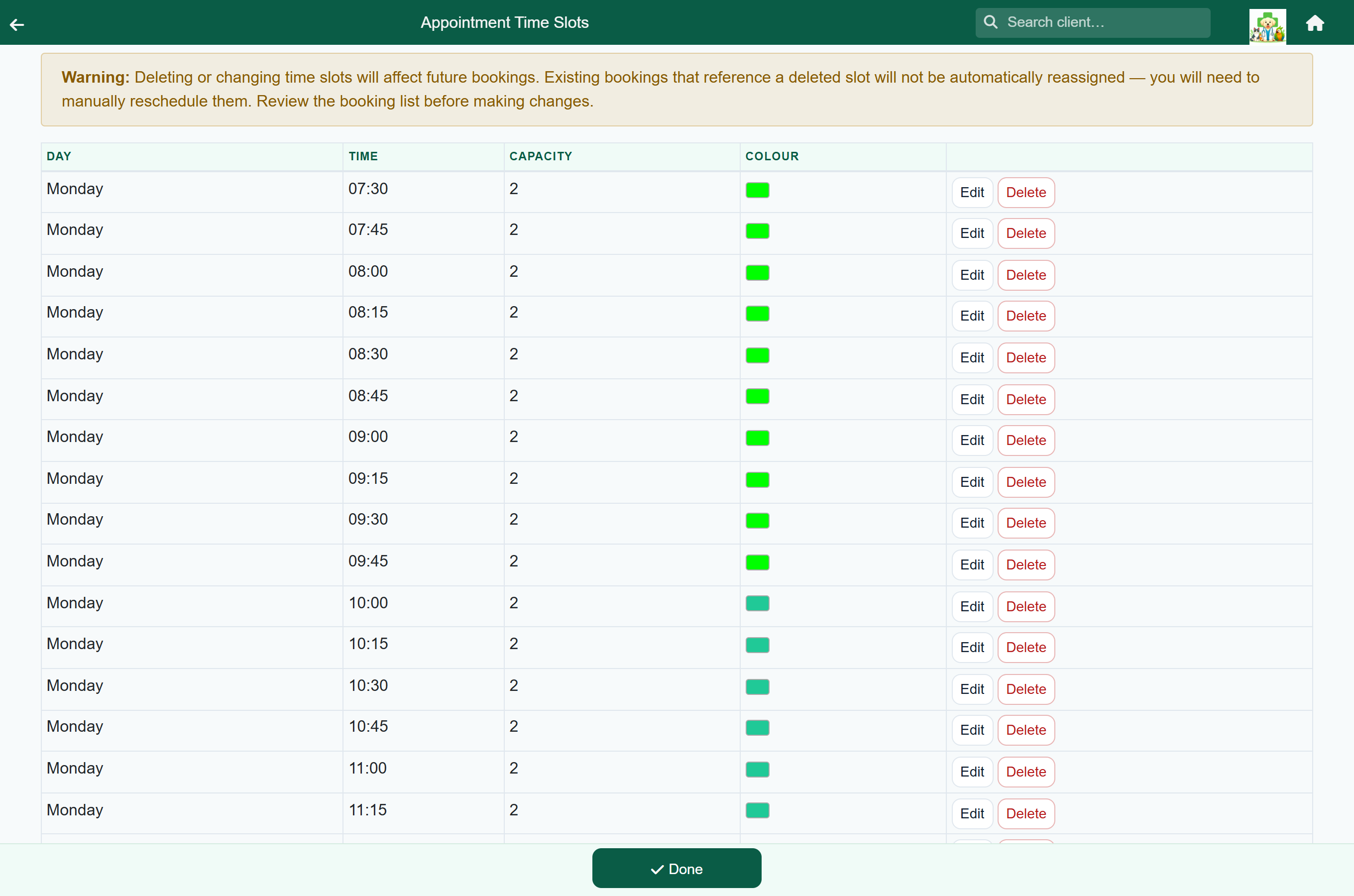
Describe the week as sessions, for example “Monday to Friday, first appointment 07:30, last 13:00, every 20 minutes, 2 patients at a time”. Pick the days with the day buttons. The count on the right shows how many times the session creates.
Underneath, How the week will look shows the result as the booking screen will: days across, times down, and the number of patients that can be booked at each time.
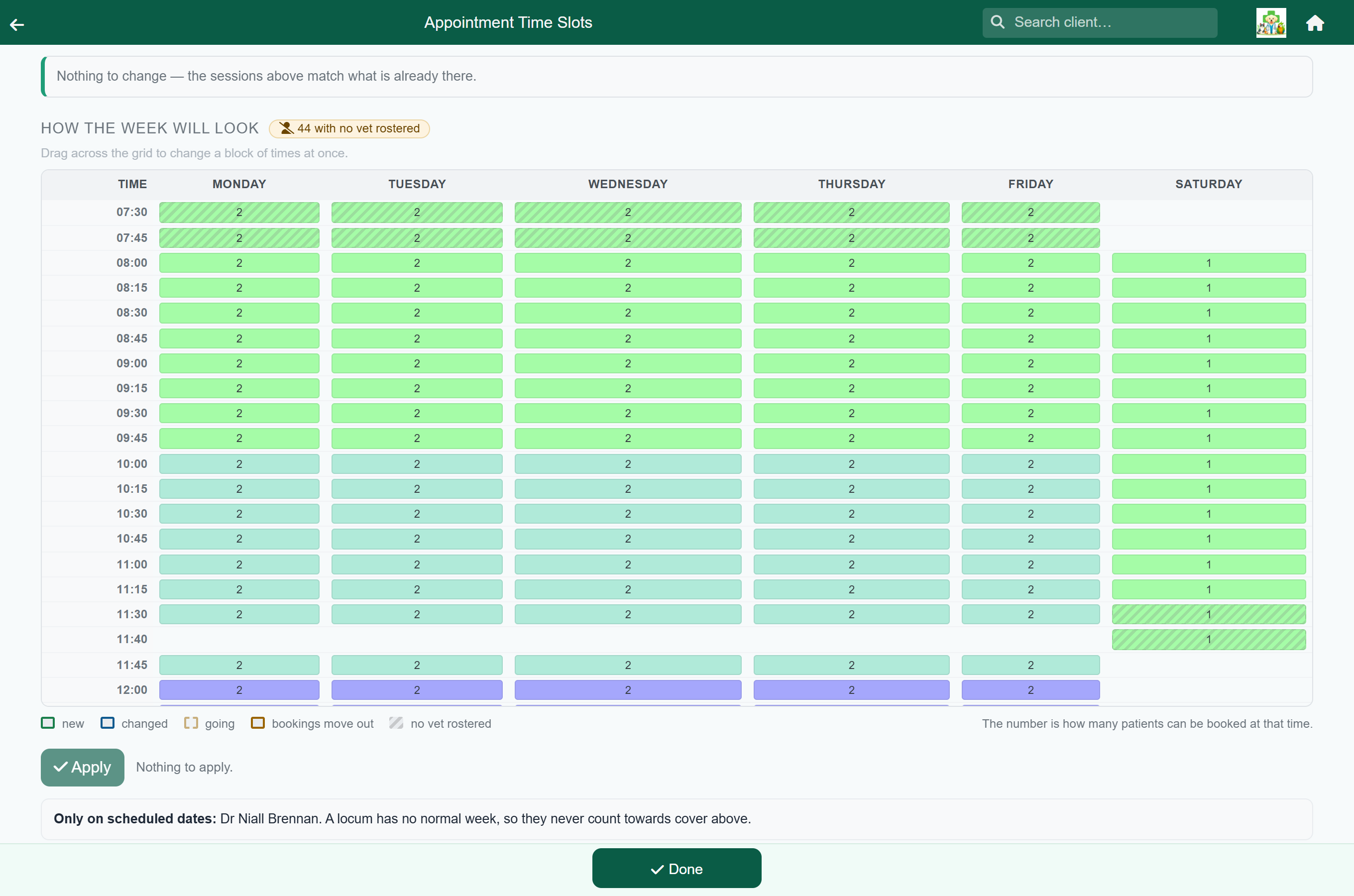
Drag across the week grid to change a block of times at once, such as setting the capacity or colour for Monday to Wednesday afternoons.
- Shift everything moves every session earlier or later by the minutes you choose. The old times are removed, and appointments on them move to the nearest new time, as listed before you apply.
- Add the standard week adds a standard set of sessions to your list, without changing yours.
A time that breaks a session's pattern, such as an extra 11:40 after a Saturday that runs every 15 minutes to 11:30, shows as a session of its own with one time in it. Delete that session to remove the time, or change it under Individual appointment times at the bottom. Removing a time there moves its appointments the same way.
Each time has a day, a time, a capacity (how many patients can be booked at that time) and a colour. Different days can have different hours.
Capacity counts appointments, not vets: a capacity of 2 allows two bookings at that time, whoever they are with. To control which vet is in, use per-vet availability.
With per-vet availability on, the week grid marks any time with no vet rostered and counts them above the grid. A time also shows as full once every rostered vet is booked, even if its capacity is higher. So you can set capacity for a fully staffed day and let the roster lower it on days you are short.
Per-vet availability#
Appointment slots say when the practice is open. Vet Availability says which vet is working, so two appointments at nine o'clock are not both given to the same vet, and a vet who works mornings is not offered in the afternoon.
Home›Settings›Vet Availability
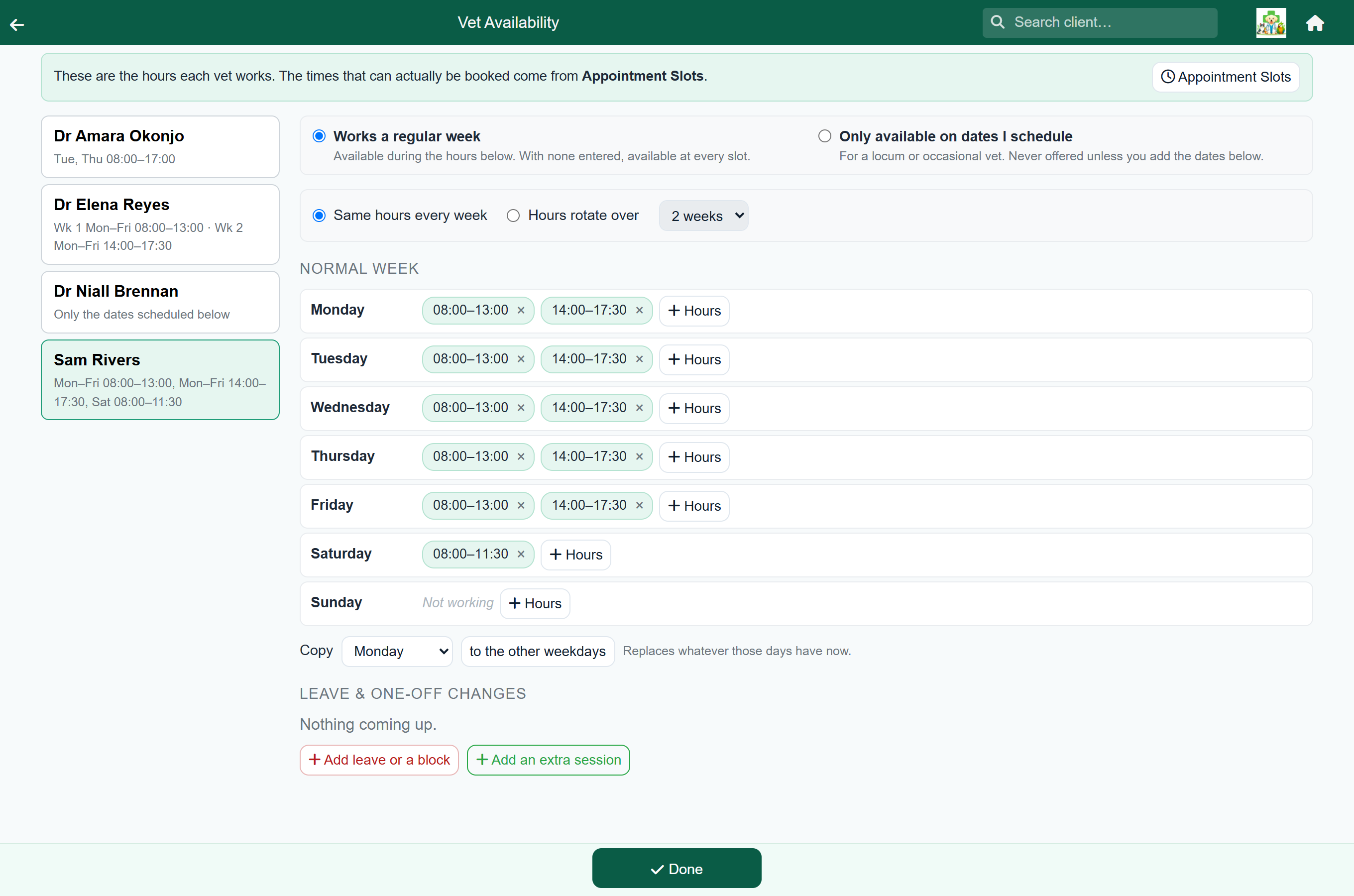
Pick a vet, then add the hours they normally work on each day. For a split day, add two sets of hours. Copy copies one day's hours to the other weekdays.
For rotations, alternate weeks and locums, see Advanced vet scheduling.
Leave & one-off changes sits underneath. Add a date or range for leave, a surgery list or a course, with a reason reception will see. You can also add an extra session on a day the vet does not normally work.
Booking outside a vet's hours#
You can always book a vet outside their hours. The booking saves, and FastVet shows a note explaining what is unusual about it.
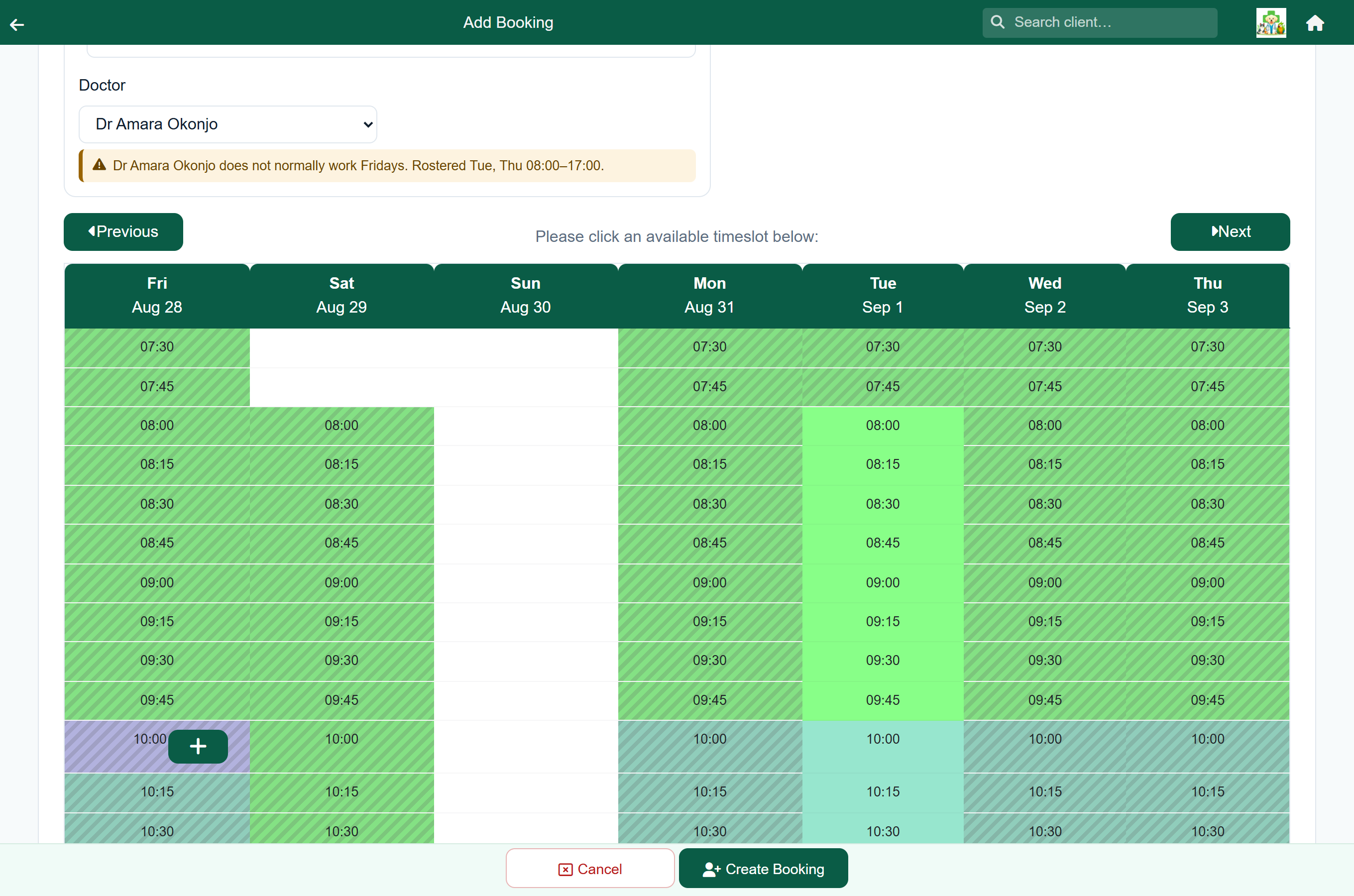
- Times outside the chosen vet's hours are shaded, and you can still book them.
- A note appears under the vet, for example "Dr Naidoo is rostered 08:00–13:00 on Wednesday: 14:30 is outside that."
- For a locum: "Tom Sawyer is only available on dates they are scheduled, and is not scheduled on Thursday."
- Making an appointment longer adds a note if it runs past the end of the vet's day.
- If the vet is already booked at that time, the note says so.
- Filtering the day view to one vet shades the times that vet is not working, with a line above the day showing their hours.
- On the booking list, an appointment outside its vet's hours is marked off roster, usually because the roster changed after it was booked.
- A time when every vet is already booked is shaded too. Any Doctor bookings, and diary notes that name a vet, count towards this.
When the time is already taken#
FastVet never refuses a booking. It tells you what is already in the time you have chosen, and for a time that is full it asks you to confirm before saving, because you can see things the diary cannot: that the vet agreed to stay late, or that this one has to happen today.
Unlike the notes about the hours a vet works, these appear whether or not your practice uses per-vet availability. They are about how full the time is, not about who is rostered.
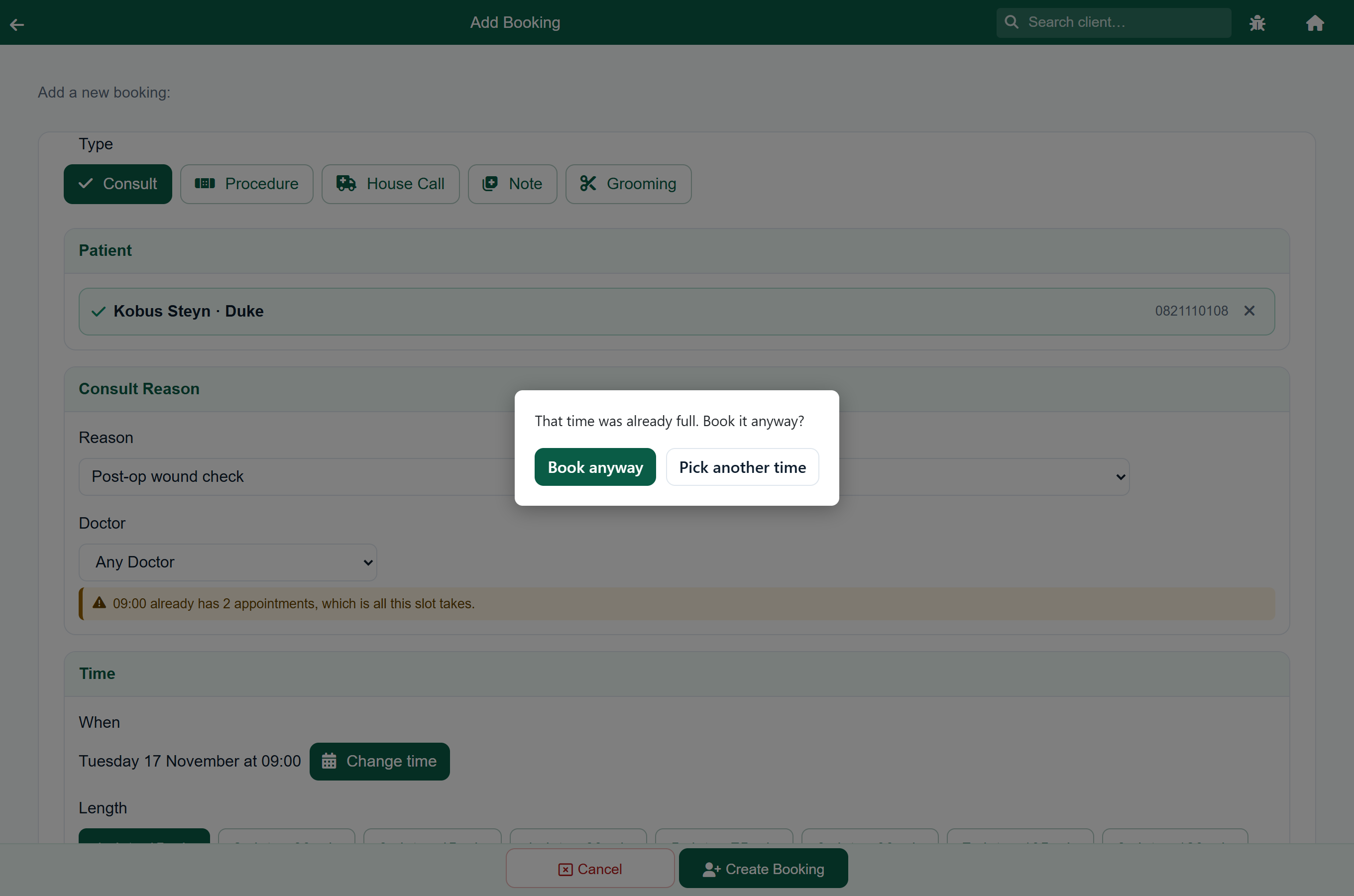
- Choosing a time that already has as many appointments as its capacity allows shows a note under the vet, for example "09:00 already has 2 appointments, which is all this slot takes."
- If the time is already over its limit, the note says so and gives the limit: "09:00 already has 3 appointments, over this slot’s limit of 2."
- Longer appointments are counted in every time they run over, so a 45-minute consult booked at 09:00 fills 09:15 and 09:30 as well.
- A diary note takes no place in the time, so it never counts towards the limit. It is an annotation, not an appointment.
- Two patients from one client in the same time is normal and is what a capacity above one is for. The note only appears once the time is full.
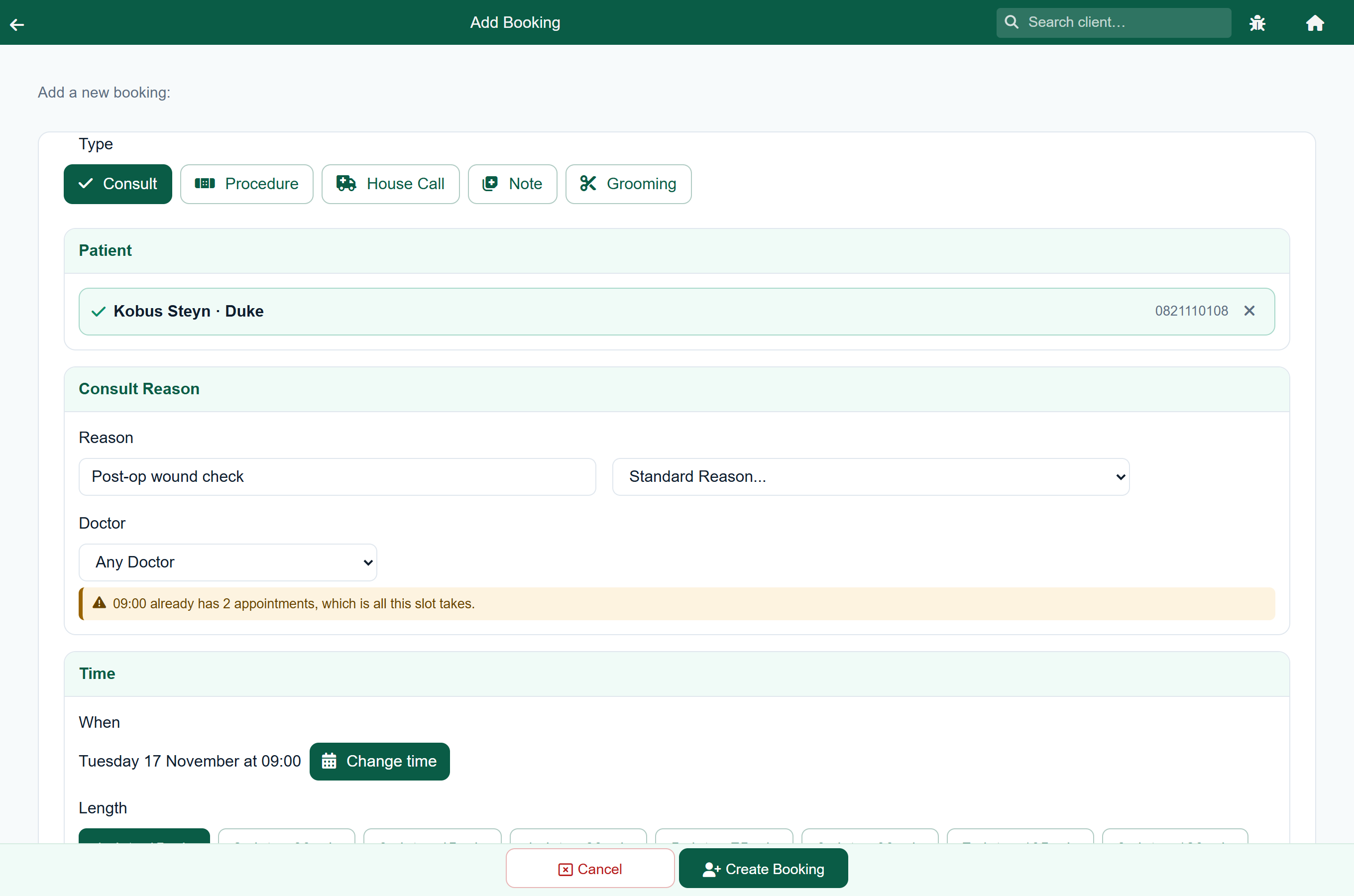
Pressing Create Booking on a time that is full asks you to confirm it: "That time was already full. Book it anyway?" Choose Book anyway and the booking is made as asked, or Pick another time to go back to the form with everything you have typed still on it. Nothing is saved until you answer.
A first-time client is booked from the signup form, so the question comes after the client and the patient have been saved. Book anyway books the time as asked. Pick another time keeps the client and the patient you have just created, and takes you to the diary on the same week with the reason and the vet already filled in, so one tap on a time with room finishes the booking. You never have to type the client in again.
When two people are booking at once#
On a busy front desk two people often have the diary open together. The booking list and the booking screen now keep themselves up to date, so an appointment one of you makes appears on the other screen within about half a minute, without anyone reloading. Switching back to the FastVet tab refreshes it straight away.
- If someone fills the time you are part-way through booking, the screen tells you: "Someone else has just booked 09:00. Check the warning before you save."
- The time is checked again at the moment you press Create Booking, against the diary as it stands right then. So if your colleague took the last place while you were typing, you are asked to confirm even though the form showed nothing when you opened it.
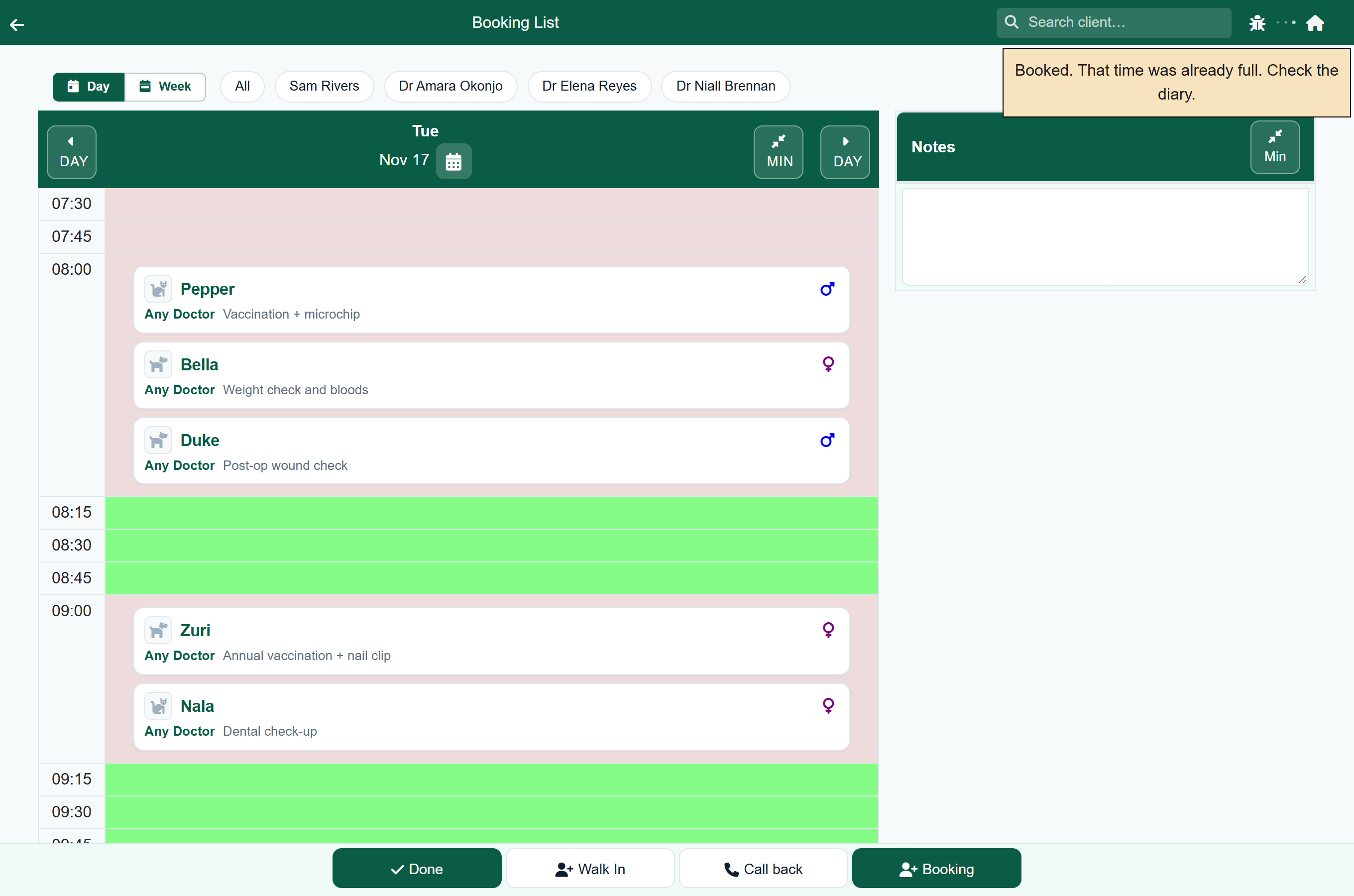
- If you confirm, the booking is made and the message afterwards says what it landed on: "Booked. That time was already full. Check the diary." That message is amber, not the green of an ordinary save.
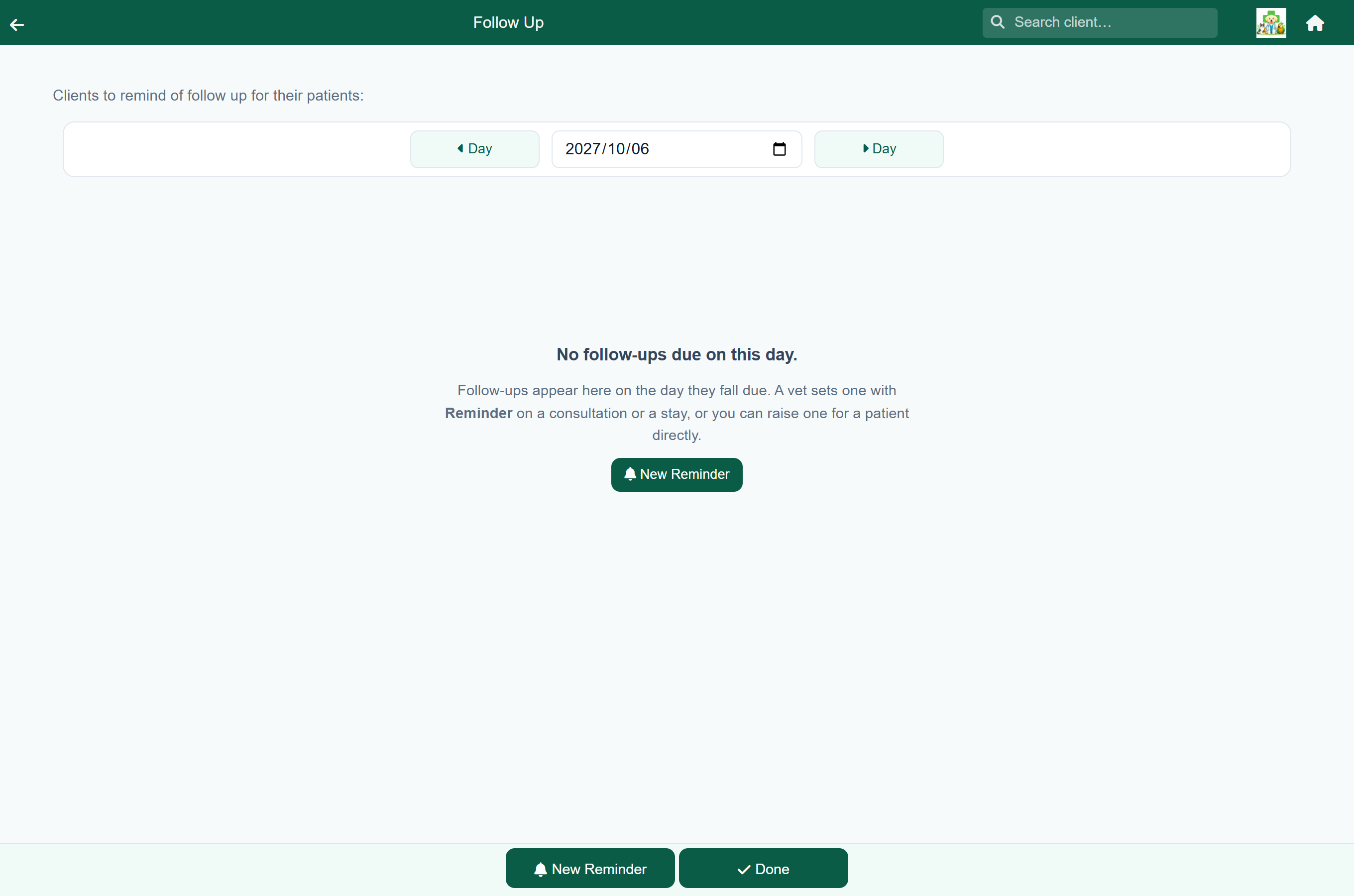
The follow-up list#
Home›Follow Up
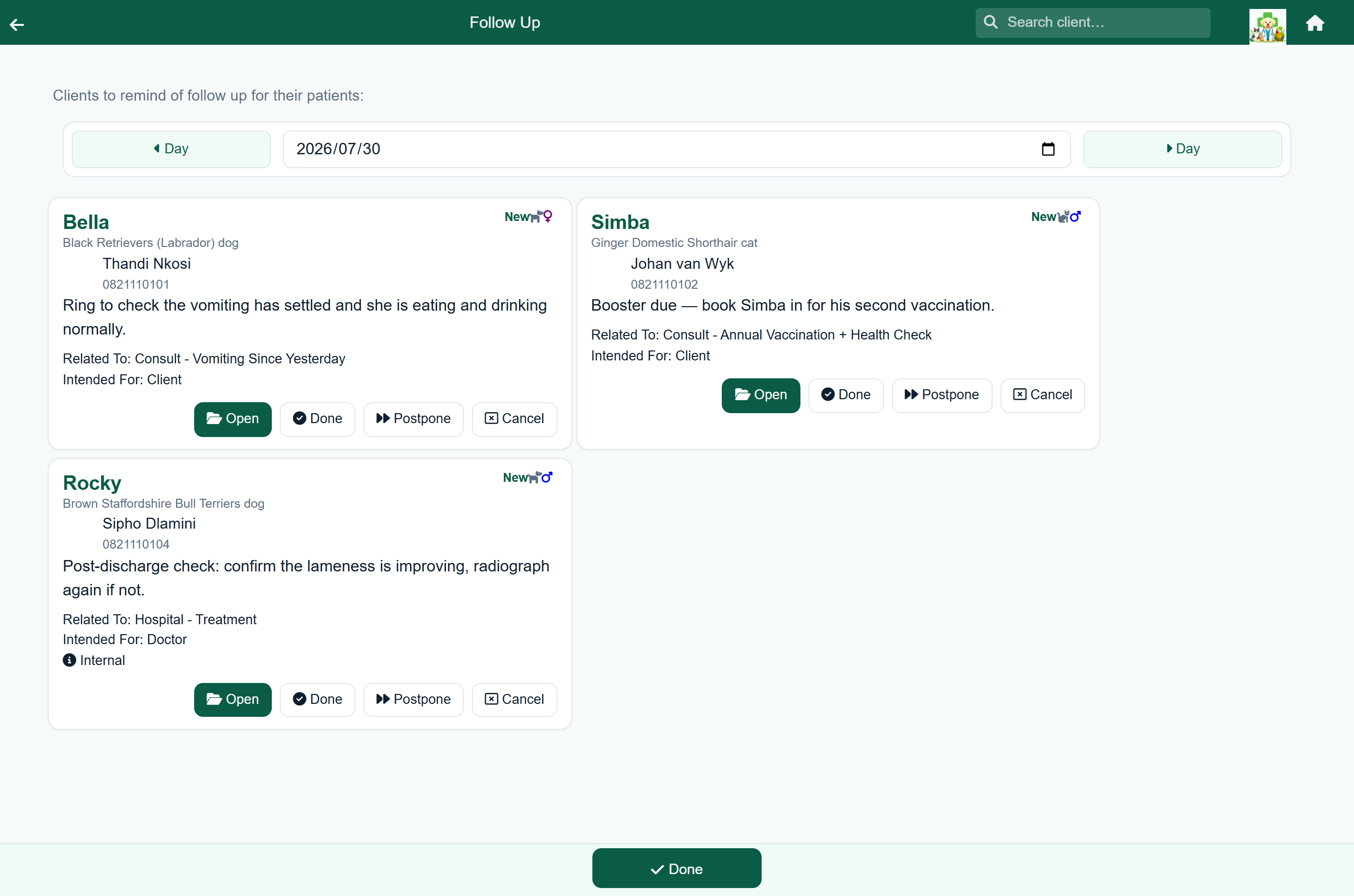
The follow-up list shows the reminders due on a day. Reminders are set during a consultation, on a hospital or boarding stay, or on the patient from the client's account.
Repeat medication also appears here when a patient on a repeat prescription is due their next supply, marked with a pill icon. This happens automatically for every prescription with a repeat interval.
A repeat row shows what is left on the prescription, for example 4 repeats left · valid to 1 Mar 2027. If it says No repeats left or Script expired, the patient needs an appointment for a new prescription.
Vaccinations appear here too when a patient is coming up for its next dose, marked with a syringe. The row names the protection and the day the dose falls due, for example 5-in-1 (DHPPi/L), due 24 May 2026. See Vaccinations.
Each row says who to ring, what about, and what was written, in that order: the patient and the owner, the number, then one line naming the call, such as Vaccination: Rabies, was due 2 May 2026 or Consultation follow up: recheck the wound. Anything the vet wrote for the call sits under it.
- Tap the number to dial it.
- A line in amber is one that cannot simply be handed over: a dose already past, or a repeat with nothing left on the script.
- On the right, Notice sent or Notice failed says what happened to the automatic message to the client. A row nobody has touched yet shows nothing there.
- Internal marks a reminder raised for the vet rather than for the owner. Nobody rings the client about it.
Work through the list with these buttons:
- Book: make an appointment for the patient.
- Open: open the consultation or stay the reminder came from. On a repeat it opens the patient's Medications, and on a vaccination its Vaccinations. A reminder raised on the patient has no Open.
- Edit: change what the reminder says, when it falls due, or whether it is for the client or the vet. It opens the reminder form on the reminder itself, so what you save replaces it rather than adding a second one. Vaccination, repeat and item reminders have no Edit: those are corrected on the dose, the prescription or the item.
- Contact: message the client about this follow-up, by WhatsApp, text or e-mail. See Contact the client.
- Done: the call was made. FastVet asks what happened and saves your answer.
- Postpone: pick a new date, and the reminder moves to that day.
- Cancel: no longer needed.
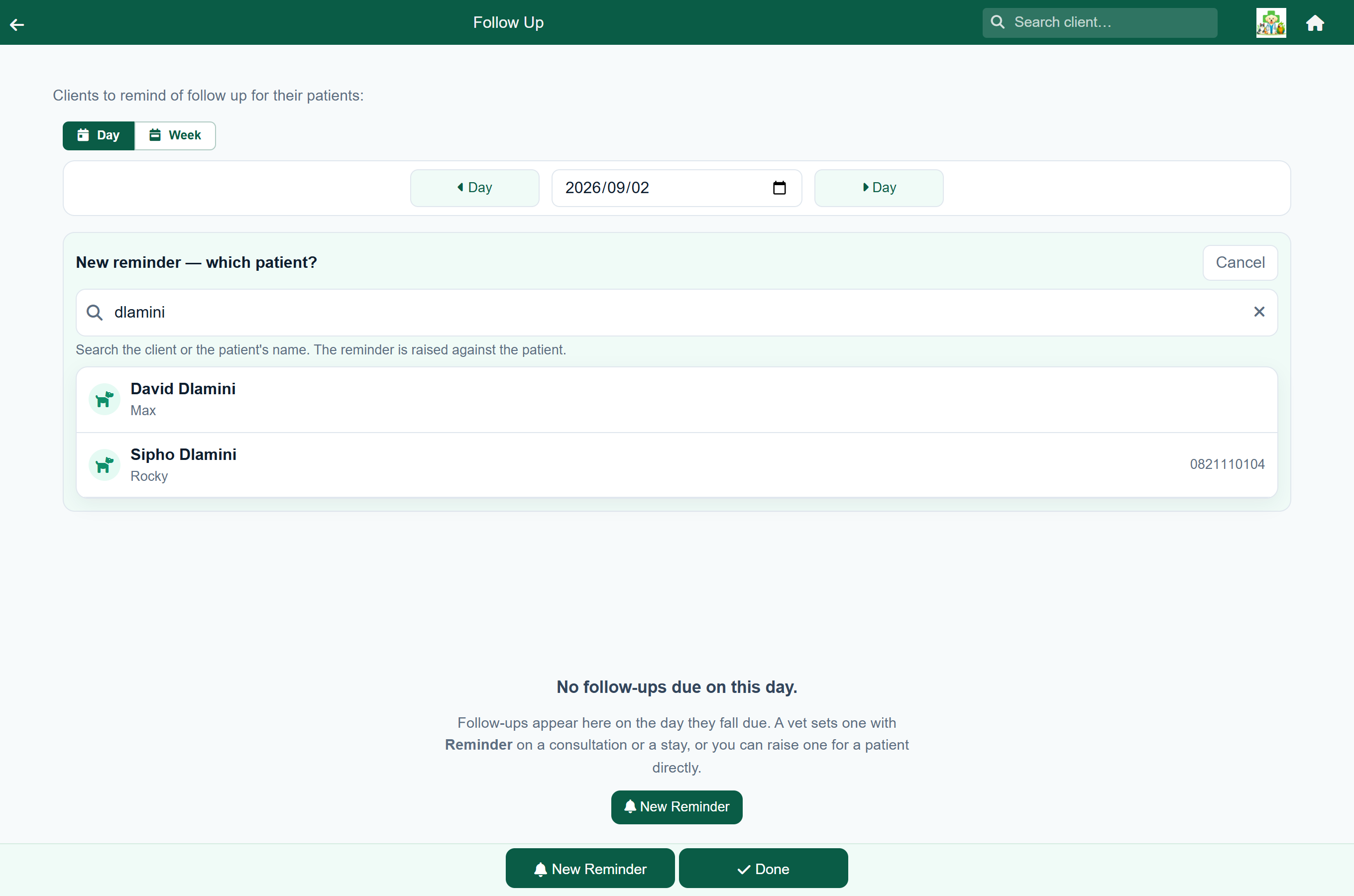
To raise a reminder yourself, press New Reminder, find the client or patient, choose the patient, and fill in the reminder form.
Contact the client#
Home›Follow Up›Contact
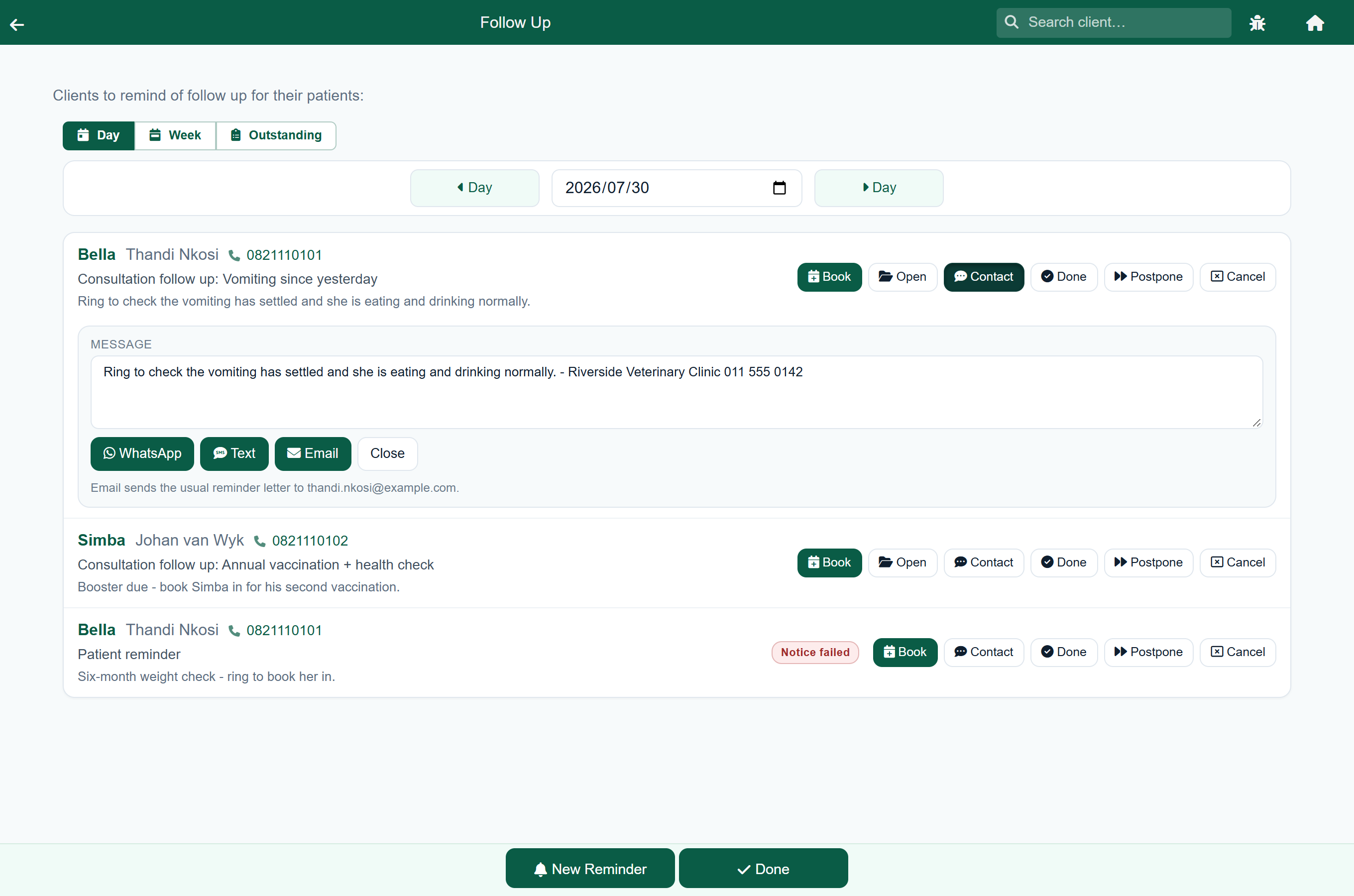
Contact on a follow-up row opens a short panel for messaging the client about that reminder. It opens with the wording your practice uses for reminder texts already filled in, so most of the time you only have to choose how to send it.
- WhatsApp opens WhatsApp on your own computer or phone, with the client chosen and the message typed out. Nothing is sent until you press send in WhatsApp, so you see it first. This needs no setup and costs nothing.
- Text sends the message straight away, using your practice's text messages. It only appears if text messaging is set up. If the message is long enough to cost more than one credit, the button says how many.
- Email sends the client the usual reminder letter, to the address shown under the buttons.
You can edit the message before sending it. What is in the box is what WhatsApp and Text send.
Where a client cannot be reached a particular way, that button is simply not offered and the panel says why underneath. Common reasons:
- The client has no mobile number, or the number does not look like a mobile, so there is no Text. WhatsApp still opens, and asks you who to send it to.
- Your practice has no dialling code set, so a local number cannot be dialled from WhatsApp. Set it under Settings, Integrations, SMS.
- The client has no e-mail address, so there is no Email.
Whatever you send is written onto the reminder, with your name and the time, alongside what Done, Postpone and Cancel record.
The follow-up week#
Home›Follow Up›Week
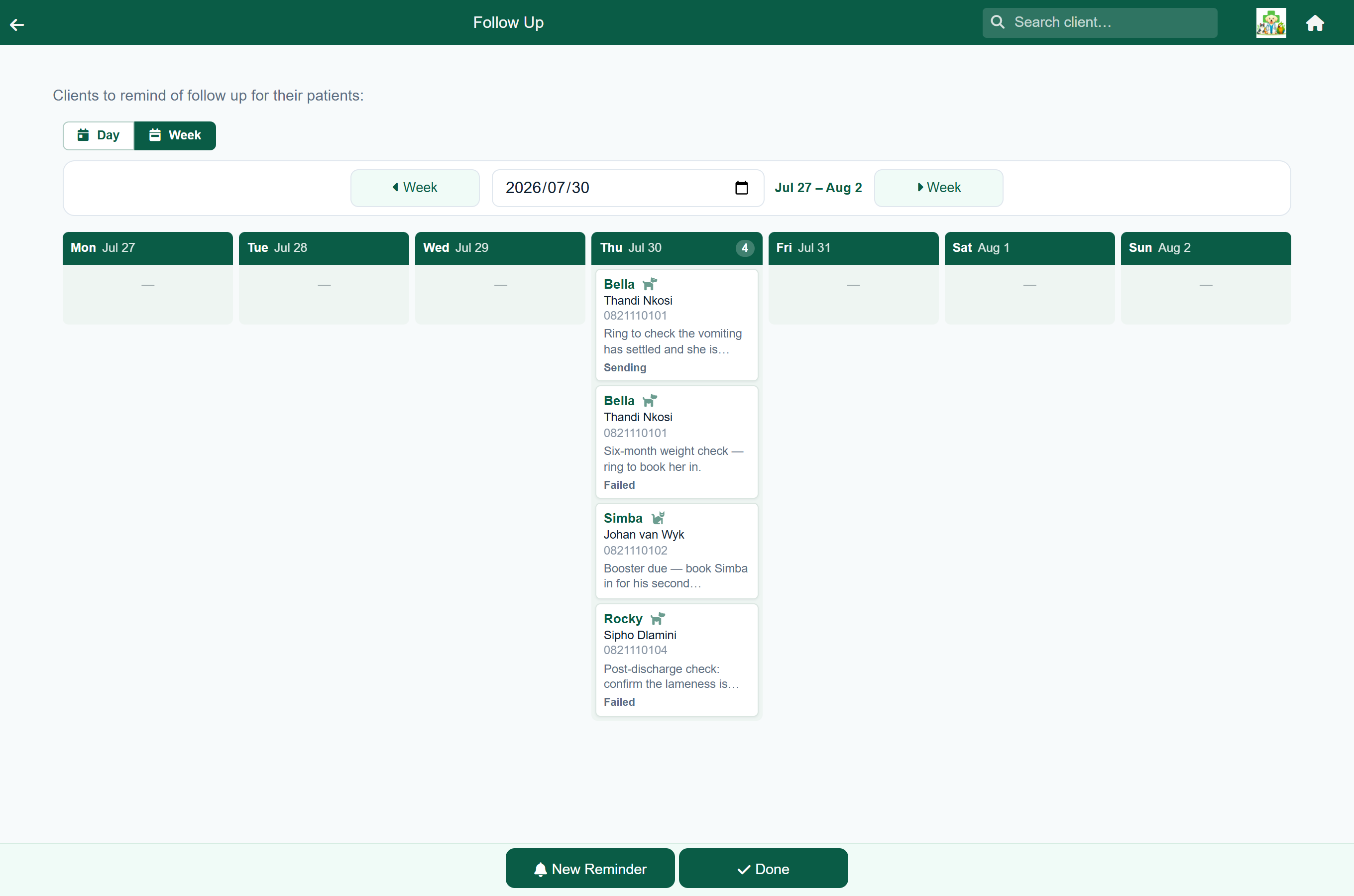
Week shows the follow-up list as a column per day, Monday to Sunday, so you can see which days are busy.
- The number in each day's heading is how many follow-ups are due that day.
- A card shows the patient, the owner, their number and the reminder. Long reminders are cut to two lines.
- Tap a card to show Book, Open, Edit, Contact, Done, Postpone and Cancel. They work as on the day view, and Contact opens in the card itself.
- Tap a day's heading to open that day.
- Use the Week buttons either side of the date to move a week, or set the date to jump.
What is still outstanding#
Home›Follow Up›Outstanding
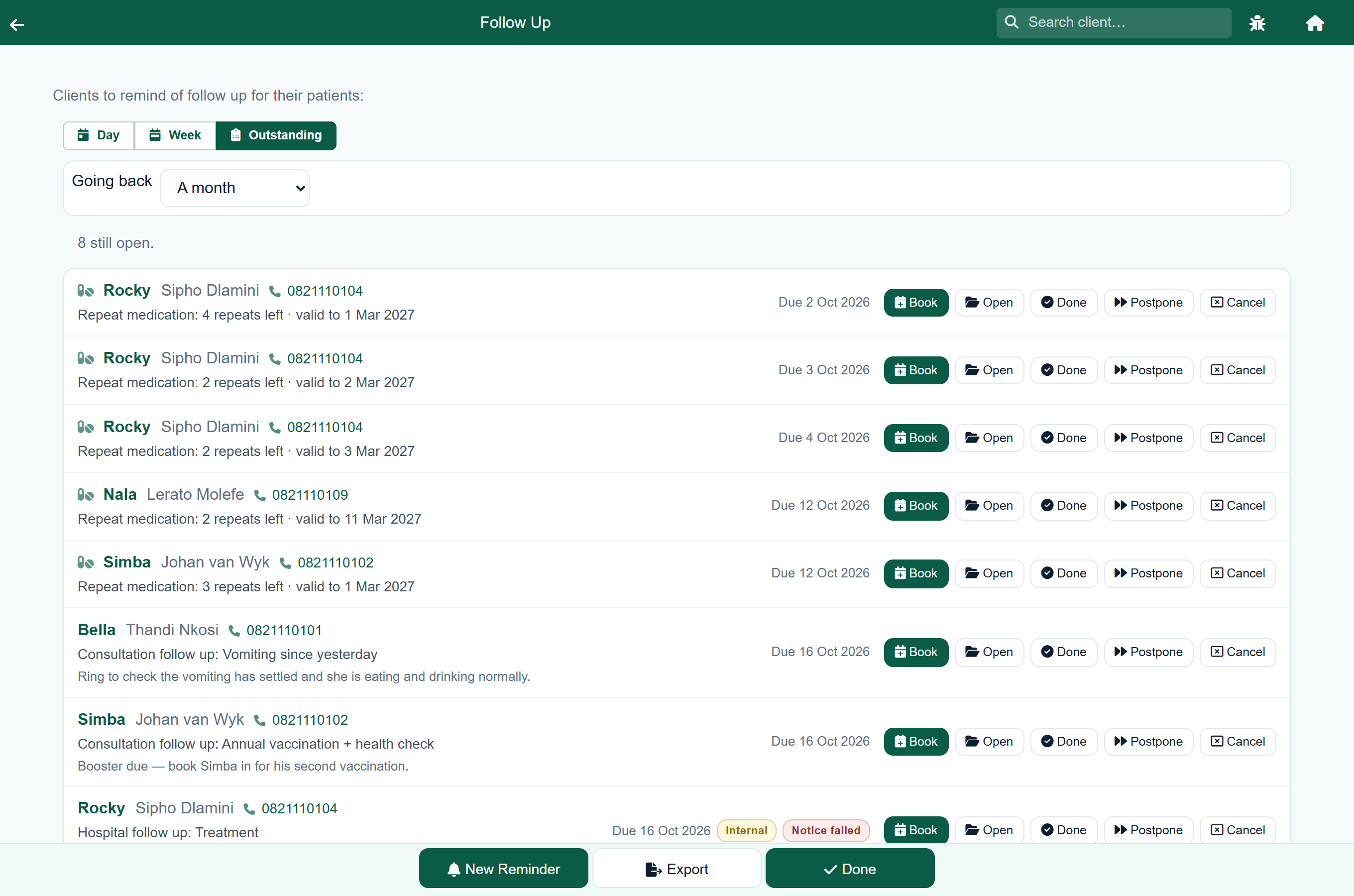
Outstanding is everything still open and already past: the day you never got through, the repeat nobody rang about, the vaccination that fell due last month. Oldest first, so the longest wait is at the top. The rows and their buttons work exactly as they do on the day, with the day it fell due on the right of each.
- Going back sets how far back to look: a month, three months or a year. It opens on a month.
- A follow-up leaves this list when you press Done or Cancel on it, and nothing else takes it off.
- Postpone moves it to the date you pick, so it comes back on that day instead. Edit does the same and more, if the wording needs correcting too.
- Export puts what you are looking at into a spreadsheet, for working through on paper or splitting between people.