
Help Centre › Stock & pricing
Receiving stock from suppliers
Photograph a supplier invoice or type it in, check each line against your stock list, book the whole delivery in one go, and tick a supplier statement off against what you booked.
Receive stock books a whole supplier delivery into stock at once, from the invoice that came with it. Photograph the invoice (or upload the PDF the wholesaler e-mailed) and FastVet reads the lines for you; or, when there is no invoice to photograph, type the delivery in line by line. Either way you see every line before anything moves in stock, and the delivery is kept afterwards under the supplier and invoice number, with its picture.
Turning it on, and who does what#
Home›Settings›Features & Modules
Receiving is switched on per practice with Stock receiving under Features & Modules. It is off until an Admin turns it on. Once it is on, Admins reach it from Stock & Prices, then Receive stock; vets and reception get a Receive stock tile on their Home screen.
The job is split, because the two halves are usually done by different people:
| Who | Can do |
|---|---|
| Any staff member | Photograph an invoice, say which supplier it came from and who received it. That leaves a draft, and nothing moves in stock. |
| Admin | Everything else: match lines to your stock list, correct a line, type a delivery in by hand, book it into stock, and correct or reverse a booked delivery. |
Someone who is not an Admin sees Captured. Nothing has moved in stock yet. once the invoice is read, and the draft waits in the list for an Admin to finish.
Photographing an invoice#
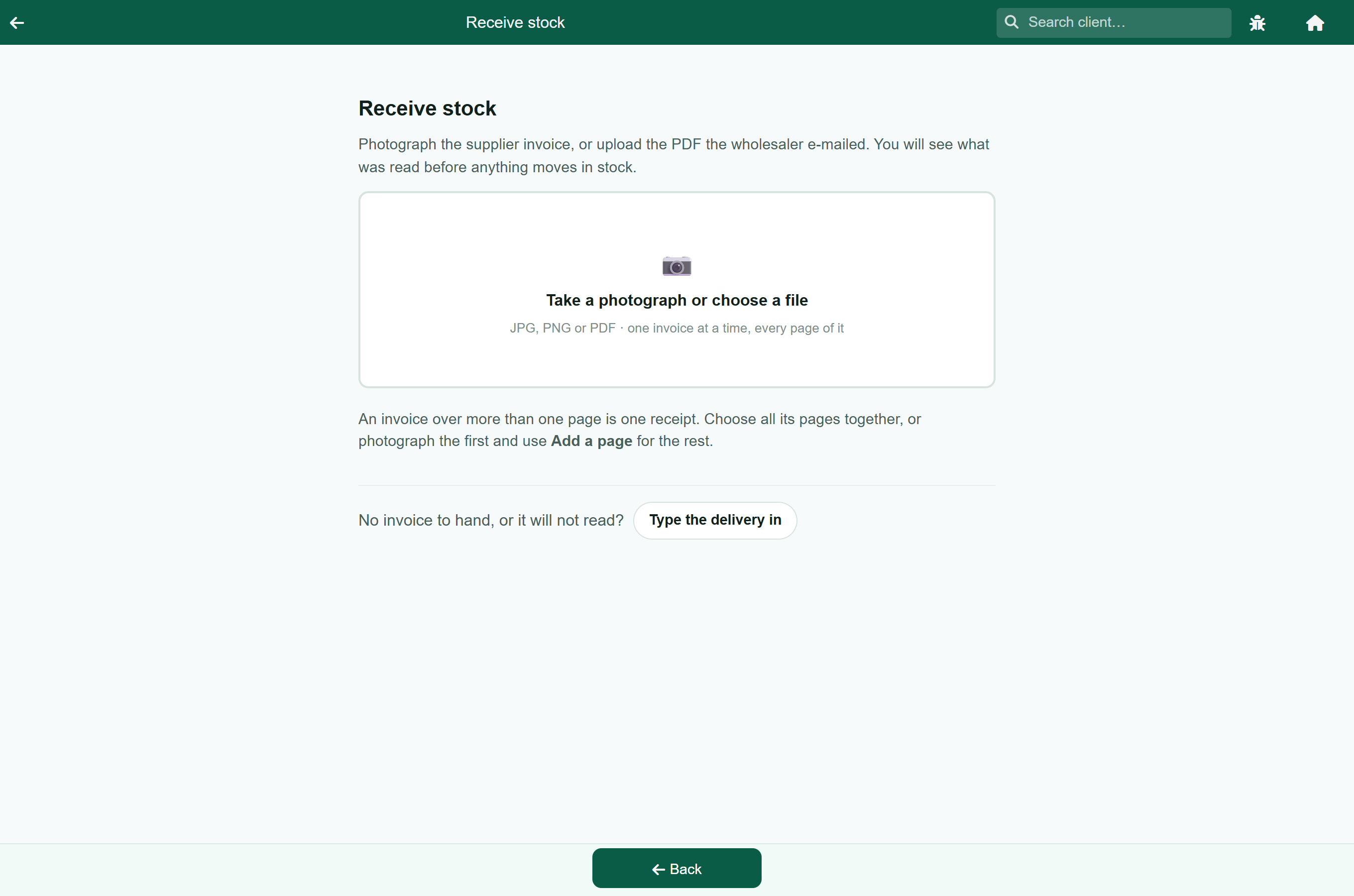
- Open Received stock and press Receive stock at the bottom.
- Tap Take a photograph or choose a file. On a phone you can take the photograph there and then; on a computer, choose the PDF or picture. JPG, PNG and PDF all work.
- Wait while it reads the invoice. It takes about ten seconds.
- If FastVet does not recognise the supplier from the letterhead, choose them from your list and press Use, or, if they are new to you, press the + Add button under the list (Admin only), which is filled in from their letterhead. Saving the supplier with their VAT number means their next invoice is recognised by itself.
Checking what was read#
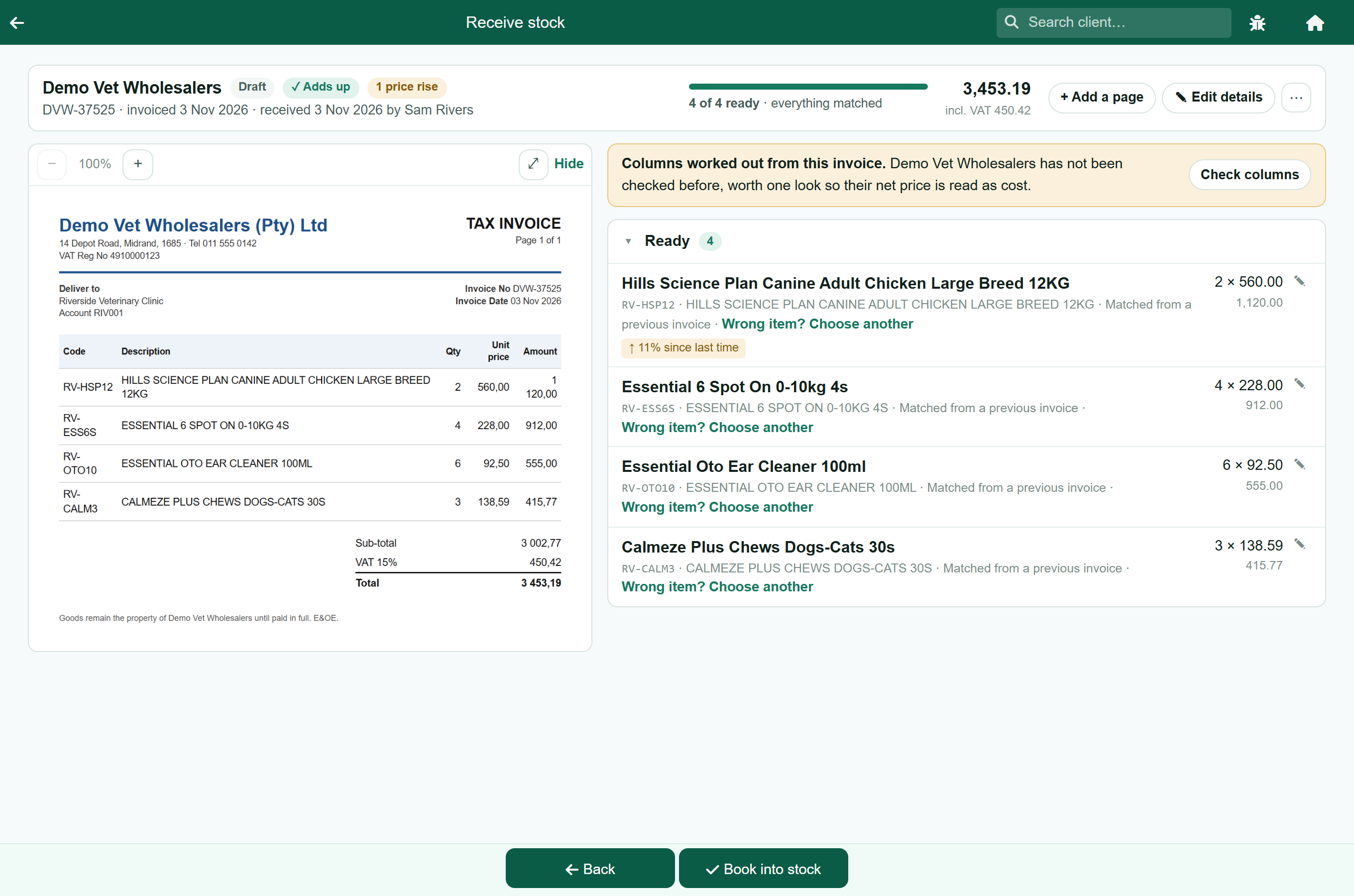
The invoice stays on the left and the lines on the right, so each line can be checked against the paper. On a phone they take turns: switch between Lines and Invoice at the top. The bar across the top gives the supplier, invoice number, dates, how many lines are ready, and the total including VAT.
The badges beside the supplier tell you the important things at a glance:
| Badge | Means |
|---|---|
| ✓ Adds up | The lines add up to the sub-total printed on the invoice. |
| Does not add up | They do not. Usually a page is missing or a line was misread. See Booking it in. |
| 1 price rise | A product cost more than last time. Each one is marked on its line, for example ↑ 11% since last time. Worth a look; it does not stop you booking. |
| Already booked | This invoice has been booked in before. Booking it again would count the same stock twice. |
Lines under Ready are matched to an item on your stock list, and say how: Matched from a previous invoice for a product this supplier has sent before, or You matched this. If a match is wrong, press Wrong item? Choose another and pick the right item; the new choice is remembered for this supplier from then on.
Lines under Needs you are questions only you can answer, which is mostly the first invoice from a supplier. Each line offers FastVet's best guess:
- Yes, that's it or Use this accepts the guess.
- Choose another, Find another… or Find or add… searches your catalogue. The search also finds items on your price list that are not stocked yet; choosing one starts stock for it.
- + Add as a new product creates the item from the line, for a product you have never bought before. You give it a name, what it is counted in, a category and a selling price.
Every match you make is remembered, so the same products on this supplier's next invoice arrive already matched.
Ours per one of theirs is the one number to watch. Suppliers invoice by the bottle, box or tub; you may use the same product per ml or per tablet. A tub of 100 tablets sold per tablet is 100, and booking one tub puts 100 tablets into stock. Most things are 1. A line where it is not 1 says what it will book, for example books 200 (100 per one of theirs).
When the invoice wording gives a count, such as 30'S or TABS 100, and the item is one you dispense one at a time, the number is filled in for you and the line says why. A line that is about to book 1 for something that normally goes out 30 at a time carries a warning. Wording like 3 X 30 is never filled in, because it can mean one box of 90 or three boxes of 30: check the invoice and enter it yourself.
To change anything on a line, press the pencil beside it: the quantity supplied, how many are On back order (these never book), the pack size, the cost, and the lot number and expiry. A corrected pack size is remembered for this supplier's next invoice too.
Booking it in#
When every line is ready, press Book into stock at the bottom. All the lines go in together with the received date, each lot with its own number and expiry, and the stock levels update at once.
FastVet will not book a delivery until:
- every line is matched to an item on your stock list;
- it has the supplier's invoice number. That is how a second copy of the same invoice is caught, and how the supplier's statement is checked later.
Two more checks stop the booking once, so you see the problem before stock moves:
- The lines do not add up to the printed sub-total. The usual cause is a missing page, so the message tells you how far out it is and suggests Add a page.
- It looks like a repeat: the same invoice number from this supplier, or exactly the same total, has been booked before. Show that invoice puts the two pictures side by side.
If you are happy it is right, press Book it anyway and it books. Leave it closes the message without booking.
Invoices over more than one page#
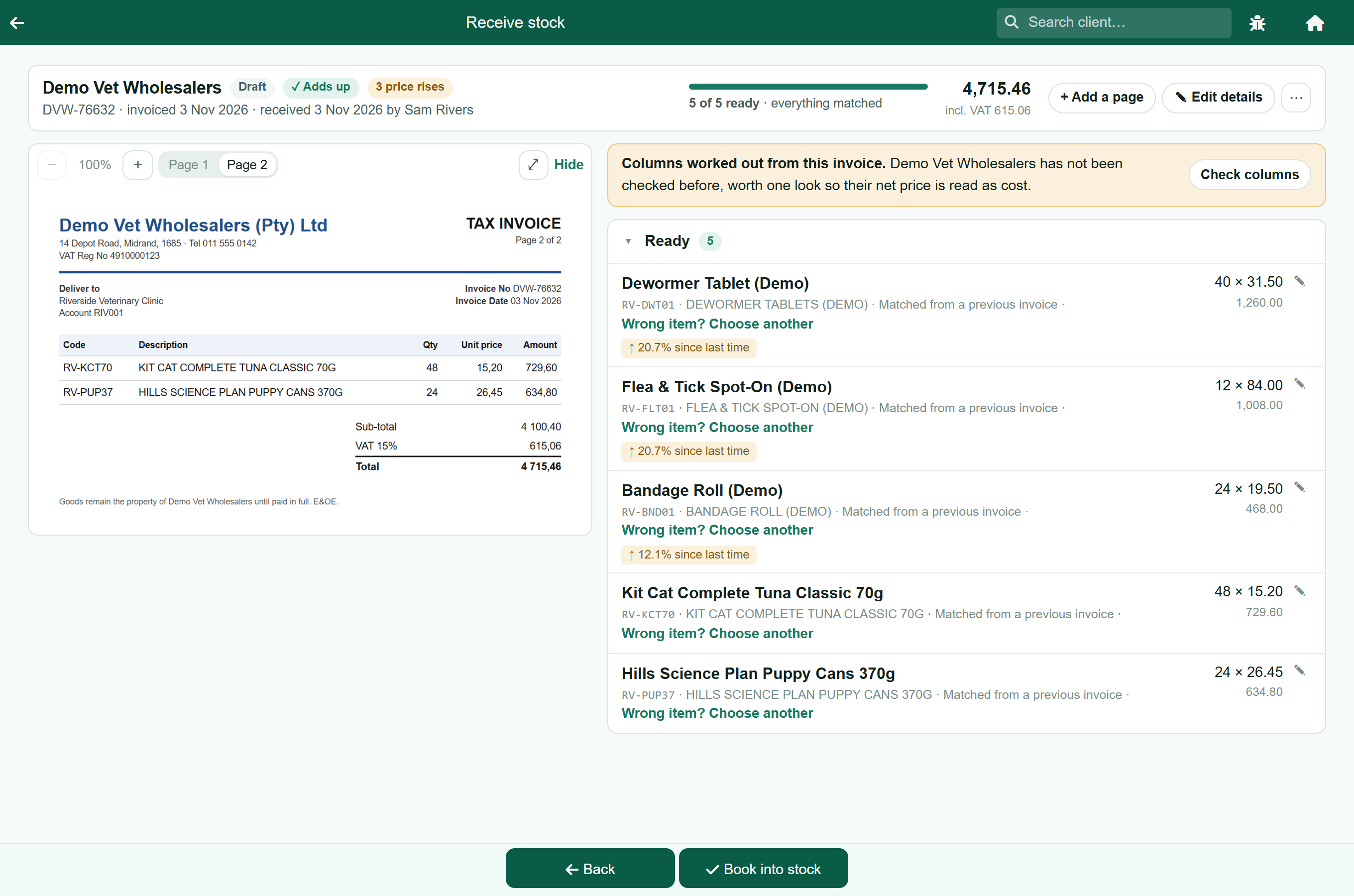
Keep every page of one invoice on the same delivery. Book a page on its own and the lines on it will never add up to the total printed at the foot, because that total is for the whole invoice.
- Photograph the first page as normal.
- Press + Add a page in the bar at the top and photograph the next page. Repeat for every page.
- FastVet reads all the pages again together. Your matches, the supplier, the invoice number and the dates are kept.
- Switch between the pages with the Page 1, Page 2 buttons above the picture, check the lines, and book it in.
If two pages were photographed separately by mistake, the second shows a note that it looks like another page of this invoice, rather than being refused as a repeat.
Typing a delivery in by hand#
For a delivery whose invoice has not arrived yet, is too crumpled to photograph, or will not read. This is how VetMaster's GRV screen worked: the supplier, the invoice number, then each product from your own stock list.
- On the Receive stock screen, press Type the delivery in.
- Choose the supplier and press Use.
- Type Their invoice number and the Invoice date, and press Save. The received date and Received by are filled in already: change them if someone else took the delivery on another day.
- Under Add a line, type part of a product name, press Search and tap the product.
- Fill in the line exactly as the invoice prints it. Delivered is the number of bottles, boxes or bags; Cost each, excl VAT is the price of one of them; Ours per one of theirs is how many of your units are in each. Add the lot number and expiry if it has them.
- Read the line underneath before you add it, for example Books 200 into stock, at 6.40 each. If the number or the cost looks wrong for one tablet or one ml, the pack size is wrong.
- Press Add this line, and repeat for every product on the invoice.
- Check the total at the top against the invoice, and press Book into stock.
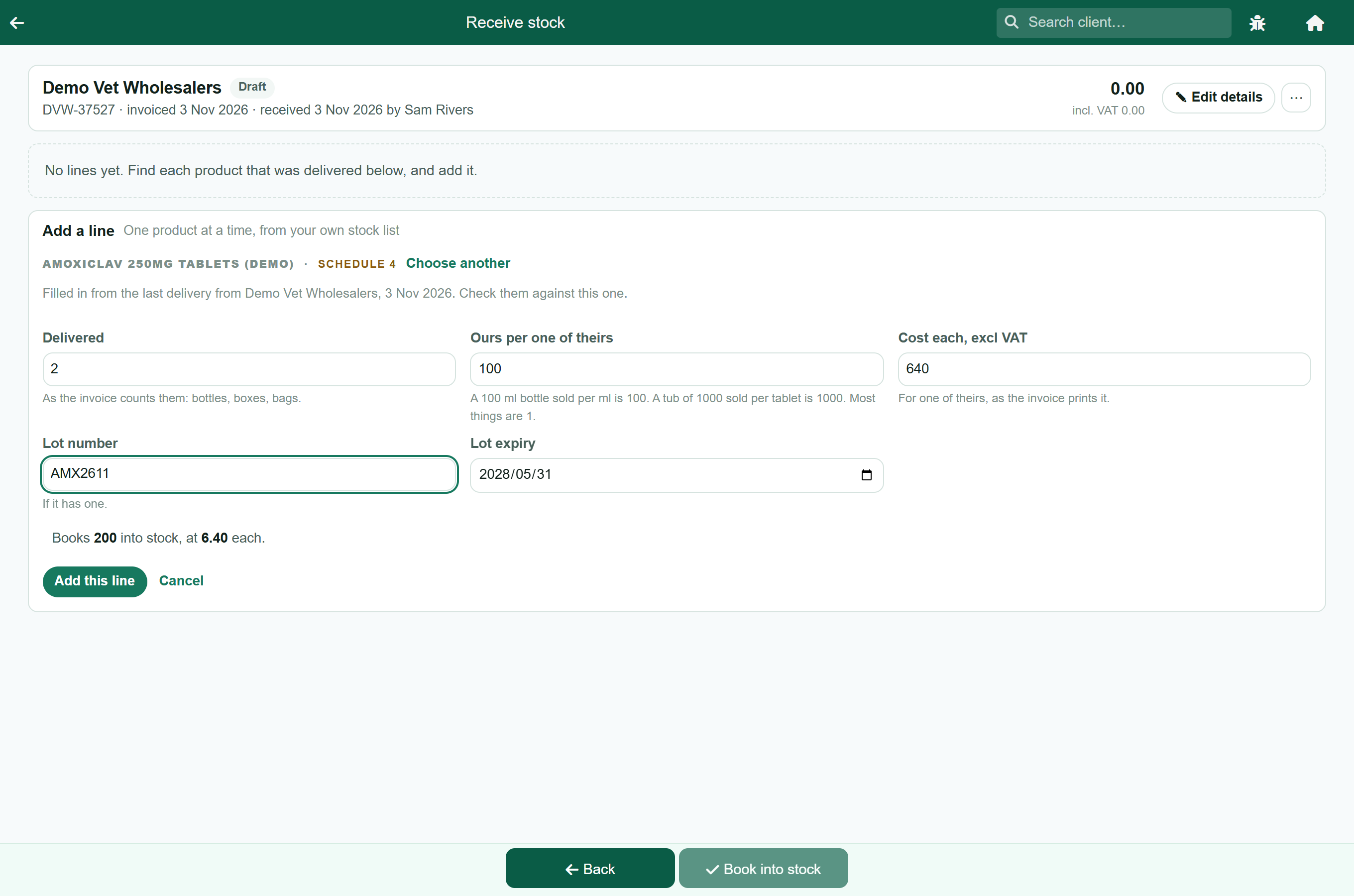
The boxes are filled in for you. For a product this supplier has delivered before, they come from that last delivery. Otherwise the cost comes from your price list, and the pack size from How you buy it on the item in Update Prices, if it is set there.
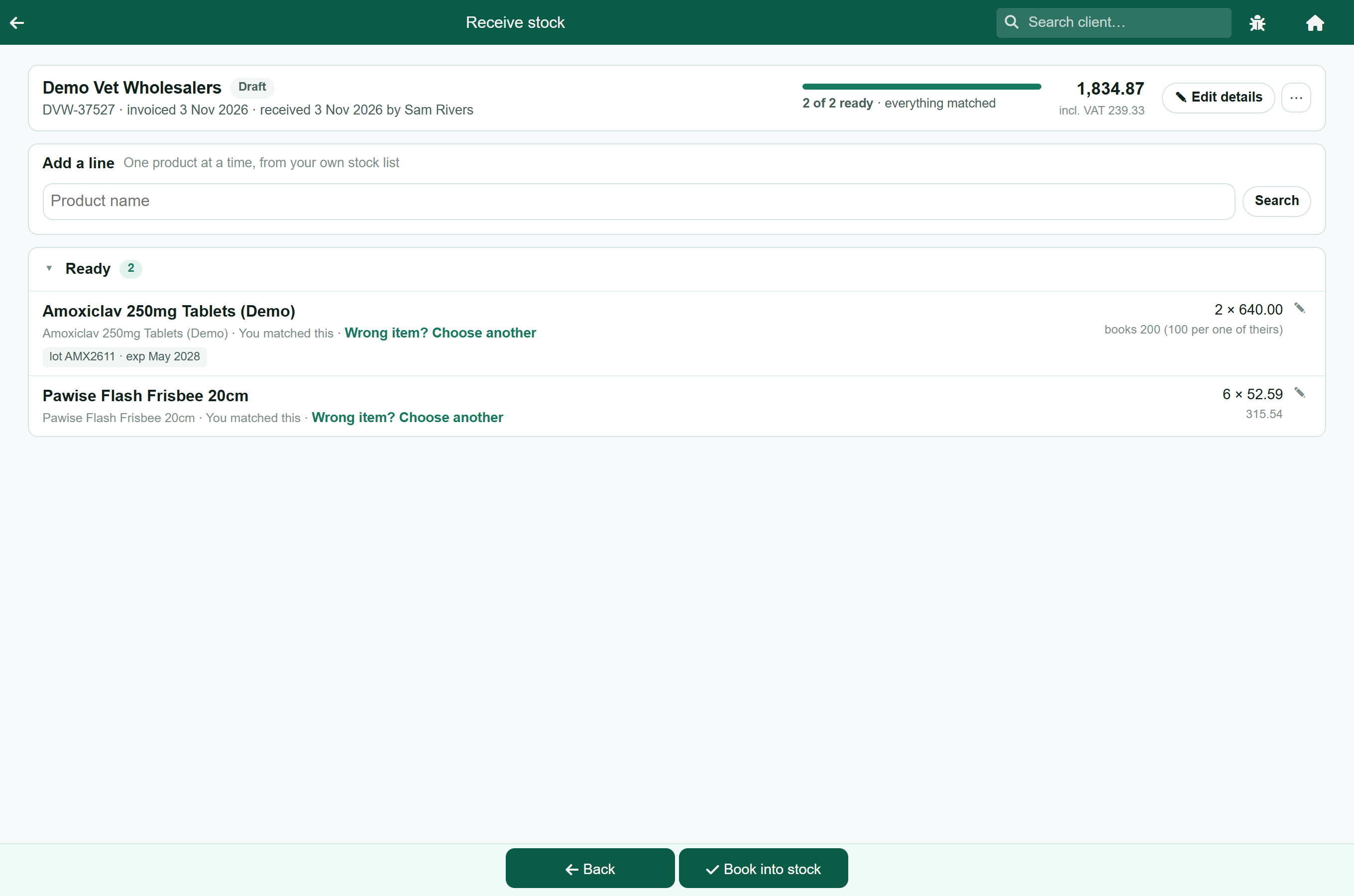
To change a line before booking, press its pencil; Remove this line takes it off. The total is the lines plus VAT at your practice's rate, so it can differ from the invoice by a cent or two where the supplier rounded differently.
The Received stock list#
Home›Stock & Prices›Receive stock
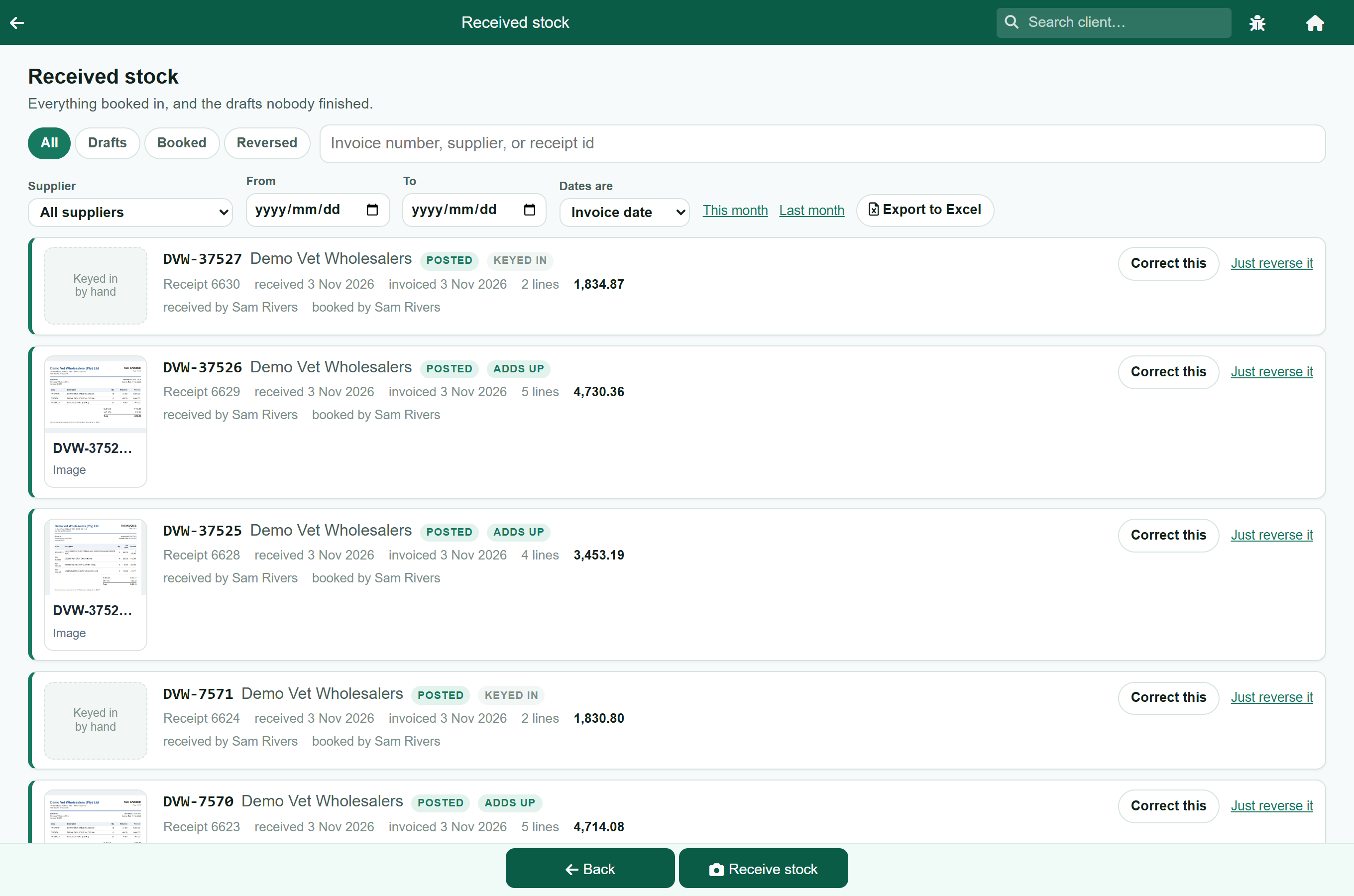
Every delivery, newest first, with a thumbnail of the invoice: tap it to open the invoice full size. A delivery typed in by hand shows Keyed in by hand instead.
- All, Drafts, Booked and Reversed filter by status, and the search box finds an invoice number, a supplier or a receipt number.
- A draft has Carry on to pick it up where it was left, and Discard to throw it away.
- A booked delivery has Correct this and Just reverse it. See Correcting a booked delivery.
- A red other with this number tag means another delivery carries the same invoice number, which is worth checking.
Checking a supplier statement#
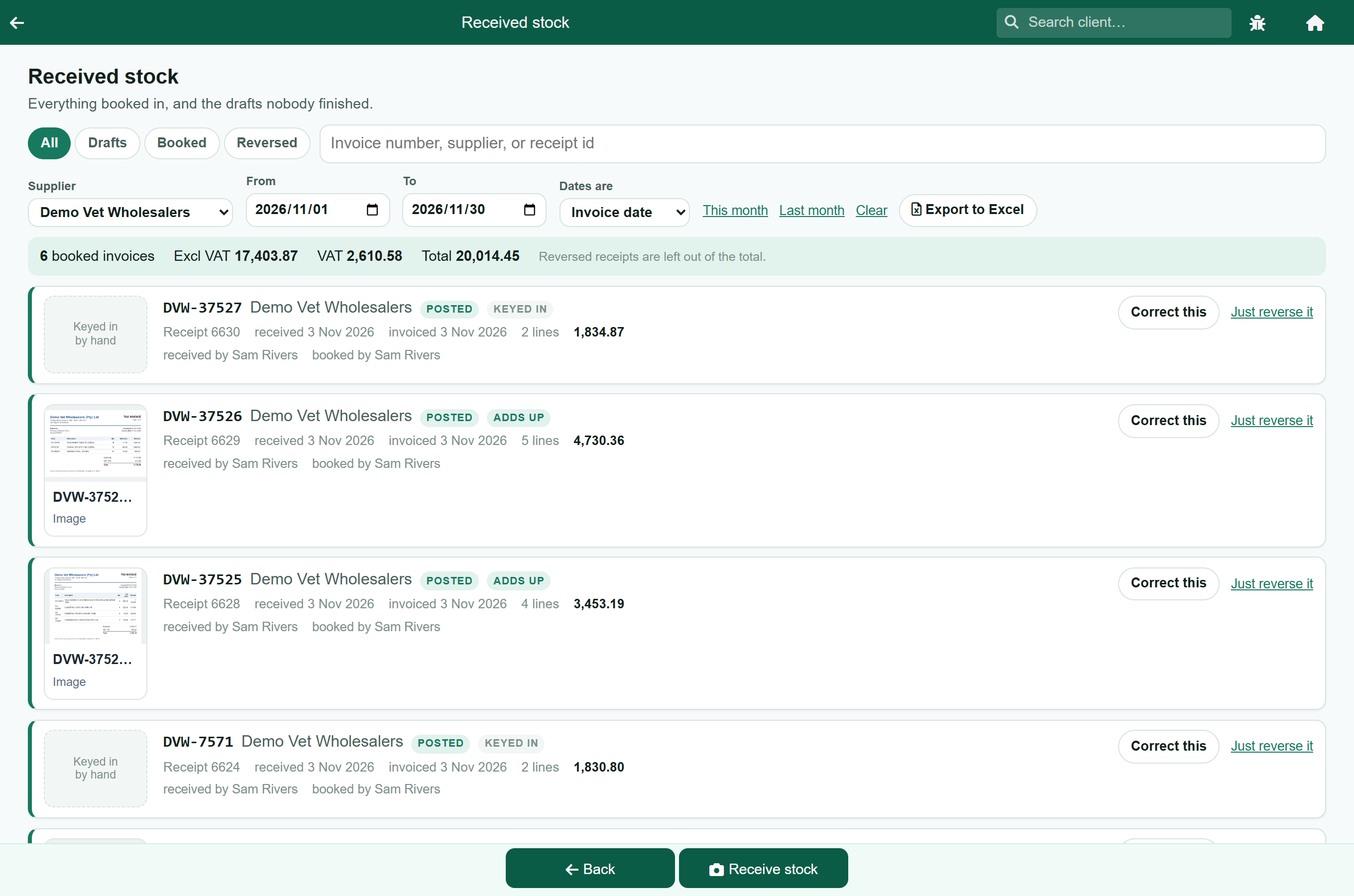
When a supplier's monthly statement arrives, check it against what you booked, the way VetMaster's Finalized GRVs grid was used. It is not a separate report: the filters are at the top of Received stock.
- Choose the supplier.
- Press This month or Last month, or set your own From and To dates.
- Leave Dates are on Invoice date to match a statement, which lists invoices by their date. Choose Received date to see what physically arrived in the month instead.
- Compare the strip above the list with the statement: the number of booked invoices, the total excluding VAT, the VAT and the total.
Only booked deliveries count. A reversed delivery and its reversal are both left out of the total, so an invoice you booked and then took back does not inflate it. If any drafts fall in the range, the strip says how many are not booked yet: a delivery on the statement that you have not finished booking.
Export to Excel saves the rows as a spreadsheet, with the invoice date, received date, invoice number, supplier, status, the amount excluding VAT, the VAT, the total and the receipt number, and the booked total at the foot.
Correcting a booked delivery#
A booked delivery is never edited in place. Instead it is reversed: FastVet writes an opposite entry that takes the stock back off, and the original is marked Reversed. Both stay in the list.
| Button | What it does |
|---|---|
| Correct this | Reverses the delivery and opens a new draft with the same picture, supplier, lines and matches, so you can fix what was wrong and book it again. Type the invoice number in again before booking. |
| Just reverse it | Takes the stock back off, and nothing else. |
The reversal appears in the list as Reversal of the receipt it undid. It has no buttons: a reversal cannot itself be reversed or corrected. To book that delivery again, capture it as a new one.