
Help Centre › Communication
Templates & letterheads
The letterheads on every invoice, statement, reminder, referral and letter your practice sends: how to edit and preview them, and how to check what went out.
Everything FastVet sends (invoices, statements, reminders, referrals, letters) is built by the system and topped with your heading: your name, address, banking details, practice number and anything else you want at the top of the page. These templates hold those headings.
Do this before you send anything#
A new practice's letterhead already shows your practice name, address and phone number, filled in from your practice details.
The templates#
Home›Settings›Manage Templates
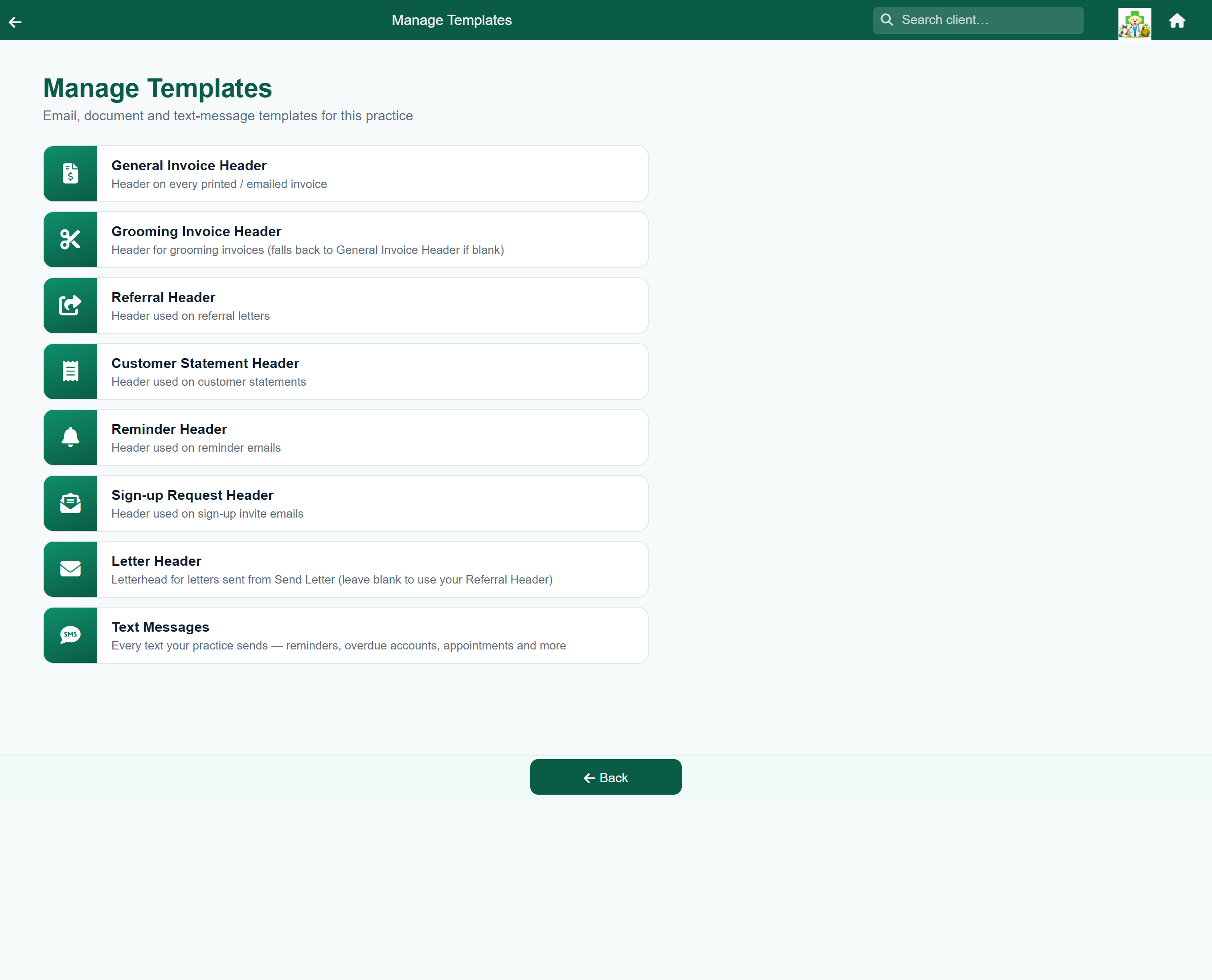
| Template | Goes on |
|---|---|
| General Invoice Header | Every printed and emailed invoice: consultations, sales, hospital and boarding stays, shop orders. Credit notes use it too, so a header you write here is what a client sees when you give money back as well as when you charge it. |
| Grooming Invoice Header | Grooming invoices. Leave it blank to use the General Invoice Header. Only shown if grooming is switched on. |
| Referral Header | Referral letters to other practices. |
| Customer Statement Header | Account statements. |
| Reminder Header | Reminder emails. |
| Sign-up Request Header | The email inviting a client to fill in their own details. |
| Letter Header | Letters sent with Send Letter. Leave it blank to use the Referral Header. |
| Dispensing Label | The whole medication label, and the size of label stock you print on. See Dispensing labels. |
| Text Messages | The wording of every text your practice sends, all on one screen. Only shown if you have an SMS account. See What the texts say. |
Editing one#
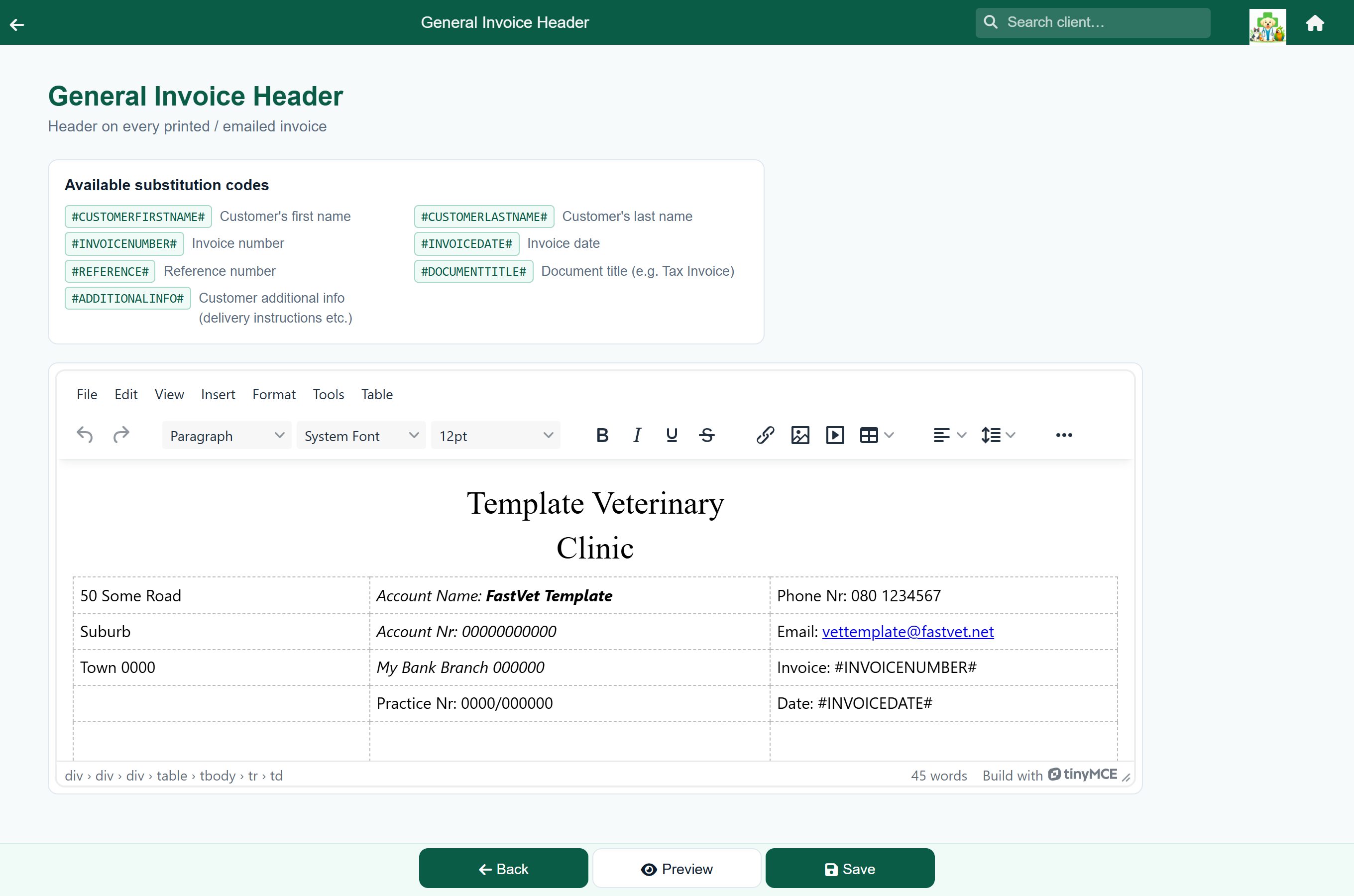
- Go to Settings → Manage Templates and tap the template.
- Edit it in the editor. It works like a word processor: bold, alignment, tables, and Insert → image for your logo.
- Type in any substitution codes you want, exactly as they appear in the panel at the top, including the # signs.
- Press Preview to see it as a client will.
- Press Save.
Substitution codes#
A substitution code is a placeholder that FastVet replaces with real details when the document is produced. Type #INVOICENUMBER# into the invoice header and every invoice shows its own number there.
Each template accepts a different set of codes. The panel at the top of the editor lists the ones that template accepts:
| Code | Becomes | Available on |
|---|---|---|
#CUSTOMERFIRSTNAME# | The client's first name. | Invoice, Grooming, Statement, Reminder, Sign-up |
#CUSTOMERLASTNAME# | The client's surname. | Invoice, Grooming, Statement, Reminder, Sign-up |
#INVOICENUMBER# | The invoice number, e.g. INV-1000482. | Invoice, Grooming |
#INVOICEDATE# | The date of the visit or sale being invoiced. | Invoice, Grooming |
#REFERENCE# | The reference number clients should use when they pay. | Invoice, Grooming, Statement |
#DOCUMENTTITLE# | What the document is: “Tax Invoice”, “Statement”, “Reminder”. | Invoice, Grooming, Statement, Reminder |
#ADDITIONALINFO# | The client's additional-info field, such as delivery instructions. | Invoice, Grooming |
#CUSTOMERVATNUMBER# | The client's VAT number, without a label. Invoices already print it under the client's name as “VAT No: …”; if you use this code, that line is left out. | Invoice, Grooming, Statement |
#CUSTOMERNAME# | The client's name as the document addresses them: a business's registered name (with “t/a” and its trading name), or a person's first and last name. | Invoice, Grooming, Statement |
#COMPANYNAME# | A business's registered name. Blank for a person. | Invoice, Grooming, Statement |
#CONTACTNAME# | The business contact recorded on this piece of work, or else its primary contact. Blank for a person. | Invoice, Grooming, Statement |
#CLIENTREFERENCE# | The client's order number for this piece of work. | Invoice, Grooming |
#DATE# | Today's date, when the document is sent. | Statement, Letter |
#PRACTICENAME# | Your practice name. | Invoice, Grooming, Statement, Reminder, Letter, Referral |
#PRACTICEADDRESS# | Your practice address, on as many lines as you entered it. | Invoice, Grooming, Statement, Reminder, Letter, Referral |
#PRACTICEPHONE# | Your practice phone number. | Invoice, Grooming, Statement, Reminder, Letter, Referral |
#PRACTICEEMAIL# | The email address your practice sends from, so clients reply to the right place. | Invoice, Grooming, Statement, Reminder, Letter, Referral |
#PRACTICEVATNUMBER# | Your practice’s VAT number, from Billing & Payments. A tax invoice must show it. Blank if you have not entered one. | Invoice, Grooming, Statement, Reminder, Letter, Referral |
#INVOICENUMBER# in the statement header appears on the statement as #INVOICENUMBER#. Use the codes listed on the template you are editing.#CUSTOMERFIRSTNAME# becomes “there” when no first name is on file, so “Hi #CUSTOMERFIRSTNAME#” reads “Hi there”.Previewing before a client sees it#
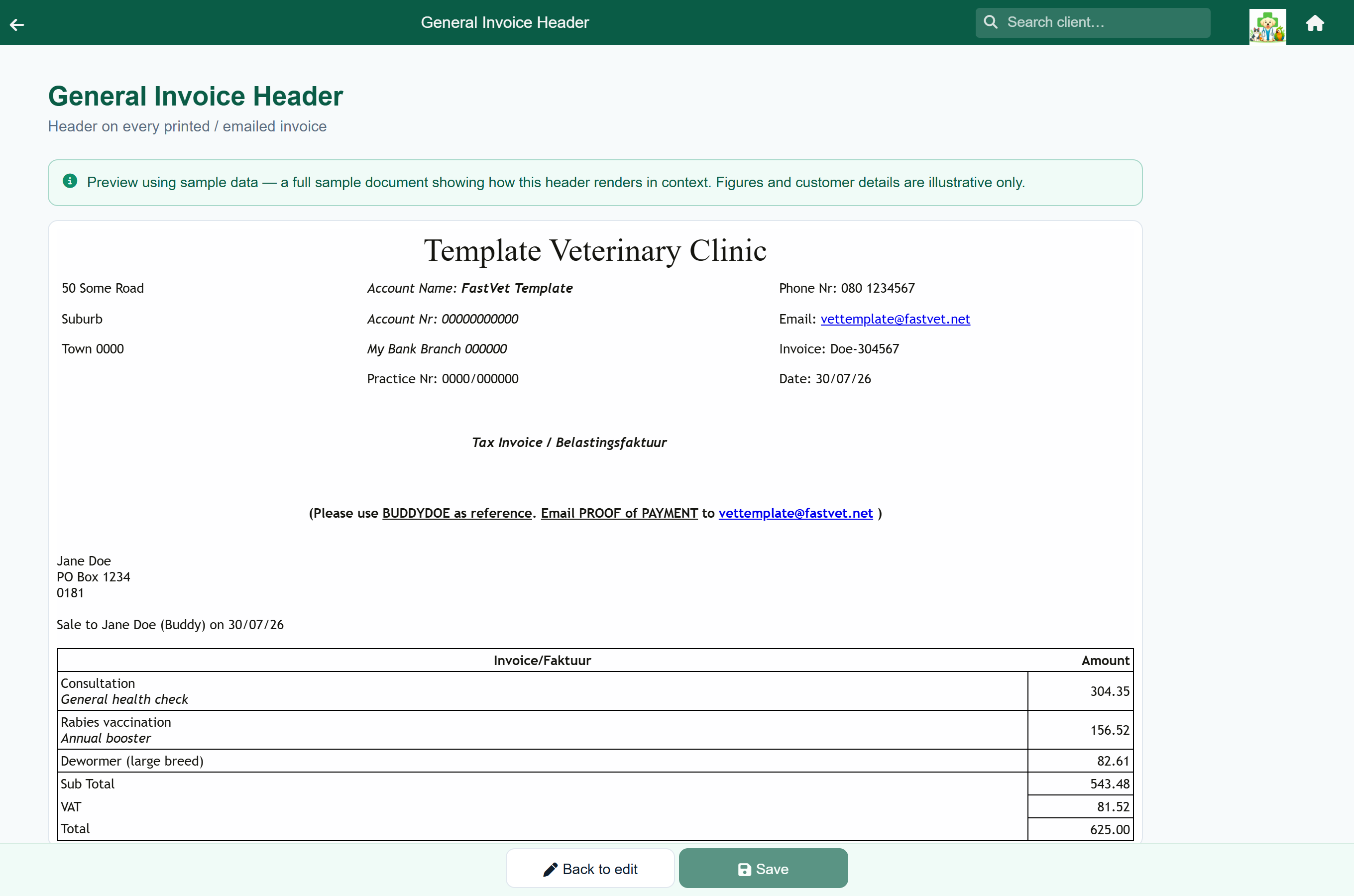
Preview shows your heading on top of a complete sample document, with a made-up client, patient and lines. Your own practice name, address, phone number, email and VAT number are filled in from your practice settings, so the heading looks exactly as it will print. Use it to check that:
- every code is replaced: one still showing as
#SOMETHING#will print that way; - the heading fits the page;
- the logo is a sensible size.
Back to edit returns to the editor with your changes intact. Nothing is saved until you press Save.
The dispensing label#
Home›Settings›Manage Templates›Dispensing Label
The medication label is edited from the same list. Unlike the others it is the whole label, and it also sets the size of your label stock. See Dispensing labels.
What goes out automatically#
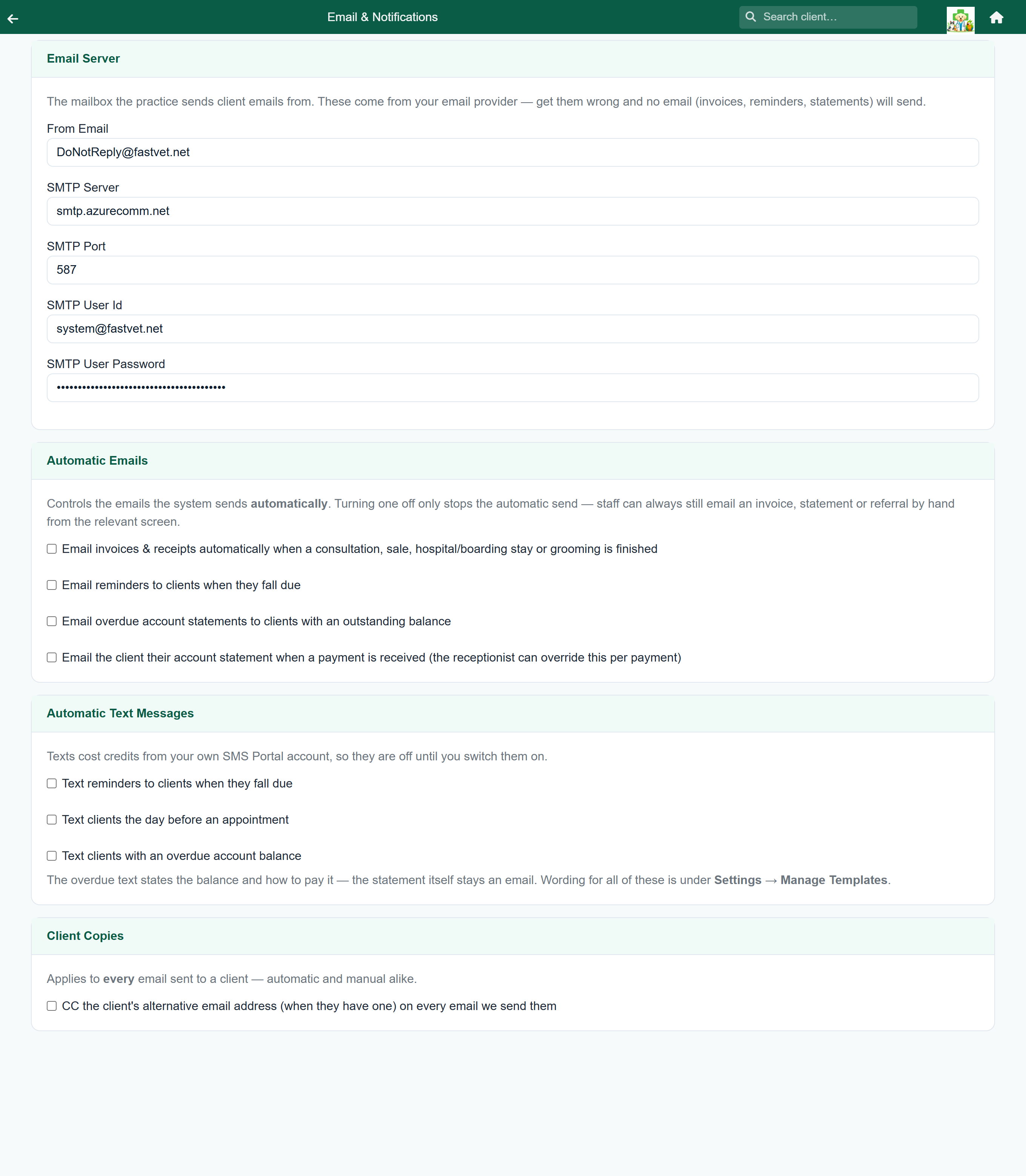
The top of the screen is the mailbox FastVet sends from. If these details are wrong, nothing is sent. Get them from whoever set up your email.
Below that are the switches for what is sent without anyone pressing a button: invoices, reminders, overdue statements, a statement after each payment, texts if you have an SMS account, and a copy to the client's second address. Each is described in Email & notifications.
Sending a one-off letter#
Home›Settings›Send Letter
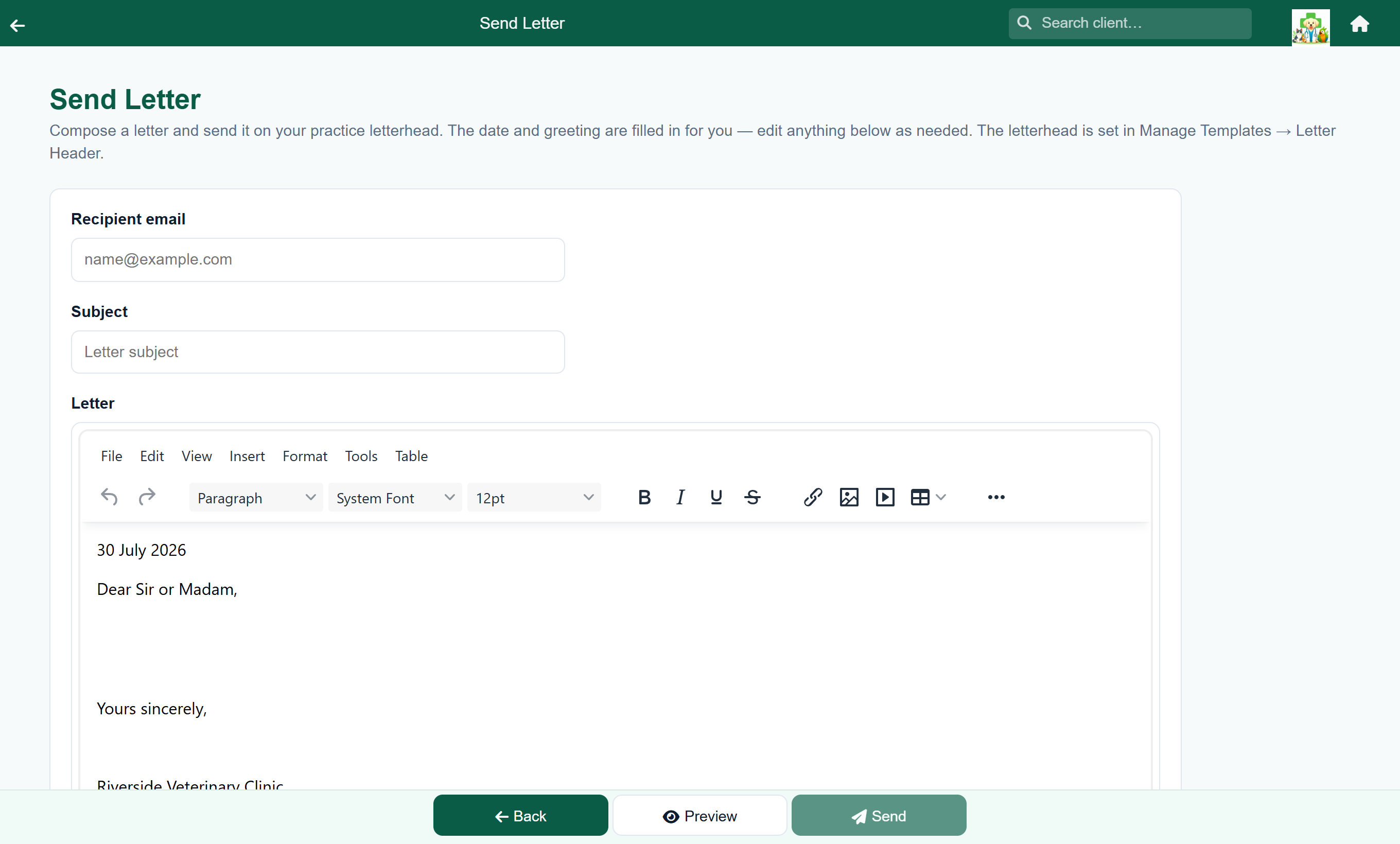
Send Letter puts your letterhead on anything you type and emails it: a note to a breeder, a practice announcement, a follow-up to a specialist. It uses the Letter Header, or the Referral Header if that is blank.
See Reminders & letters → Sending a letter for the steps.
Checking what actually went out#
Home›Reports›Email history
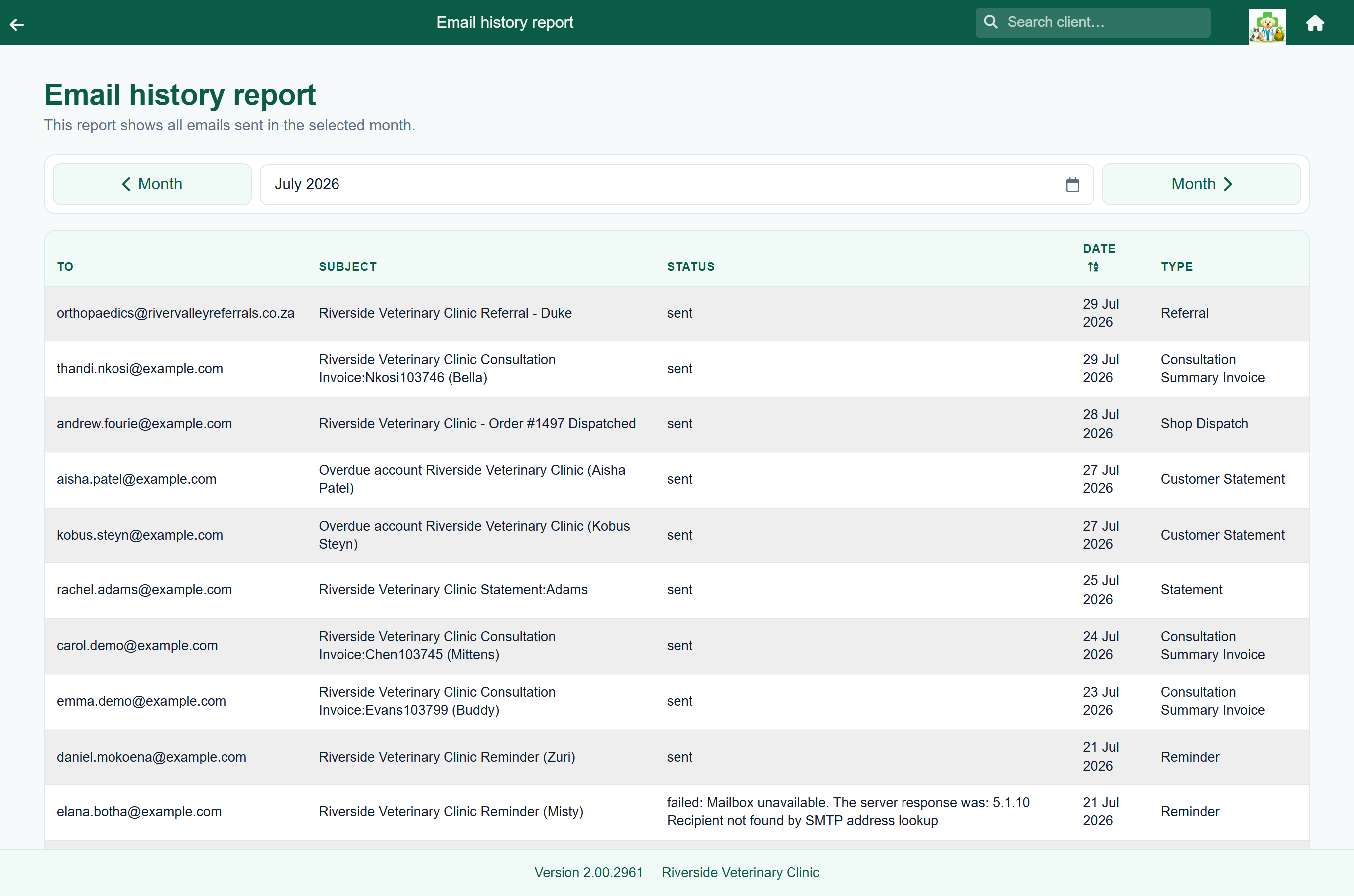
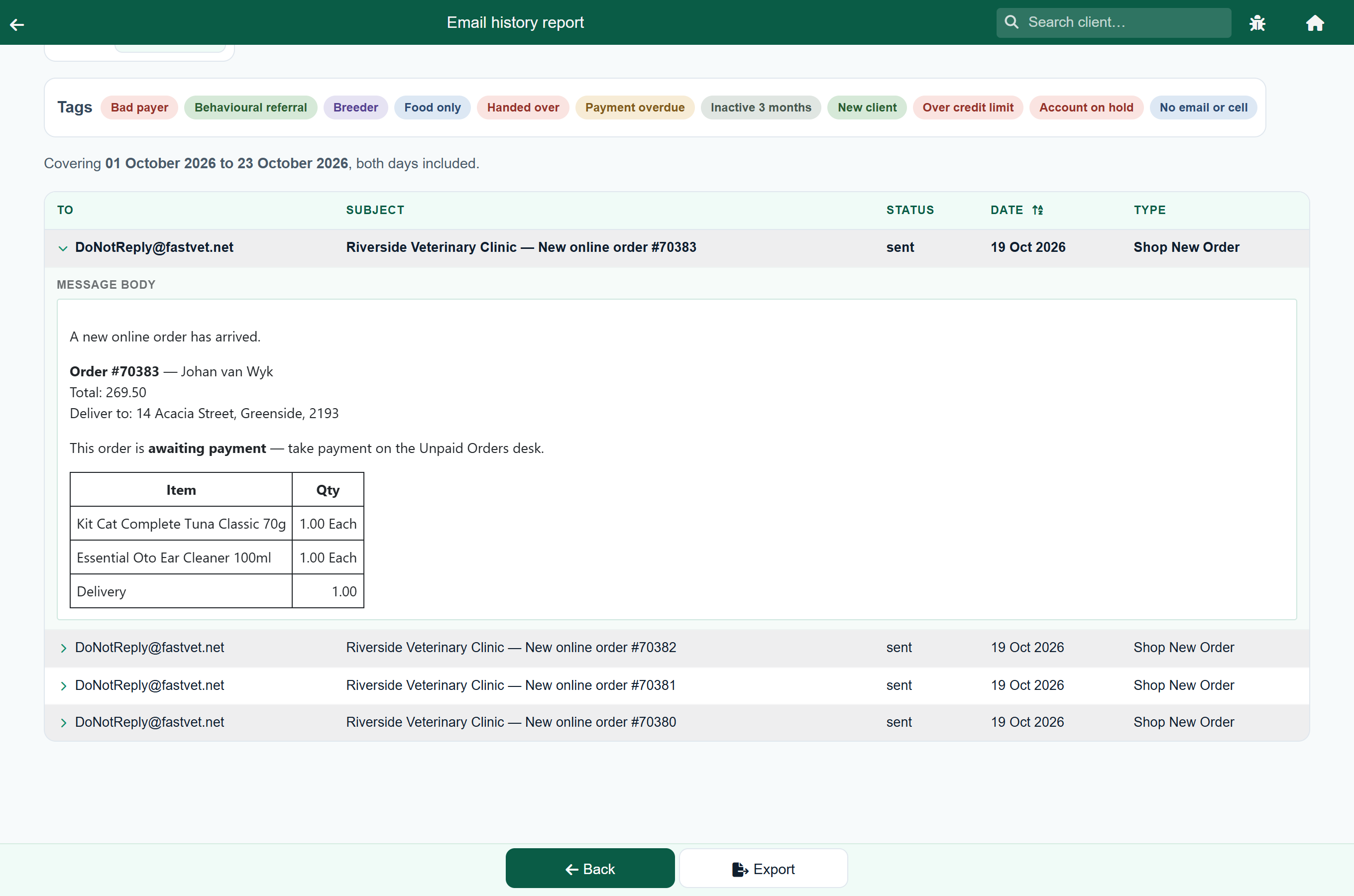
Every email FastVet sends is logged, whether it went or not. Choose a date range to see the address, subject, status, date and type of each one. To see only emails to certain clients, pick one or more tags. Tap a row to open that client.
To read what a message actually said, press the chevron at the left of its row. The message opens underneath, laid out as the client saw it. Press it again to close it.
| Status | Means |
|---|---|
| sent | The mail server accepted the message. |
| failed: … | It was not sent. The rest of the line is the mail server's reason. |
A failure usually means one of two things:
- The address is wrong: “Recipient not found”, “Mailbox unavailable”. Correct it on the client record.
- The mailbox settings are wrong: “Authentication required”, “sender domain has not been linked”. Correct them under Email & Notifications.