
Help Centre › Clients & patients
Client tags
Label clients (bad payer, handed over, feed only) and list everyone who carries any combination of them.
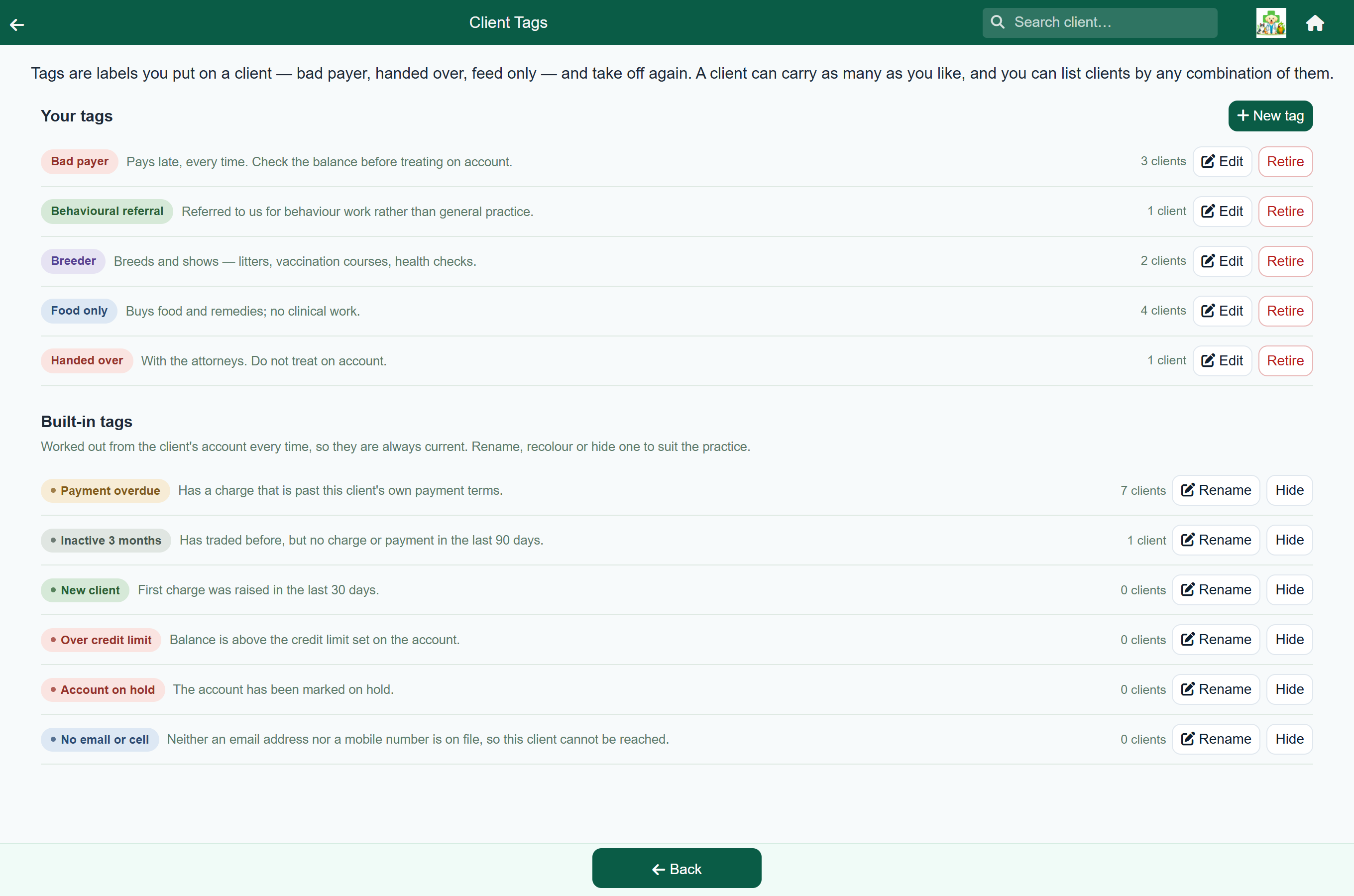
A tag is a label you put on a client and take off again. Your practice decides what the labels are, for example Bad payer, Handed over, Feed only or Stud farm.
A client can carry any number of tags, so someone can be both inactive and handed over. You can then list clients by a combination of tags, for example everyone tagged Feed only who is also overdue.
Two kinds of tag#
Your practice creates its own tags and puts them on clients by hand. FastVet also has built-in tags that it works out from the client's account.
| Your tags | Built-in tags | |
|---|---|---|
| Who puts them on | Staff, on the client record | FastVet, from the client's account |
| Who creates them | An administrator, in Settings | They come with FastVet |
| Can you take one off? | Yes | No. It goes when the reason goes |
| How they look | A coloured chip | A coloured chip with a small dot |
Built-in tags are always current. When a client settles their account, Payment overdue no longer shows on them; nobody has to take it off.
What the built-in tags mean#
| Tag | On a client when |
|---|---|
| Payment overdue | They have an unpaid charge older than their own payment terms. A client on 60-day terms is not overdue at 45 days. |
| Inactive 3 months | They have an account history, but no charge or payment in the last 90 days. A client who has never been charged is not inactive. |
| New client | Their first charge was raised in the last 30 days. |
| Over credit limit | Their balance is above the credit limit on their account. Clients with no credit limit never get this tag. |
| Account on hold | Account on hold is ticked on the client record. |
| No email or cell | There is no email address and no cell number on file. |
Setting up your tags#
Home›Settings›Client Tags
- Press New tag.
- Type a short Name, such as “Bad payer”.
- Optionally, fill in What it means so staff know when to use the tag.
- Pick one of the six colours. Each colour button shows the tag as it will look.
- Press Save.
Each tag shows how many clients carry it. Press Edit to change one of your tags, or Rename to change a built-in tag's name or colour.
Retiring a tag you no longer use#
Press Retire on one of your tags. FastVet shows how many clients carry it; press Retire it to confirm, or Keep it to cancel.
Retiring takes the tag off every client carrying it, and out of the pickers, lists and report filters.
Built-in tags cannot be retired. Press Hide instead to remove one from client records, pickers and lists, and Show to bring it back.
Putting a tag on a client#
You can tag a client in two places.
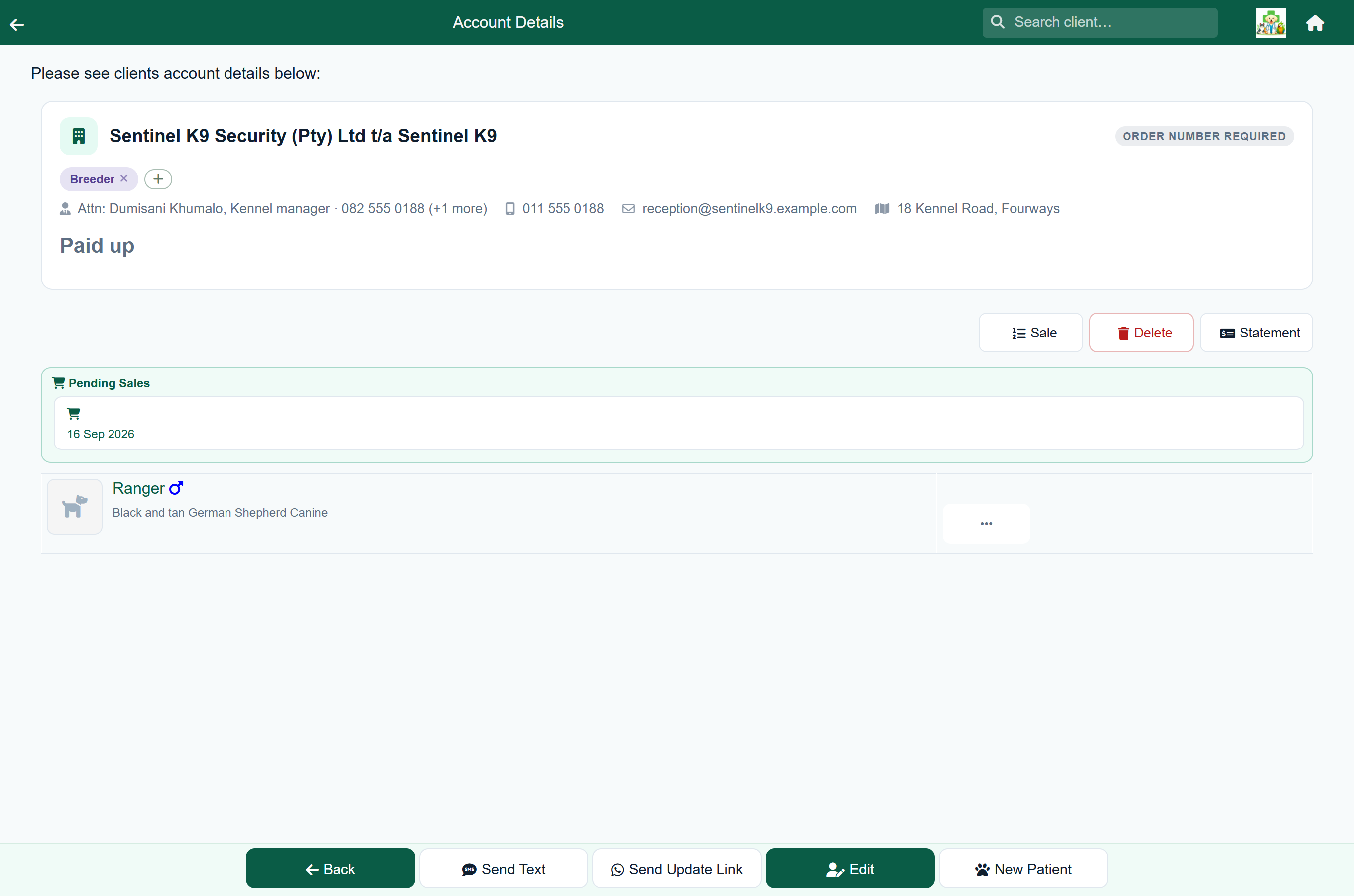
Client›Account Details
On Account Details the client's tags show under their name, followed by a +. Press +, pick one or more tags, and press Add tag. Press the × on a tag to take it off.
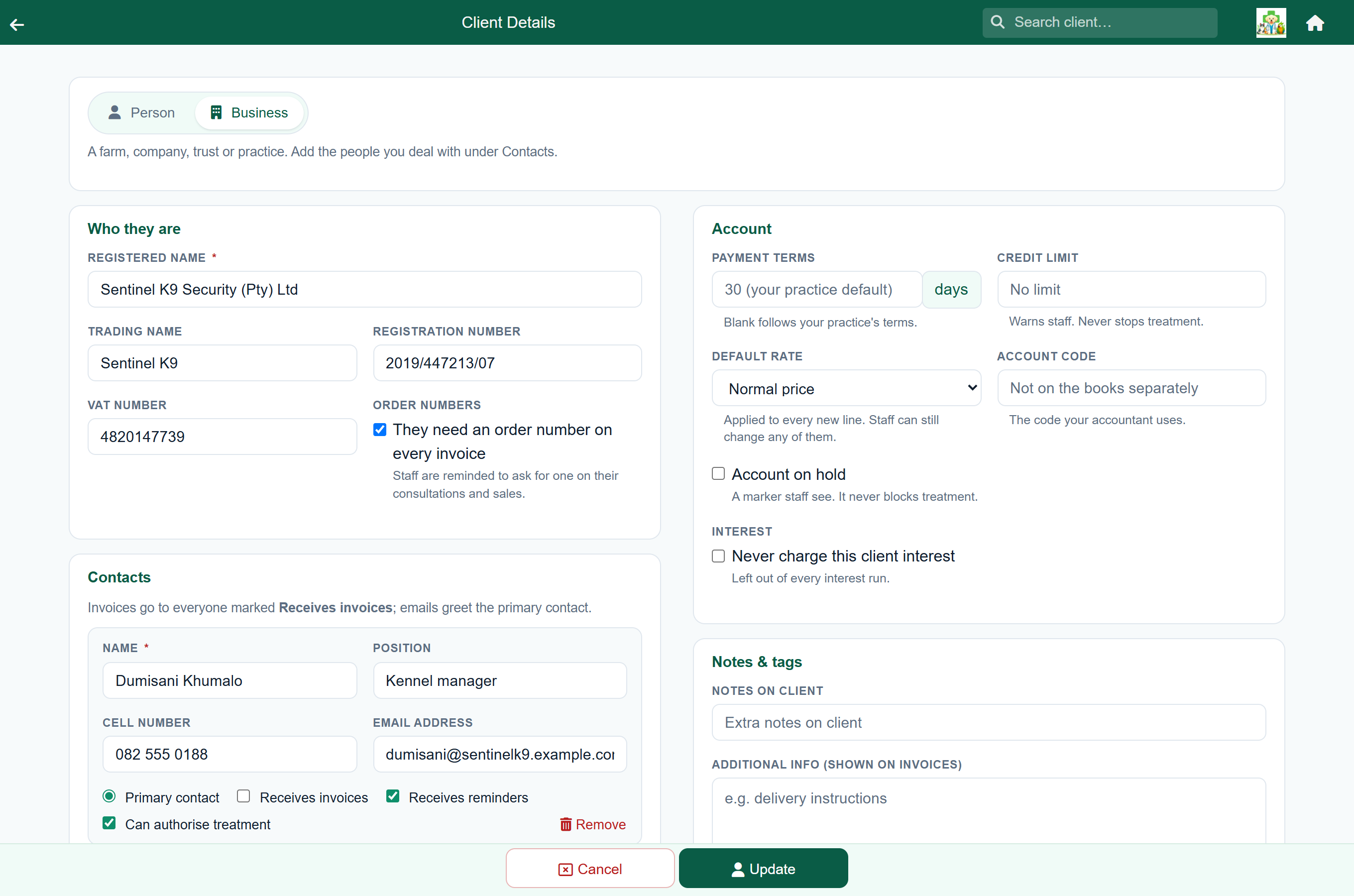
Client›Edit›Notes & tags
On the edit form, the Notes & tags section has an Add tag button. Pick one or more tags, optionally type the reason in the Why? box, and press Add tag.
A client's tags also show on their account and on the Pay and Debit screens.
Listing clients by tag#
Home›Reports›Clients by tag
- Choose how to match: Any of the tags you pick, All of them, or None of them.
- Press the tags you want. The list updates as you go. Clear takes them all off.
- Read the three counts above the table.
- Press Export in the footer to download the list to Excel, or press a row to open that client.
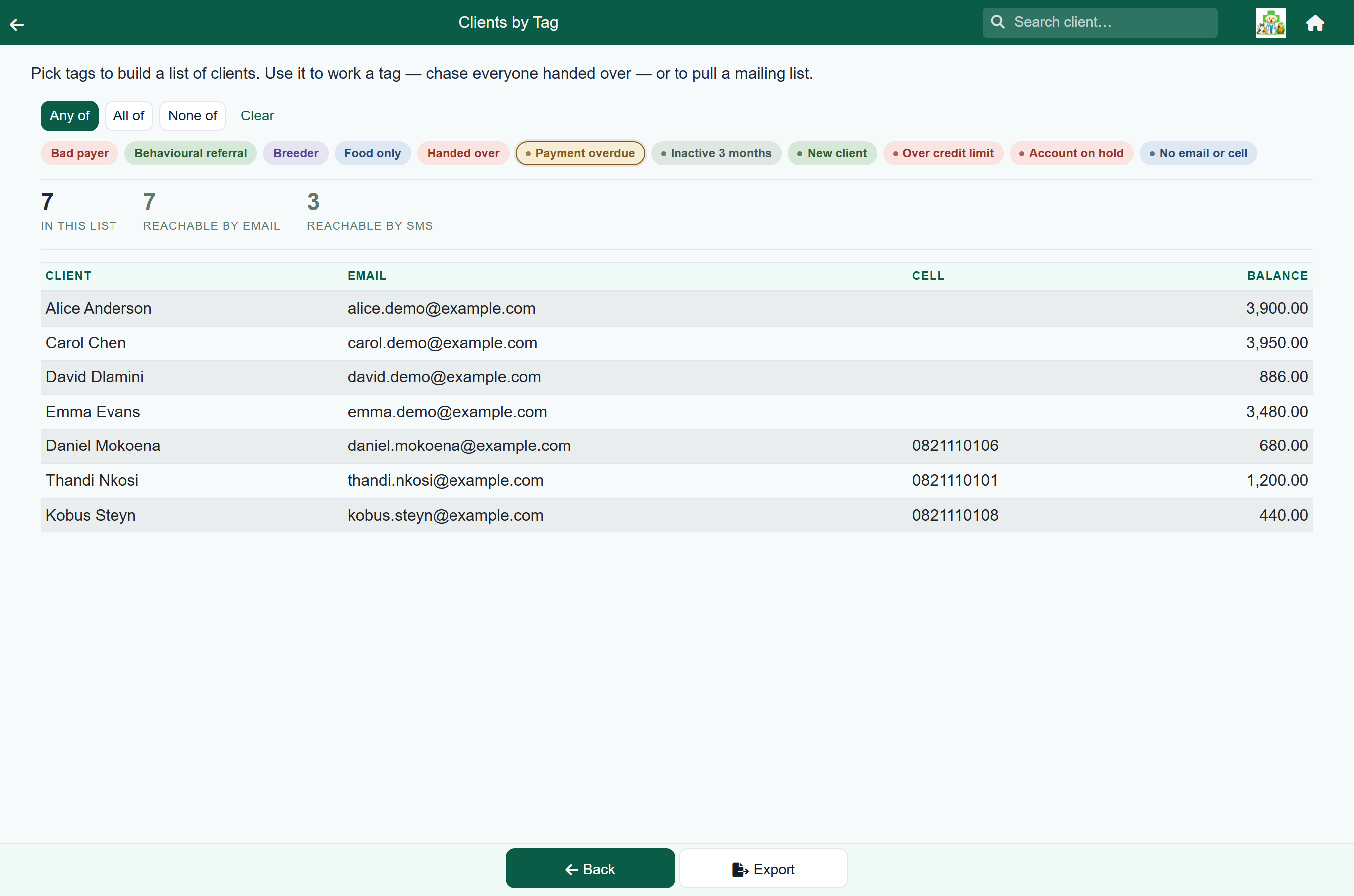
- In this list: how many clients match.
- Reachable by email: how many of them have an email address.
- Reachable by SMS: how many have a cell number.
| To find | Set it to |
|---|---|
| Everyone flagged as a problem | Any of: Bad payer, Handed over |
| Feed customers who are behind on payment | All of: Feed only, Payment overdue |
| Everyone except clients with the attorneys | None of: Handed over |
Narrowing a report by tag#
Seven reports have a Tags filter beside the period: Debtors age analysis, Invoice register, Credit notes, Payments received (detail), Top clients, Repeats due and Email history.
Home›Reports›the report
Press a tag to include it and press it again to drop it. The report runs again each time.
| To answer | Use |
|---|---|
| Who: a list of clients to phone or email | Clients by tag |
| How much: money owed, charged, paid or credited | The report, filtered by tag |
For example, Who have we handed over? is Clients by tag. How much is with the attorneys? is Debtors age analysis filtered to Handed over.