
Help Centre › Setup & administration
Practice settings
Your practice's details, branding, which modules are switched on, billing, and how FastVet emails your clients.
Practice settings shape FastVet for your clinic. Most are set once during setup and rarely changed.
Where settings live#
Home›Settings
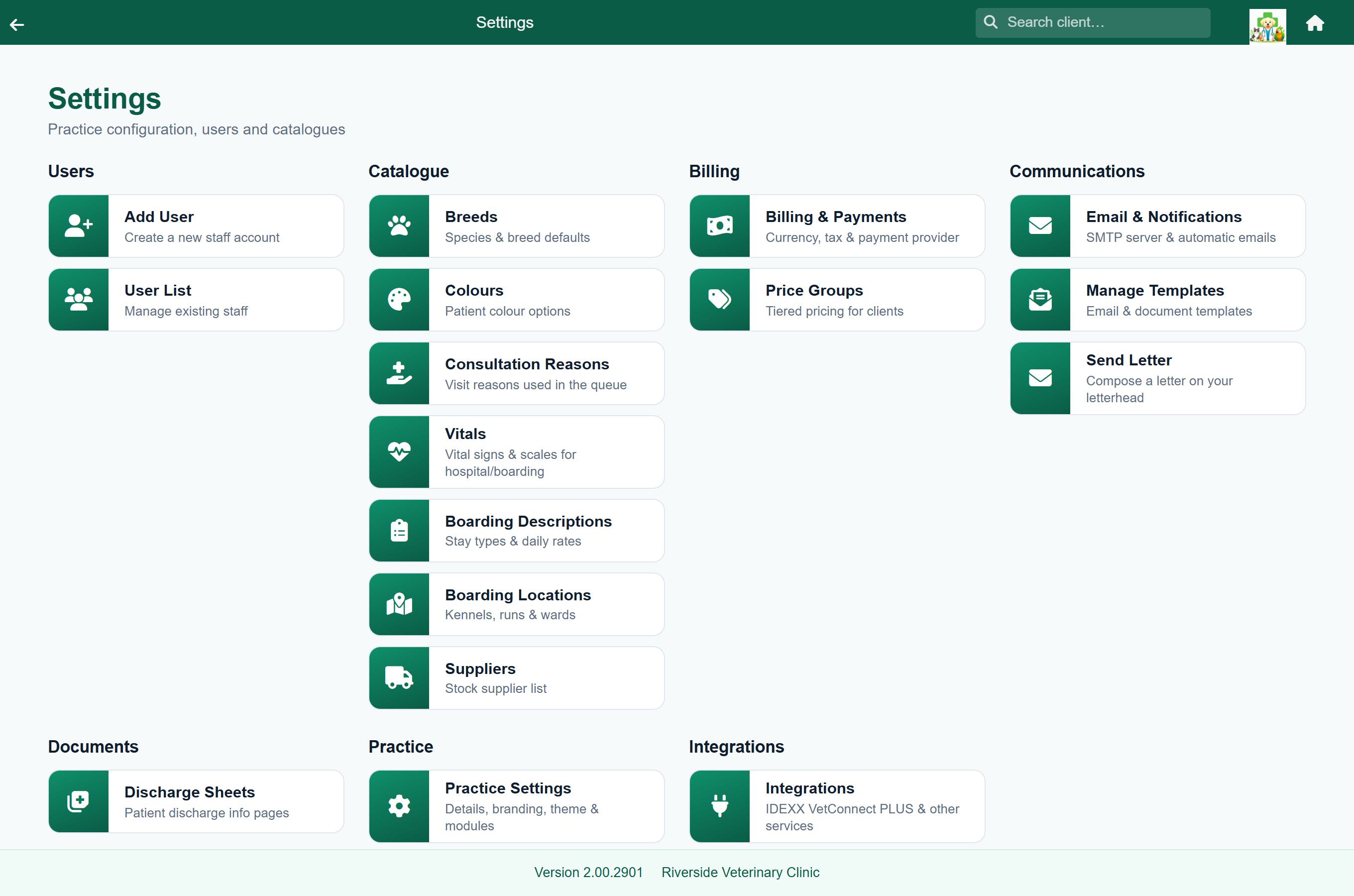
The Settings menu holds everything an administrator maintains: users, reference lists, templates and the practice itself. Mint groups the tiles into four columns: Catalogue, Billing, Communications and Practice; Classic shows the same tiles in one block. It is worth reading through once: Price Groups, Suppliers, Send Letter and Integrations are all here.
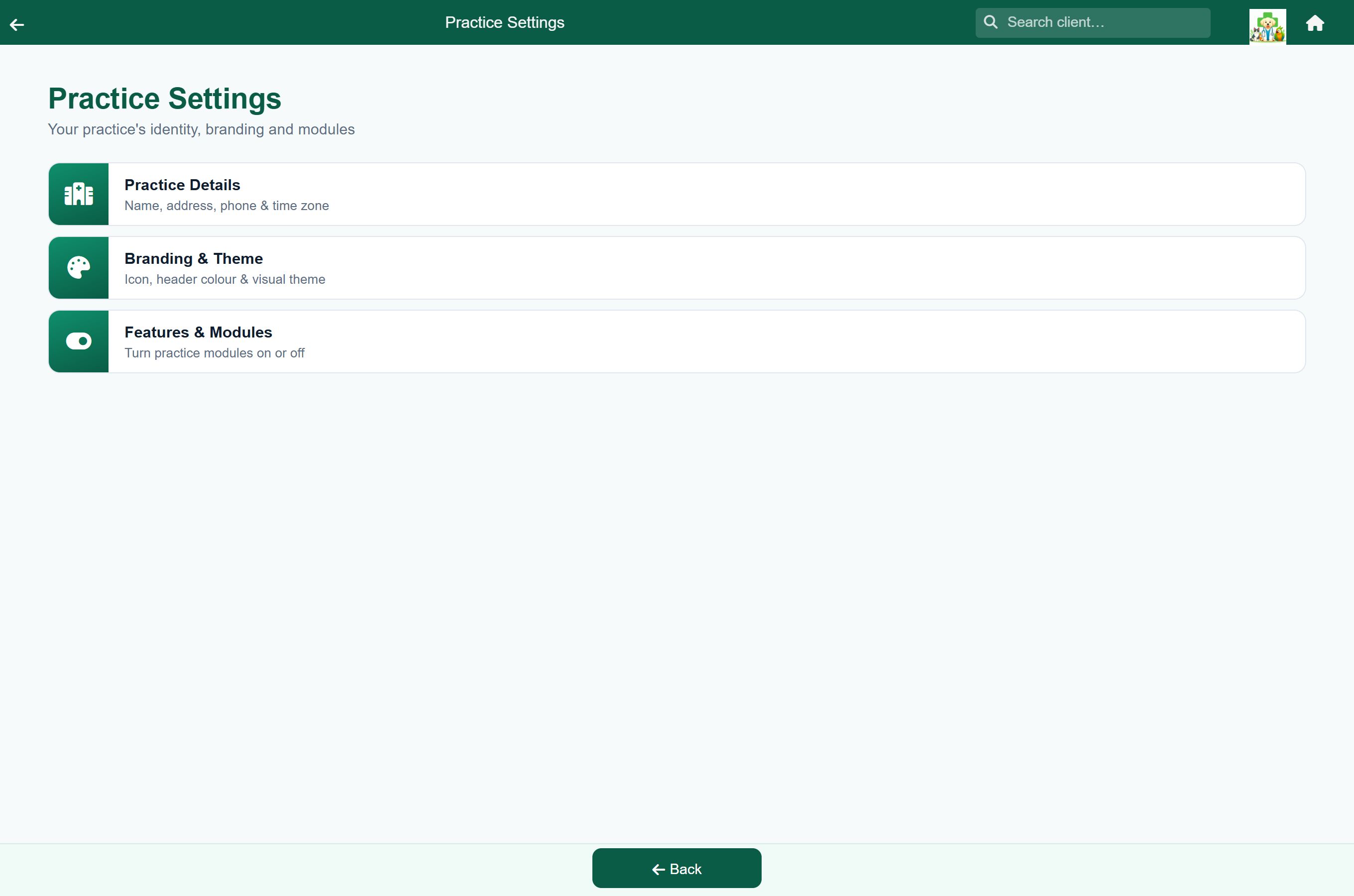
The Practice Settings tile holds three screens:
| Inside Practice Settings | Covers |
|---|---|
| Practice Details | Name, code, address, phone number, time zone and country. |
| Branding & Theme | Icon, header bar colour, and the Mint or Classic theme. |
| Features & Modules | Which parts of FastVet your practice uses. |
Billing & Payments and Email & Notifications are separate tiles on the Settings menu. Both are described below.
Practice details#
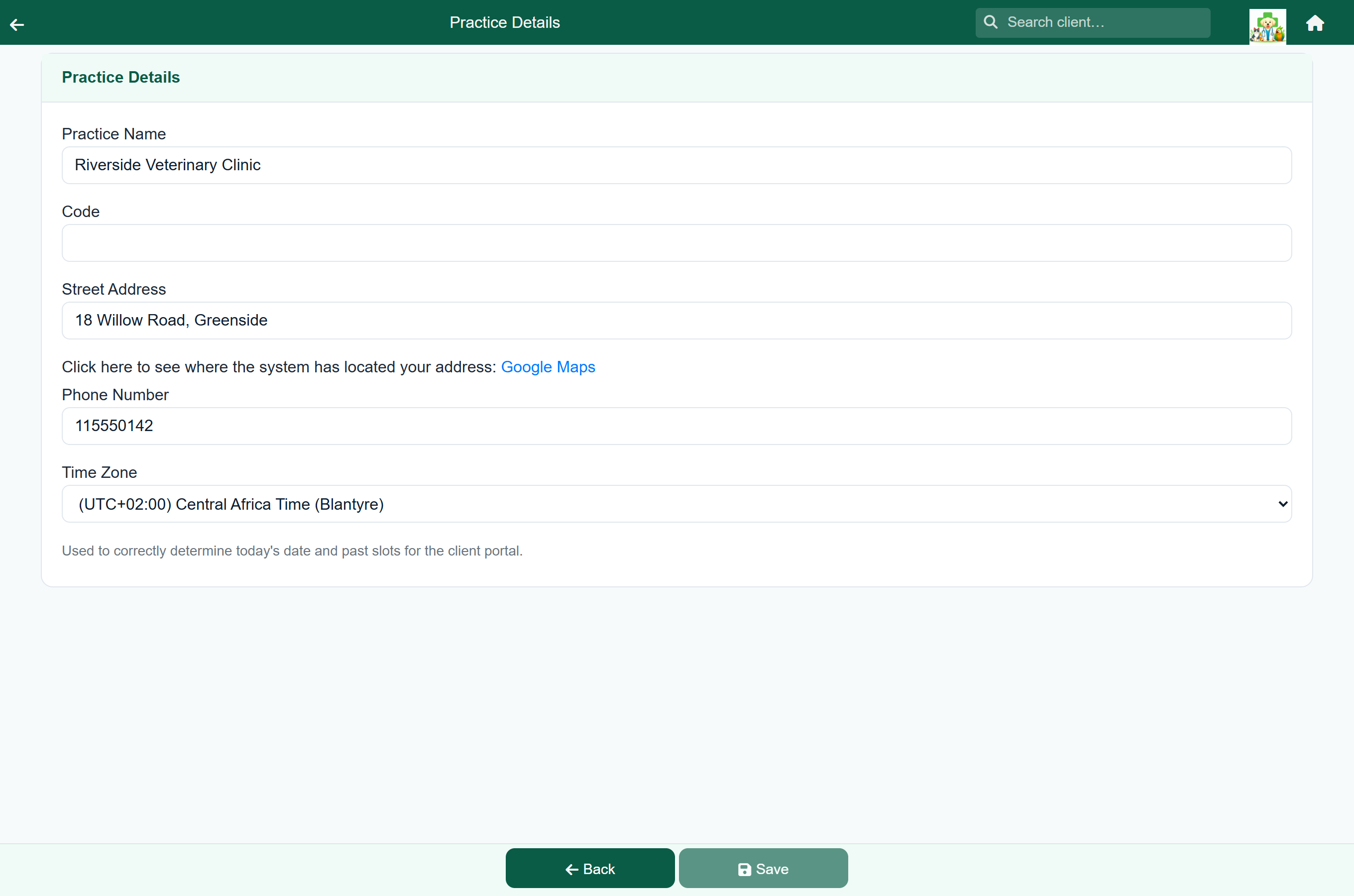
Your practice name, code, street address, phone number and time zone. The name, address and phone number can be printed on your documents with the substitution codes. The time zone is used to work out today's date and which appointment times have passed in the client portal.
The Country keeps map lookups inside your country. FastVet finds your practice, and each client's address, on the map so that Map can give directions and the client record can show how far away they live. Without a country, an address such as "18 Willow Road" can be matched to a street of the same name on another continent. FastVet can work the country out from a South African, Namibian, Australian or New Zealand time zone; anywhere else, choose it here.
Branding & theme#
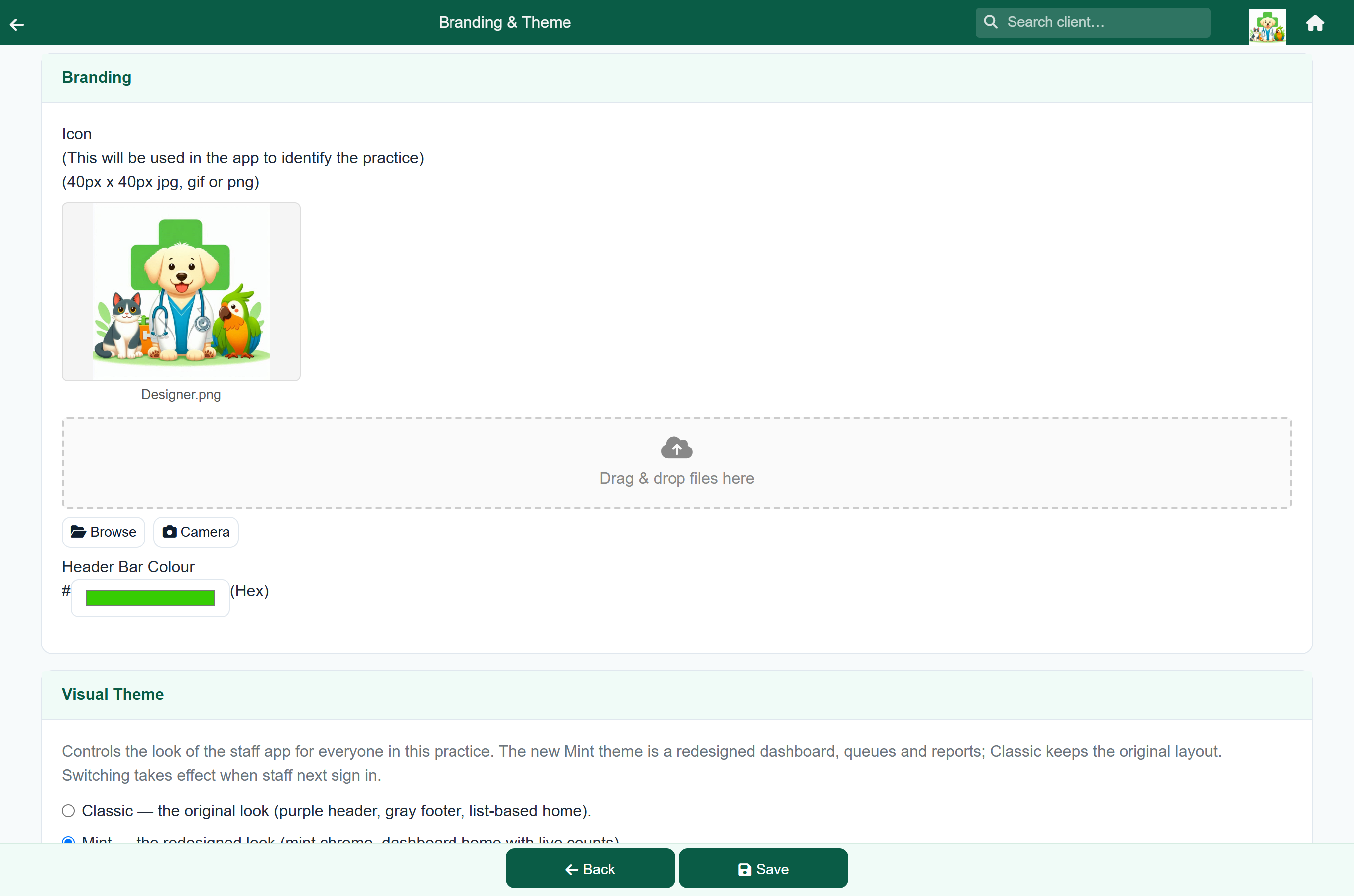
- Upload an Icon (40 × 40 pixels, jpg, gif or png); it identifies your practice in the app.
- Set the Header Bar Colour to match your practice. It is used with the Classic theme; Mint keeps its own green header.
- Choose the Visual Theme: the redesigned Mint look or the original Classic one.
Features & modules#
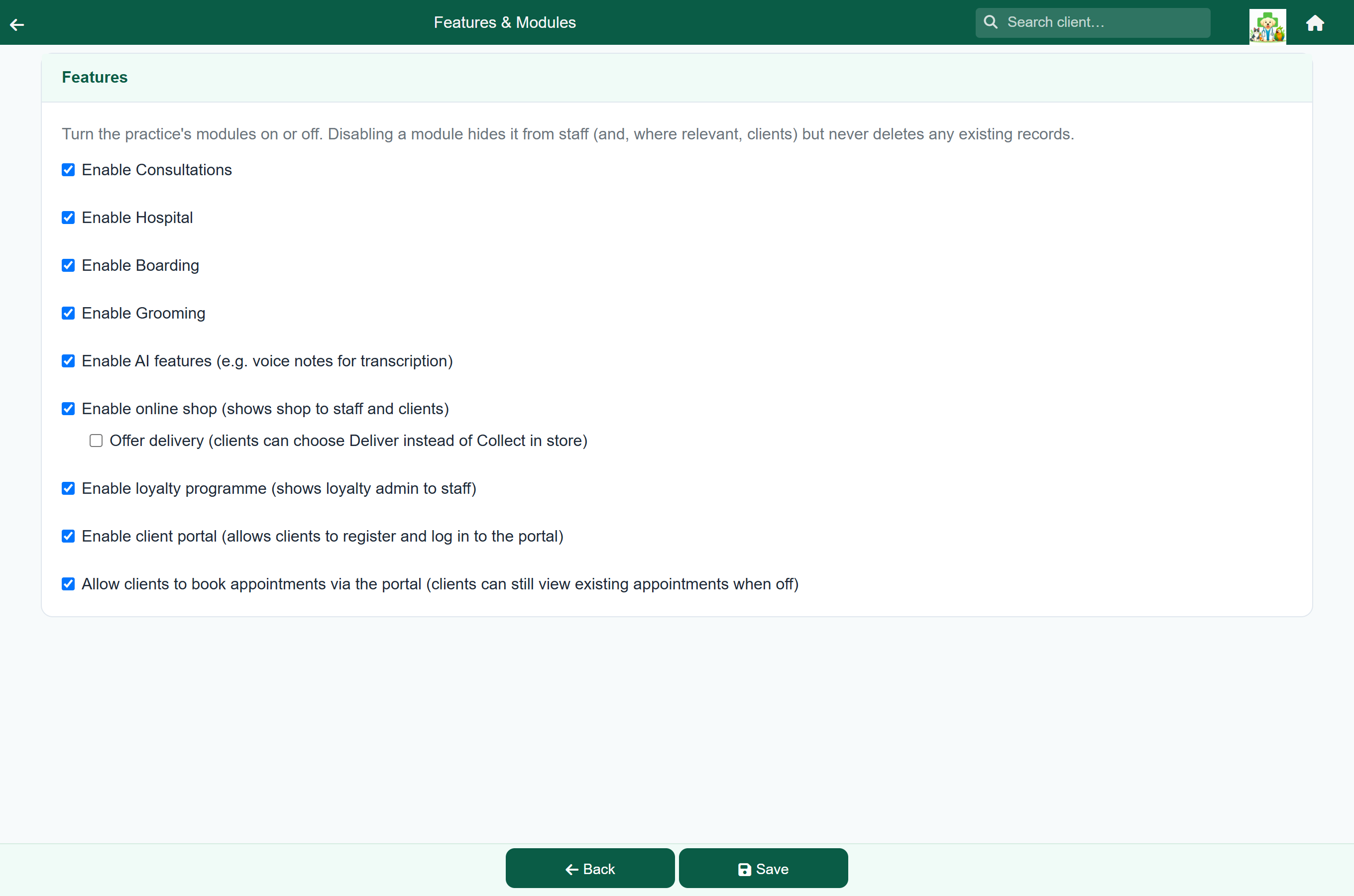
Switch off what your practice does not do and those screens disappear for everybody. Nothing is deleted: switch a module back on and its records are still there.
| Card | Switch | Controls |
|---|---|---|
| Services | Consultations | The consult queue and clinical visits. |
| Hospital | In-patient admissions and daily ward records. | |
| Boarding | Boarding stays and their daily records. | |
| Grooming | The grooming queue and grooming records. | |
| Optional Features | Quotes | Costed proposals the owner agrees to before work starts. See Quotes. |
| Loyalty programme | The points programme, and the Loyalty tile on the Settings menu. See Loyalty programme. | |
| AI features | Voice notes and the Previous Visit Summary. See Voice notes & AI summaries. | |
| Per-vet availability | Whether bookings follow each vet's working hours. Off by default; see below. | |
| Stock receiving | Booking a whole supplier delivery into stock, from a photograph of the invoice or typed in by hand, with a Receive stock tile. Any staff member can capture an invoice; only an Admin books it into stock. Off by default. See Receiving stock from suppliers. | |
| Business accounts | Farms, companies, trusts and other practices as clients, with their contacts, VAT and registration numbers, and order numbers on their invoices. See Business accounts. Off by default. | |
| Client Portal & Shop | Client portal | Whether clients can register and sign in. |
| Online booking | Whether signed-in clients can book. With it off they still see appointments you made for them. | |
| Repeat medication requests | Whether signed-in clients can ask for a refill online. With it off they still see their pet's medication and are asked to phone. See Refill requests. | |
| Online shop | The client shop and its dispatch queue. Switching it on shows Delivery, and with that a Delivery fee and Free delivery from; see Collection and delivery. |
Per-vet availability: with it off, the only limit on a booking time is the capacity of the appointment slot. With it on, bookings also follow each vet's working hours: reception sees a warning when booking outside them (and can carry on), and clients booking online are only offered times the vet is in. Enter the hours under Vet Availability.
Billing & payments#
Home›Settings›Billing & Payments
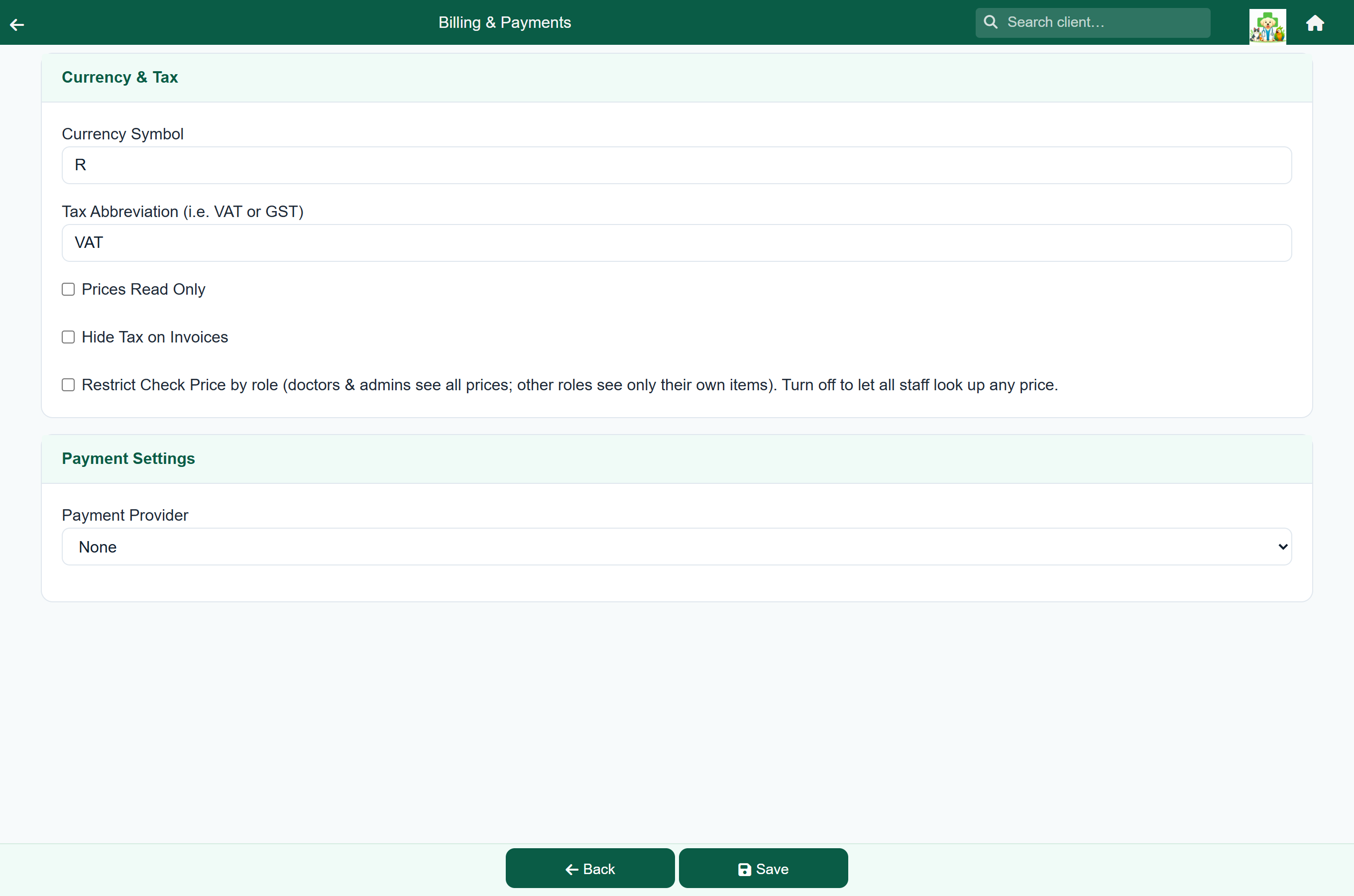
| Setting | Effect |
|---|---|
| Currency Symbol | The symbol shown on prices, invoices and statements. |
| Tax Abbreviation | What your sales tax is called, such as VAT or GST. |
| VAT Number | Your VAT registration number (the label follows your tax abbreviation, so a GST practice sees “GST Number”). It prints wherever an invoice or statement header uses #PRACTICEVATNUMBER#; see Templates. Leave it blank if you are not registered. |
| Payment Terms | How many days clients have to pay. Statements print it and overdue emails wait for it. A client can have their own terms; see Payment terms. Blank means 30 days. |
| Prices Read Only | Stops staff changing the unit price when they charge an item. |
| Hide Tax on Invoices | Shows totals including tax, without breaking the tax out. |
| Restrict Check Price by role | Doctors and admins see every price; other staff see only the items they can charge. Off means all staff can look up any price. |
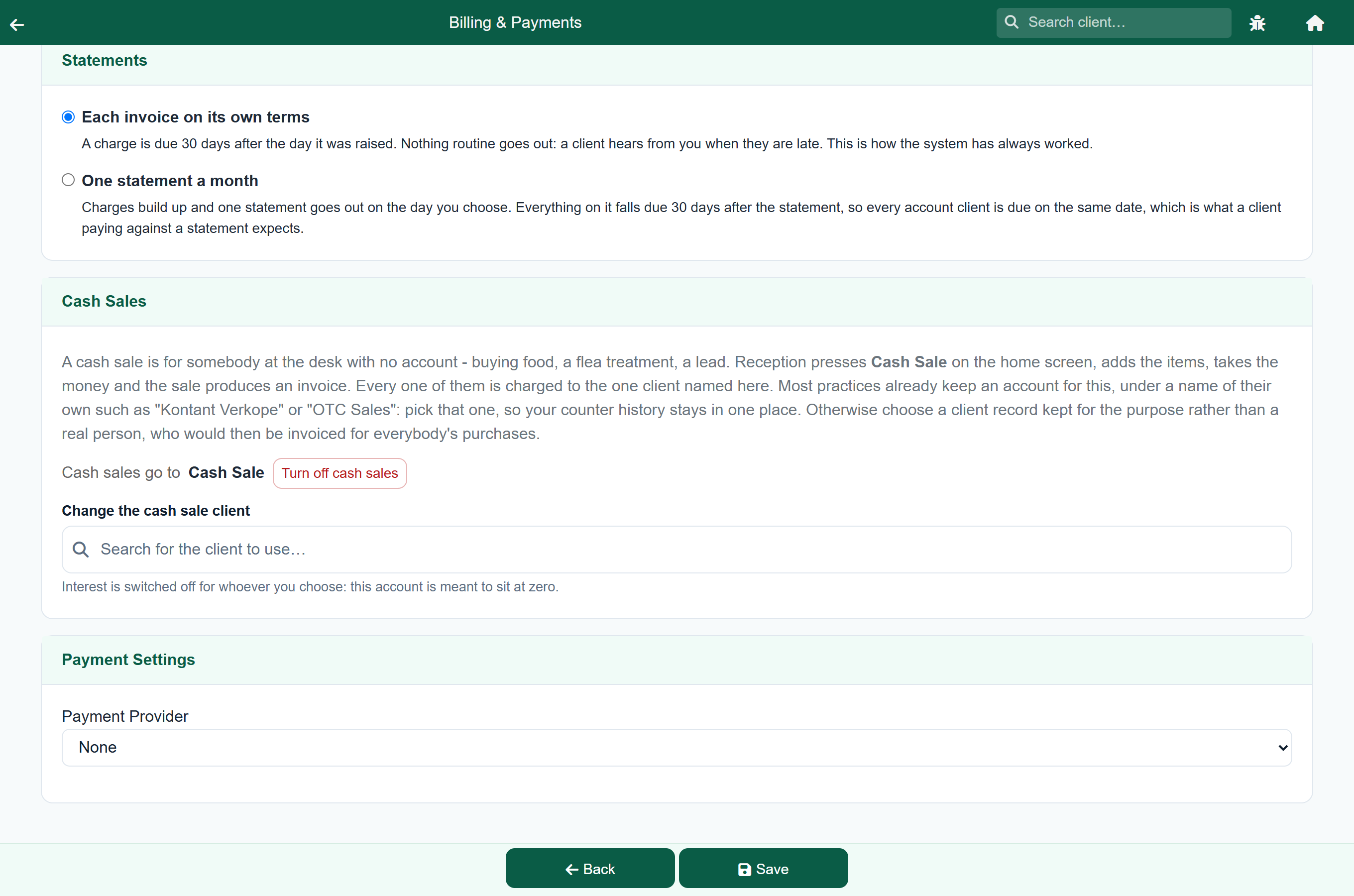
| Statements | Each invoice on its own terms: each charge is due your payment terms after the day it was raised, and no routine statements go out. One statement a month: charges build up and a statement goes out on a day you choose (the 1st to the 28th, or the last day of the month), with everything on it due your payment terms after that. See Statements. |
| Cash Sales | The client counter sales are charged to. See Cash sales below. |
| Payment Settings | Your online payment provider: None or PayFast with its credentials. Tick Sandbox mode to test without taking real money. The saved merchant key and passphrase are never shown: leave the boxes empty to keep them, or type to replace them. |
Payment methods#
Home›Settings›Payment Methods
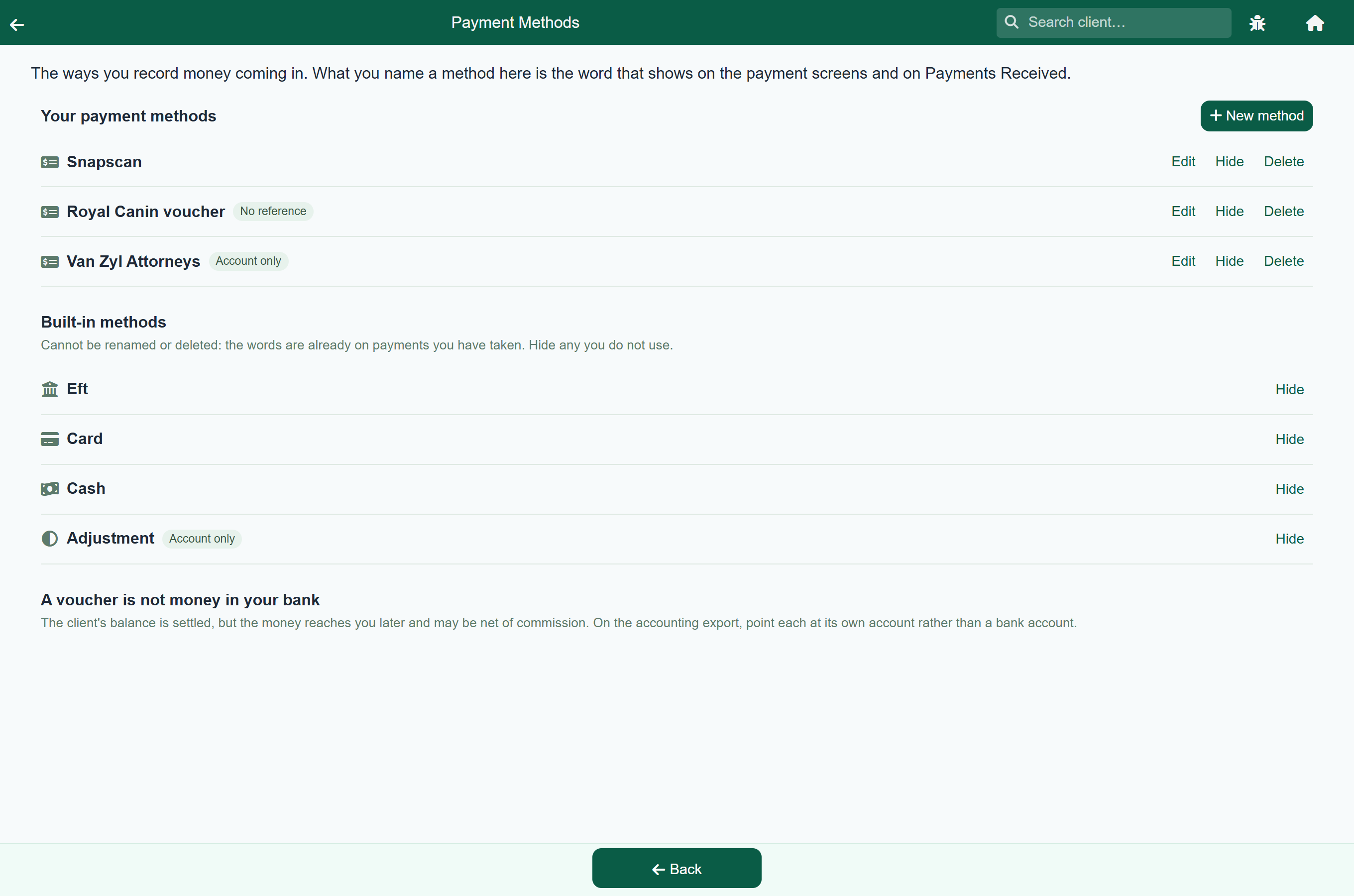
These are the ways you can record money coming in. Whatever you call a method here is the word that appears on the payment screens, on your Payments received report and on your accounting export, so name it the way you would say it out loud: the name of your card machine, the bank you are paid into, a supplier promo voucher, an account handed to a debt collector.
You start with four built-in methods: Eft, Card, Cash and Adjustment. Press New method to add your own.
| Setting | Effect |
|---|---|
| Name | The word written against the payment. Up to 40 characters. |
| Order | Lowest first, so the method you use all day can sit at the front. Leave it blank and it goes after the numbered ones. |
| Ask for a reference number | Whether the refund screen asks for a reference. Leave it off for cash. |
| Offer it at the till as well as on an account | On means it appears on counter sales, the shop and refunds too. Off makes it an account-only method, which is what you want for something like a debt collector. |
- Press Hide on a method you no longer use. It leaves the payment screens, and the payments already taken under it are untouched.
- Press Show to bring it back.
- Press Delete on a method you added by mistake. The payments already taken under it still report under that word.
Cash sales#
Home›Settings›Billing & Payments›Cash Sales
A cash sale is for somebody at the counter with no account. Every one of them is charged to a single client record, which is what keeps the money in your day summary, your reports and your accounting export alongside everything else.
Search for the client to use and pick it. Choose a record kept for the purpose, named something like “Cash Sale”, rather than a real person: the account is shared by every counter sale you ever make. Interest is switched off for whoever you choose, because the account is meant to sit at zero.
Email & notifications#
Home›Settings›Email & Notifications
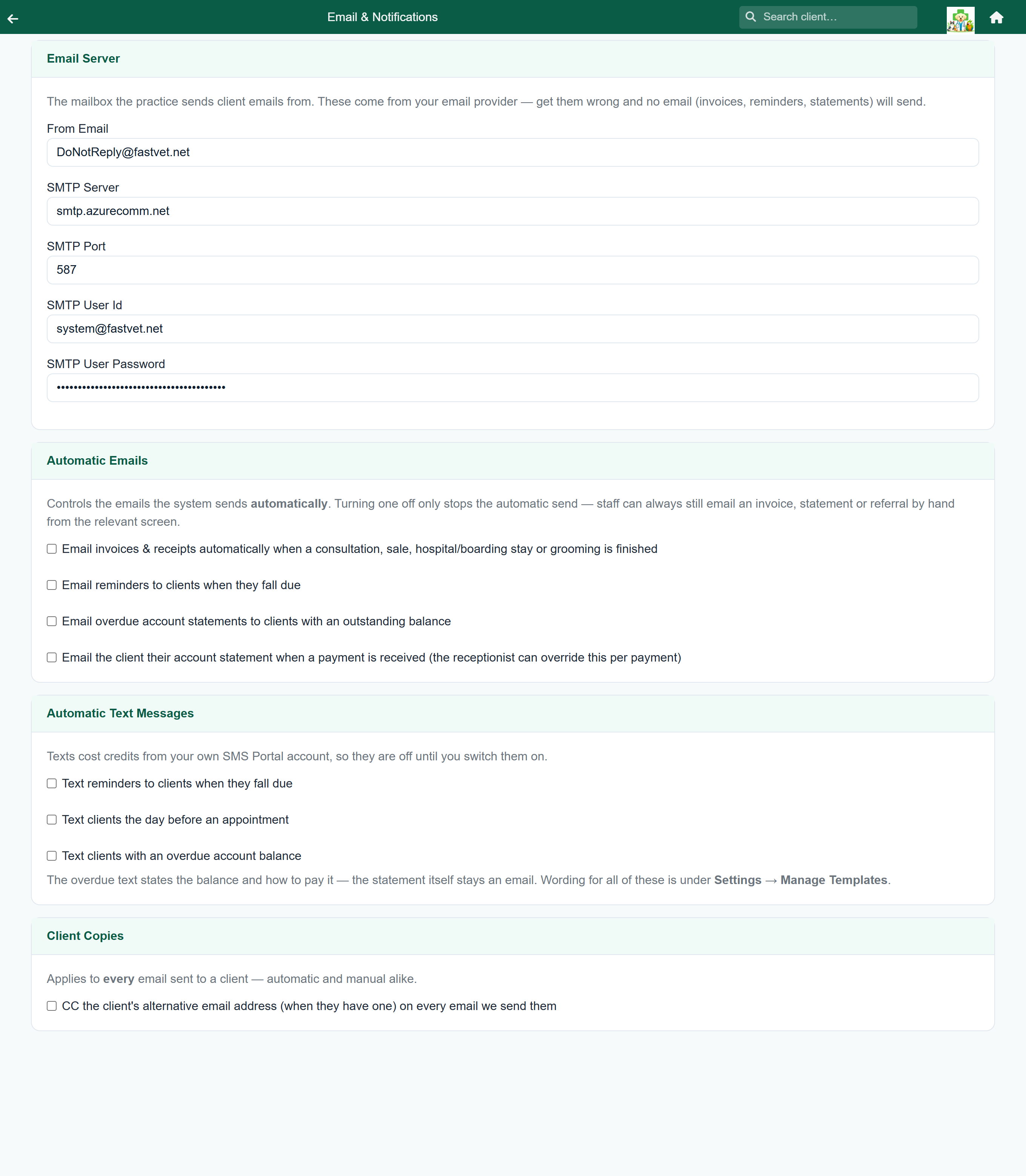
Here you choose how your emails are sent, and what FastVet sends automatically.
How Emails Are Sent offers three choices:
| Choice | What it means |
|---|---|
| FastVet mail | Nothing to set up. Emails come from [email protected]. Fill in Replies go to with your practice’s address, so a client who presses Reply reaches you. Leave it empty and replies go nowhere. |
| Your own mail server | Emails go out through your own mailbox, for example Gmail or Outlook. Fill in the address and the SMTP details your email provider gives you. The saved password is never shown: leave the box empty to keep it, or type a new one to replace it. If you change the server or the user name, type the password again: a saved password is only kept for the account it was saved with. |
| Your own address, sent by FastVet | Emails come from your practice’s own address, for example [email protected], without a mail server to look after. Whoever manages your domain adds the three DNS records the screen lists, then FastVet confirms them. Until then your emails still go out, from [email protected], and replies go to your address. |
| Setting | Effect |
|---|---|
| Email invoices & receipts automatically | Sends the invoice when a consultation, sale, hospital or boarding stay, or groom is finished. |
| Email reminders | Sends reminders to clients as they fall due. |
| Email overdue account statements | Sends statements to clients with an overdue balance. |
| Email the client their account statement when a payment is received | Sets the default. The receptionist can untick it on any payment. |
| Text reminders | Sends reminders as a text message too. |
| Text clients the day before an appointment | An appointment reminder by text. |
| Text clients with an overdue account balance | A text stating the balance. The statement itself is still emailed. |
| CC the client's alternative email address | Copies the client's second address, where they have one, on every email. |
| Send Before Payment | Marks invoices that have not been sent to the client in amber on the payment queue, for invoices of at least the amount you give (leave it empty for every amount). Off unless you switch it on. See below. |
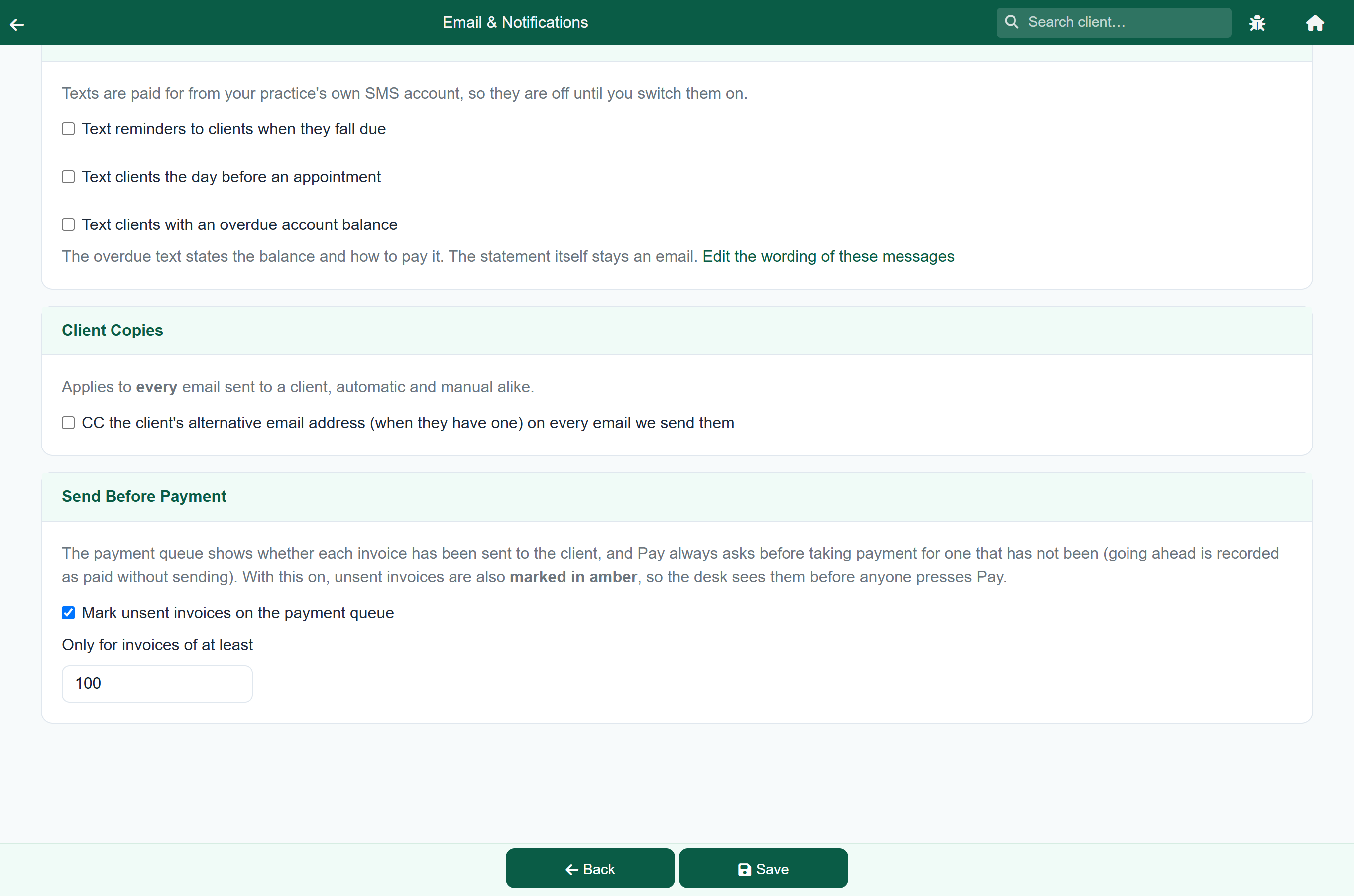
Send Before Payment is a reminder, never a block. With it on, the payment queue marks unsent invoices of at least your amount in amber, and a line at the top says the practice wants them sent first. Whether it is on or off, Pay asks before taking payment for an invoice that has not been sent, and the desk can always go ahead; each time it does, the invoice is marked Paid without sending, with who did it.
Reference lists#
These lists keep your data consistent. All are on the Settings menu.
| Settings tile | Used for |
|---|---|
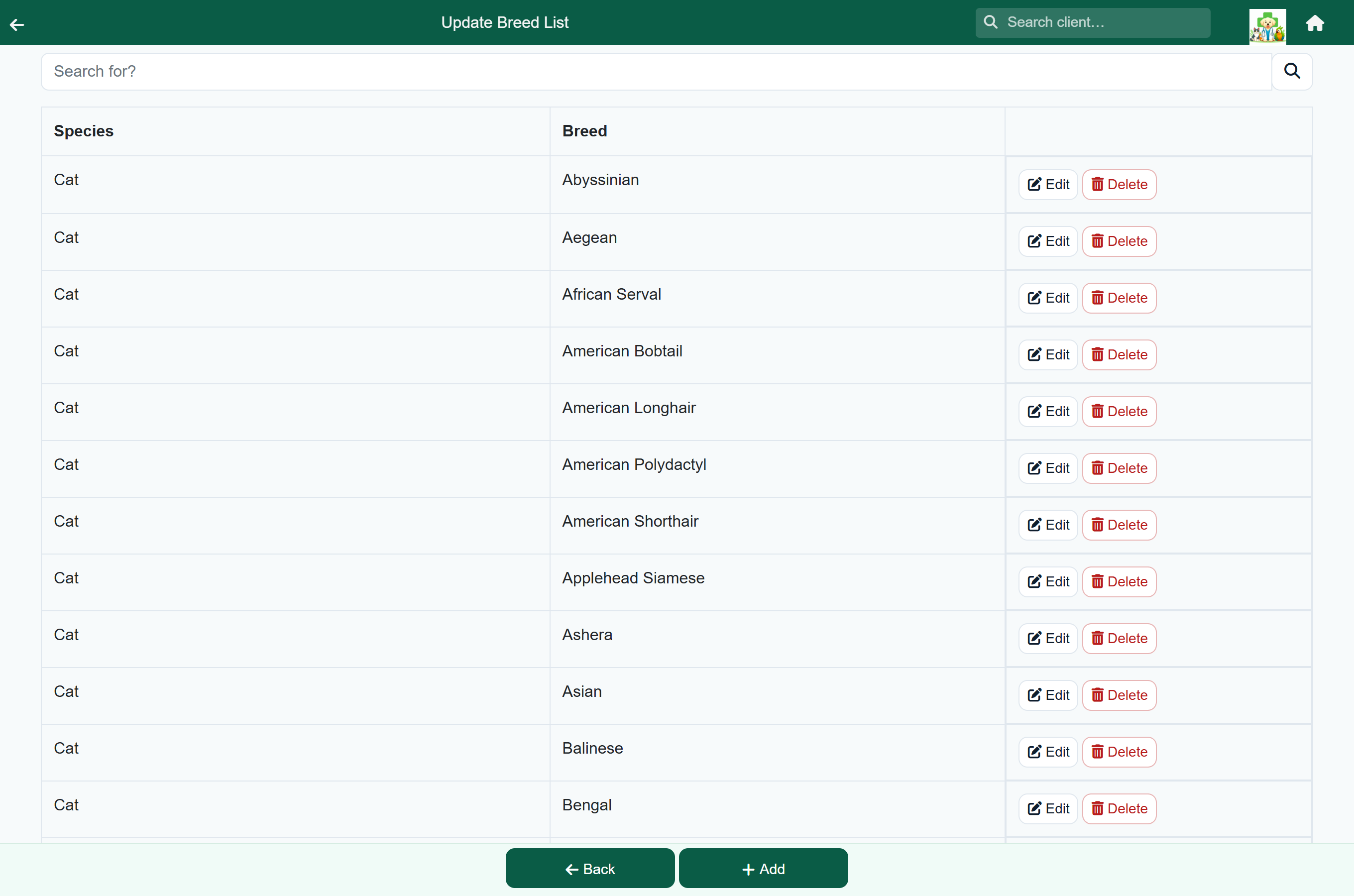
| Breeds Classic: “Breed” | The breed options on a patient record. |
| Colours | The colour options on a patient record. |
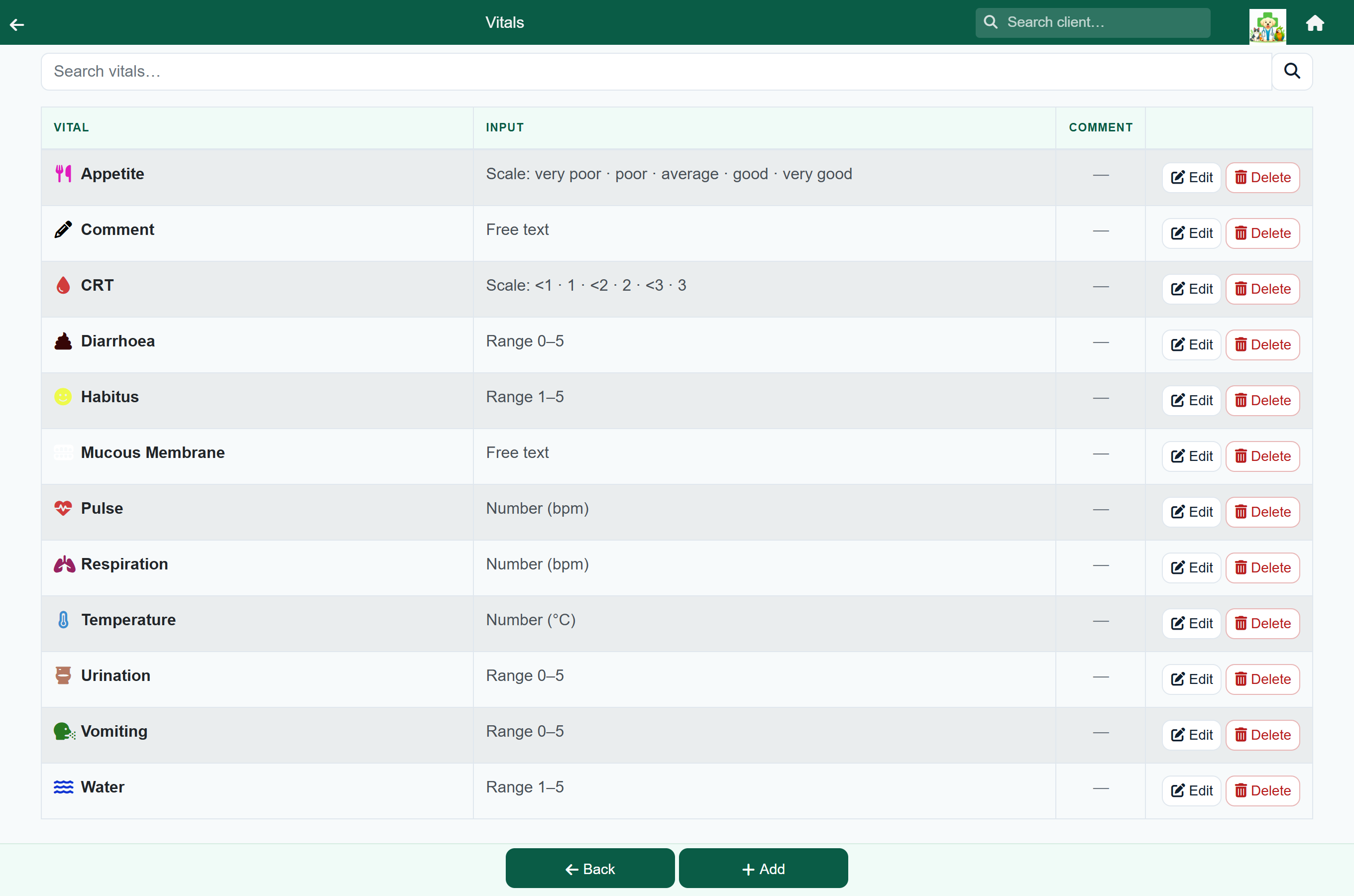
| Vitals | Which measurements appear on clinical screens. See Setting up vitals. |
| Consultation Reasons | The reasons offered when booking or queueing. |
| Client Tags | Labels you put on clients. See Client tags. |
| Payment Methods | The ways you record money coming in: your card machine, your bank, vouchers, a debt collector. See Payment methods. |
| Boarding Locations Classic: “Boarding Location” | Your runs, kennels and pens. |
| Boarding Descriptions Classic: “Boarding Description” | The kinds of boarding stay you offer. |
| Appointment Slots | The shape of your appointment book. |
| Suppliers | Who you buy stock from. A supplier cannot be deleted while stock is assigned to it; move those items first, under Suppliers & levels. |
| Price Groups | Named rates you can charge a client at instead of your everyday prices: staff rates, pensioner discounts, rescue rates, set separately for each kind of item. See Price groups. |
| Discharge Sheets | Standard client advice you attach to a visit. See Discharge sheets. |
Setting up vitals#
Home›Settings›Vitals
A vital is one measurement your practice records: temperature, heart rate, a pain score, mucous-membrane colour. The vitals in this list are the ones staff see on consultations, hospital days and boarding days.
Each vital has a Name and an Input type, which decides what staff see:
| Input type | What staff see | Use it for |
|---|---|---|
| Named scale | A slider with labelled points you define: Normal · Elevated · Critical. | Anything judged rather than measured: pain score, hydration, demeanour, mucous membranes. |
| Numeric range | A slider over a number range, with an optional unit. | Measurements: temperature, pulse, respiration, weight. |
| Free text | A box they type into. | Anything that fits neither. Free text cannot be compared between visits, so use it sparingly. |
- Press Add on the vitals list, or open an existing vital.
- Enter the Name staff will see.
- Choose the Input type.
- For a named scale, list the Points along the scale in order, lowest first. For a numeric range, set the Minimum, Maximum and Unit / suffix (°C, bpm, kg).
- Optionally choose a Colour and an Icon to make the vital easy to spot.
- Tick Allow a comment alongside each reading if staff need to add notes.
- Check the Preview, which shows the control as staff will see it, then save.
Integrations#
Home›Settings›Integrations
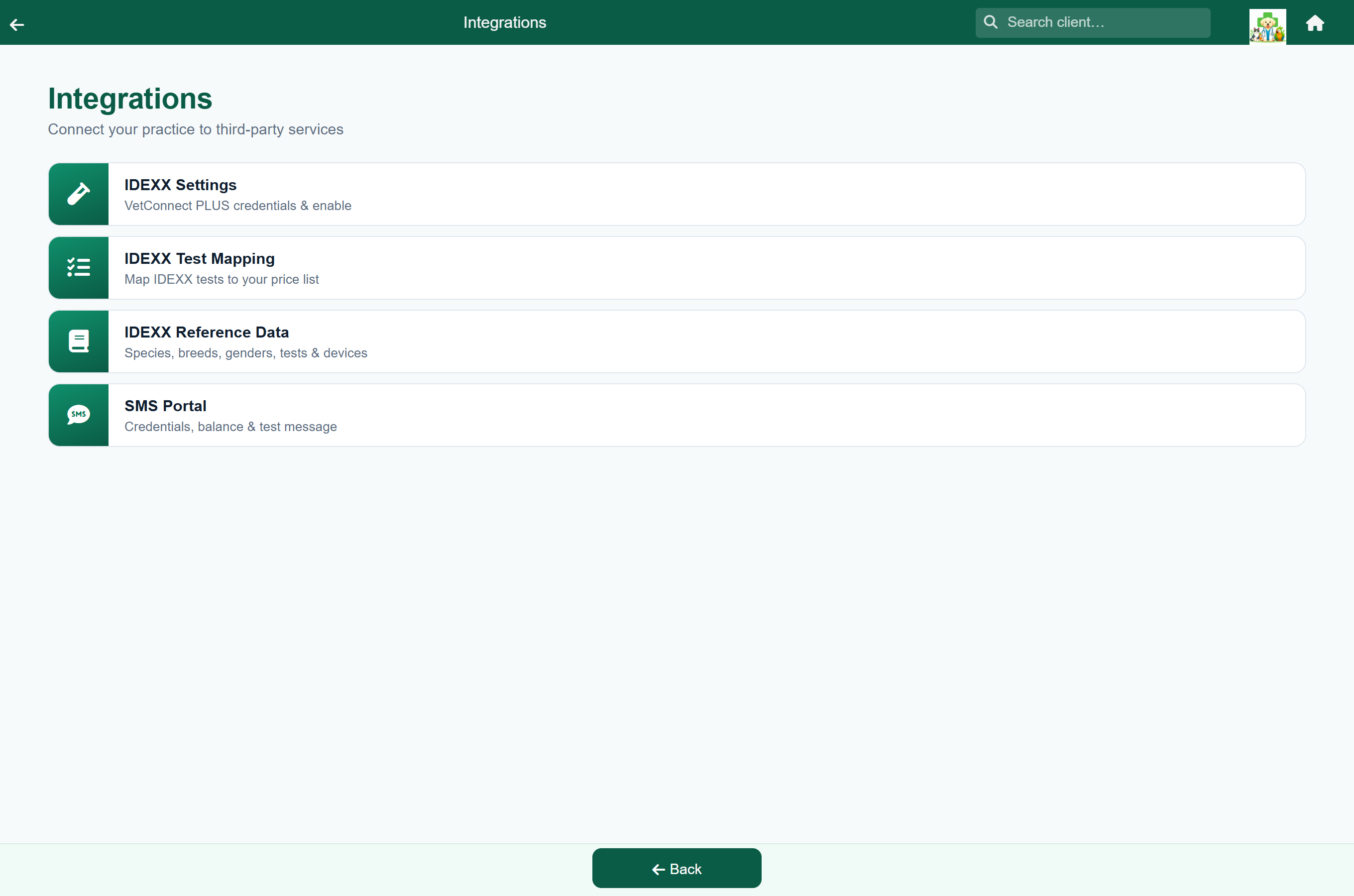
Connections to outside systems: IDEXX for laboratory work, and an SMS provider for text messages.
| Screen | What it is for |
|---|---|
| IDEXX Settings | Your IDEXX VetConnect PLUS credentials. Set up once. See IDEXX integration. |
| IDEXX Test Mapping | Links an IDEXX test to an item on your price list, so ordering the test charges the item. |
| IDEXX Reference Data | What IDEXX holds for your account: species, breeds, genders, tests and in-house analysers. Read-only. |
| SMS | Your text-messaging provider, its account details, your balance, and a test message. See SMS. |
SMS#
Home›Settings›Integrations›SMS
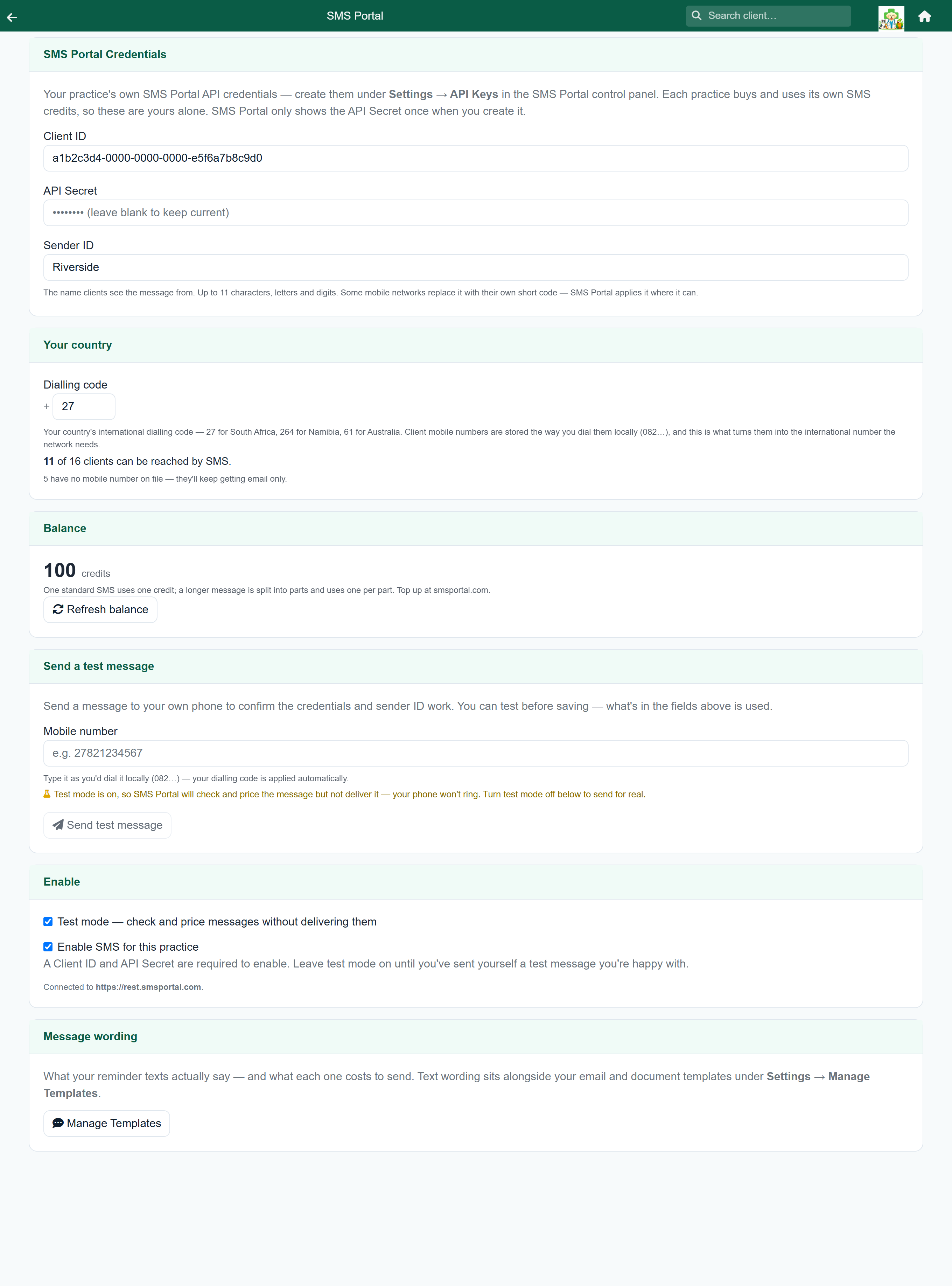
FastVet sends text messages through your own account with a provider: SMS Portal, a South African provider that sells prepaid credits, or Twilio, an international provider that charges each message to a money balance. You open and fund the account, and enter its details here.
Choose the Provider at the top of the screen. Only one is used at a time; the other's details are kept if you switch back.
Using SMS Portal:
- Sign up at smsportal.com and buy some credits.
- In the SMS Portal control panel, go to Settings → API Keys and create a key.
- Copy the Client ID and API Secret into this screen. SMS Portal shows the secret only once, so copy it straight away.
- Set a Sender ID: the name clients see the message from, up to 11 letters and digits.
- Set your dialling code; see below.
- Send yourself a test message, then tick Enable SMS for this practice.
Using Twilio:
- Sign up at twilio.com, add funds, and buy an SMS-capable phone number.
- Copy the Account SID (it starts with AC) from the top of the Twilio Console dashboard into this screen.
- In Twilio, go to Account → API keys & tokens → Create API key, choose type Main, and copy the key's SID (it starts with SK) and Secret here. Twilio shows the secret only once.
- Choose your From number from the list of numbers on your Twilio account, or press Type one manually instead. Clients' replies go to this number.
- Set your dialling code, send yourself a test message, then tick Enable SMS for this practice.
Your Balance is read from your provider: in credits for SMS Portal, or in money for Twilio. A standard text uses one credit or one message charge; a longer one is split into parts, each charged separately. Press Refresh balance to update it. Twilio trial accounts do not show a balance.
Test mode checks and prices messages without delivering them, so nothing is spent. Leave it on while you set up, and turn it off when you are ready to send for real.
Your dialling code, and who can be reached#
Client mobile numbers are stored the way you dial them locally, 082 123 4567. To send a text, FastVet converts them to the international form (27 82 123 4567) using your dialling code: 27 for South Africa, 264 for Namibia, 61 for Australia. No texts are sent until it is set.
It is filled in for you when your practice is created, from the country you gave when you signed up, so for a South African practice it already reads 27. Check it is right for you: it is also what the WhatsApp buttons use to dial a client straight from their record.
Once it is set, the screen shows how many clients can be reached, for example “1,842 of 2,332 clients can be reached by SMS”. The rest have no mobile number on file, or one that cannot be read, and still receive email only.
What has been sent, and what it cost#
Home›Text Messages
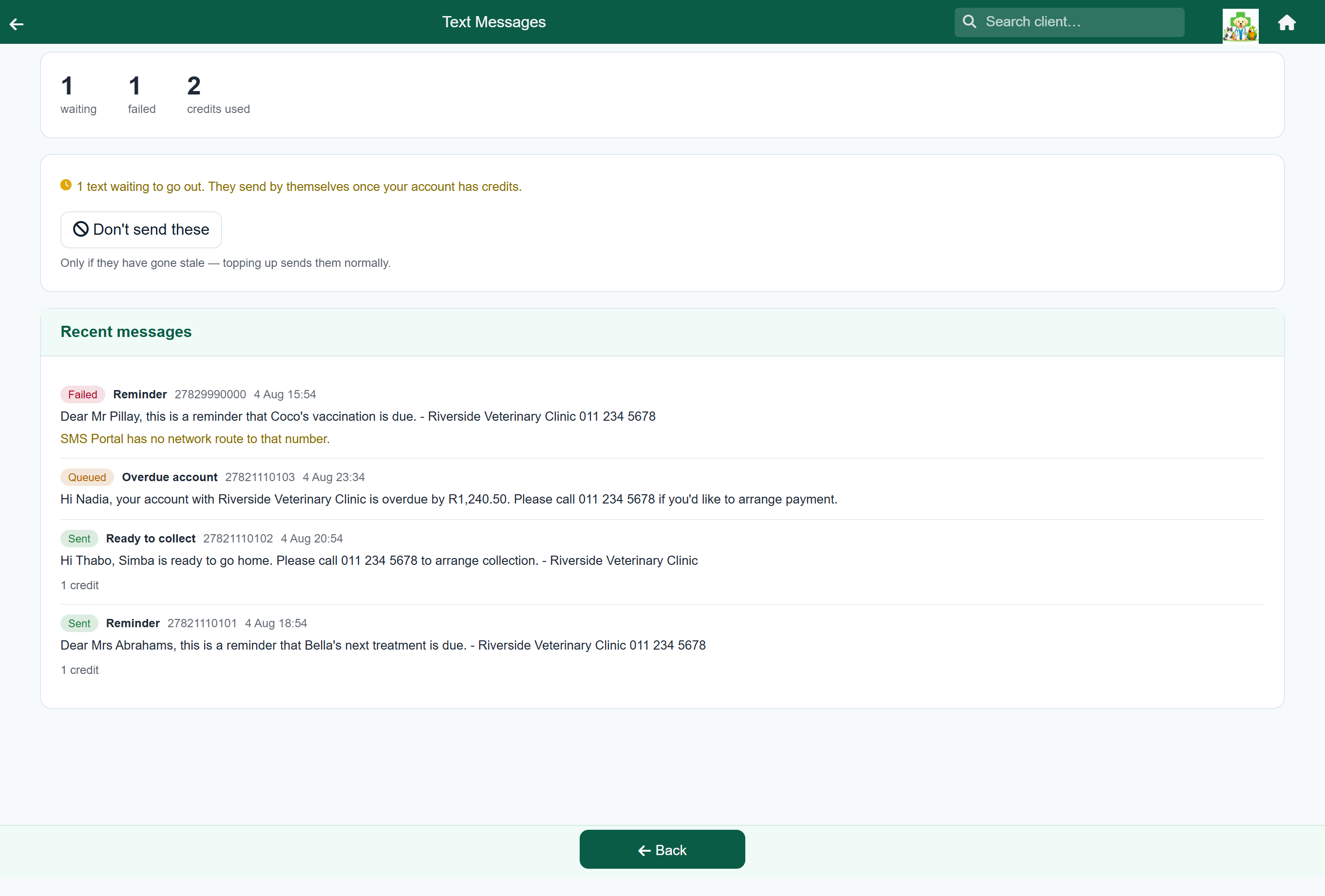
This screen lists every text your practice has sent, what it cost, and why any failed. Its tile appears on the home screen, next to Follow Up, only when something needs attention: you are low on credits, texts are waiting, or some have failed.
Once you have read the failures, press Mark as seen. The home-screen tile stops warning about them, for everyone in the practice. The failed texts stay in the list, marked Seen, and a text that fails later brings the tile back.
What the texts say, and what they cost#
Home›Settings›Manage Templates›Text Messages
The wording of every text your practice sends is on one screen, under Manage Templates. The Manage Templates button on the SMS settings screen opens the same list. Keep the supplied wording or write your own.
| Message | Sent when |
|---|---|
| Reminder | A reminder falls due. The vet's own reminder message is the text; the template adds your practice name and phone number after it. |
| Overdue account | A client has an overdue balance. |
| Appointment reminder | The day before an appointment. |
| Hospital update | Staff text an owner about an admitted patient. It is a starting point that staff finish. |
| Ready to collect | Staff tell an owner their animal can go home. Staff can edit it before sending. |
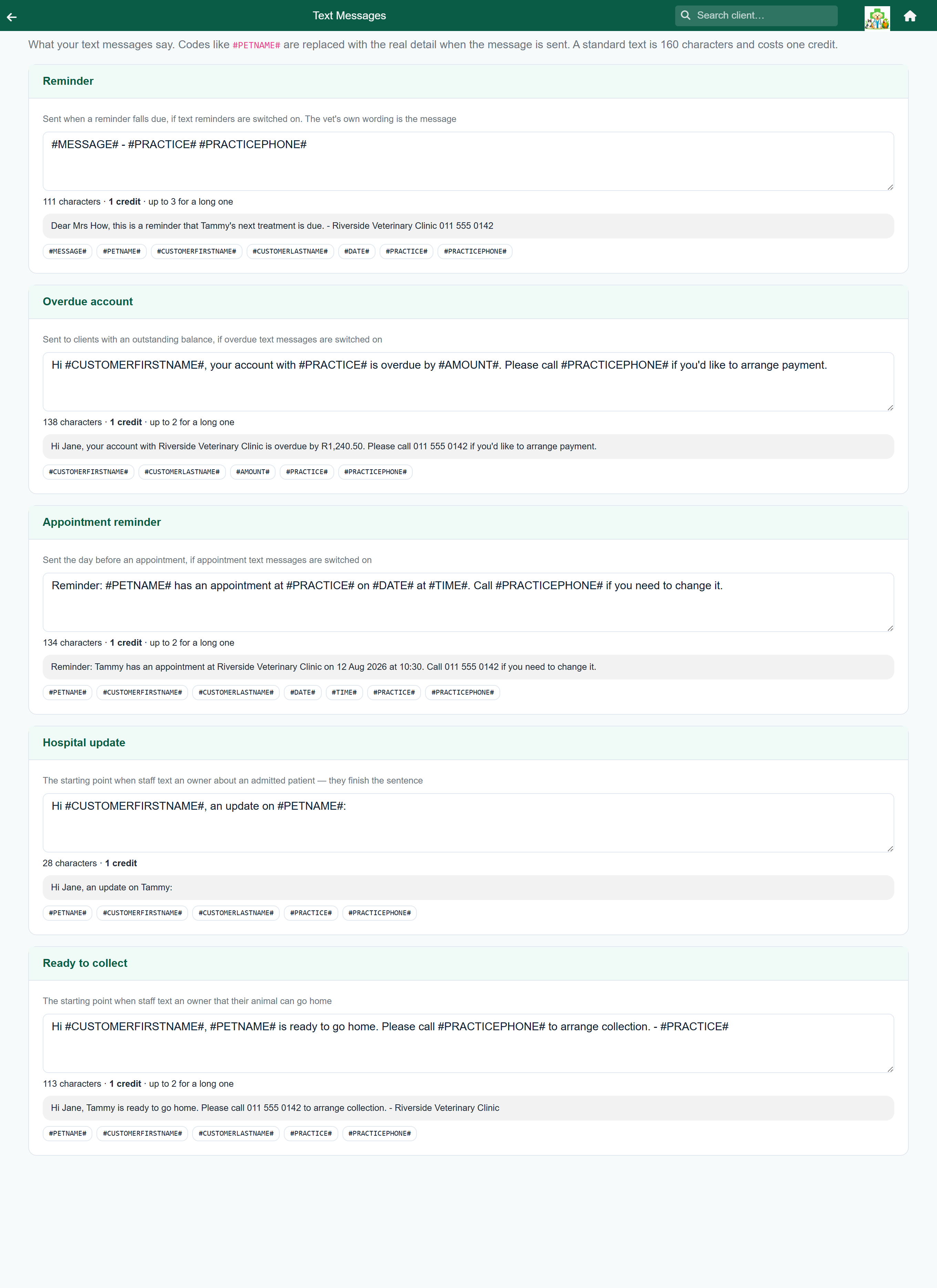
Codes such as #PETNAME# are replaced with the real details when the message is sent. Tap a code under the box to insert it. The shaded box below shows how the message will read.
- A standard text is 160 characters and uses one credit.
- A longer message is split into parts, each using a credit.
- The counter under the box shows the length and credits.
Once you have changed a message, a Default button appears among its codes. Press it to go back to the supplied wording.