
Help Centre › Reports
Accounting export
Hand your accountant one file a month instead of a pile of reports: every account, the VAT, and every cent taken, as journal entries they can import into QuickBooks, or as a CSV for any other package.
The accounting export turns a month into a single file your accountant can import: what you earned, split by category, the VAT on it, and every payment you took, as journal entries.
There is a one-off setup: your accountant tells you which of their account codes each kind of money belongs to. After that, running a month takes a few clicks.
First, get the account codes from your accountant#
Home›Reports›Accounting export›Chart of accounts
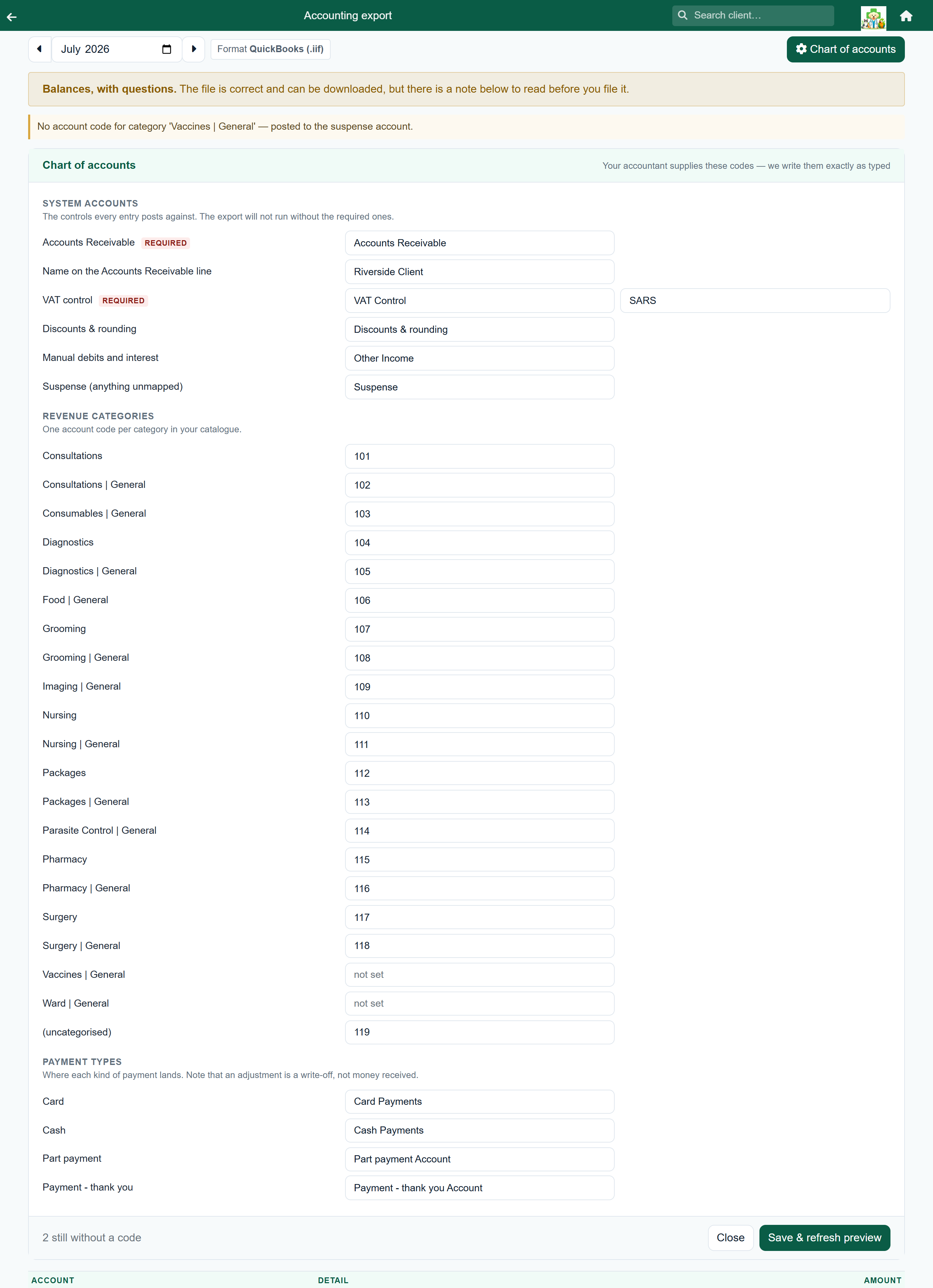
Your accountant sorts money into named accounts, a chart of accounts. Some use numbers like 114, others words like Vaccination Income. FastVet writes whatever you type, exactly as you type it.
Before your first export, send your accountant this question:
The Chart of accounts panel lists everything your practice actually uses, so you can work down it. A category you have never sold does not appear.
| Section | What it is | Example answer |
|---|---|---|
| System accounts | The control accounts every entry posts against. | Accounts Receivable, NEW VAT CONTROL |
| Revenue categories | One code per category in your price list. | Medication | General → 114 |
| Payment types | Where each kind of payment lands. | Card → Card Payments |
Accounts Receivable and the VAT control are marked required: the export will not run until both are filled in. Type the names exactly as your accountant gives them: QuickBooks creates a new account for any name it does not recognise, and other packages reject the line.
Press Save & refresh preview when you are done. Until both required accounts are filled in, the export screen shows a message and an Open the chart of accounts button instead of the figures.
Running a month#
Home›Reports›Accounting export
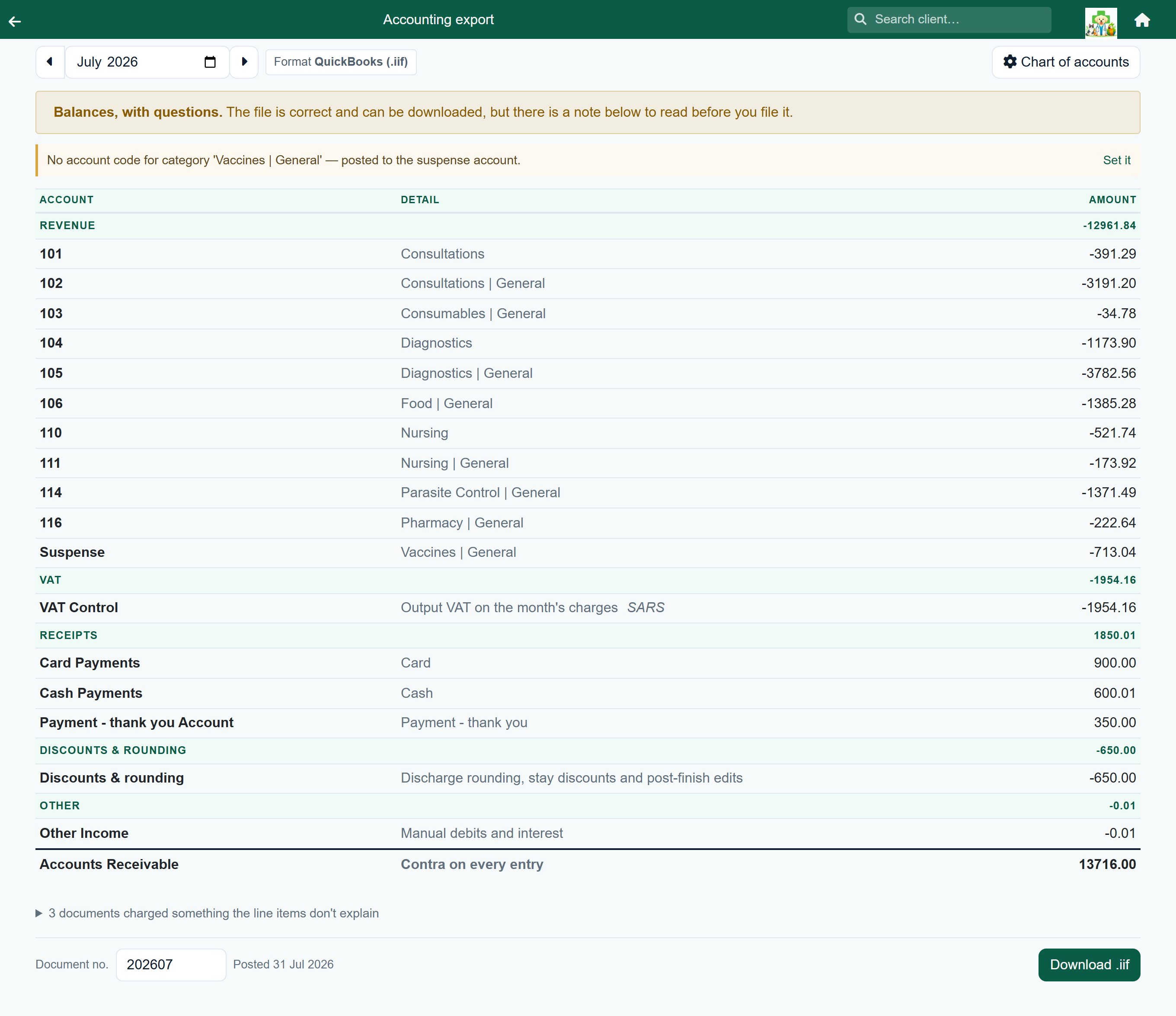
- Choose the month with the arrows, or pick it from the month box.
- If a message appears at the top, deal with it (see below).
- Under Format, choose QuickBooks (.iif) or CSV (.csv). The screen remembers your choice for next month.
- Press Download .iif (or Download .csv) and send the file to your accountant.
A month with nothing to resolve shows no message, just the figures. Otherwise you see one of these:
| It says | It means | Do |
|---|---|---|
| Balances, with questions. | The file can be downloaded, but there are notes to read first: usually money with no account code, which went to the suspense account. | Read the notes. Set any missing codes, or download it and ask your accountant to reallocate. |
| Does not balance. | The journal is out by the amount shown. | The download is switched off. See When it does not balance. |
What the notes mean#
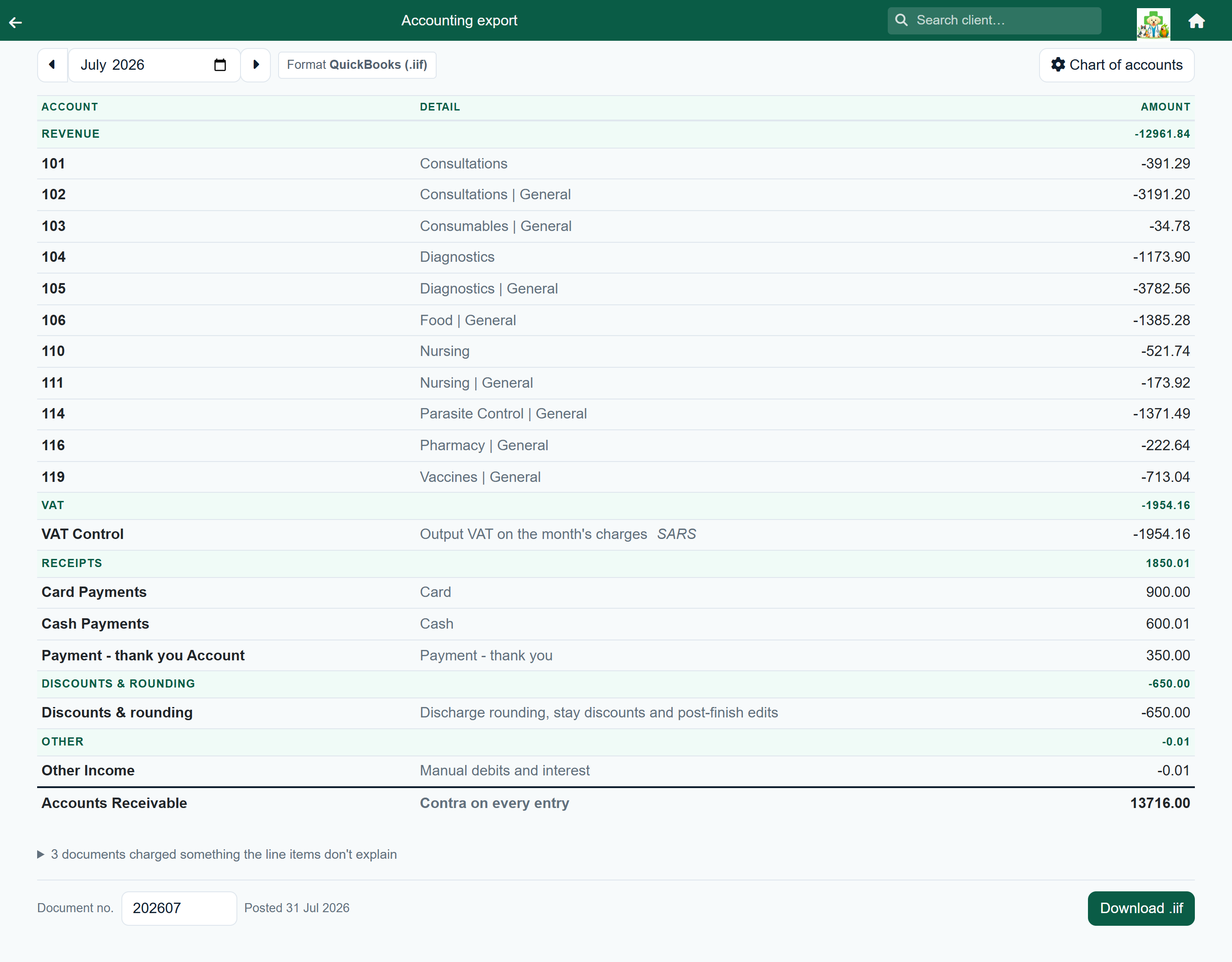
Anything the export could not resolve appears as a note above the table, with the amount involved.
| Note | What happened | What to do |
|---|---|---|
| No account code for category… (or payment type…) | Money was charged in a category, or paid by a payment type, that has no account code. It is in the suspense account. | Press Set it, fill in the code, and press Save & refresh preview. |
| A ledger entry … has no type recorded | An old entry that does not say what kind of charge it was. It is in the suspense account. | Usually nothing. Mention it to your accountant if the amount is large. |
| Some entries use the legacy ‘D’ dispense type | Old dispense records. They are counted as consultations. | Nothing. |
Below the table you may see a collapsed line: “N documents charged something the line items don't explain”. Open it to see visits and stays whose total differs from their items by 10c or more, usually a discount on the whole bill, or a visit edited after it was finished.
When it does not balance#
The download stays switched off, because a journal that does not balance cannot be imported cleanly.
Contact us with the month and the “out by” figure and we will trace it.
Who the debtors are#
The journal posts Accounts Receivable as one total, so it does not say who owes the money. Download debtors (.csv) gives the client-by-client breakdown for the same month.
| Column | What it holds |
|---|---|
| Account Code | The debtor code on the client's record, under Account. Use the codes your accountant uses. |
| Client, Type, VAT Number | The client’s name, whether they are a person or a business, and their VAT number if you hold one. |
| Opening, Charges, Receipts, Closing | What they owed at the start of the month, what you charged, what they paid, and what they owe now. |
| Current / 30 / 60 / 90+ | How old the closing balance is, the same ageing as the account book and the client’s statement. |
About the file itself#
| Format | IIF, the QuickBooks import format, or CSV for Sage, Pastel, Xero or a spreadsheet. Both files hold exactly the same journal. |
| Named | Ledger-2026-07.iif or Ledger-2026-07.csv |
| Contains | One general journal entry per account, all dated the last day of the month. |
| Debtors list | A separate Debtors-2026-07.csv; see Who the debtors are. It opens in Excel and most accounting packages. |
| Document number | Defaults to the year and month (202607). Change it in the Document no. box if your accountant numbers journals differently. |
The CSV has one row per posting, with these columns:
| Column | What it holds |
|---|---|
| Date | The last day of the month, as 2026-07-31. |
| Reference | The document number. |
| Account, Name | The account code from your chart of accounts, and the name set against it, if any. |
| Description | What the line is, for example Revenue: Medication. |
| Debit, Credit | The amount in one column or the other, always positive. |
| Amount | The same amount with a sign: debits positive, credits negative. The column adds up to zero. |